> For the complete documentation index, see [llms.txt](https://docs.inspiredflight.com/inspired-documentation/llms.txt). Markdown versions of documentation pages are available by appending `.md` to page URLs; this page is available as [Markdown](https://docs.inspiredflight.com/inspired-documentation/products/additional-software/mission-planner/downloading-flight-logs-with-mission-planner.md).

# Downloading Flight Logs With Mission Planner

## Downloading Logs

{% hint style="info" %} <mark style="color:orange;">**NOTE**</mark><mark style="color:orange;">:</mark> **The drone does not need to be powered on for this sequence.**
{% endhint %}

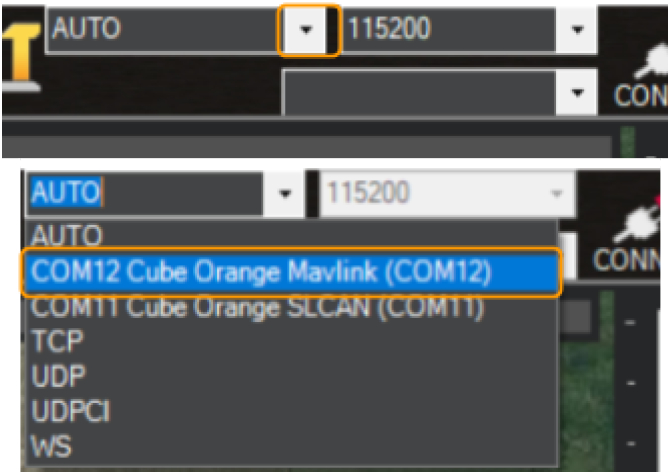
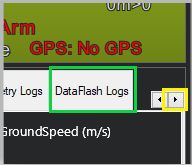
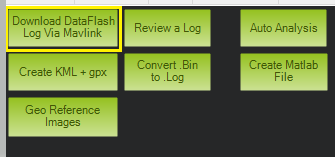
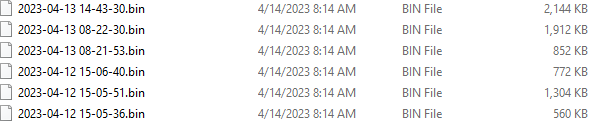
<table><thead><tr><th width="95.33333333333331" align="center">STEP </th><th>ACTION</th><th></th></tr></thead><tbody><tr><td align="center">1</td><td>Connect your drone to a laptop via a <mark style="color:orange;"><strong>USB-A to USB-C cable</strong></mark>, with the USB-C end in the drone.</td><td><strong>Note: You should hear a connection tone from the Cube flight controller indicating that it is connected to your computer.</strong></td></tr><tr><td align="center">2</td><td>Open Mission Planner and select the <em><strong>MavLink</strong></em> option from dropdown menu in the upper right corner.</td><td><img src="/files/i9OJybeAmAfcpU4JR4M6" alt=""></td></tr><tr><td align="center">3</td><td>Click "<strong>Connect</strong>."</td><td><img src="/files/iOaM8TP0N8klytH6Gq4q" alt=""><br><br><mark style="color:orange;"><strong>NOTE:</strong></mark><strong>  As long as you have heard a connection tone, if a MavLink option isn't available you can select Auto.  If you don't hear a connection tone, try disconnecting and reconnecting the USB cable, or a different USB cable.</strong>  </td></tr><tr><td align="center">4</td><td>With the connection established, on the left side of the screen, use the navigation arrows and navigate to the to the right and click the "<strong>Data Flash Logs</strong>" button. </td><td><img src="/files/hPXuVHSjNwJ2jBenzovz" alt=""></td></tr><tr><td align="center">5</td><td>Select "<strong>Download Data Flash Log via Mavlink</strong>".</td><td><img src="/files/kqhvwc3s7rWf9TF5eNc4" alt=""></td></tr><tr><td align="center">6</td><td>In the next screen, select the logs you wish to download, and click "<strong>Download Selected Logs</strong>". You can also opt to download all the logs on the flight controller by clicking "<strong>Download All Logs</strong>".</td><td><img src="/files/ncULhbNK8BbhzpJy1swq" alt=""></td></tr><tr><td align="center">7</td><td>Navigate to the file location for your collected logs. The default save location in Windows is typically Documents > Mission Planner > logs > HEXAROTOR > 1. </td><td></td></tr></tbody></table>

## Reviewing Logs

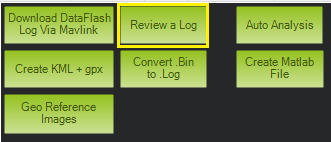
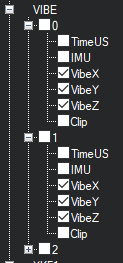
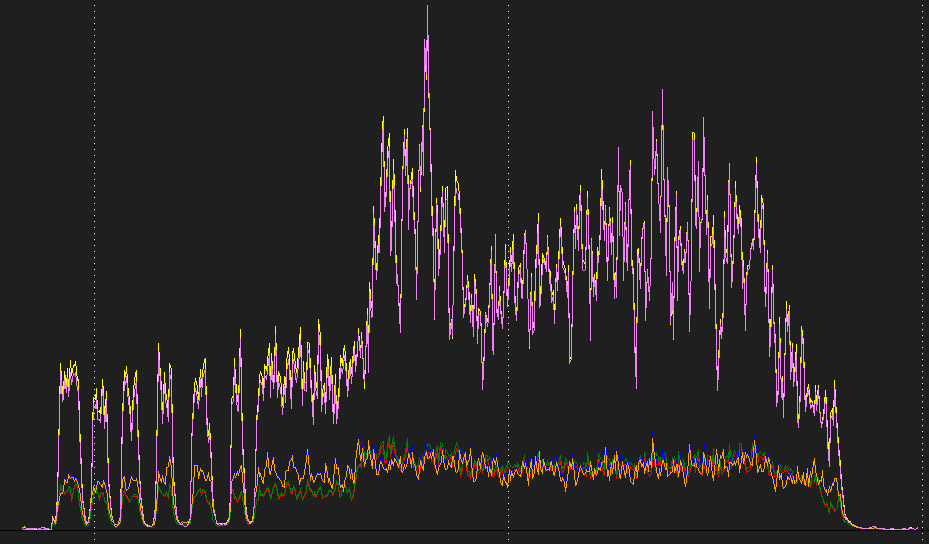
<table><thead><tr><th width="96.33333333333331" align="center">STEP</th><th>ACTION</th><th></th></tr></thead><tbody><tr><td align="center">1</td><td>In Mission Planner, as before, use the navigation arrows and navigate to the to the right and click the "<strong>Data Flash Logs</strong>" button. </td><td></td></tr><tr><td align="center">2</td><td>Select "<strong>Review a Log</strong>". </td><td><img src="/files/rl6FSCmeRs56NXW0j4BZ" alt=""></td></tr><tr><td align="center">3</td><td>Navigate to the file location for your collected logs. The default save location in Windows is typically: Documents > Mission Planner > logs > HEXAROTOR > 1.</td><td><img src="/files/RnIEnqhuqK5z4DLxIU2K" alt=""></td></tr><tr><td align="center">4</td><td>Select the appropriate <strong>.bin file</strong> to review.  Only one file can be reviewed at a time.  <br><br><em>A graph window will open where you can view the various data associated with a specific flight by expanding the menus on the right of the screen, and selecting values to display.</em> </td><td><img src="/files/XxdeS2LkUYUPGT0ygPma" alt=""></td></tr><tr><td align="center">5</td><td>The displayed values might look something like the graphical representation below.</td><td><img src="/files/nmmcNtLCRmp1rAvGNiYK" alt=""></td></tr></tbody></table>

{% hint style="info" %}
**Note:** To view other log files, repeat steps 2 - 4. &#x20;
{% endhint %}