# Updating IGC Over-the-Air (OTA)

{% hint style="warning" %}
Updating from IGC 1.2 and earlier will require a manual update. For this process, please see [Installing IGC Manually](/inspired-documentation/products/inspired-suite/inspired-ground-control-igc/how-to-update-install-igc/updating-installing-igc-manually.md) page.
{% endhint %}

{% hint style="danger" %}
**Aircraft Firmware** 4.5.6 is required when updating from IGC 1.2 and earlier to IGC version 1.3 and later. To update your IF800 firmware [click here](https://docs.inspiredflight.com/inspired-documentation/products/aircraft/if800-tomcat/updating-if800-aircraft-firmware), to update your IF1200 firmware [click here](https://docs.inspiredflight.com/inspired-documentation/products/aircraft/if1200/about-the-if1200/system-updates/updating-if1200-aircraft-firmware).&#x20;
{% endhint %}

### Downloading IGC Update from IGC Settings (GS-ONE & Herelink)

1. Ensure your Ground Control Station is connected to the internet via Wifi.
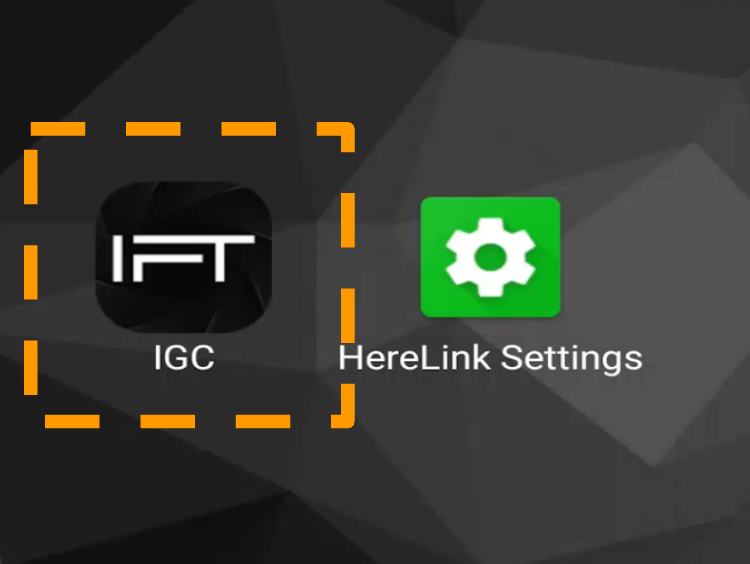
2. Open IGC by tapping on the IFT icon

<figure><img src="/files/rLDDtOFy4IOjo5kkb7yw" alt="" width="188"><figcaption></figcaption></figure>

3. Login with your Inspired Suite Account
   1. [How to get your Inspired Suite Account](/inspired-documentation/products/inspired-suite/elevate/getting-started.md)
4. Tap on the IFT logo and navigate to Application Settings

<figure><img src="/files/V1tDvPk16BQ6W2sDG0dC" alt="" width="287"><figcaption></figcaption></figure>

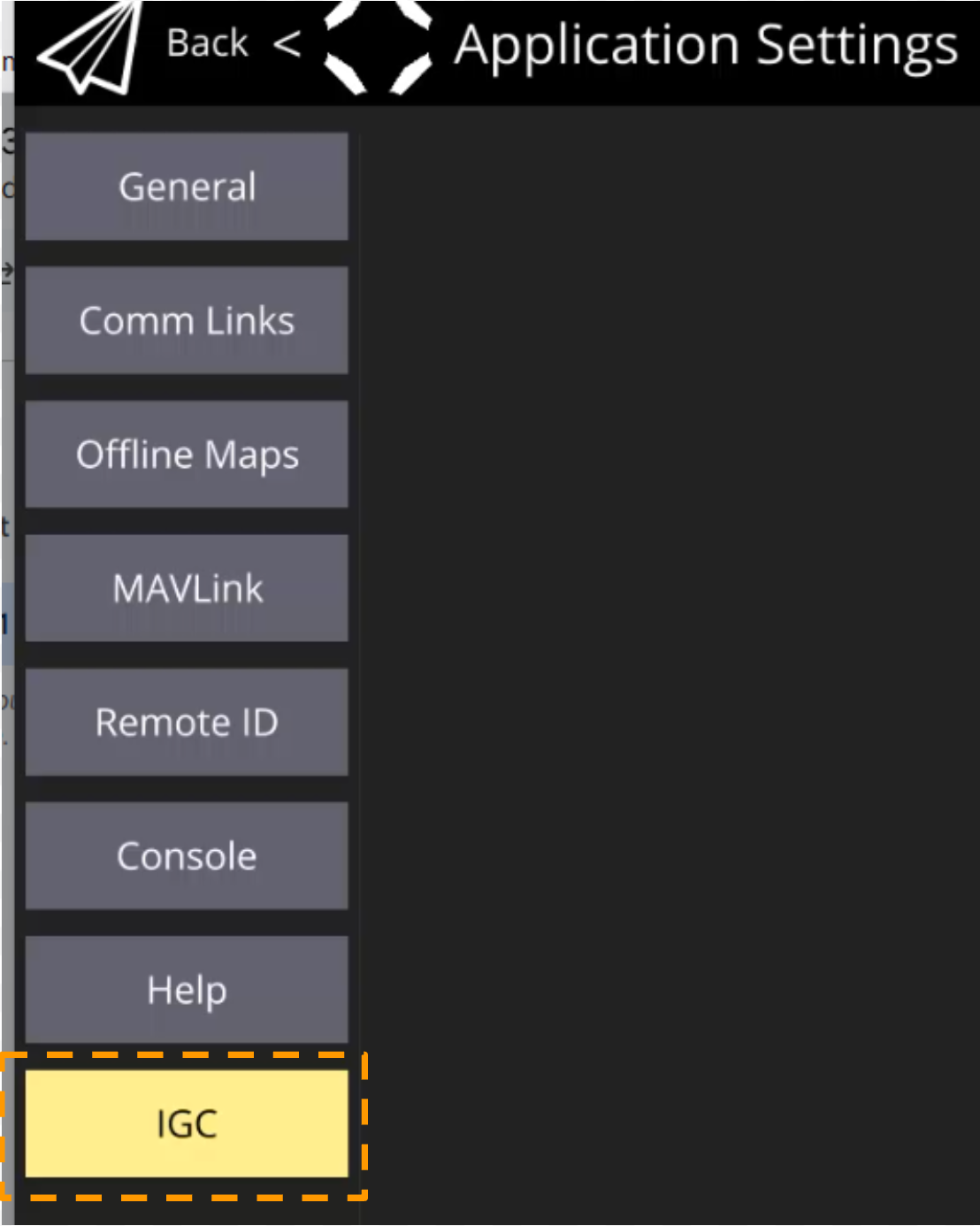
5. Navigate to ‘IGC’ Tab

<figure><img src="/files/qiY0BIRlqYXrj87pNNa2" alt="" width="375"><figcaption></figcaption></figure>

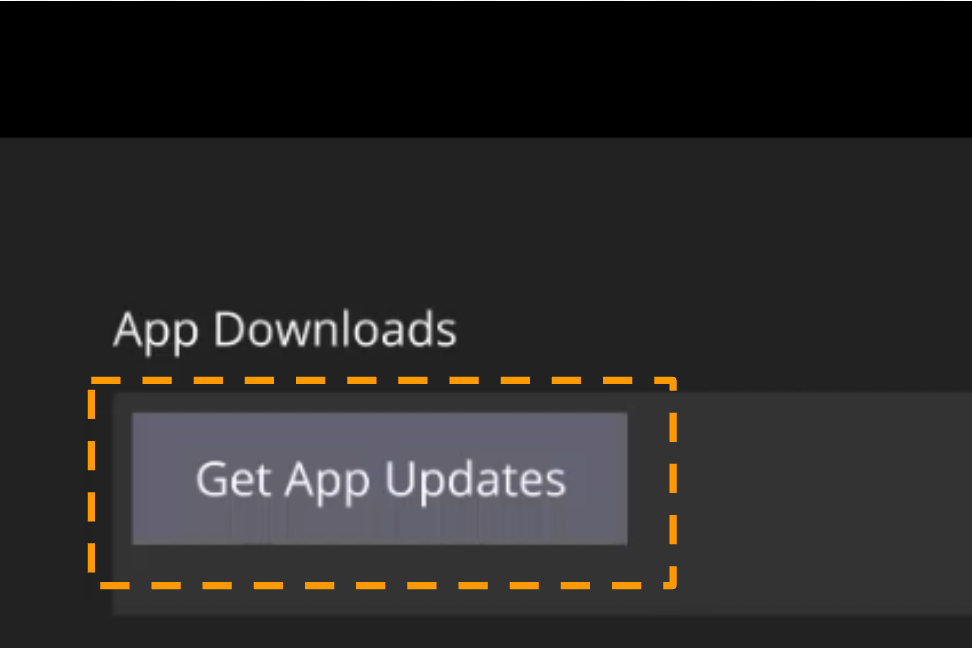
6. Under the App Downloads section, Tap on **Get App Updates** to see available updates

<figure><img src="/files/oW8LvXd80TgxtwH7KY8t" alt="" width="375"><figcaption></figcaption></figure>

7. Tap the **Download** button to download the latest version.

<figure><img src="/files/mWNWbzxr4Ou1iFzrji7b" alt=""><figcaption></figcaption></figure>

8. If using a **Herelink controller**, select the install button, and complete installation. If using GS-ONE, continue to the next section.&#x20;

{% hint style="info" %}
If using a Herelink controller, be sure to confirm Herelink Settings app settings are set correctly. See the [**Confirm Herelink Settings Are Set Correctly**](https://app.gitbook.com/o/bot4gJBu4gcJqLvIok9b/s/hMePZ0UIa6VYv9VbYu4u/~/edit/~/changes/498/products/inspired-suite/inspired-ground-control-igc/how-to-update-install-igc/updating-igc-over-the-air-ota) section below for details.
{% endhint %}

### Installing Downloaded IGC Update (GS-ONE)

Once IGC is downloaded onto the controller, follow the following process to install

<figure><img src="/files/aNsNI988jOn3hAjExDs8" alt=""><figcaption></figcaption></figure>

<table><thead><tr><th>Step</th><th width="191">Procedure</th><th>Image</th></tr></thead><tbody><tr><td>1</td><td>Swipe up from the bottom of the screen, and press the square icon to open the app home screen.</td><td><img src="/files/jtMFwbDzkkGJnNYnd20H" alt="" data-size="original"></td></tr><tr><td>2</td><td>Once on the black home screen, swipe up again from the bottom of the screen to open the full app list.</td><td><img src="/files/Fg7hOl0hUYWDl3ZwjHkt" alt="" data-size="original"></td></tr><tr><td>3</td><td>Once the full app list is visible, select "Files".</td><td><img src="/files/gRGOq0cxPFkVDpIqRf19" alt="" data-size="original"></td></tr><tr><td>4</td><td>Once Files app is open, scroll down on the left side of the screen and select "Lahaina" (the Android operating system folder).</td><td><img src="/files/E55WKs8h4YqeZmB9pU4C" alt="" data-size="original"></td></tr><tr><td>5</td><td>Scroll down and select the "IGC Daily" folder.</td><td><img src="/files/icr6BxIxs9O3UCG5Yu1q" alt="" data-size="original"></td></tr><tr><td>6</td><td>Scroll down and select the "Updates" folder.</td><td><img src="/files/17qKMDmpoSqPH0tNzS37" alt="" data-size="original"></td></tr><tr><td>7</td><td>Select the APK file within the folder. (Ex: igc-v1.5.1.apk)</td><td><img src="/files/zTEGO35q22HnKSvlEs7P" alt="" data-size="original"></td></tr><tr><td>8</td><td>When prompted, select "Update".</td><td><img src="/files/MZ6UsRpjVk7OFvNKFabS" alt="" data-size="original"></td></tr><tr><td>9</td><td>When finished installing, select "Open" to open the newly installed IGC build.</td><td><img src="/files/mvLm6hgEEGeOncH8ONwb" alt="" data-size="original"></td></tr><tr><td>10</td><td>The process is now complete, and IGC is up-to-date.</td><td><img src="/files/xL50b5Qa2hc4dK3L9O6t" alt="" data-size="original"></td></tr></tbody></table>

## Confirm Joystick Settings are Set Correctly (GS-ONE & Herelink):

To check commonly changed Settings:

1. Tap on the **IGC** Icon in the upper left
2. Tap on the **Application Settings** button
3. Tap on the **General** Menu item
4. Scroll down to **Units**&#x20;
   1. Verify that they are set correctly (Metric/Imperial)
5. Go back to the **flight screen**
6. Tap on the **IGC** icon in the upper left
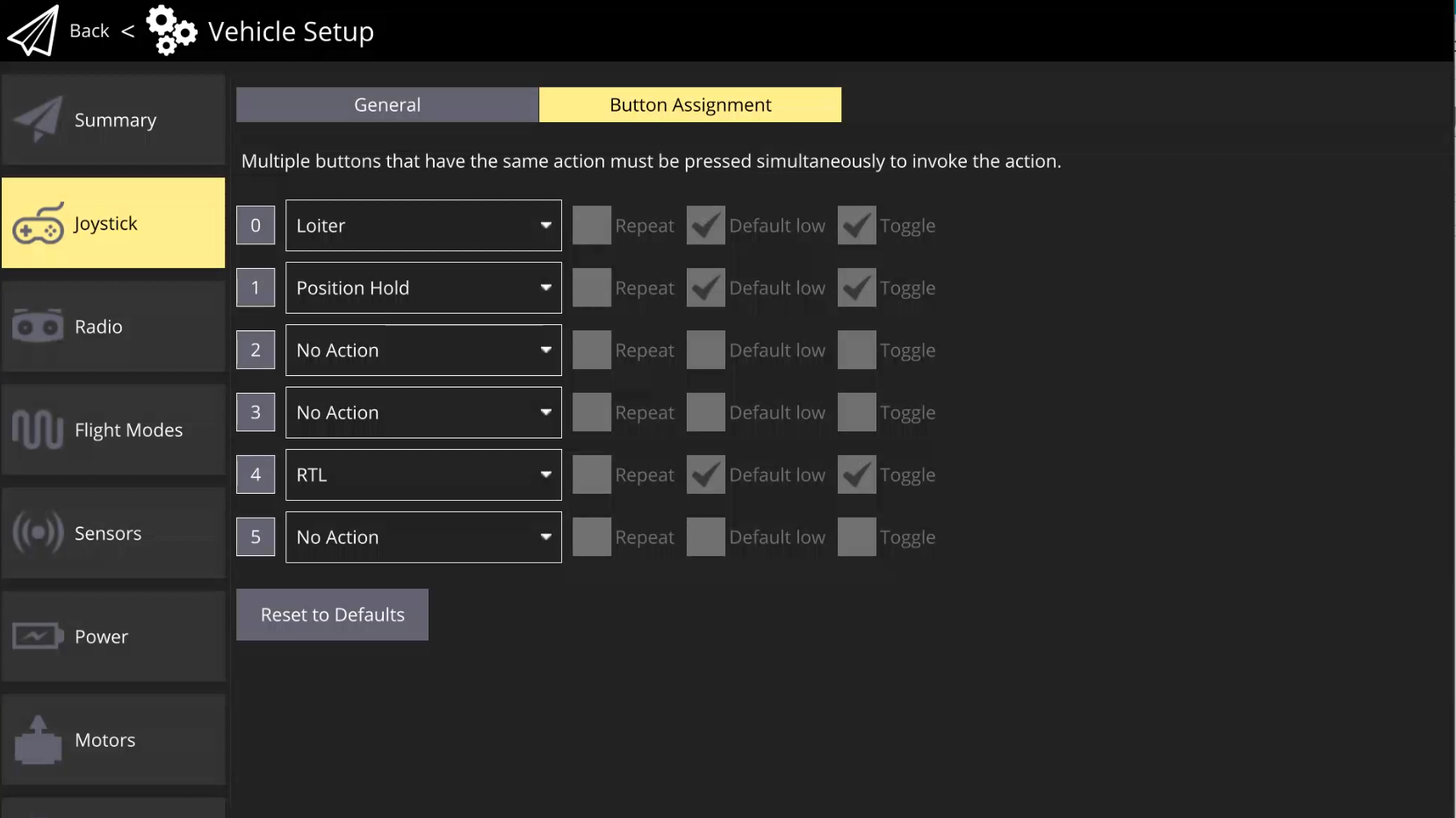
7. Tap on the **Vehicle Setup** button
8. Scroll to **Button Mapping**&#x20;

<figure><img src="/files/yBHWzsT0cG7WPEodkvVw" alt=""><figcaption></figcaption></figure>

{% hint style="success" %}
Note: If you are installing a version of IGC that includes pilot authentication for the first time (if coming from 1.1 or earlier), you may need to setup your organization in the Inspired Suite. [Please have your fleet manager register your organization on Elevate](/inspired-documentation/products/inspired-suite/elevate/getting-started.md). From there they can issues pilot logins to team members, see the health of their aircraft, and more. Fleet Managers and Pilots alike can use their Inspired Suite Login on Elevate, the PilotGO app, and IGC. [Learn more about the Inspired Suite](https://www.inspiredflight.com/inspired-suite.php).
{% endhint %}

## Confirm Herelink Settings are Set Correctly

{% hint style="warning" %}
This only applies to customers with IF800-Herelink or IF1200-Herelink vehicle configurations coming from IGC 1.3 or earlier.
{% endhint %}

| Ensure the aircraft is turned off and the Herelink is turned on.                                                                                                                       |
| -------------------------------------------------------------------------------------------------------------------------------------------------------------------------------------- |
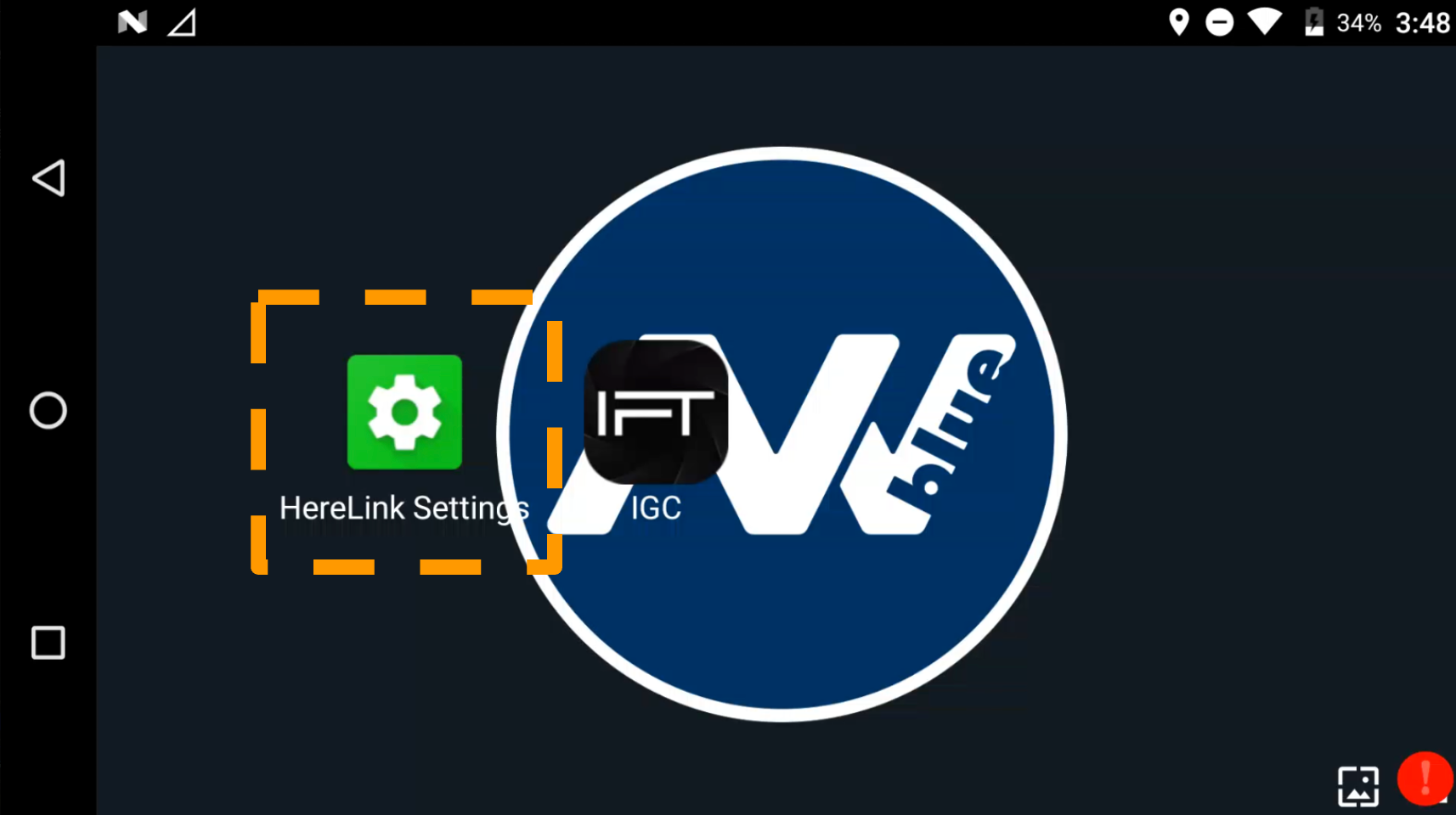
| <p>Navigate to Herelink Settings.</p><div><figure><img src="/files/pB5DJL46kJ7TcOKUwiQI" alt=""><figcaption></figcaption></figure></div>                                               |
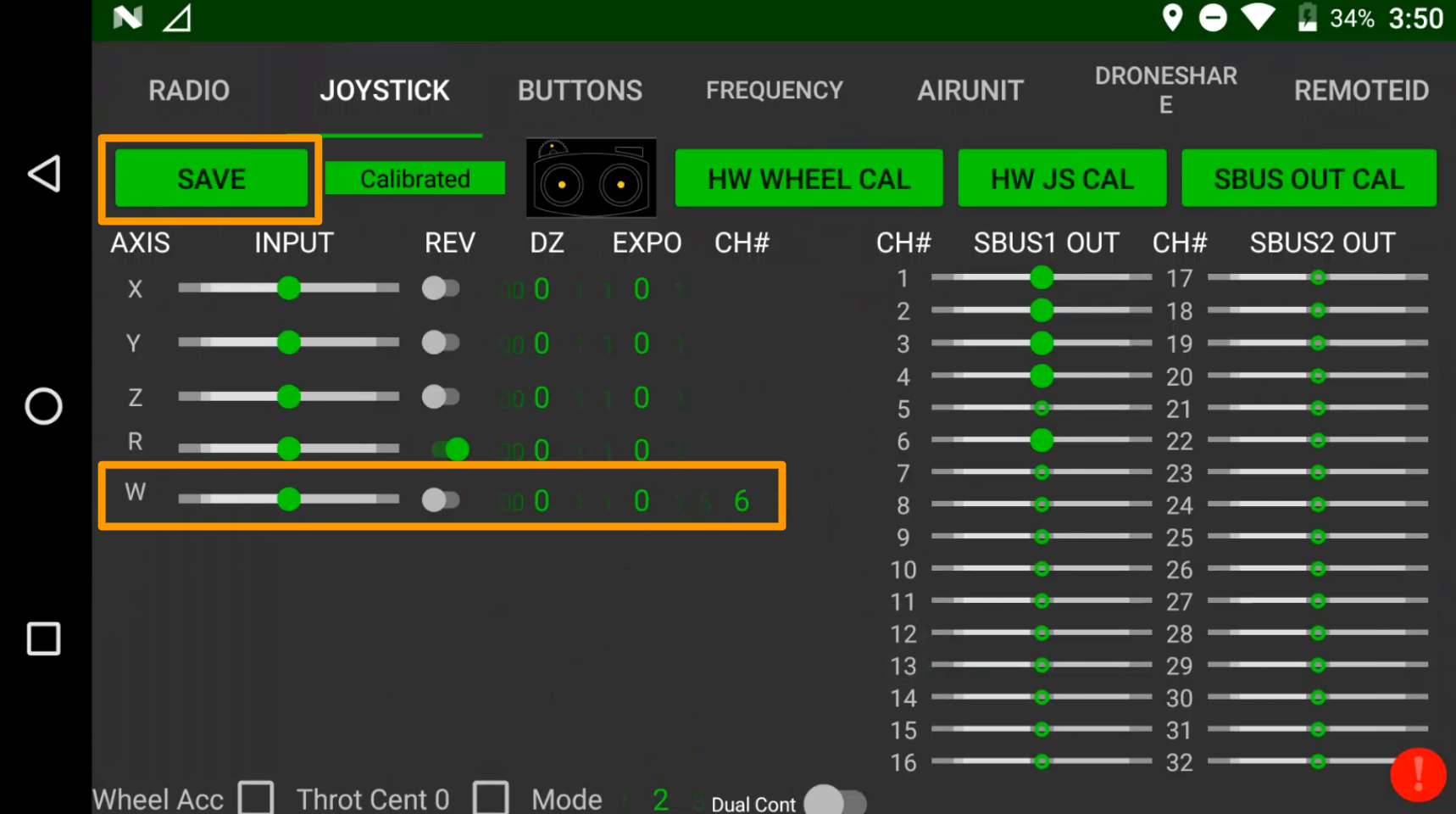
| <p>In Joystick Tab, set CH# to 6 for the w-axis (gimbal). Select “Save”. </p><div><figure><img src="/files/KSHU9FQoKArttyYZd2SR" alt=""><figcaption></figcaption></figure></div>       |
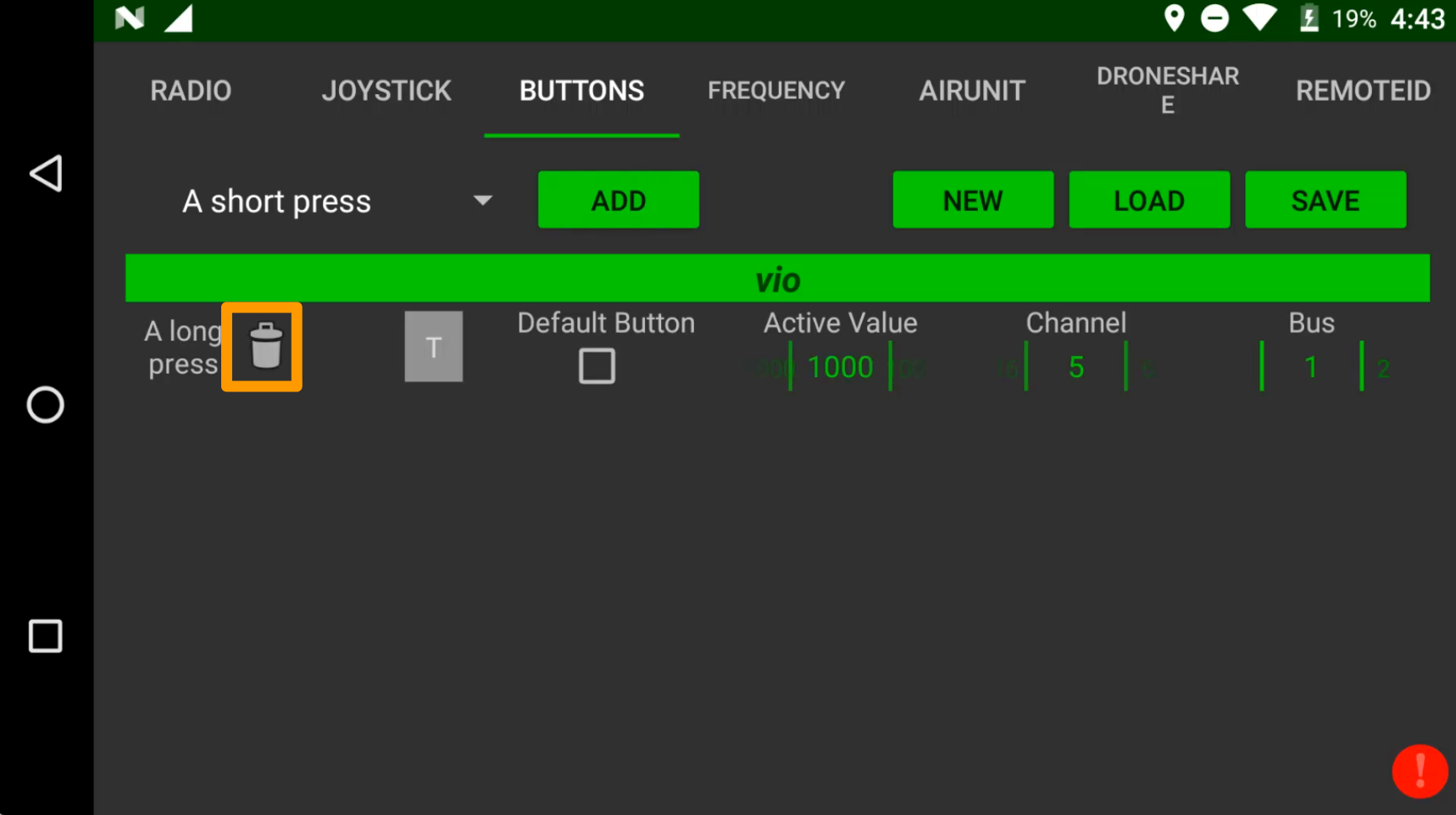
| <p>(Optionally) In Buttons Tab, remove saved buttons, then select "Save" again.</p><div><figure><img src="/files/Cm7b3zz7FIHOSDTFtgwe" alt=""><figcaption></figcaption></figure></div> |


---

# Agent Instructions: Querying This Documentation

If you need additional information that is not directly available in this page, you can query the documentation dynamically by asking a question.

Perform an HTTP GET request on the current page URL with the `ask` query parameter:

```
GET https://docs.inspiredflight.com/inspired-documentation/products/inspired-suite/inspired-ground-control-igc/how-to-update-install-igc/updating-igc-over-the-air-ota.md?ask=<question>
```

The question should be specific, self-contained, and written in natural language.
The response will contain a direct answer to the question and relevant excerpts and sources from the documentation.

Use this mechanism when the answer is not explicitly present in the current page, you need clarification or additional context, or you want to retrieve related documentation sections.