> For the complete documentation index, see [llms.txt](https://docs.inspiredflight.com/inspired-documentation/llms.txt). Markdown versions of documentation pages are available by appending `.md` to page URLs; this page is available as [Markdown](https://docs.inspiredflight.com/inspired-documentation/products/inspired-suite/inspired-ground-control-igc/how-to-update-install-igc/updating-installing-igc-manually.md).
# Updating / Installing IGC Manually
{% hint style="info" %}
If updating to IGC 1.6, the **Sony LR1** and **Gremsy Vio** require firmware updates for new features to work properly. See [Updating Vio Camera / Gimbal Firmware](/inspired-documentation/products/payloads/gremsy-vio/updating-vio-camera-gimbal-firmware.md) and [Updating LR1 Mavcam Firmware](/inspired-documentation/products/payloads/sony-lr1/updating-lr1-mavcam-firmware.md) pages accordingly.
{% endhint %}
This procedure details how to manually install the Inspired Ground Control (IGC) app on your Ground Control Station (GCS). This procedure is necessary if IGC is not already installed on your controller or if IGC is 1.1 or earlier.
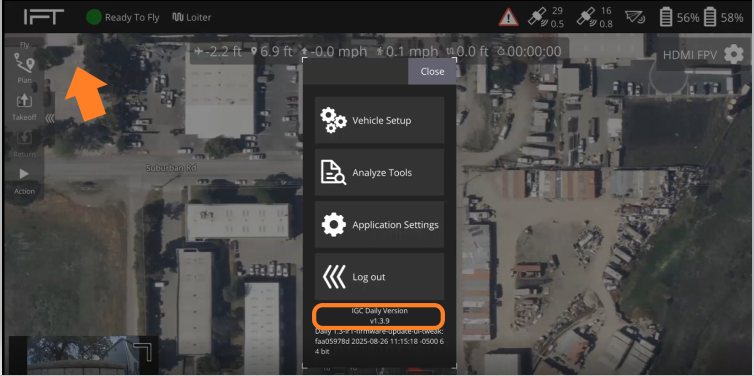
The screenshot below shows where to find the IGC version number. On the screen popup appears when you select the IFT icon in the top left corner.
If your version of IGC is not 1.2.0 or later, please follow the steps below to update to the latest version of IGC. If the version is 1.2.0 or later, see the [Updating IGC from Version 1.2. and Later](/inspired-documentation/products/inspired-suite/inspired-ground-control-igc/how-to-update-install-igc/updating-igc-over-the-air-ota.md) section.
{% hint style="danger" %}
**Aircraft Firmware** 4.5.6 is required when updating from IGC 1.2 and earlier to IGC version 1.3 and later. To update your IF800 firmware [click here](https://docs.inspiredflight.com/inspired-documentation/products/aircraft/if800-tomcat/updating-if800-aircraft-firmware), to update your IF1200 firmware [click here](https://docs.inspiredflight.com/inspired-documentation/products/aircraft/if1200/about-the-if1200/system-updates/updating-if1200-aircraft-firmware).
{% endhint %}
{% embed url="" %}
This video demonstrates how to update IGC from v1.1 or earlier to v1.2 or later.
{% endembed %}
## How to Install IGC
Follow these steps to install the IGC app on your GCS.
{% hint style="info" %}
**Note:** The following process shown is using the Herelink controller, but the process will be very silimar if using a GS-ONE. The APK can be placed on a flash drive and plugged into the GS-ONE. Opening the Files app on the GS-ONE will allow user to navigate to flash drive location and install the APK file.
{% endhint %}
#### 1. Download the IGC App
* Open this link on your computer: [IGC 1.6.13 Download](https://ift-app-builds.s3.us-west-1.amazonaws.com/IGC/igc-v1.6.1395783.apk).
* Download the IGC APK file to your computer.
#### 2. Connect Your GCS to Your Computer
* Connect your GCS to your computer using a USB cable.
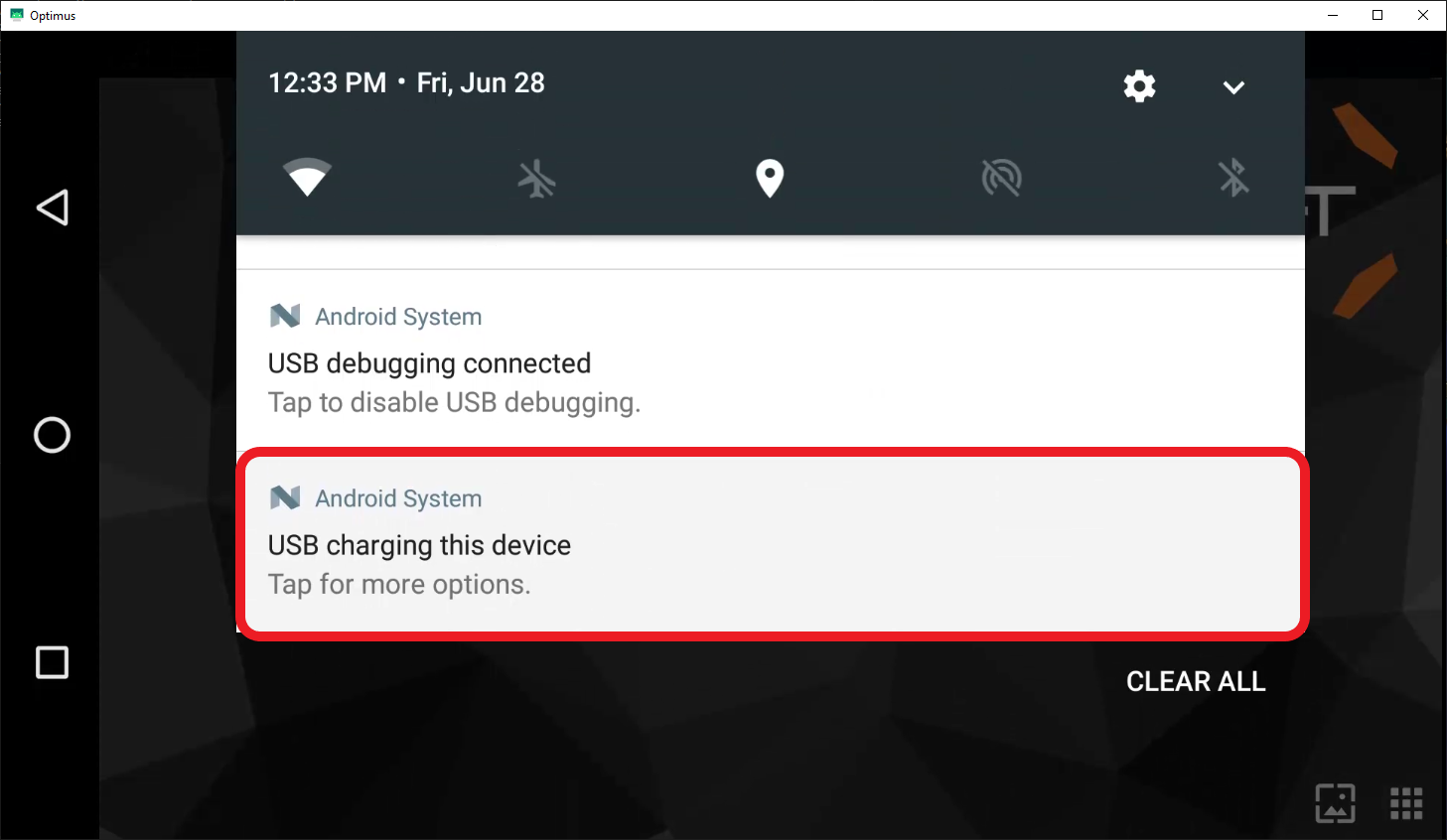
* On your GCS, swipe down the top notification bar.
* Tap to open the “Android System” menu.
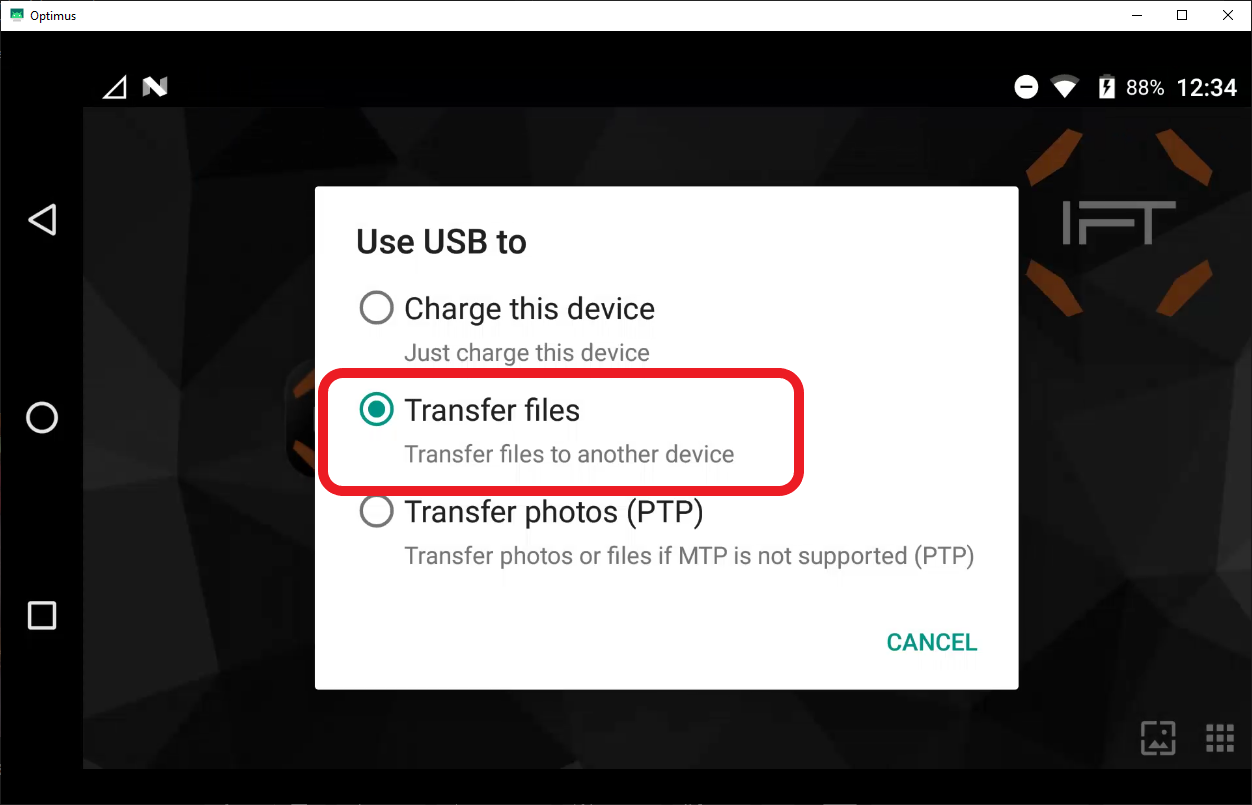
* Tap “Charging this device” and select “Transfer files” from the dropdown menu.
#### 3. Transfer the IGC File to Your GCS
* Open the “Optimus” drive on your computer. It should appear on your desktop or under "Devices & drives" in your file explorer, similar to a USB drive.
* In the Optimus folder, drag and drop the downloaded IGC file into the “Downloads” folder.
* Once the transfer is complete, you can unplug the GCS from your computer.
#### 4. Install the IGC App on Your GCS
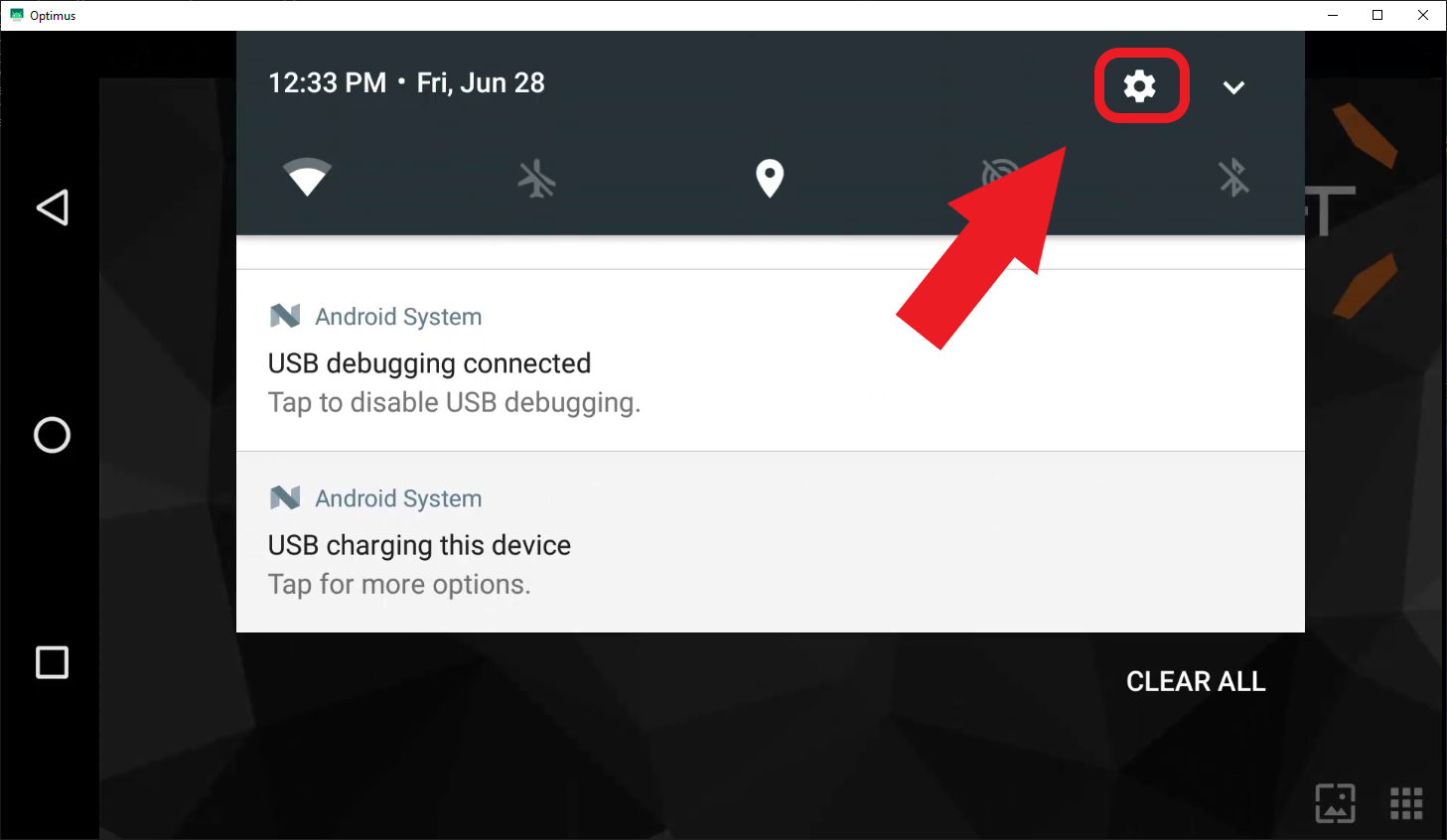
* On your GCS, swipe down the top notification bar and tap on the Gear Icon in the top right corner.
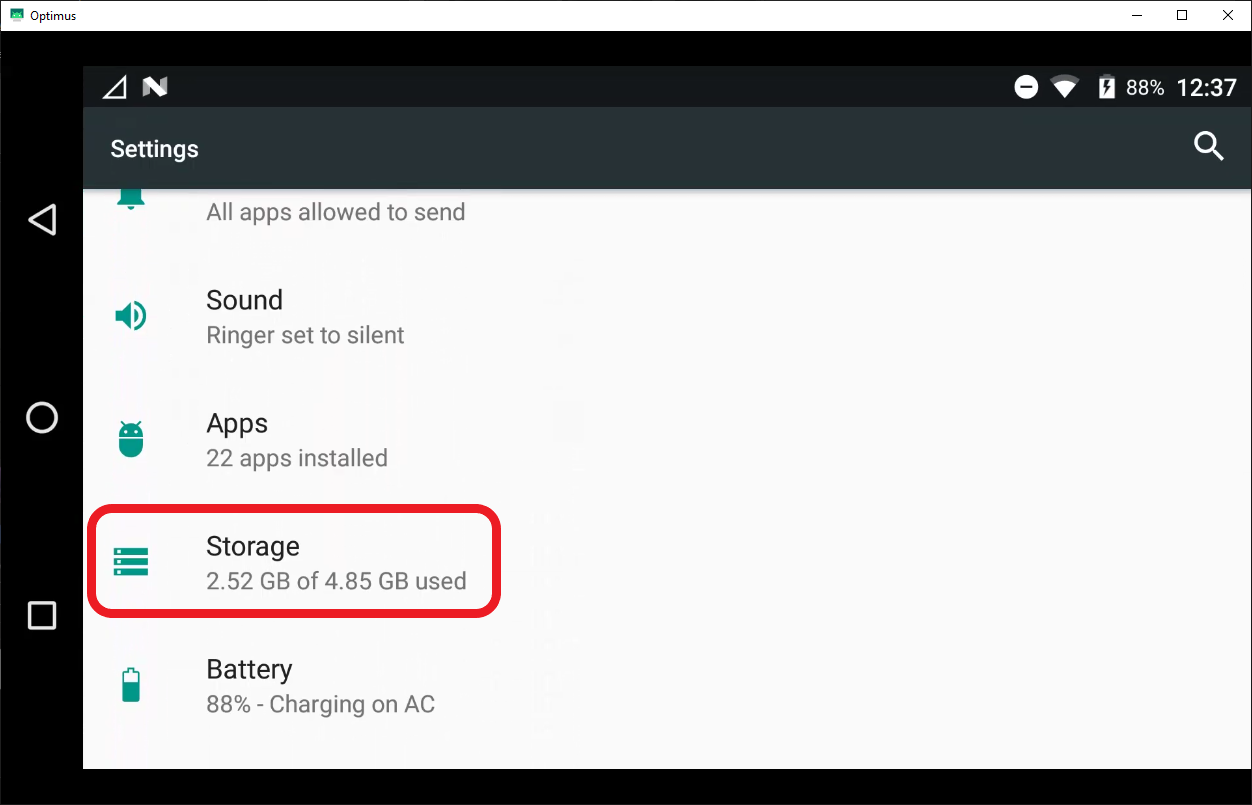
* Scroll down and tap on “Storage.”
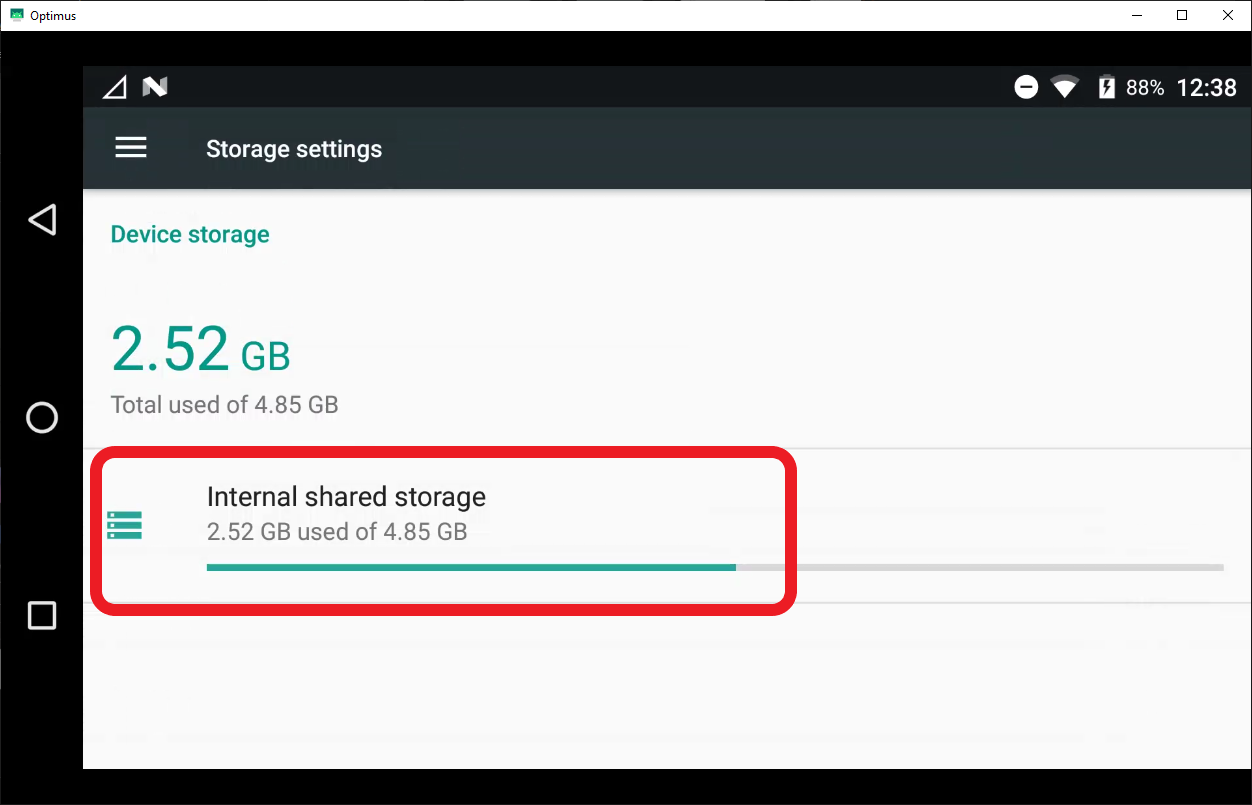
* Tap on “Internal Shared Storage.”
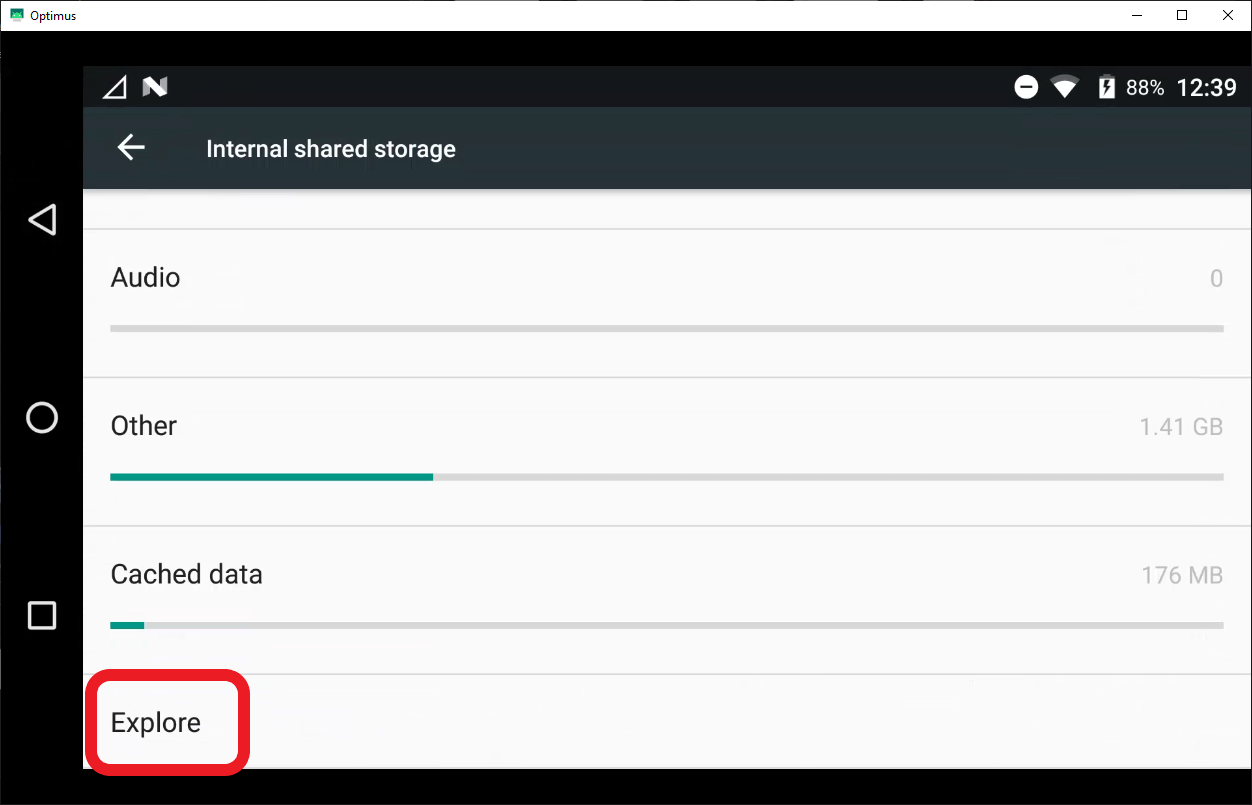
* Scroll down and tap on “Explore.”
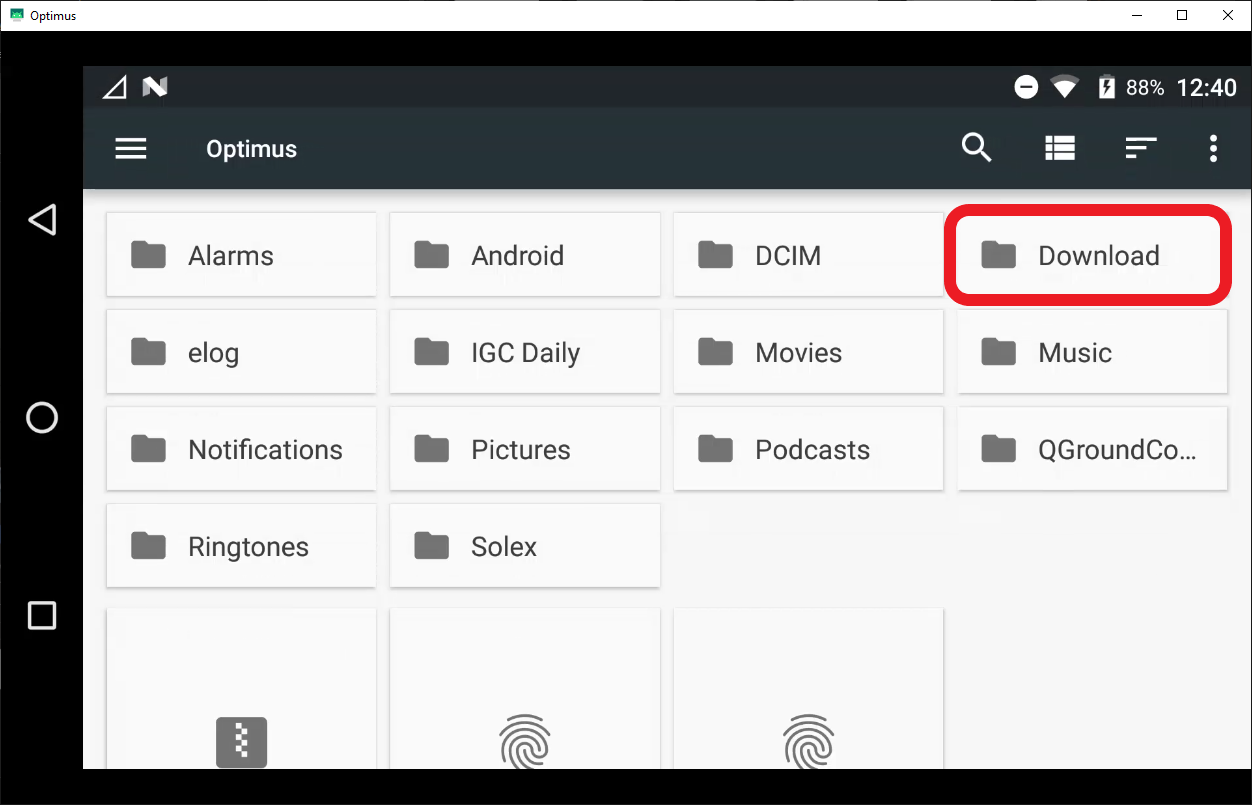
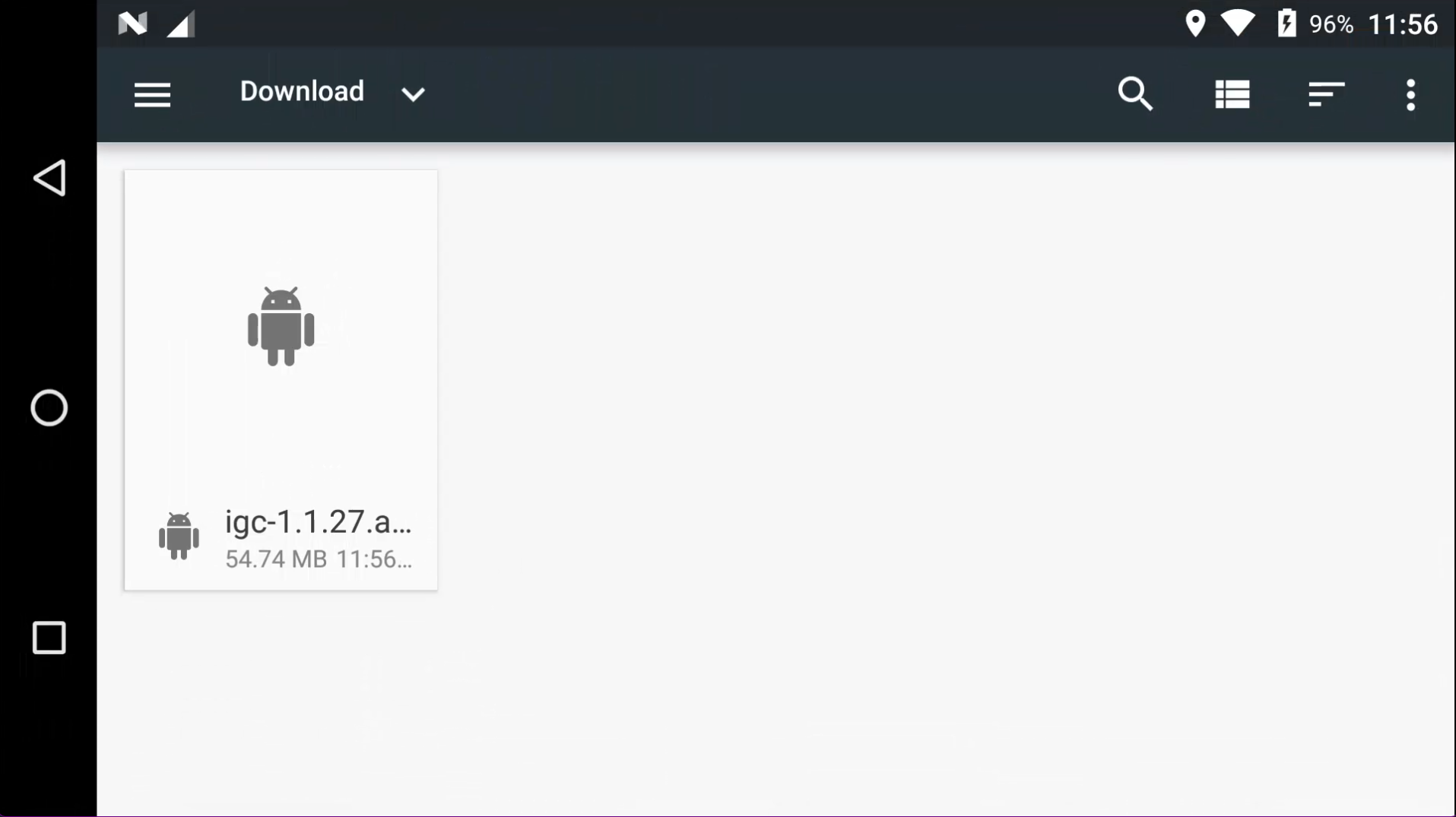
* Tap on the “Downloads” folder.
* Tap on the latest IGC file.
* Note: IGC versions are numbered in increasing order, so version 1.1.0 would be older than version 1.1.1
Note that the file name will match the version that you are installing. Select the most up to date version. (eg. 1.1.28, 1.2.1, or 2.1.1 would all be newer versions than 1.1.27)
* Follow the on-screen prompts to install the IGC app.
* The IGC app is now installed on your GCS.
{% hint style="danger" %}
Aircraft Firmware updates are required when updating to IGC version 1.3 and later.
{% endhint %}
## Confirm IGC Settings Are Set Correctly:
Updating your IGC software may change any custom settings your team has setup on your aircraft. We recommend documenting your settings prior to updating and then verifying all custom settings are correct after the update is complete.
To check commonly changed Settings:
1. Tap on the **IGC** Icon in the upper left
2. Tap on the **Application Settings** button
3. Tap on the **General** Menu item
4. Scroll down to **Units**
1. Verify that they are set correctly (Metric/Imperial)
5. Go back to the **flight screen**
6. Tap on the **IGC** icon in the upper left
7. Tap on the **Vehicle Setup** button
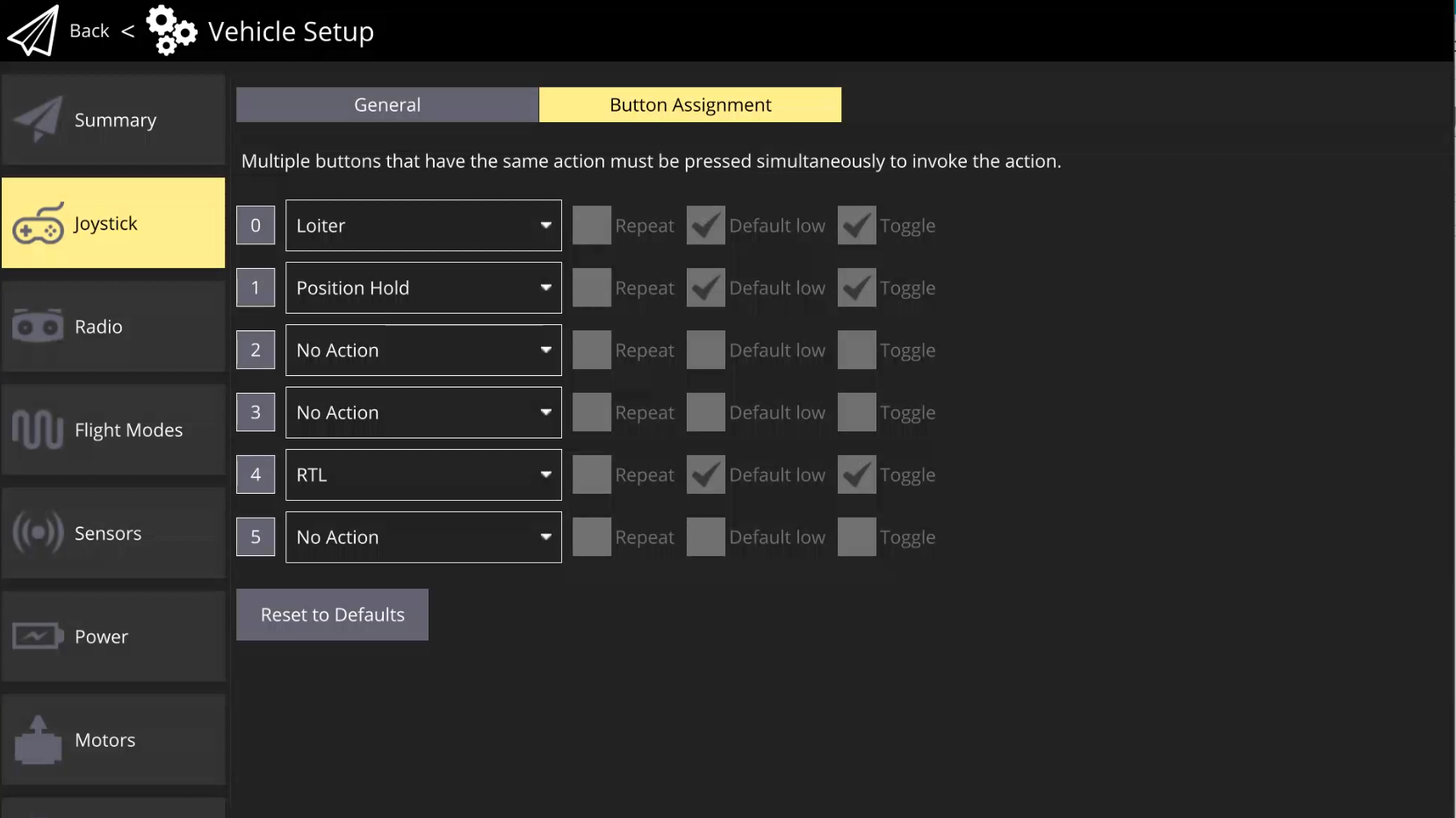
8. Scroll to **Button Mapping**
{% hint style="info" %} During installation, button mapping is set to a default state as shown below. If previously reconfigured, be sure to adjust as needed.
{% endhint %}
{% hint style="success" %}
Note: If you are installing a version of IGC that includes pilot authentication for the first time, you may need to setup your organization in the Inspired Suite. [Please have your fleet manager register your organization on Elevate](/inspired-documentation/products/inspired-suite/elevate/getting-started.md). From there they can issues pilot logins to team members, see the health of their aircraft, and more. Fleet Managers and Pilots alike can use their Inspired Suite Login on Elevate, the PilotGO app, and IGC. [Learn more about the Inspired Suite](https://www.inspiredflight.com/inspired-suite.php).
{% endhint %}
## Confirm Herelink Settings are Set Correctly
{% hint style="warning" %}
This only applies to customers with IF800-Herelink or IF1200-Herelink vehicle configurations coming from IGC 1.3 or earlier.
{% endhint %}
| Ensure the aircraft is turned off and the Herelink is turned on. |
| ----------------------------------------------------------------------------------------------------------------------------------------------------------------------------------------------------------------------------------------------------------------------------------------------------------------------------------------------------------------------------------------- |
|
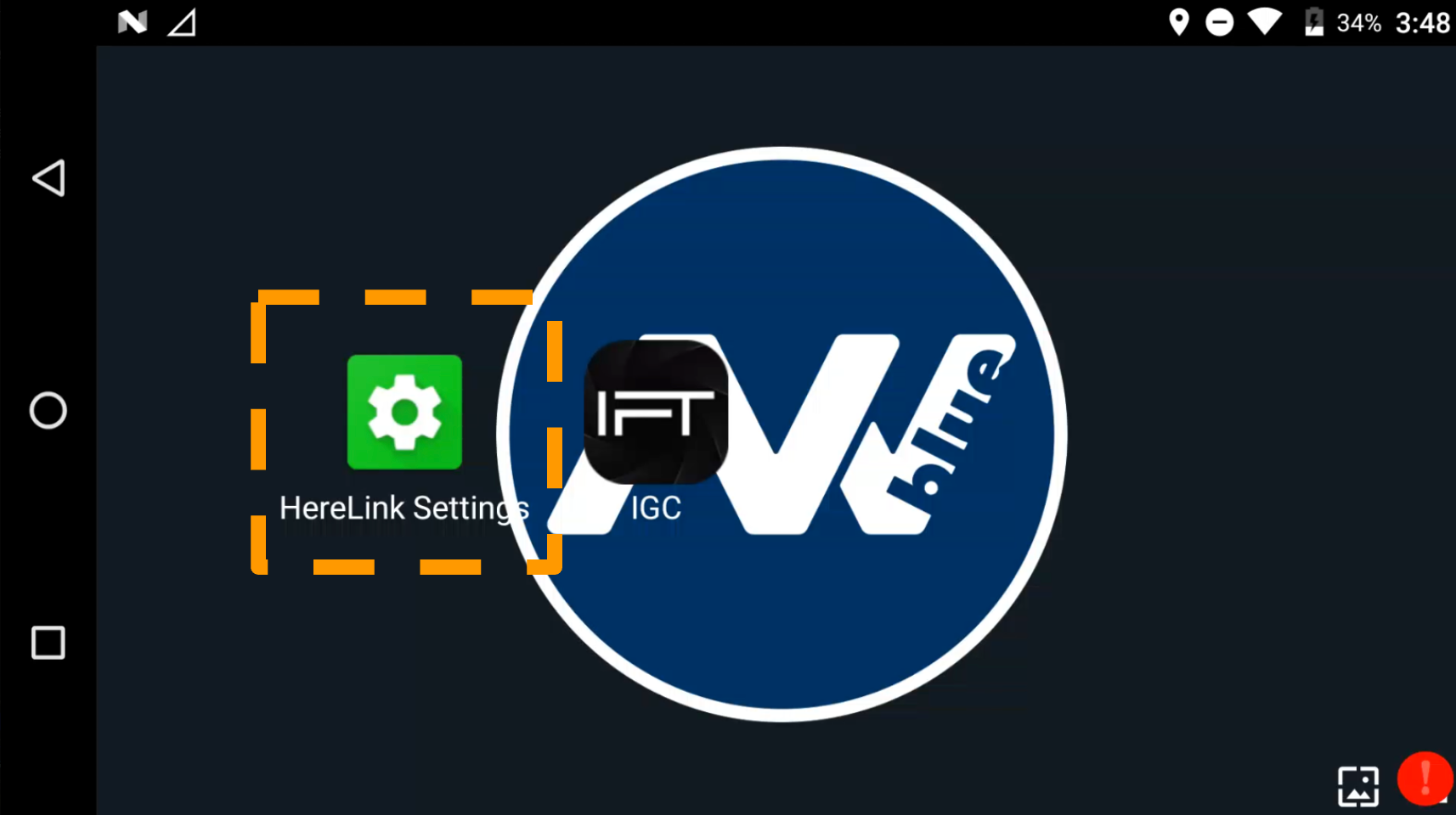
Navigate to Herelink Settings.
|
|
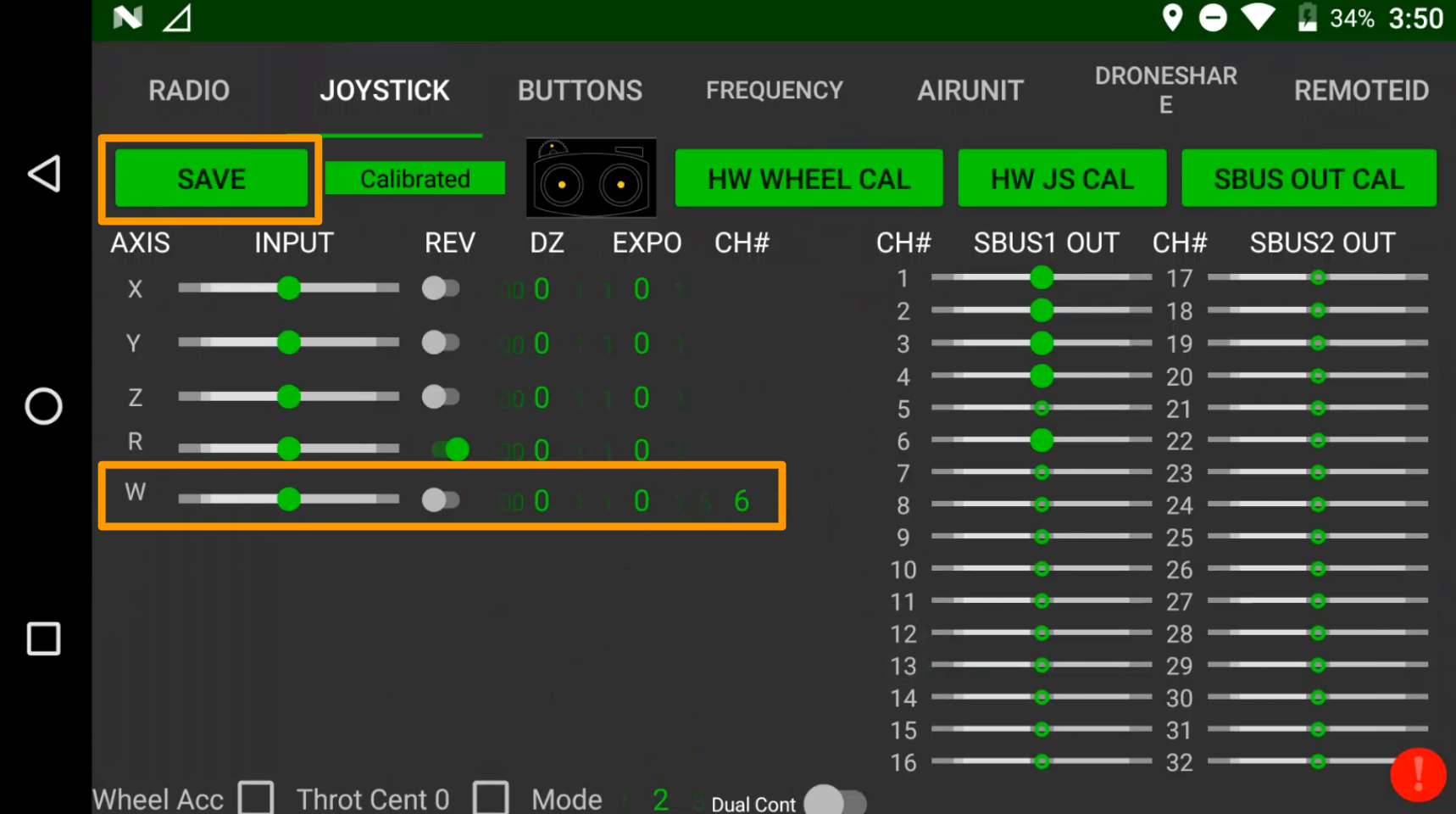
In Joystick Tab, set CH# to 6 for the w-axis (gimbal). Select “Save”.
|
|
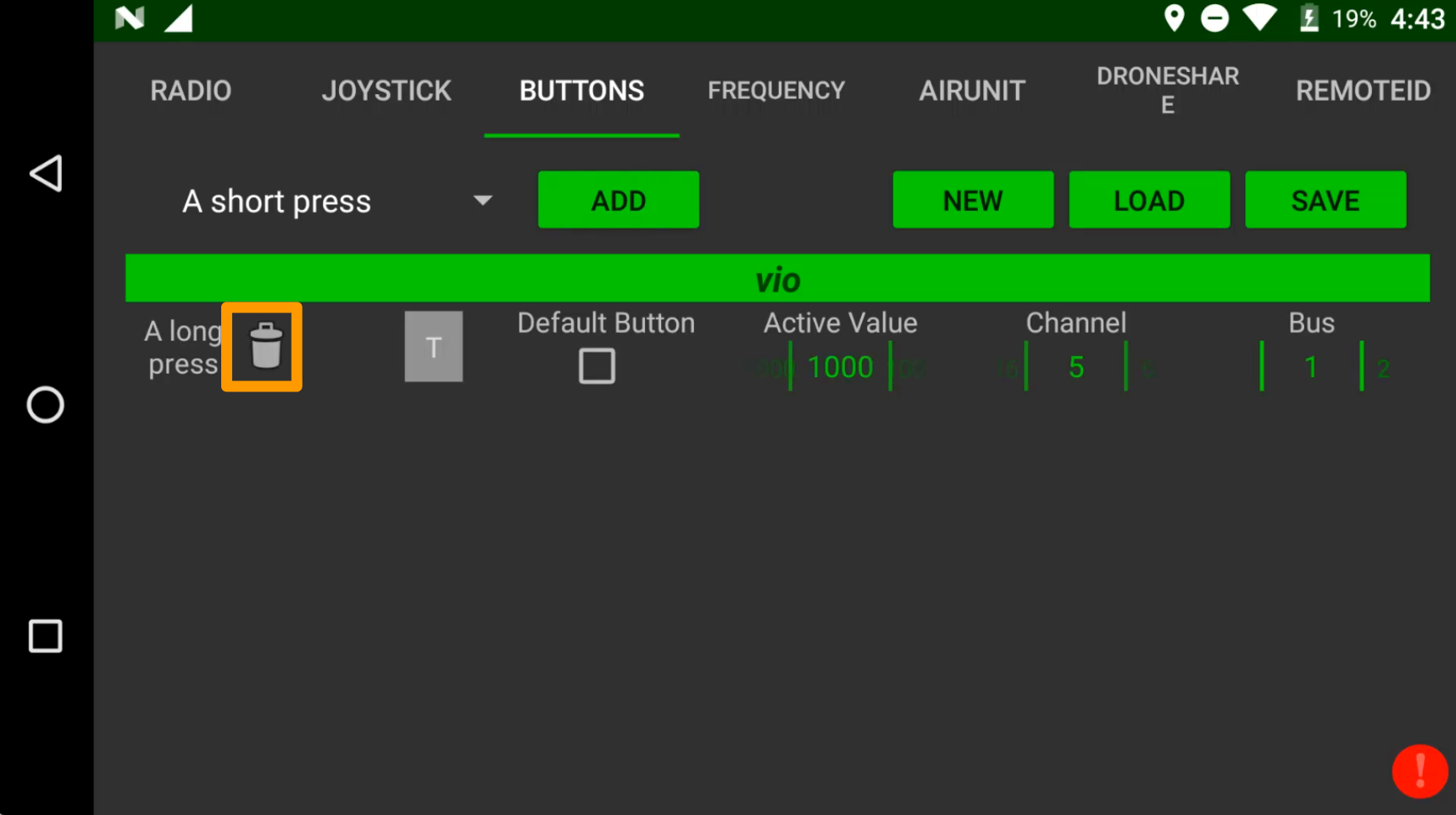
(Optionally) In Buttons Tab, remove saved buttons, then select "Save" again.