> For the complete documentation index, see [llms.txt](https://docs.inspiredflight.com/inspired-documentation/llms.txt). Markdown versions of documentation pages are available by appending `.md` to page URLs; this page is available as [Markdown](https://docs.inspiredflight.com/inspired-documentation/products/inspired-suite/inspired-ground-control-igc/ntrip.md).
# NTRIP
NTRIP is a feature in IGC that allows users to feed RTCM correction data from a CORS network to their aircraft by connecting to an NTRIP casting service.
## Setting up IGC NTRIP
**Before you begin:**
* Ensure the GCS has access to a stable internet connection. This can be achieved by connecting the controller via WIFI, cellular, or to a cellular-enabled smartphone via a hotspot.
* Ensure proper login credentials are obtained for the NTRIP caster of your choice. If you don’t have that information yet, you can still follow this guide with the example credentials provided.
* Identify which corrections network you intend to use and register for an account (can take between 1 day and 1 week). WE RECOMMEND NOT ATTEMPTING THIS PROCESS IN THE FIELD.
{% hint style="warning" %}
**Disclaimer:** For the exclusive purposes of this guide, rtk2go.com, a public NTRIP casting service, is used to demonstrate connecting to a CORS network via the NTRIP widget in IGC. rtk2go.com is not affiliated with or endorsed by IFT, and its availability and performance with IFT products are not guaranteed.
{% endhint %}
|
Power on the Controller and verify it is connected to the internet.
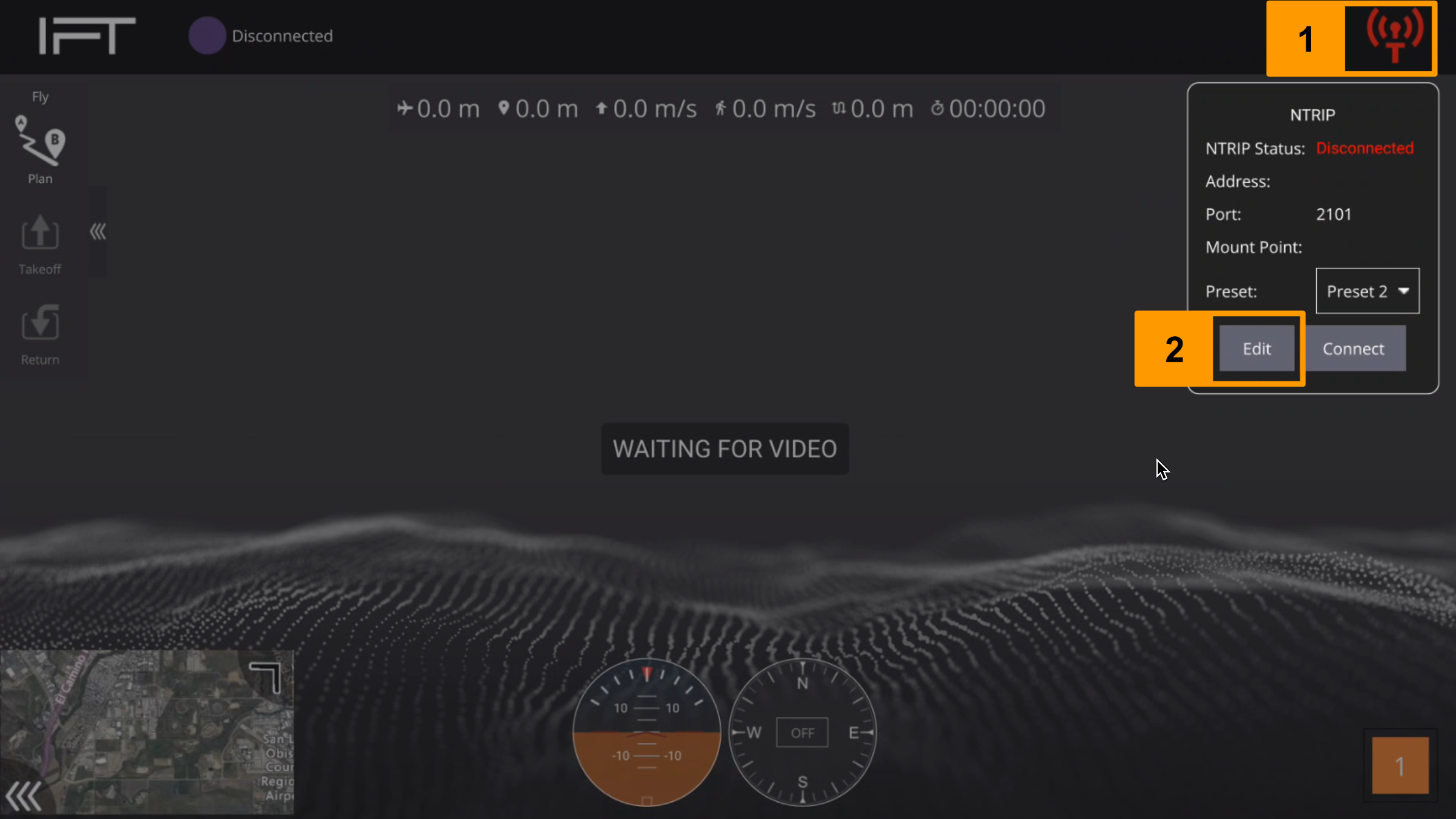
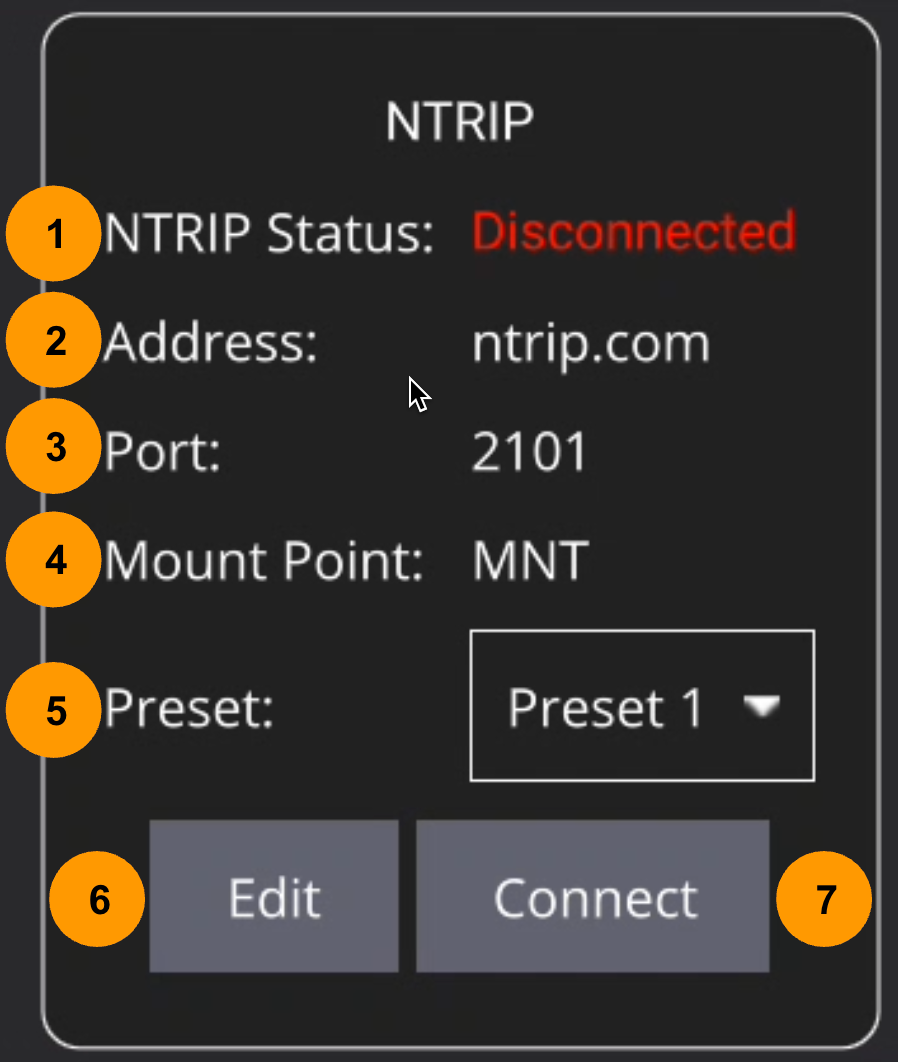
Tap on the NTRIP widget on the upper right corner of the screen to display the NTRIP pop-up menu.
Select Edit.
|
|
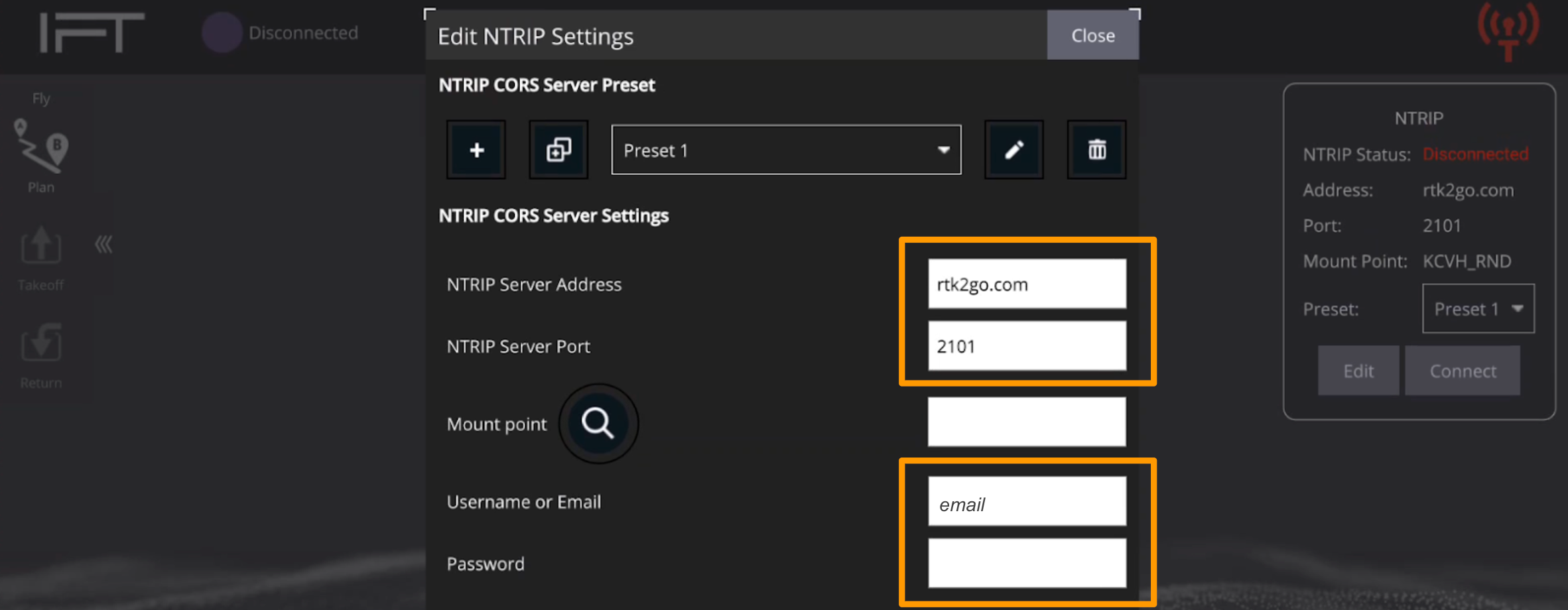
Enter the required credentials to connect to your NTRIP casting service. For this example, the following credentials were entered:
|
|
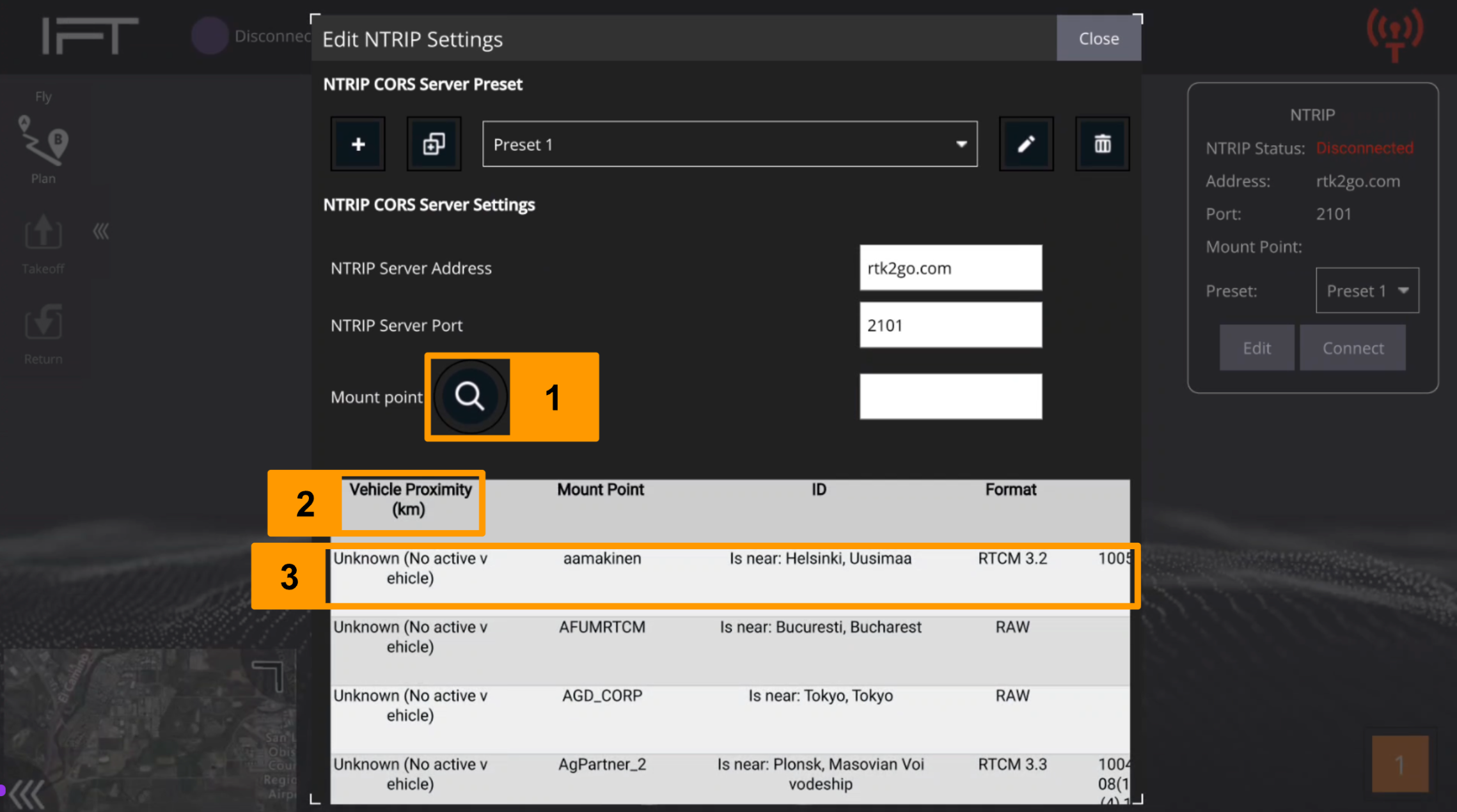
After the credentials are entered, tap the search icon to bring up a list of available mount points.
Tap Vehicle Proximity (km) to sort the available mount points by their distance to the aircraft (NOTE: the drone must be powered on for this function to work. Otherwise the proximity will be displayed as Unknown, as shown below).
Select the closest available mount point (top of the list). A closer mount point will provide more accurate corrections.
NOTE: If the search feature is not working, confirm the credentials are entered in properly, and confirm that the controller has a stable internet connection. Alternatively, the desired mount point can be manually entered without the use of the search feature.
|
|
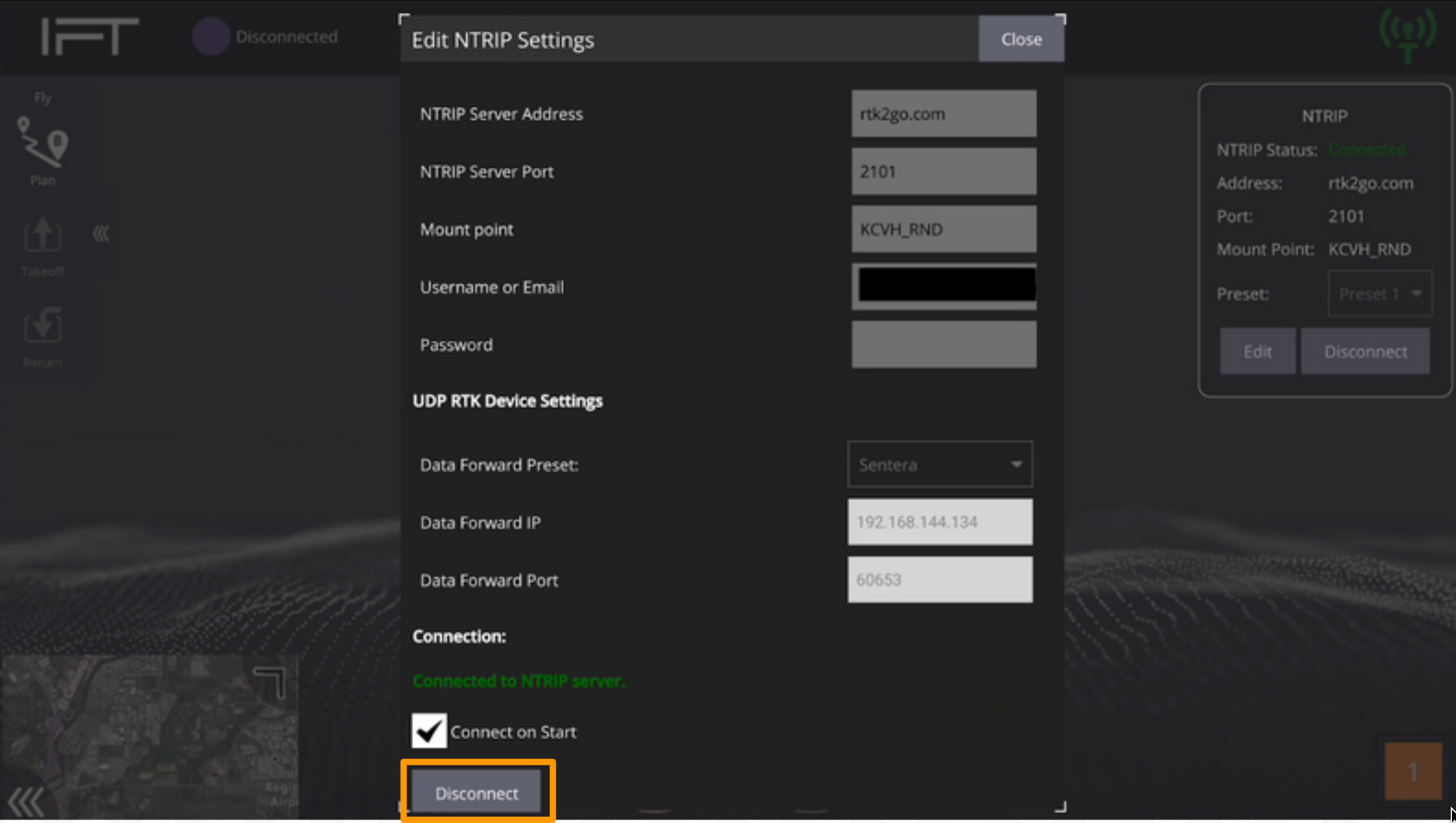
Tap Connect to connect to the NTRIP server. A green status message should appear, and the NTRIP widget should turn green. If this does not occur, confirm the login credentials (username and password) have been entered correctly, and confirm the controller is still connected to the internet.
|
## Additional Information
#### NTRIP Connection Indicator
| Symbol Color | Status |
| ------------ | --------------------------------------------------------------------------------------------------------------------------------------- |
| Red | NTRIP server is not connected to IGC |
| Yellow | NTRIP server is connecting/reconnecting to IGC. This can happen after connecting if the controller’s internet connection is not stable. |
| Green | NTRIP server is connected to IGC |
#### NTRIP Menu
| Number | Feature | Function |
| ------ | ------------ | -------------------------------------------------------------------------------------------------------------------------------------------------------------------------------------------------------- |
| 1 | NTRIP Status | Displays the current connection status between IGC and the NTRIP Server |
| 2 | Address | Address of the specific NTRIP Casting Service being used. |
| 3 | Port | Port used to connect to the NTRIP Server. Its value is 2101 by default. The specific port needed for connection will be specified by the NTRIP Casting Service. If no info is provided, use the default. |
| 4 | Mount Point | The specific ground station that is being used for corrections. This could be a physical station (CORS) or a virtual one (VRS). |
| 5 | Preset | Drop down menu used to select different presets. The user can create presets to save credentials for different NTRIP casting services, or for different mount points. |
| 6 | Edit | Opens the Edit NTRIP Settings menu used to configure the NTRIP connection. |
| 7 | Connect | Connects IGC to the NTRIP server. |
#### Edit NTRIP Settings Menu
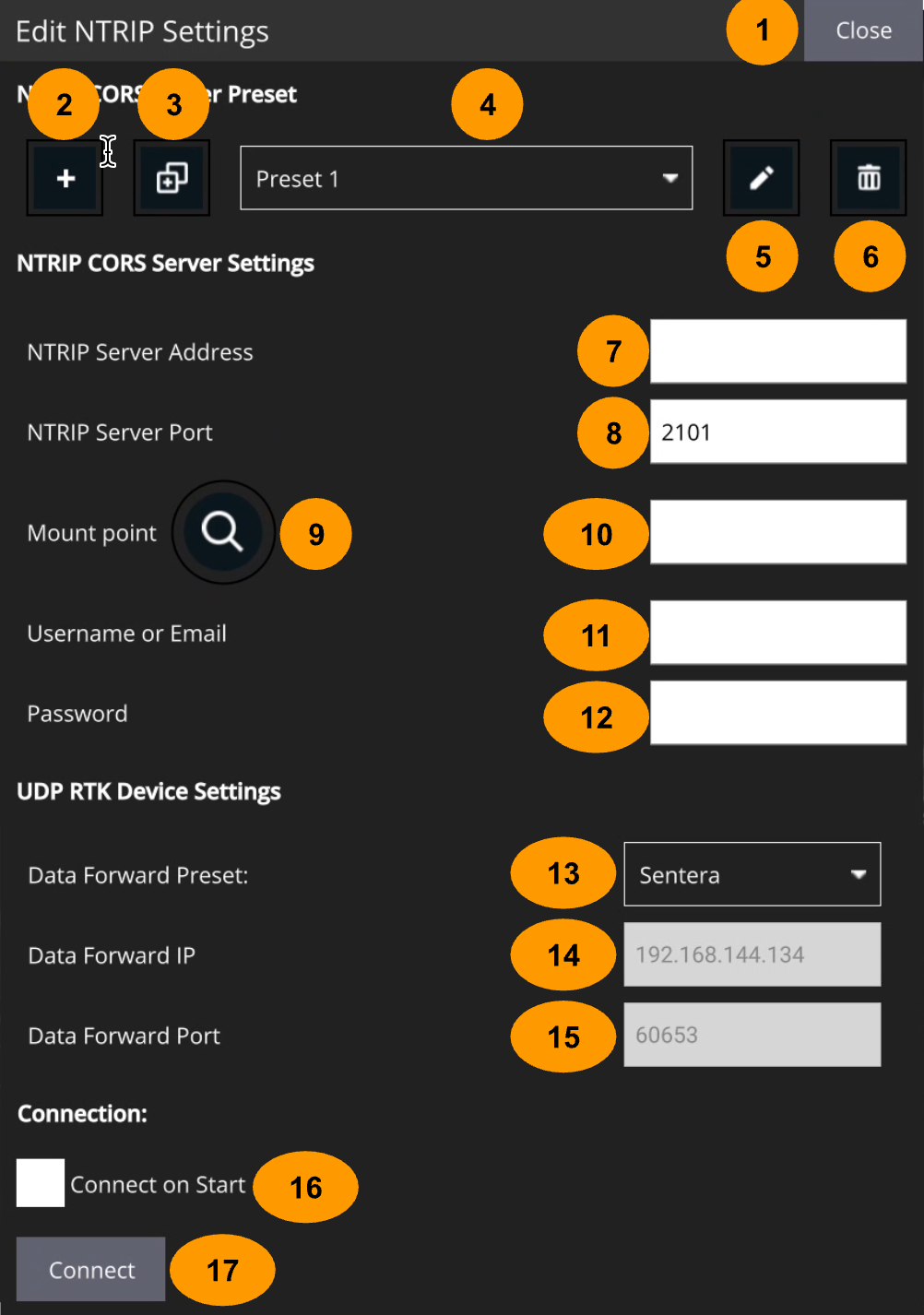
| Number | Feature | Function |
| ------ | -------------------- | --------------------------------------------------------------------------------------------------------------------------------------------------------------------------------------------------------- |
| 1 | Close | Closes the Edit NTRIP Settings menu. |
| 2 | Add Preset | Creates a new blank preset. |
| 3 | Copy Preset | Creates a new preset that is a copy of the currently selected preset. |
| 4 | Preset | Shows the active preset that is being edited and used. |
| 5 | Edit Name | Allows the user to edit the name of the active preset. |
| 6 | Delete Preset | Deletes the active preset. |
| 7 | NTRIP Server Address | Address of the specific NTRIP Casting Service being used. |
| 8 | NTRIP Server Port | Port used to connect to the NTRIP Server. Its value is 2101 by default. The specific port needed for connection will be specified by the NTRIP Casting Service. If no info is provided, use the default. |
| 9 | Search Mount Point | Opens a menu that displays a list of available mount points and their attributes. Tap an attribute to sort the list by that attribute. The Address and Port fields must be filled in to use this feature. |
| 10 | Mount Point | The specific ground station that is being used for corrections. This could be a physical station (CORS) or a virtual one (VRS). |
| 11 | Username or Email | Login credential required by most NTRIP casting services. Obtain this information from the service being used. |
| 12 | Password | Login credential required by most NTRIP casting services. Obtain this information from the service being used. |
| 13 | Data Forward Preset | Opens a drop down to select an auxiliary device to forward NTRIP to. This is done independently of the aircraft. (Example: Sentera RTK-PPK Module) |
| 14 | Data Forward IP | IP address of the auxiliary device that NTRIP is being forwarded to. |
| 15 | Data Forward Port | Port of the auxiliary device that NTRIP is being forwarded to. |
| 16 | Connect on Start | Checking this box will automatically connect IGC to the preset NTRIP server when the app is launched. |
| 17 | Connect | Connects IGC to the NTRIP server. |
### Float vs Fix
While using RTK (either NTRIP over an internet connection or the Sentera Survey RTK/PPK unit), the GPS status in IGC will display either "RTK Float" or "RTK Fix", which corresponds to accuracy of RTK positioning (Fix is more accurate than Float). While using NTRIP without the Sentera Survey RTK/PPK unit, expect to see "3D RTK GPS Float" when selecting the satellite icon in IGC. For more information on the Survey RTK/PPK unit, see the [Survey RTK/PPK](/inspired-documentation/products/accessories/survey-rtk-ppk.md) page.\
\