# Payload Swapping on Herelink (IGC 1.3 and Earlier)

{% hint style="warning" %}
**Note:** This process only applies to the Herelink GCS running IGC 1.3 and earlier. IGC 1.4 removes the need to conduct the following steps. See [Installing IGC section](https://docs.inspiredflight.com/inspired-documentation/products/inspired-suite/inspired-ground-control-igc/how-to-update-install-igc) for more details.
{% endhint %}

**This process is mostly automatic, but has two manual exceptions detailed below:**

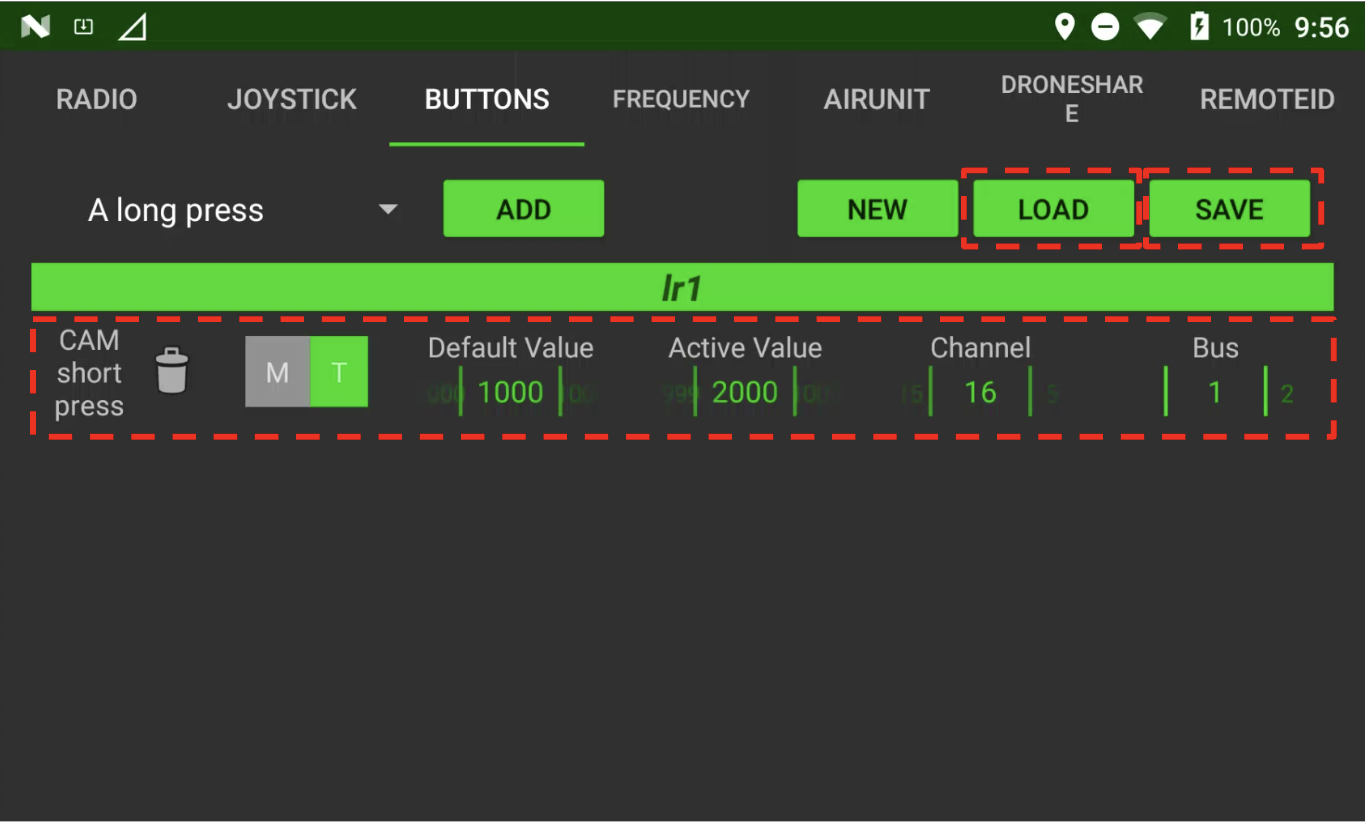
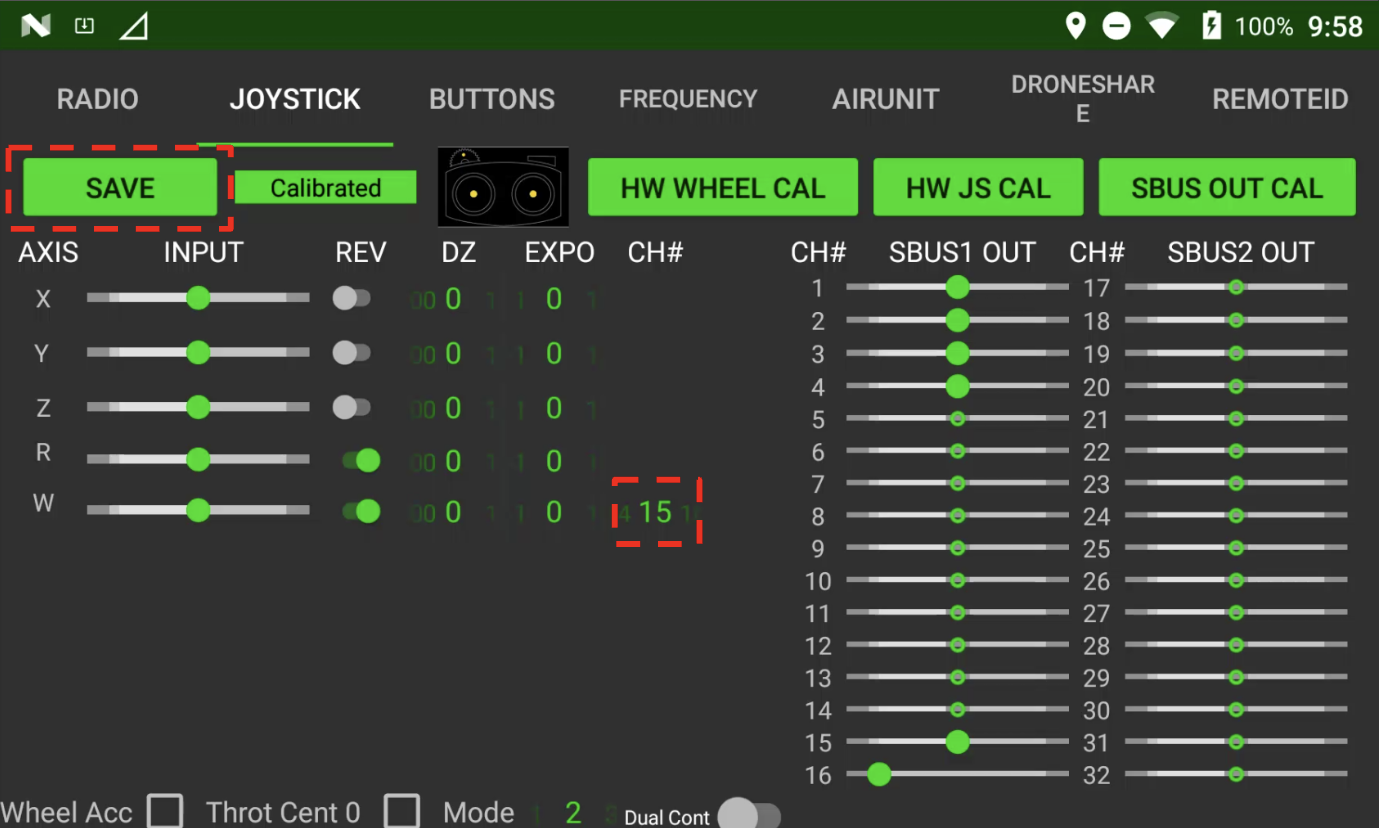
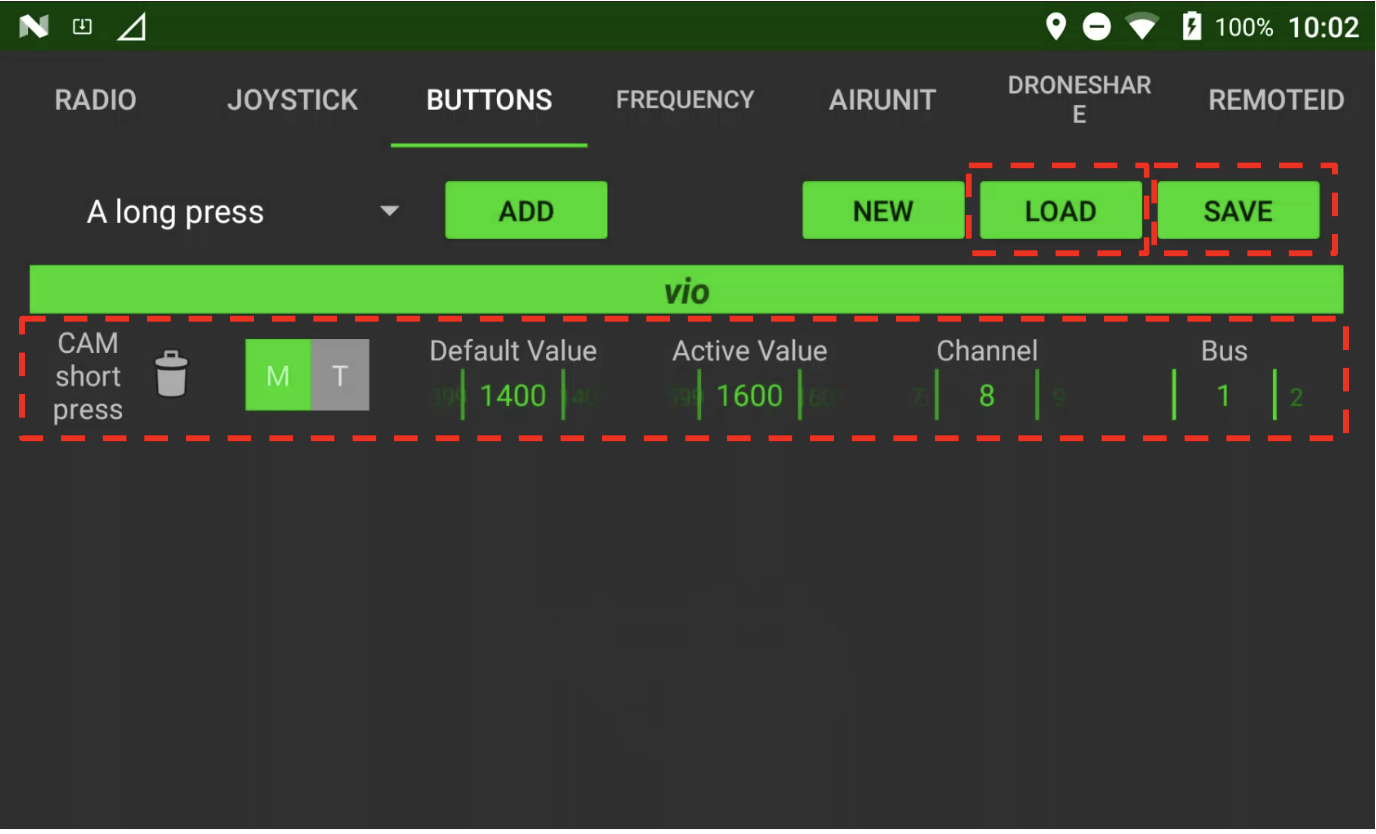
1. First, manually adjust the [**Herelink Settings**](#how-to-update-herelink-settings) to suit the payload. Buttons profiles are saved to the device, simply select the corresponding profile, and your IGC controls will update to match the payload. Then change the W axis channel for Joystick settings.&#x20;
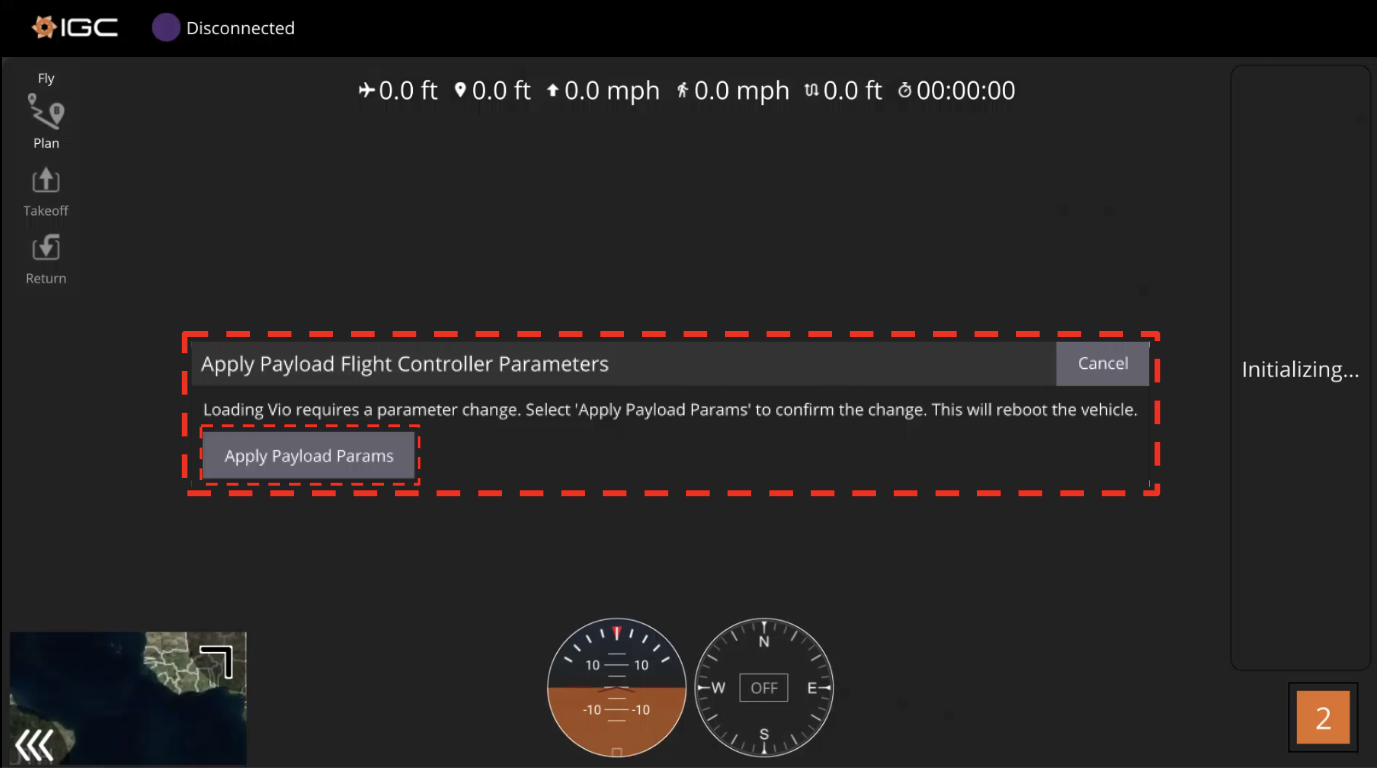
2. When switching from LR1 to Vio or vise versa, IGC will alert the user with an on screen prompt that a new payload has been detected. [**Tap the "Apply Payload Params" button**](#how-to-apply-payload-parameters-on-igc) to allow the swap feature to progress.

## How to Update Herelink Settings:&#x20;

### Swapping to the LR1

1. Ensure the aircraft is turned off and the herelink is turned on.
2. Before attaching the LR1 to to the aircraft, update both Button Settings and Joystick settings by following the below steps.
3. On the Herelink , navigate to the Android Home Screen.&#x20;
4. Open the Herelink Settings app. (The green and white gear icon).&#x20;
5. Navigate to 'BUTTONS' tab
6. Tap 'LOAD' and select the 'lr1' proile
7. Tap 'Save'

<figure><img src="https://240141666-files.gitbook.io/~/files/v0/b/gitbook-x-prod.appspot.com/o/spaces%2FhMePZ0UIa6VYv9VbYu4u%2Fuploads%2Ft48jFd2DGvwqGQGtagy4%2FScreen%20Shot%202024-09-23%20at%2010.13.11%20AM.png?alt=media&#x26;token=5488d54a-55c1-4a63-9034-1e131d810a65" alt=""><figcaption><p>When swapping to the LR1 payload, BUTTON settings must be updated to load the 'lr1' profile. </p></figcaption></figure>
4. Navigate to 'JOYSTICK' tab
5. Update the W axis CH# to 15 and press 'SAVE' (see image below).

<figure><img src="https://240141666-files.gitbook.io/~/files/v0/b/gitbook-x-prod.appspot.com/o/spaces%2FhMePZ0UIa6VYv9VbYu4u%2Fuploads%2FuKV825BTHftc5jFDPC05%2FScreen%20Shot%202024-09-23%20at%2010.20.13%20AM.png?alt=media&#x26;token=ec0fed06-0da0-49e0-b7d0-8e901d6217a9" alt=""><figcaption><p>When swapping to the LR1 payload, JOYSTICK settings must be changed to W axis, Channel '15'. </p></figcaption></figure>
6. Attach the LR1 payload to the aircraft. More info about this located [here](https://docs.inspiredflight.com/inspired-documentation/products/payloads/sony-lr1).&#x20;

{% hint style="danger" %}
Do not swap or attach payloads when the aircraft is powered on. This can damage the payload.
{% endhint %}

7. Power on the aircraft
8. Wait for the payload swap prompt to appear in IGC. Accept.
9. Wait for on screen payload controls to appear.
10. You may now continue to fly as normal

### Swapping to the Vio

1. Ensure the aircraft is turned off and the herelink is turned on.
2. Before attaching the Vio to to the aircraft, update both Button Settings and Joystick settings by following the below steps.
3. On the Herelink , navigate to the Android Home Screen.&#x20;
4. Open the Herelink Settings app. (The green and white gear icon).&#x20;
5. Navigate to 'BUTTONS' tab
6. Tap 'LOAD' and select the 'vio' proile
7. Tap 'Save'

<figure><img src="https://240141666-files.gitbook.io/~/files/v0/b/gitbook-x-prod.appspot.com/o/spaces%2FhMePZ0UIa6VYv9VbYu4u%2Fuploads%2FS29NvLZFVw8IAUsoRAQs%2FScreen%20Shot%202024-09-23%20at%2010.15.21%20AM.png?alt=media&#x26;token=f5cc89d4-f162-460d-9e7c-15a74ece8682" alt=""><figcaption><p>When swapping to the Gremsy Vio payload, BUTTON settings must be updated to load the 'Vio' profile. </p></figcaption></figure>
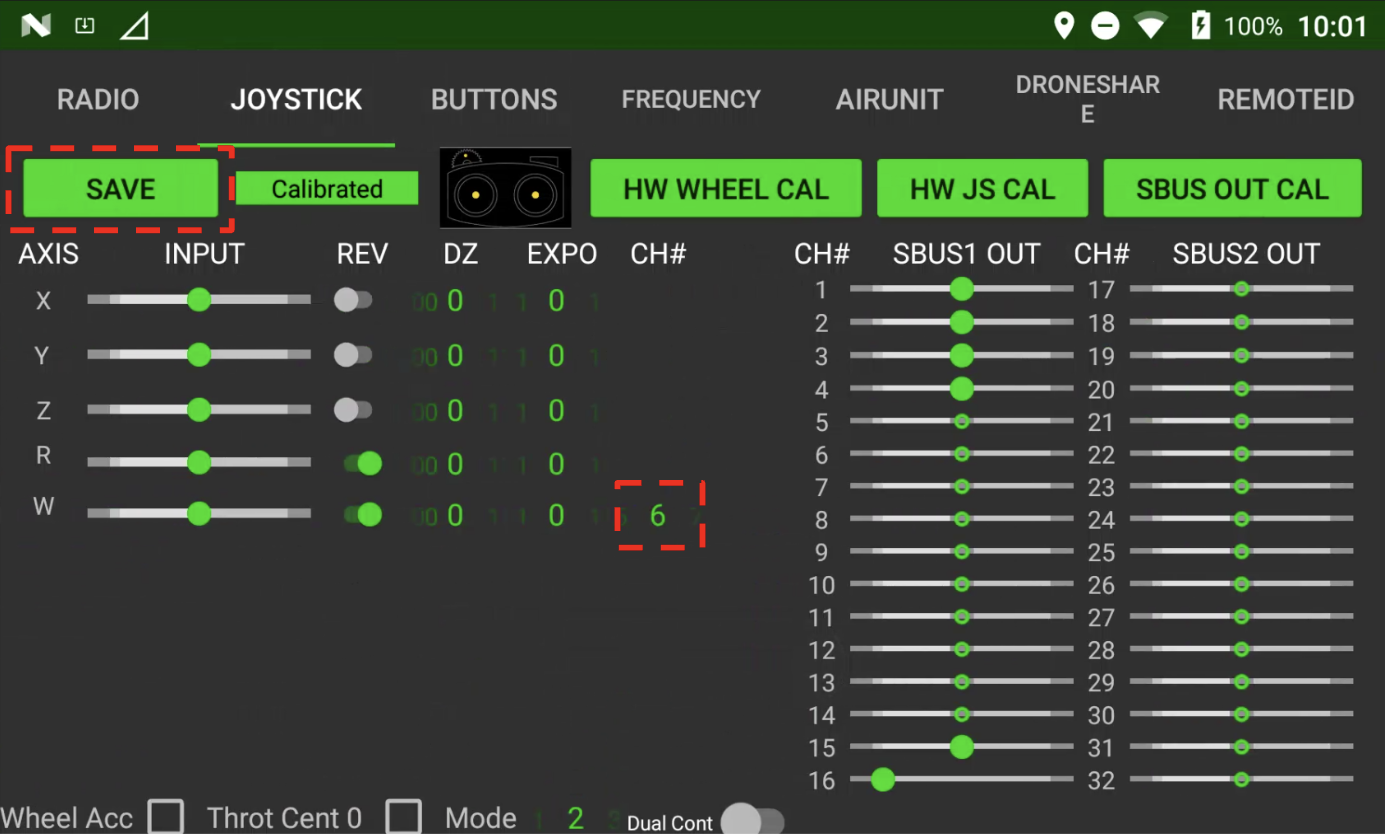
4. Navigate to 'JOYSTICK' tab
5. Update the W axis CH# to 6 and press 'SAVE' (see image below).

<figure><img src="https://240141666-files.gitbook.io/~/files/v0/b/gitbook-x-prod.appspot.com/o/spaces%2FhMePZ0UIa6VYv9VbYu4u%2Fuploads%2F3LkTuedKagpajPcYUCgI%2FScreen%20Shot%202024-09-23%20at%2010.24.29%20AM.png?alt=media&#x26;token=741b7280-180c-437c-8e04-bdbf0fa2042b" alt=""><figcaption><p>When swapping to the Gremsy Vio payload, JOYSTICK settings must be changed to W axis, Channel '6'. </p></figcaption></figure>
6. Attach the Vio payload to the aircraft. More information about that can be found [here](https://docs.inspiredflight.com/inspired-documentation/products/payloads/gremsy-vio-f1).&#x20;

{% hint style="danger" %}
Do not swap or attach payloads when the aircraft is powered on. This can damage the payload.
{% endhint %}

7. Power on the aircraft.
8. Wait for the payload swap prompt to appear in IGC. Accept.
9. Wait for on screen payload controls to appear.
10. You may now continue to fly as normal

## How to Apply Payload Parameters on IGC:&#x20;

1. This process is the same for either payload.
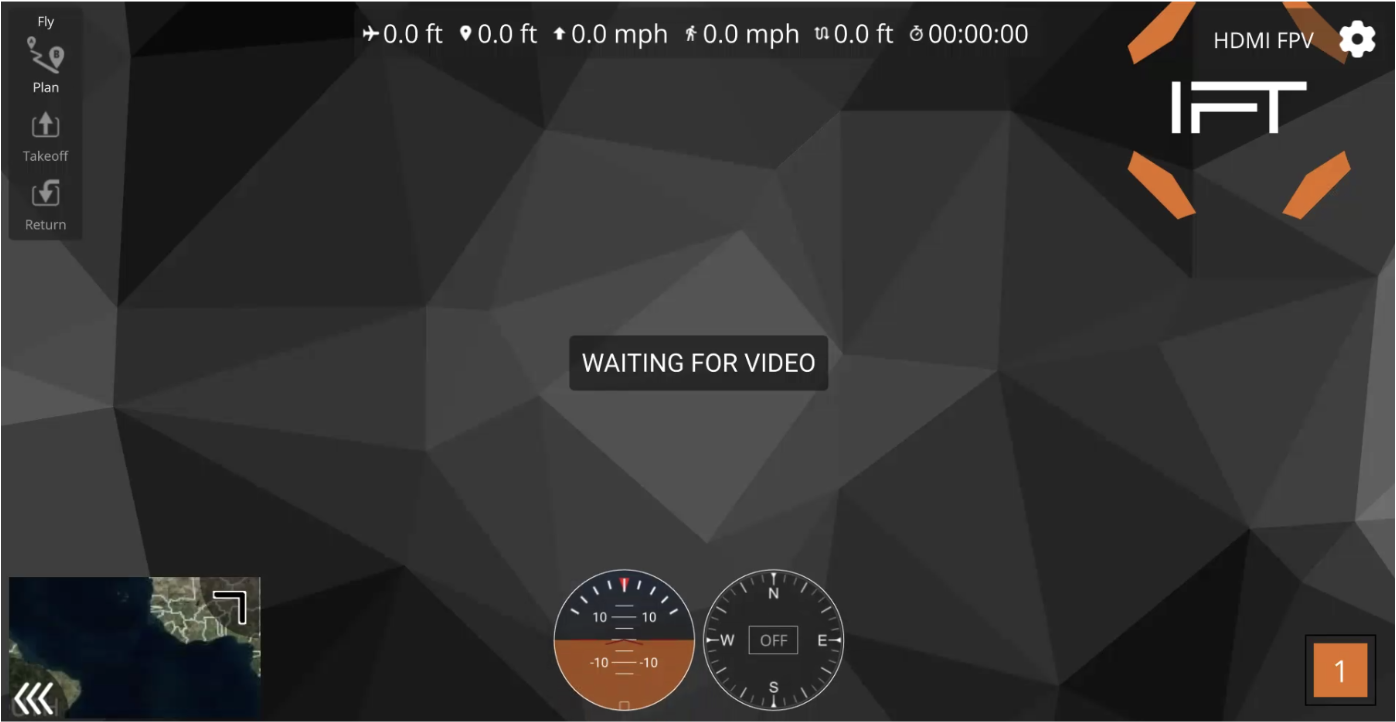
2. Navigate to the IGC application.&#x20;

<figure><img src="https://240141666-files.gitbook.io/~/files/v0/b/gitbook-x-prod.appspot.com/o/spaces%2FhMePZ0UIa6VYv9VbYu4u%2Fuploads%2FH7fLnkTPVjkrgLdLP34r%2FScreen%20Shot%202024-09-23%20at%2010.29.02%20AM.png?alt=media&#x26;token=ddc3a42a-88d3-43ad-98c1-584c7142b8ac" alt=""><figcaption><p>After updating BUTTONS and  JOYSTICK settings, navigate to IGC.</p></figcaption></figure>

3. Attach the payload to the aircraft.&#x20;
4. Power on the aircraft as normal.
5. Wait for the IGC screen to prompt for payload swap.
6. Accept the swap by tapping 'Apply Payload Params'.&#x20;

<figure><img src="https://240141666-files.gitbook.io/~/files/v0/b/gitbook-x-prod.appspot.com/o/spaces%2FhMePZ0UIa6VYv9VbYu4u%2Fuploads%2FH3kqqp3GgPaoO2apGVwU%2FScreen%20Shot%202024-09-23%20at%2010.33.23%20AM.png?alt=media&#x26;token=3e4621d7-5a1d-4fe7-8131-c0538b0b915e" alt=""><figcaption><p>After connecting the LR1 or the Vio, IGC will prompt the user to accept the new payload parameters. Tap 'Apply Payload Params' to accept the changes.</p></figcaption></figure>

7. Wait for the changes to be applied and for the aircraft to reboot.
8. The Payload Swap is complete.&#x20;