> This is part 1 of 3 of the full documentation (pages 1–100 of 255).
> The content is paginated: fetch every part to see all of it.
> Next part: https://docs.inspiredflight.com/inspired-documentation/llms-full.txt/1
> Page index: https://docs.inspiredflight.com/inspired-documentation/llms.txt

# IFT Knowledge Base Center

Welcome to the IFT Knowledge base! We’re dedicated to providing you with the tools and resources you need to resolve issues efficiently and maximize the value of your products. Explore our comprehensive support center to find step-by-step guides, user manuals, and much more to help you keep everything running smoothly.

### Here's what you can expect:

* **Troubleshooting Steps:** Our step-by-step troubleshooting guides are designed to help you diagnose and fix common issues quickly. Access these resources to resolve problems and minimize downtime.
* **User Manuals:** Detailed user manuals are available for all our products. These manuals cover setup, operation, maintenance, and safety guidelines, ensuring you have all the information needed to use your products effectively.
* **How-To Guides:** Practical how-to guides and video tutorials provide clear, visual instructions on a range of tasks. Whether you need basic setup instructions or advanced feature tips, you’ll find helpful resources here.
* **FAQs:** Our Frequently Asked Questions (FAQs) section addresses common queries and offers quick solutions to help you troubleshoot issues without delay.

If you require additional support with your Inspired Flight sUAS, please contact [IFT Support](https://www.inspiredflight.com/support.php).&#x20;


# Aircraft


# IF800 TOMCAT

###

<figure><img src="https://240141666-files.gitbook.io/~/files/v0/b/gitbook-x-prod.appspot.com/o/spaces%2FhMePZ0UIa6VYv9VbYu4u%2Fuploads%2FK3OmCfTxb4DQvoKkp2nW%2FIF800%20%2B%20No%20Payload%20-%20DSC08327-Enhanced-NR-2.jpg?alt=media&amp;token=e309645b-7cba-43ec-a946-928a379e8a25" alt=""><figcaption></figcaption></figure>


# IF800 Tomcat Pilot Operating Handbook

All content in gitbook is also available as a PDF version in the IF800 Tomcat Pilot Operating Handbook. &#x20;

Downloadable version below:

{% file src="/files/lq8CEjlbjDDKGGmtFoyj" %}


# IF800 Tomcat Overview

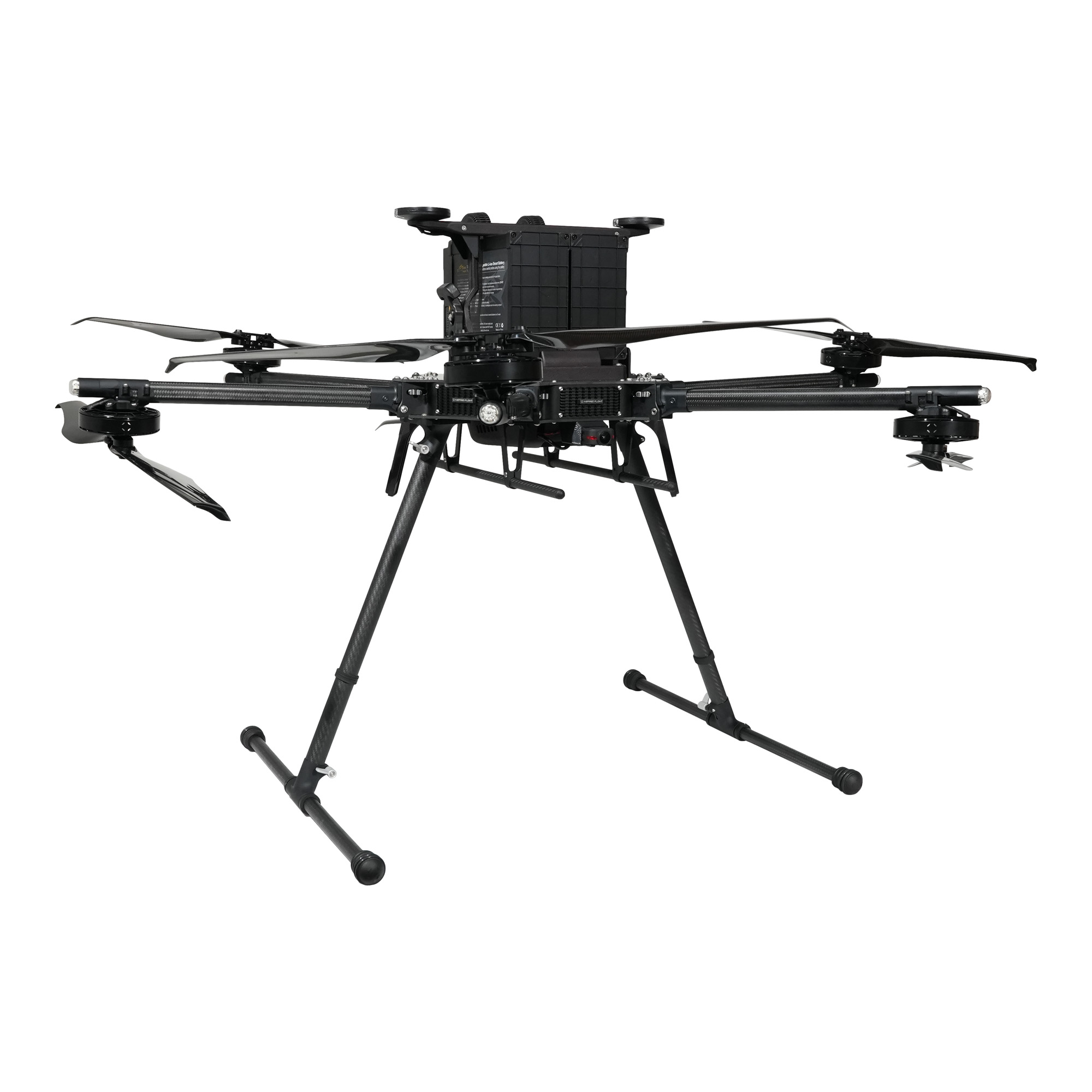
Inspired Flight's new medium lift aircraft, the IF800 Tomcat.

<figure><img src="https://240141666-files.gitbook.io/~/files/v0/b/gitbook-x-prod.appspot.com/o/spaces%2FhMePZ0UIa6VYv9VbYu4u%2Fuploads%2FnNhkLTZLRSaSjyENkYAx%2FTomcat_Logo.png?alt=media&amp;token=ba462098-6f9f-4f3c-a75e-83c8ee1778ea" alt=""><figcaption></figcaption></figure>

The IF800 Tomcat is an American-made, NDAA-compliant medium-lift quadcopter. The Tomcat uses an open source ArduPilot autopilot operating system running on a CubePilot Cube Blue H7 flight management unit. This User Manual describes how to use the full functionality of this aircraft to meet your most demanding needs.

{% hint style="info" %}
This documentation specifically applies to the following Aircraft Model Number: IF800TOMCAT-HLB: HereLink Blue GCS with internal Radio.
{% endhint %}

{% hint style="danger" %}
The safe operating ambient temperature range of the IF800TOMCAT and IB388 is -10° C to 45° C (14° F to 113° F). This does not meet the military spec for operating temperature range of -55° C to 125° C (-67° F to 257° F). Operate accordingly and only fly in the appropriate temperature range of this product.
{% endhint %}

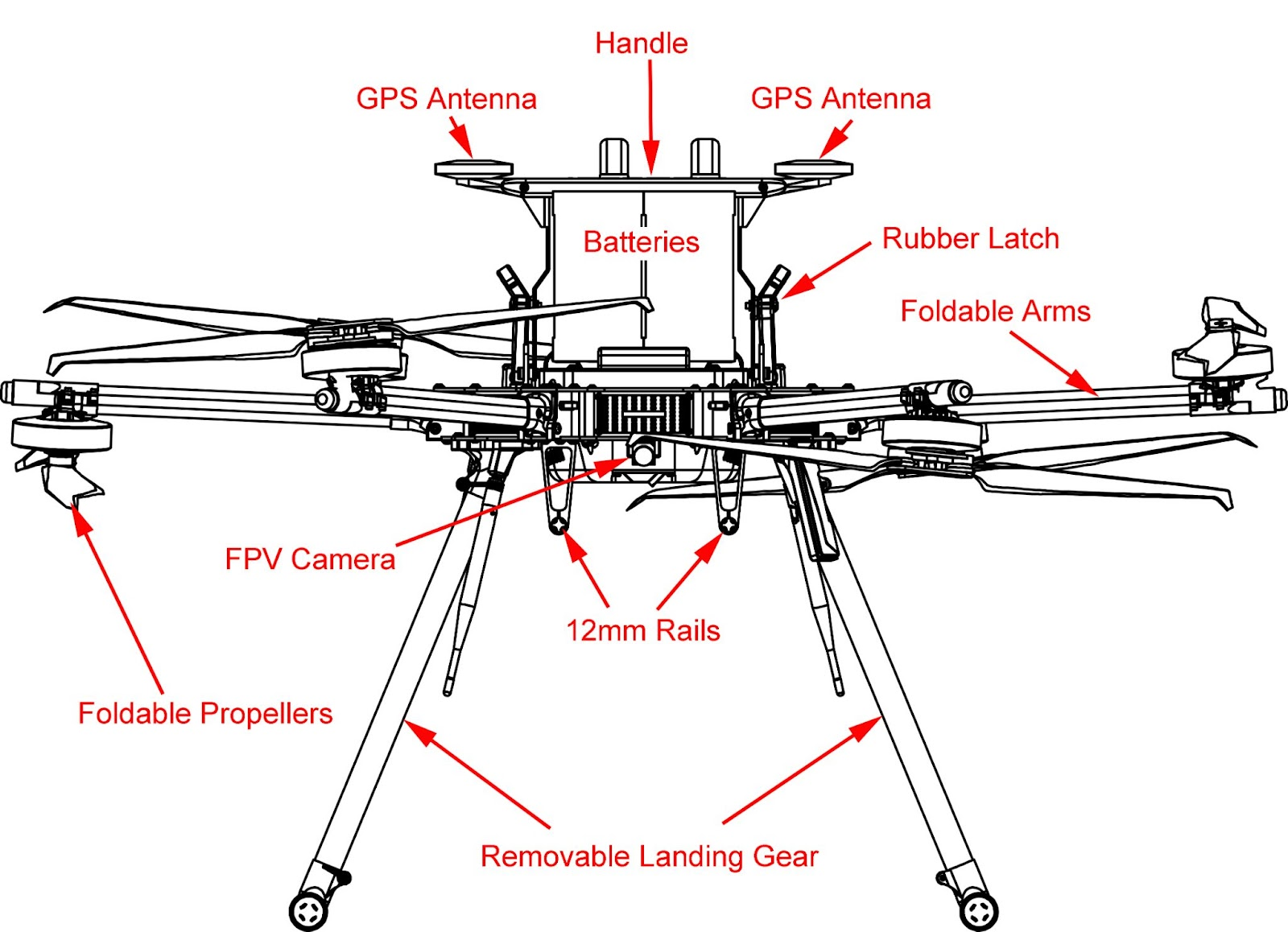
<figure><img src="https://240141666-files.gitbook.io/~/files/v0/b/gitbook-x-prod.appspot.com/o/spaces%2FhMePZ0UIa6VYv9VbYu4u%2Fuploads%2FCqcRbh1CP3u8RKjr5lIq%2Fimage.png?alt=media&amp;token=3ca83337-22c4-4dc6-9c3b-24745b0c64ca" alt=""><figcaption><p>Front View</p></figcaption></figure>

<figure><img src="https://240141666-files.gitbook.io/~/files/v0/b/gitbook-x-prod.appspot.com/o/spaces%2FhMePZ0UIa6VYv9VbYu4u%2Fuploads%2Fga8GEGTlGPwz7hocVevg%2Fimage.png?alt=media&amp;token=e5f2fce5-f2c6-4159-bd2b-5c64c2e349db" alt=""><figcaption><p>Rear View</p></figcaption></figure>

<figure><img src="https://240141666-files.gitbook.io/~/files/v0/b/gitbook-x-prod.appspot.com/o/spaces%2FhMePZ0UIa6VYv9VbYu4u%2Fuploads%2FcTFwClKe5Tp6xBIkX1D5%2Fimage.png?alt=media&amp;token=dbdc37c6-e25c-4bea-bdd0-6f1449cd9781" alt=""><figcaption><p>Left View</p></figcaption></figure>

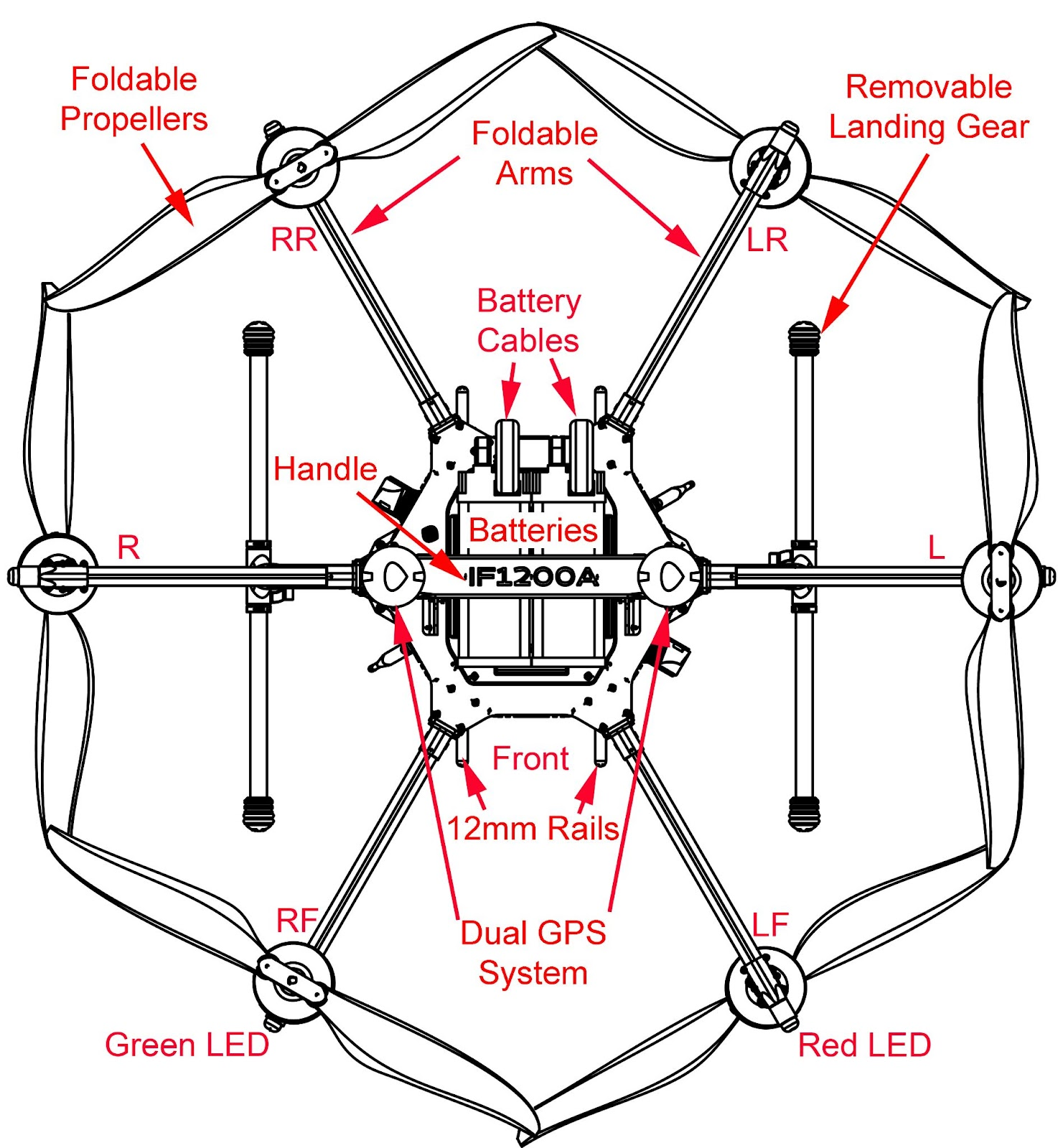
<figure><img src="https://240141666-files.gitbook.io/~/files/v0/b/gitbook-x-prod.appspot.com/o/spaces%2FhMePZ0UIa6VYv9VbYu4u%2Fuploads%2FTDixtHrpQzejXyOx7F3j%2Fimage.png?alt=media&amp;token=ed2b2220-91ca-4d24-b7e7-76fb2fdf4c91" alt=""><figcaption><p>Top View</p></figcaption></figure>

<figure><img src="https://240141666-files.gitbook.io/~/files/v0/b/gitbook-x-prod.appspot.com/o/spaces%2FhMePZ0UIa6VYv9VbYu4u%2Fuploads%2FBwSAlAxV7bUnLqijxgAk%2Fimage.png?alt=media&amp;token=436c0e91-4e66-4139-bf30-6af6094db59a" alt=""><figcaption><p>Bottom View</p></figcaption></figure>


# IF800 Specifications

#### Performance

<table><thead><tr><th width="295.29638671875">Specification</th><th width="222">Metric Value</th><th>Imperial Value</th></tr></thead><tbody><tr><td>Max Ascent Speed</td><td>5m/s</td><td>16 ft/s</td></tr><tr><td>Max Descent Speed</td><td>3m/s</td><td>10 ft/s</td></tr><tr><td>Max Air Speed</td><td>22m/s</td><td>49 mph</td></tr><tr><td>Max Wind Resistance</td><td>10m/s, 12m/s gusts</td><td>19 knot, 23 knot gusts</td></tr><tr><td>Max Tilt Angle</td><td>30°</td><td>30°</td></tr><tr><td>Max Angular Velocity</td><td>Tilt: 300%, Yaw: 120%</td><td>Tilt: 300%, Yaw: 120%</td></tr><tr><td>Operating Temperature</td><td>-20°C ~45°C</td><td>-4°F ~113°F</td></tr><tr><td>Service Ceiling (with given payload)</td><td>4.2km w/ 0.0 kg,<br>3.2 km w/ 1.5 kg,<br>2.0 km w/ 3.0 kg</td><td>14,000 ft w/ 0.0lb,<br>10,500 ft w/ 3.3lb,<br>6,500 ft w/ 6.6lb</td></tr><tr><td>Radio Transmission Distance</td><td>Up to 6 km radio manufacturer rated, 1.5 to 2.3 km field-tested*</td><td>Up to 3.7 mi radio manufacturer rated, 0.9 - 1.4 mi field-tested*</td></tr></tbody></table>

<sub>*\* Range varies with terrain, weather, and RF interference. Manufacturer-rated range reflects ideal conditions with open space and clear line of sight. Field-tested range reflects performance across varied urban environments, including dense buildings and residential areas. Specs subject to change.*</sub>

#### Physical

| Specification                              | Metric Value          | Imperial Value            |
| ------------------------------------------ | --------------------- | ------------------------- |
| Diagonal Size (propeller center to center) | 905 mm                | 35.6 inches               |
| Unfolded Size (flight ready, WxLxH)        | 132 x 114 x 52 cm     | 51.8 x 44.8 x 20.3 inches |
| Folded Size (stow, WxLxH)                  | 36 x 44 x 20 cm       | 14.2 x 17.4 x 7.8 inches  |
| Empty Weight (w/o batteries)               | 4.2 kg                | 9.2 lbs                   |
| Weight w/ Batteries                        | 8.5 kg                | 18.7 lbs                  |
| Max Gross Takeoff Weight                   | 11.5 kg               | 25.3 lbs                  |
| Max Payload Capacity                       | 3.0 kg                | 6.6 lbs                   |
| Transport Case Size (WxLxH)                | 52.8 x 80.7 x 31.7 cm | 20.8 x 31.8 x 12.5 inches |
| Transport Case Weight (w/ aircraft & GCS)  | 18 kg                 | 40 lbs                    |

#### Flight Stack

| Component                    | Specification                                                                                                                            |
| ---------------------------- | ---------------------------------------------------------------------------------------------------------------------------------------- |
| Flight Controller            | CubePilot Cube Orange+                                                                                                                   |
| GNSS / Compass               | Dual CubePilot Here4                                                                                                                     |
| Downward Ground Sensor       | LightWare SF000/B                                                                                                                        |
| Payload Power Rails          | 12 volts at 2 amps                                                                                                                       |
| Payload Interface            | [Pixhawk Payload Bus Standard](https://github.com/pixhawk/Pixhawk-Standards/blob/master/DS-014%20Pixhawk%20Payload%20Bus%20Standard.pdf) |
| Autopilot Operating Software | ArduPilot Copter QUAD V                                                                                                                  |

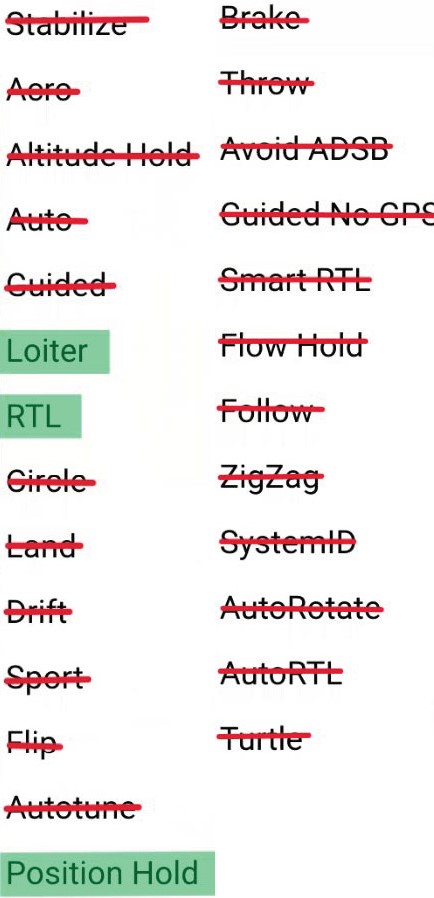
#### Flight Mode

| Flight Mode   | Description                                                                     |
| ------------- | ------------------------------------------------------------------------------- |
| Position Hold | Maintains GPS position and altitude with responsive controls for faster speeds. |
| Loiter        | Holds GPS position and altitude for slow, precise, and stable flying.           |
| Auto          | Executes pre-defined waypoint mission                                           |
| RTL           | Auto returns to takeoff location and lands                                      |
| Land          | Auto land while maintaining horizontal position                                 |
| Altitude Hold | Holds altitude only, failsafe mode if GPS signal lost                           |


# Aircraft Assembly

{% embed url="<https://www.youtube.com/watch?ab_channel=InspiredFlightTechnologies&v=9zEhOOxUGSM>" %}

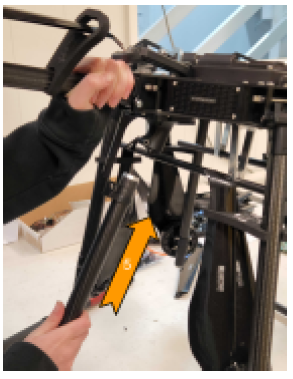
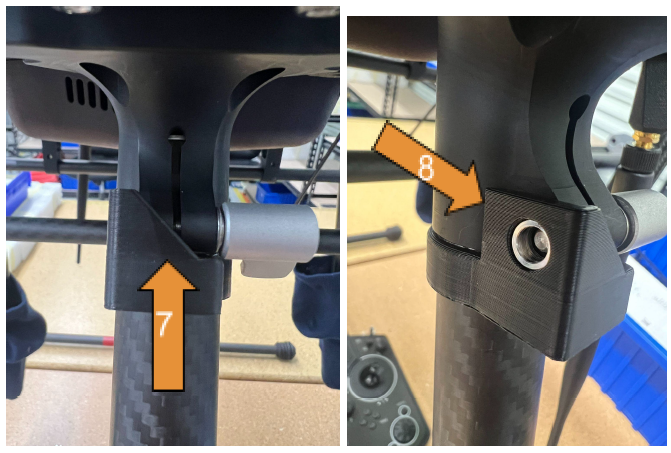
<table><thead><tr><th width="90">STEP</th><th>ACTION</th></tr></thead><tbody><tr><td>1</td><td>Open the IF800 Tomcat case and find the IF800 Tomcat aircraft, the Quick Start Guide, controller, battery charging unit, and payload.</td></tr><tr><td>2</td><td>Remove the controller from the case and power on using the controller power button.</td></tr><tr><td>3</td><td>Remove (2X) Landing Gear Supports found in the underside of the case lid. Insert each Landing Gear Support into the socket on the bottom of the IF800 Tomcat. Rotate the Landing Gear Support until the retention buttons click into place.</td></tr></tbody></table>

<figure><img src="https://240141666-files.gitbook.io/~/files/v0/b/gitbook-x-prod.appspot.com/o/spaces%2FhMePZ0UIa6VYv9VbYu4u%2Fuploads%2FJtVZdVtyqcygCu1JMd1s%2FRemoveLandingGear.png?alt=media&amp;token=4edb9c25-b0c2-4d6d-98de-f5716287ac52" alt=""><figcaption></figcaption></figure>

<table><thead><tr><th width="83"></th><th></th></tr></thead><tbody><tr><td>4</td><td>While holding the aircraft by the Landing Gear Supports, pull the full vehicle from the case foam with intent. Set the aircraft right-side-up on a flat, level surface.</td></tr></tbody></table>

<figure><img src="https://240141666-files.gitbook.io/~/files/v0/b/gitbook-x-prod.appspot.com/o/spaces%2FhMePZ0UIa6VYv9VbYu4u%2Fuploads%2FKQdvgasLXsXKvoLQsS6D%2FPullVehicleOut.png?alt=media&amp;token=9424d4ba-7f89-4497-8070-6cdf218c46b1" alt=""><figcaption></figcaption></figure>

<table><thead><tr><th width="83"></th><th></th></tr></thead><tbody><tr><td>5</td><td>Remove IF800 Tomcat Arm Handles and place them inside the case.</td></tr></tbody></table>

<figure><img src="https://240141666-files.gitbook.io/~/files/v0/b/gitbook-x-prod.appspot.com/o/spaces%2FhMePZ0UIa6VYv9VbYu4u%2Fuploads%2FQXtEdnIbFipZiRbYVgBm%2FArmHandles.png?alt=media&amp;token=93e9ff72-f96a-4a66-92bd-9a6c2054a072" alt=""><figcaption></figcaption></figure>

<table><thead><tr><th width="82"></th><th></th></tr></thead><tbody><tr><td>6</td><td>Extend each arm until the arm Autolock engages. Manually adjust each arm’s Autolock until a continuous orange line is formed between the Autolock handle and arm body. An unbroken orange line indicates a fully locked and secure arm.</td></tr></tbody></table>

<figure><img src="https://240141666-files.gitbook.io/~/files/v0/b/gitbook-x-prod.appspot.com/o/spaces%2FhMePZ0UIa6VYv9VbYu4u%2Fuploads%2FaaSJtTkJamXdgtlrGGDI%2FSecureArms.png?alt=media&amp;token=e8aaa44d-b13a-4f1d-aadb-2a00de1f7fdf" alt=""><figcaption></figcaption></figure>

<table><thead><tr><th width="82"></th><th></th></tr></thead><tbody><tr><td>7</td><td>Fully unfold each set of propellers and rotate the propellers to a perpendicular orientation to each motor arm.</td></tr></tbody></table>

<figure><img src="https://240141666-files.gitbook.io/~/files/v0/b/gitbook-x-prod.appspot.com/o/spaces%2FhMePZ0UIa6VYv9VbYu4u%2Fuploads%2FHQucCRdFxKeCjb7FnM1c%2FUnfoldProps.png?alt=media&amp;token=78b52b42-6d78-4b2f-8cce-d9e4682f5329" alt=""><figcaption></figcaption></figure>

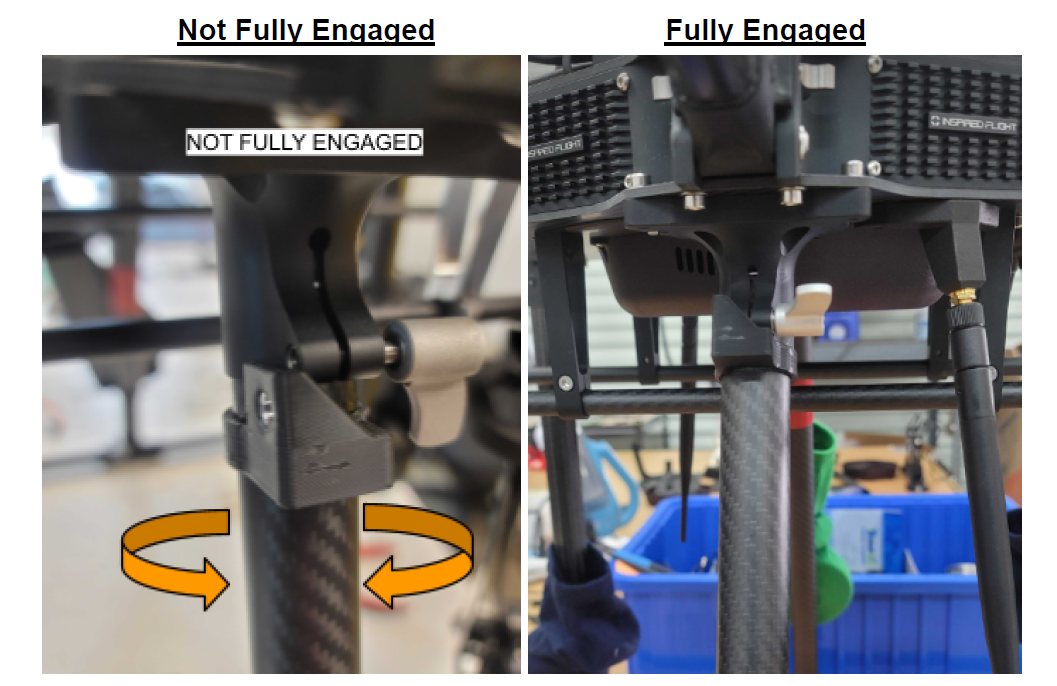
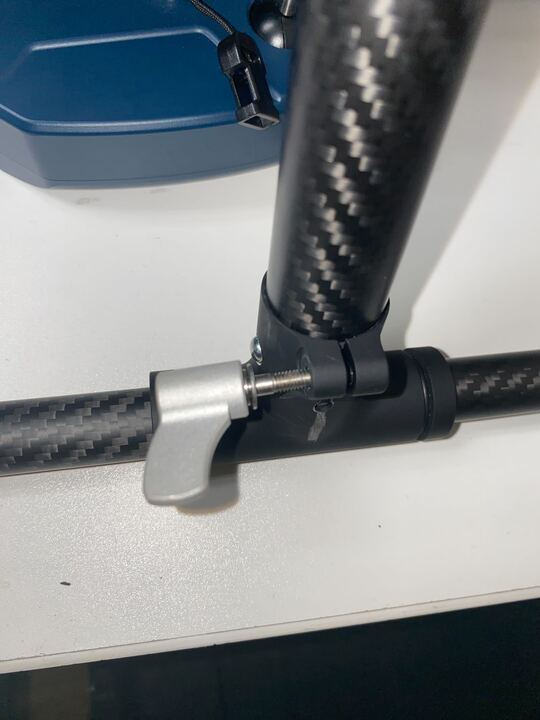
<table><thead><tr><th width="82"></th><th></th></tr></thead><tbody><tr><td>8</td><td>Secure the Ratchet Lever on each Landing Gear Support, rotate clockwise until snug.</td></tr></tbody></table>

<figure><img src="https://240141666-files.gitbook.io/~/files/v0/b/gitbook-x-prod.appspot.com/o/spaces%2FhMePZ0UIa6VYv9VbYu4u%2Fuploads%2FyrIlN7PV96a6XyQNvR3o%2FRatchetLever.png?alt=media&amp;token=08cbe03d-e7f3-40bc-9188-f85806efa29f" alt=""><figcaption></figcaption></figure>

<table><thead><tr><th width="82"></th><th></th></tr></thead><tbody><tr><td>9</td><td>Install payload onto the IF800 Tomcat.</td></tr><tr><td>10</td><td>Press the Battery Status Button on each battery and verify that both Battery Status Buttons are flashing green.</td></tr></tbody></table>

{% hint style="info" %}
&#x20;If the Battery Status Button light is not blinking green, depress the button momentarily to wake up the battery.  If it does not blink green then the battery may be faulty.  See  Section: [IB388 Technical Specifications & LED Indicators](/inspired-documentation/products/aircraft/if800-tomcat/if800-batteries/ib388-battery-overview/ib388-technical-specifications) for more info.
{% endhint %}

<figure><img src="https://240141666-files.gitbook.io/~/files/v0/b/gitbook-x-prod.appspot.com/o/spaces%2FhMePZ0UIa6VYv9VbYu4u%2Fuploads%2Fb1WYeeDnZ18T99iHVnb8%2FIB388_status%20button.png?alt=media&amp;token=e076d166-adb4-4469-8a3d-dfa5673506d3" alt=""><figcaption></figcaption></figure>

<table><thead><tr><th width="82"></th><th></th></tr></thead><tbody><tr><td>11</td><td>Insert an IB388 Battery into each battery slide channel.</td></tr></tbody></table>

<figure><img src="https://240141666-files.gitbook.io/~/files/v0/b/gitbook-x-prod.appspot.com/o/spaces%2FhMePZ0UIa6VYv9VbYu4u%2Fuploads%2Fqm9Z7kGnDEmGxI3XyCXk%2FInstallBatts.png?alt=media&amp;token=d98ad783-fa70-44a4-81d8-d97fb645c985" alt=""><figcaption></figcaption></figure>

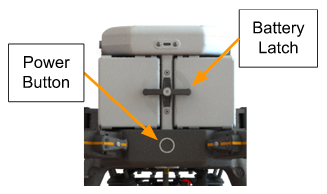
<table><thead><tr><th width="82"></th><th></th></tr></thead><tbody><tr><td>12</td><td>Secure the batteries by rotating the Battery Latch by 90° to a horizontal orientation.</td></tr></tbody></table>

<figure><img src="https://240141666-files.gitbook.io/~/files/v0/b/gitbook-x-prod.appspot.com/o/spaces%2FhMePZ0UIa6VYv9VbYu4u%2Fuploads%2FFuV4xC2A7P5DJxPewo5v%2FSecureBattsLatch.png?alt=media&amp;token=0c6c22dd-1528-4516-8e1f-5785d54b4167" alt=""><figcaption></figcaption></figure>

<table><thead><tr><th width="82"></th><th></th></tr></thead><tbody><tr><td>13</td><td>Press the Power Button on the IF800 Tomcat to power on the aircraft.</td></tr></tbody></table>

<figure><img src="https://240141666-files.gitbook.io/~/files/v0/b/gitbook-x-prod.appspot.com/o/spaces%2FhMePZ0UIa6VYv9VbYu4u%2Fuploads%2FlfuSe8eOZicdpJ9uWfAL%2FIF800_powerButton.png?alt=media&amp;token=c7c100f9-a89e-41ea-be56-467a1bb59163" alt=""><figcaption></figcaption></figure>


# Payload Mounting

The IF800 Tomcat comes pre-configured with a Midweight Pro Damping Kit that can handle payloads between 0-3kg in 4 preset positions. For more details on the recommended weight limits for each position, see [Weight and Balance](/inspired-documentation/products/aircraft/if800-tomcat/if800-tomcat-overview/payload-mounting/weight-and-balance) section.

<figure><img src="https://240141666-files.gitbook.io/~/files/v0/b/gitbook-x-prod.appspot.com/o/spaces%2FhMePZ0UIa6VYv9VbYu4u%2Fuploads%2FElcnqfhuVhLuYbP9h7sp%2Fimage.png?alt=media&amp;token=6fe90695-da2f-4237-b49e-bd90e2ffe342" alt=""><figcaption></figcaption></figure>


# Weight and Balance

{% hint style="info" %}
The IF800 now comes with the Midweight Pro Damping Kit as the standard payload mounting interface. Details such as possible mounting positions and weight limits are seen below.
{% endhint %}

## IF800 Pro Damping Kit Positions & Weight Limits

<table data-full-width="true"><thead><tr><th width="232">Position Number and Offset (Distance from Vehicle Center)</th><th width="324.04296875">Figure</th><th>Weight Limit</th><th>Optimal Weight for Balance</th></tr></thead><tbody><tr><td>Position 1 - 125 mm</td><td><img src="https://240141666-files.gitbook.io/~/files/v0/b/gitbook-x-prod.appspot.com/o/spaces%2FhMePZ0UIa6VYv9VbYu4u%2Fuploads%2F7GMftgIryL6KrpIVn5En%2FScreen%20Shot%202025-03-17%20at%2012.37.58%20PM.png?alt=media&amp;token=678777a1-072d-496d-8eb8-225db7e16411" alt="" data-size="original"></td><td>1.2 kg (2.6 lbs)</td><td>0.7 kg (1.5 lbs)</td></tr><tr><td>Position 2 - 100 mm</td><td><img src="https://240141666-files.gitbook.io/~/files/v0/b/gitbook-x-prod.appspot.com/o/spaces%2FhMePZ0UIa6VYv9VbYu4u%2Fuploads%2FIC3sc6MMasdmo2I4czcF%2FScreen%20Shot%202025-03-17%20at%2012.39.02%20PM.png?alt=media&amp;token=fe487cf4-f7e3-40b5-b528-569a2fb0d538" alt="" data-size="original"></td><td>1.7 kg (3.7 lbs)</td><td>0.9 kg (2.0 lbs)</td></tr><tr><td>Position 3 - 75 mm</td><td><img src="https://240141666-files.gitbook.io/~/files/v0/b/gitbook-x-prod.appspot.com/o/spaces%2FhMePZ0UIa6VYv9VbYu4u%2Fuploads%2FjQsmKnYLZ98lq9glN7Ty%2FScreen%20Shot%202025-03-17%20at%2012.39.37%20PM.png?alt=media&amp;token=1d64e1c6-b127-441f-be81-3eddadc31692" alt="" data-size="original"></td><td>1.9 kg (4.2 lbs)</td><td>1.4 kg (3.1 lbs)</td></tr><tr><td>Position 4 - 50 mm</td><td><img src="https://240141666-files.gitbook.io/~/files/v0/b/gitbook-x-prod.appspot.com/o/spaces%2FhMePZ0UIa6VYv9VbYu4u%2Fuploads%2FpjS60fqPhkShD9zqKRjI%2FScreen%20Shot%202025-03-17%20at%2012.40.09%20PM.png?alt=media&amp;token=e80b0861-e22b-4bb5-8ca6-a9a9aec2a45a" alt="" data-size="original"></td><td>2.6 kg (5.7 lbs)</td><td>2.4 kg (5.3 lbs)</td></tr></tbody></table>

## Legacy IF800 Payload Mounting

The stock damping plate (shipped prior to Q3 2025) is fixed in Position 2, and is limited to a payload weight of 1.5kg. Please contact IFT to explore Pro Damping Kit upgrade path(s). For instructions on how to remove the legacy damping plate and install the Pro Damping Kit, please watch the video on the [IF800 Midweight Pro Damping Kit](/inspired-documentation/products/aircraft/if800-tomcat/if800-tomcat-overview/payload-mounting/if800-pro-damping-kits/if800-midweight-pro-damping-kit) page.

<figure><img src="https://240141666-files.gitbook.io/~/files/v0/b/gitbook-x-prod.appspot.com/o/spaces%2FhMePZ0UIa6VYv9VbYu4u%2Fuploads%2FmQhJWVju6FO0CmcNPbvb%2Fimage.png?alt=media&amp;token=9b3b5f8c-12e5-41b0-8a04-f73aa4b5951e" alt=""><figcaption></figcaption></figure>


# IF800 Pro Damping Kits

The IF800 Pro Damping Kits are available to augment the payload carrying capabilities of your aircraft.

{% hint style="info" %}
The IF800 now comes with the Midweight Pro Damping Kit as the standard payload mounting interface.&#x20;
{% endhint %}

<figure><img src="https://240141666-files.gitbook.io/~/files/v0/b/gitbook-x-prod.appspot.com/o/spaces%2FhMePZ0UIa6VYv9VbYu4u%2Fuploads%2FGcJg3iZPr7WSL2oxH3c5%2Fimage%20(6).png?alt=media&amp;token=58793b45-e90d-40d1-80f2-9702ce8d1a43" alt="" width="375"><figcaption><p><a href="/inspired-documentation/products/aircraft/if800-tomcat/if800-tomcat-overview/payload-mounting/if800-pro-damping-kits/if800-midweight-pro-damping-kit">IF800 Midweight Pro Damping Kit</a></p></figcaption></figure>

<figure><img src="https://240141666-files.gitbook.io/~/files/v0/b/gitbook-x-prod.appspot.com/o/spaces%2FhMePZ0UIa6VYv9VbYu4u%2Fuploads%2FauBFrRrSQ00tsjWooO0B%2Fimage%20(9).png?alt=media&amp;token=8667880f-5b31-4d90-a76f-d3cdc09778d5" alt="" width="375"><figcaption><p><a href="/inspired-documentation/products/aircraft/if800-tomcat/if800-tomcat-overview/payload-mounting/if800-pro-damping-kits/if800-fixed-payload-mounting-kit">IF800 Fixed Payload Mounting Kit</a></p></figcaption></figure>


# IF800 Midweight Pro Damping Kit

The IF800 Midweight Pro Damping Kit is ideal for 0 kg - 3 kg payloads that require damping. This damping kit allows for quick payload swapping without tools.

<figure><img src="https://lh7-rt.googleusercontent.com/docsz/AD_4nXc4MmKOqStPrPjuqIeG3jbUl25SCb1IVZZCd0SqphTmNahtplQJZ8sL3xtNGVeFyxX_YCCI5ac_EekomNftg7D59qFviUqIgUDMmQuMz1PXQEqu3xVjpZLu6TdafoP7npdIlWdZ-A?key=HW_O9nMcj8ZUCb255lMLWoUh" alt=""><figcaption><p>The IF800 Midweight Pro Damping Kit</p></figcaption></figure>

{% embed url="<https://www.youtube.com/watch?ab_channel=InspiredFlightTechnologies&t=480s&v=opQZD6zdiww>" %}
Video installation guide demonstrating installation of a IF800 Pro Damping Kit, including removal of the stock damping plate
{% endembed %}

## Attaching the Midweight Pro Damping Kit to the IF800

1. Remove the pro damping kit from its packaging and ensure that all parts are present.

<figure><img src="https://240141666-files.gitbook.io/~/files/v0/b/gitbook-x-prod.appspot.com/o/spaces%2FhMePZ0UIa6VYv9VbYu4u%2Fuploads%2Fnons58RkWNcOJUZlQcGs%2FScreen%20Shot%202025-03-12%20at%202.41.24%20PM.png?alt=media&amp;token=9e23c5e8-4da1-4481-b90a-d21749383acf" alt=""><figcaption></figcaption></figure>

2. Place the payload rail with the first position towards the front of the drone, and secure using 4 long M3 screws.

<figure><img src="https://240141666-files.gitbook.io/~/files/v0/b/gitbook-x-prod.appspot.com/o/spaces%2FhMePZ0UIa6VYv9VbYu4u%2Fuploads%2F6exYJjYdXyA5mDkR6F5h%2FScreen%20Shot%202025-03-10%20at%2011.43.08%20AM.png?alt=media&amp;token=5e9c2975-8525-49e9-b74c-f3868e0ece02" alt=""><figcaption></figcaption></figure>

3. Ensuring the payload rail clamps are in the open position and the thumb screw is facing towards the front, slide the damping plate onto the rails.

<figure><img src="https://240141666-files.gitbook.io/~/files/v0/b/gitbook-x-prod.appspot.com/o/spaces%2FhMePZ0UIa6VYv9VbYu4u%2Fuploads%2FIOH0pDzohMsuvS71Dxxo%2FScreen%20Shot%202025-03-10%20at%2011.43.55%20AM.png?alt=media&amp;token=862c8619-3836-44e3-a2c8-bc67541ce092" alt=""><figcaption></figcaption></figure>

4. Secure the clamps on the side. Refer to [Weight and Balance](/inspired-documentation/products/aircraft/if800-tomcat/if800-tomcat-overview/payload-mounting/weight-and-balance) for positioning guidance.&#x20;

<figure><img src="https://240141666-files.gitbook.io/~/files/v0/b/gitbook-x-prod.appspot.com/o/spaces%2FhMePZ0UIa6VYv9VbYu4u%2Fuploads%2FUUggKJkDYls4A0cjTJiv%2FScreen%20Shot%202025-03-10%20at%2011.44.32%20AM.png?alt=media&amp;token=c48a5285-0b8a-4c48-b849-050620d106f4" alt=""><figcaption></figcaption></figure>

5. Slide on quick disconnect until it clicks into place

<figure><img src="https://240141666-files.gitbook.io/~/files/v0/b/gitbook-x-prod.appspot.com/o/spaces%2FhMePZ0UIa6VYv9VbYu4u%2Fuploads%2FBXTlqkCTSPQK7HVJyKRt%2FScreen%20Shot%202025-03-10%20at%2011.45.11%20AM.png?alt=media&amp;token=93308d94-554f-4506-8189-ce78a9bfeca2" alt=""><figcaption></figcaption></figure>

6. Secure the dovetail cage to the quick disconnect using 4 Short M3 Screws. Then tighten the front thumbscrew.

<figure><img src="https://240141666-files.gitbook.io/~/files/v0/b/gitbook-x-prod.appspot.com/o/spaces%2FhMePZ0UIa6VYv9VbYu4u%2Fuploads%2FrkOhzInWU2ANECZIkI7N%2FScreen%20Shot%202025-03-10%20at%2011.45.52%20AM.png?alt=media&amp;token=f4ef0079-d3d6-47f2-a668-af92ef825909" alt=""><figcaption></figcaption></figure>

7. The IF800 Midweight Pro Damping Kit is now ready to use

<figure><img src="https://lh7-rt.googleusercontent.com/docsz/AD_4nXc4MmKOqStPrPjuqIeG3jbUl25SCb1IVZZCd0SqphTmNahtplQJZ8sL3xtNGVeFyxX_YCCI5ac_EekomNftg7D59qFviUqIgUDMmQuMz1PXQEqu3xVjpZLu6TdafoP7npdIlWdZ-A?key=HW_O9nMcj8ZUCb255lMLWoUh" alt=""><figcaption></figcaption></figure>


# IF800 Fixed Payload Mounting Kit

The IF800 Fixed Payload Mounting Kit is ideal for 0 kg - 3 kg payloads that must not have damping in order to work. This damping kit allows for quick payload swapping without tools.

<figure><img src="https://240141666-files.gitbook.io/~/files/v0/b/gitbook-x-prod.appspot.com/o/spaces%2FhMePZ0UIa6VYv9VbYu4u%2Fuploads%2F87TYwgHvPFb8XFoJsR3s%2Fimage%20(8).png?alt=media&amp;token=abce0f84-00a4-4a6b-bb05-a2cb7493cea8" alt=""><figcaption><p>The IF800 Fixed Payload Mounting Kit</p></figcaption></figure>

## Attaching the Fixed Payload Mounting Kit to the IF800

1. Remove the fixed payload mounting kit from its packaging and ensure that all parts are present.

<figure><img src="https://240141666-files.gitbook.io/~/files/v0/b/gitbook-x-prod.appspot.com/o/spaces%2FhMePZ0UIa6VYv9VbYu4u%2Fuploads%2FdCsZDOC7CD3DXsufPPvR%2FScreen%20Shot%202025-03-12%20at%202.40.11%20PM.png?alt=media&amp;token=b6049791-8636-4322-96d6-e3410c4857c1" alt=""><figcaption></figcaption></figure>

2. Place the payload rail with the first position towards the front of the drone, and secure using the included (x8) M3 x 10mm screws.

<figure><img src="https://240141666-files.gitbook.io/~/files/v0/b/gitbook-x-prod.appspot.com/o/spaces%2FhMePZ0UIa6VYv9VbYu4u%2Fuploads%2F52QCrx2teIRuEzxf8Vj4%2FScreen%20Shot%202025-03-10%20at%2012.00.37%20PM.png?alt=media&amp;token=a8ce9555-be6d-44bf-9a94-9b06372b3c51" alt=""><figcaption></figcaption></figure>

3. Ensuring the payload rail clamps are in the open position and the thumb screw is towards the front, slide the damping plate onto the aircraft.

<figure><img src="https://240141666-files.gitbook.io/~/files/v0/b/gitbook-x-prod.appspot.com/o/spaces%2FhMePZ0UIa6VYv9VbYu4u%2Fuploads%2F9JerTmgtFnmOiKEEttfX%2FScreen%20Shot%202025-03-10%20at%2012.01.24%20PM.png?alt=media&amp;token=b5f33659-d466-484f-b24b-c35569203ba5" alt=""><figcaption></figcaption></figure>

4. Secure the clamps on the side. (Refer to [weight and balance](/inspired-documentation/products/aircraft/if800-tomcat/if800-tomcat-overview/payload-mounting/weight-and-balance) for positioning.)&#x20;

<figure><img src="https://240141666-files.gitbook.io/~/files/v0/b/gitbook-x-prod.appspot.com/o/spaces%2FhMePZ0UIa6VYv9VbYu4u%2Fuploads%2FOveoLhtM6bWt7gkqTk0H%2FScreen%20Shot%202025-03-10%20at%2012.02.01%20PM.png?alt=media&amp;token=35400502-9539-4d27-9d6d-183916f241a7" alt=""><figcaption></figcaption></figure>

5. Slide on quick disconnect until it clicks into place via the latch on the side.

<figure><img src="https://240141666-files.gitbook.io/~/files/v0/b/gitbook-x-prod.appspot.com/o/spaces%2FhMePZ0UIa6VYv9VbYu4u%2Fuploads%2F37iSjCC7nHaMRBRdaTWh%2FScreen%20Shot%202025-03-10%20at%2012.02.40%20PM.png?alt=media&amp;token=f660cf60-6dc2-4d12-ae09-efeb8db7cdc4" alt=""><figcaption></figcaption></figure>

6. Secure the dovetail cage to the quick disconnect using 4 Short M3 Screws. Ensure the front thumbscrew is tightened.

<figure><img src="https://240141666-files.gitbook.io/~/files/v0/b/gitbook-x-prod.appspot.com/o/spaces%2FhMePZ0UIa6VYv9VbYu4u%2Fuploads%2F3vTy607x6APxaFb1pGfR%2FScreen%20Shot%202025-03-10%20at%2012.03.25%20PM.png?alt=media&amp;token=2a59be6d-6478-4f89-bb99-547c7267c40b" alt=""><figcaption></figcaption></figure>

7. The fixed payload mounting kit is now ready to use.

<figure><img src="https://240141666-files.gitbook.io/~/files/v0/b/gitbook-x-prod.appspot.com/o/spaces%2FhMePZ0UIa6VYv9VbYu4u%2Fuploads%2FOROMwVx77yOVNHKEgYfz%2Fimage%20(8).png?alt=media&amp;token=2ca2c00c-c0a4-4545-8a79-973f7e1ba22c" alt=""><figcaption></figcaption></figure>


# UPI Panel Connections

This section describes the payload connections on the bottom of the IF800.

### IF800 Universal Payload Interface (UPI) Panel

Beneath each IF800 vehicle is a panel with three connectors. The connectors consist of three Harwin Datamate J-Tek connectors: M80-5C11205MU (12-Pin), M80-5C11405MU (14-Pin), & M80-5C11005MU (10-Pin).

<figure><img src="https://240141666-files.gitbook.io/~/files/v0/b/gitbook-x-prod.appspot.com/o/spaces%2FhMePZ0UIa6VYv9VbYu4u%2Fuploads%2F4QyiTmGCOS8uGRVSFOTo%2FPanel_01.png?alt=media&amp;token=f730d993-0fb3-4b74-bf17-eaa74720adc5" alt=""><figcaption></figcaption></figure>

By default, the 12 and 14-pin connectors (labeled A & B respectively) come populated with the dovetail quick-release assembly connectors, which adhere to the [Pixhawk Payload Bus Standard](https://drive.google.com/file/d/1sg_stwnPqDlZFZ-l_wt6QIxW4d2Nkp8X/view?usp=sharing). The 10-pin connector (C) is an auxiliary connector meant to provide additional connections when the dovetail quick-release assembly is in use.

This documentation is useful for customers using a payload that does not mount using the dovetail quick-release, or that need additional connections from the auxiliary connector (C) in combination with the dovetail quick-release.

{% hint style="warning" %}
Before removing or installing the Harwin connectors & dovetail quick-release assembly and Harwin connectors, please visit the Payload Mounting section of the [IF800 Handbook](https://240141666-files.gitbook.io/~/files/v0/b/gitbook-x-prod.appspot.com/o/spaces%2FhMePZ0UIa6VYv9VbYu4u%2Fuploads%2FdWjrLskgKViRmHUcGTzm%2F_Pilot%20Operating%20Handbook%2C%20IF800%20Tomcat%2C%20107%20Operation%2C%20REV%201.0%20%20\(1\).pdf?alt=media\&token=18403967-c473-4bb7-817c-370879df9838) (Page 16) for instructions on how to safely do so.  Or Click [HERE](https://inspired-flight-technologies-inc.gitbook.io/inspired-documentation/products/aircrafts/if800-tomcat/if800-tomcat-overview/payload-mounting).
{% endhint %}

## Panel Connectors

<table data-header-hidden><thead><tr><th width="252"></th><th width="178"></th><th width="165"></th><th></th></tr></thead><tbody><tr><td><p>Connector Label </p><p>(Diagram Below)</p></td><td>A</td><td>B</td><td>C</td></tr><tr><td>Connector Manufacturer</td><td>Harwin Inc.</td><td>Harwin Inc.</td><td>Harwin Inc.</td></tr><tr><td>Manufacturer Part Number</td><td><a href="https://www.digikey.com/en/products/detail/harwin-inc/M80-5C11205MU/15216585">M80-5C11205MU</a></td><td><a href="https://www.digikey.com/en/products/detail/harwin-inc/M80-5C11405MU/15216604">M80-5C11405MU</a></td><td><a href="https://www.digikey.com/en/products/detail/harwin-inc/M80-5C11005MU/15216583">M80-5C11005MU</a></td></tr><tr><td>Series</td><td>Datamate J-Tek</td><td>Datamate J-Tek</td><td>Datamate J-Tek</td></tr><tr><td>Contact Type</td><td>Male Pin</td><td>Male Pin</td><td>Male Pin</td></tr><tr><td>Number of Positions</td><td>12</td><td>14</td><td>10</td></tr><tr><td>Number of Rows</td><td>2</td><td>2</td><td>2</td></tr><tr><td>Current Rating(per pin) </td><td>2A</td><td>2A</td><td>2A</td></tr><tr><td>Mating Connector</td><td><a href="https://www.digikey.com/en/products/detail/harwin-inc/M80-4611205/3727843">M80-4611205</a></td><td><a href="https://www.digikey.com/en/products/detail/harwin-inc/M80-4611405/2264023">M80-4611405</a></td><td><a href="https://www.digikey.com/en/products/detail/harwin-inc/M80-4611005/2264022">M80-4611005</a></td></tr></tbody></table>

<figure><img src="https://240141666-files.gitbook.io/~/files/v0/b/gitbook-x-prod.appspot.com/o/spaces%2FhMePZ0UIa6VYv9VbYu4u%2Fuploads%2FnFfkS48xgKA55dwxv8T5%2FPinouts.png?alt=media&amp;token=3979fe6d-6668-4fb0-8148-fdbc3e49d790" alt=""><figcaption><p>Connector Pinouts (Looking at Panel Surface - Male Pins)</p></figcaption></figure>

<figure><img src="https://240141666-files.gitbook.io/~/files/v0/b/gitbook-x-prod.appspot.com/o/spaces%2FhMePZ0UIa6VYv9VbYu4u%2Fuploads%2FBWyNlntBlq63yxRv5ApS%2FHarwin%20Panel.png?alt=media&amp;token=9da1be03-7b38-4ae3-a39a-0dd714203c56" alt=""><figcaption></figcaption></figure>

<figure><img src="https://240141666-files.gitbook.io/~/files/v0/b/gitbook-x-prod.appspot.com/o/spaces%2FhMePZ0UIa6VYv9VbYu4u%2Fuploads%2FhI6hNm5gq2mLX3hBNlbn%2FHarwin%20Panel_02.png?alt=media&amp;token=debdb492-4049-4106-9e4b-c89fa43ddc99" alt=""><figcaption></figcaption></figure>

<figure><img src="https://240141666-files.gitbook.io/~/files/v0/b/gitbook-x-prod.appspot.com/o/spaces%2FhMePZ0UIa6VYv9VbYu4u%2Fuploads%2FEPrJviNQGw52AgDOyozH%2FHarwin%20Panel_03.png?alt=media&amp;token=db04c8fe-11e1-40d1-8b8c-03e747a7f1c9" alt=""><figcaption></figcaption></figure>

<figure><img src="https://240141666-files.gitbook.io/~/files/v0/b/gitbook-x-prod.appspot.com/o/spaces%2FhMePZ0UIa6VYv9VbYu4u%2Fuploads%2FbasbQ0Q6rx9HJM5zJ0gu%2FHarwin%20Panel_04.png?alt=media&amp;token=b90eedd5-5cc4-4a22-892c-9f0810191240" alt=""><figcaption></figcaption></figure>

<figure><img src="https://240141666-files.gitbook.io/~/files/v0/b/gitbook-x-prod.appspot.com/o/spaces%2FhMePZ0UIa6VYv9VbYu4u%2Fuploads%2FEMes4Rlv4hYpV0GayCmw%2FUpdated%20Harwin%20Panel%20IF800.png?alt=media&amp;token=98306f7a-91bf-4d8a-a0bc-843ad9d48331" alt=""><figcaption></figcaption></figure>

<figure><img src="https://240141666-files.gitbook.io/~/files/v0/b/gitbook-x-prod.appspot.com/o/spaces%2FhMePZ0UIa6VYv9VbYu4u%2Fuploads%2FPMEXicPfUuW1edN3PjJ5%2FUpdated%20Harwin%2010-pos%20Connector%20(C).png?alt=media&amp;token=59639728-1577-41c0-9f0a-02a4716429c2" alt=""><figcaption></figcaption></figure>


# Aircraft Disassembly and Storage

In general, disassembling the aircraft is the reverse of the assembly procedure.  However, some details of disassembly need further explanation.

<table><thead><tr><th width="89">STEP</th><th>ACTION</th></tr></thead><tbody><tr><td>1</td><td>Power off the IF800 Tomcat and the controller.</td></tr><tr><td>2</td><td>Disengage battery latch and remove both batteries.</td></tr></tbody></table>

<figure><img src="https://240141666-files.gitbook.io/~/files/v0/b/gitbook-x-prod.appspot.com/o/spaces%2FhMePZ0UIa6VYv9VbYu4u%2Fuploads%2FlfuSe8eOZicdpJ9uWfAL%2FIF800_powerButton.png?alt=media&amp;token=c7c100f9-a89e-41ea-be56-467a1bb59163" alt=""><figcaption></figcaption></figure>

<table><thead><tr><th width="89"></th><th></th></tr></thead><tbody><tr><td>3</td><td>Place the IF800 Tomcat case near the aircraft on a flat, level surface.</td></tr></tbody></table>

<figure><img src="https://240141666-files.gitbook.io/~/files/v0/b/gitbook-x-prod.appspot.com/o/spaces%2FhMePZ0UIa6VYv9VbYu4u%2Fuploads%2Fy2s9BG46NXqM1ROQvmIM%2Fimage.png?alt=media&amp;token=a899a8b3-54cb-4a70-ba0e-e2319a44d666" alt=""><figcaption></figcaption></figure>

<table><thead><tr><th width="89"></th><th></th></tr></thead><tbody><tr><td>4</td><td>Fold each set of propeller blades toward the aircraft along each arm.</td></tr></tbody></table>

<figure><img src="https://240141666-files.gitbook.io/~/files/v0/b/gitbook-x-prod.appspot.com/o/spaces%2FhMePZ0UIa6VYv9VbYu4u%2Fuploads%2FaeV6jvQEno1Vhskwc4Ns%2Fimage.png?alt=media&amp;token=d891c019-f2bf-4372-8f06-63aa9681b25d" alt=""><figcaption></figcaption></figure>

<table><thead><tr><th width="89"></th><th></th></tr></thead><tbody><tr><td>5</td><td>Disengage Autolock for each arm by turning the lever down.</td></tr></tbody></table>

<figure><img src="https://240141666-files.gitbook.io/~/files/v0/b/gitbook-x-prod.appspot.com/o/spaces%2FhMePZ0UIa6VYv9VbYu4u%2Fuploads%2FyiN2nxfKJH9UgSteWcyE%2Fimage.png?alt=media&amp;token=8db7a831-2a89-4089-a2d6-620fd5a57d0e" alt="" width="450"><figcaption></figcaption></figure>

<table><thead><tr><th width="89"></th><th></th></tr></thead><tbody><tr><td>6</td><td>Loosen the landing gear ratchet levers on both legs by rotating counter clockwise.</td></tr></tbody></table>

<figure><img src="https://240141666-files.gitbook.io/~/files/v0/b/gitbook-x-prod.appspot.com/o/spaces%2FhMePZ0UIa6VYv9VbYu4u%2Fuploads%2FzmUo5gzHRXDZw9ghXMII%2Fimage.png?alt=media&amp;token=291ecee8-6ee4-4146-96cf-19d7436d9322" alt=""><figcaption></figcaption></figure>

<table><thead><tr><th width="89"></th><th></th></tr></thead><tbody><tr><td>7</td><td>Fold the rear arms into the aircraft.</td></tr></tbody></table>

<figure><img src="https://240141666-files.gitbook.io/~/files/v0/b/gitbook-x-prod.appspot.com/o/spaces%2FhMePZ0UIa6VYv9VbYu4u%2Fuploads%2F7CURAFcd9IgEPZvmy2zY%2Fimage.png?alt=media&amp;token=293f0a0c-bc45-40ad-a46e-ca17488692c5" alt=""><figcaption></figcaption></figure>

<table><thead><tr><th width="89"></th><th></th></tr></thead><tbody><tr><td>8</td><td>Fold the front arms into the aircraft.</td></tr></tbody></table>

<figure><img src="https://240141666-files.gitbook.io/~/files/v0/b/gitbook-x-prod.appspot.com/o/spaces%2FhMePZ0UIa6VYv9VbYu4u%2Fuploads%2FzuUEjpoKpEzdoLyNgPHH%2Fimage.png?alt=media&amp;token=8bf9ddc4-6883-4d47-a9e6-db796a3c4ef7" alt=""><figcaption></figcaption></figure>

<table><thead><tr><th width="89"></th><th></th></tr></thead><tbody><tr><td>9</td><td>Install the Arm Handles onto the aircraft.</td></tr></tbody></table>

<figure><img src="https://240141666-files.gitbook.io/~/files/v0/b/gitbook-x-prod.appspot.com/o/spaces%2FhMePZ0UIa6VYv9VbYu4u%2Fuploads%2FclQ7P1VoHdtVku1dNxvO%2Fimage.png?alt=media&amp;token=8f4ec7ea-5caa-4c4a-9b4d-3d9f4f04c962" alt=""><figcaption></figcaption></figure>

<table><thead><tr><th width="89"></th><th></th></tr></thead><tbody><tr><td>10</td><td>Lift the aircraft by the Landing Gear Supports, invert, and return aircraft to the foam case bottom-side-up, front of the aircraft facing outward.</td></tr></tbody></table>

<figure><img src="https://240141666-files.gitbook.io/~/files/v0/b/gitbook-x-prod.appspot.com/o/spaces%2FhMePZ0UIa6VYv9VbYu4u%2Fuploads%2FW7ghlDhmRaRw59iW1Wbs%2Fimage.png?alt=media&amp;token=c7672d6f-84b7-4464-aa34-62f4bbeadaf6" alt=""><figcaption></figcaption></figure>

<table><thead><tr><th width="89"></th><th></th></tr></thead><tbody><tr><td>11</td><td>Loosen the Ratcheting Thumb Levers and depress the landing gear button and remove the Landing Gear Support. Place Landing Gear Supports into the pockets on the underside of the case lid and secure with velcro straps.</td></tr></tbody></table>

<figure><img src="https://240141666-files.gitbook.io/~/files/v0/b/gitbook-x-prod.appspot.com/o/spaces%2FhMePZ0UIa6VYv9VbYu4u%2Fuploads%2FJasJSo5YkeuolrugldFL%2Fimage.png?alt=media&amp;token=57f69504-0304-472b-89b2-38538856362b" alt=""><figcaption></figcaption></figure>

<table><thead><tr><th width="89"></th><th></th></tr></thead><tbody><tr><td>12</td><td>Return the controller to the case (antennas folded down, if applicable).</td></tr></tbody></table>


# Operating The Aircraft

This section will review the responsible operating methods when piloting the IF800 Tomcat.<br>

{% embed url="<https://www.youtube.com/watch?ab_channel=InspiredFlightTechnologies&v=GSxr57P1Ick>" %}
IF800 Setup and Preflight Checks
{% endembed %}


# Registering the IF800 Tomcat

## Registering Your sUAS and RID Compliance

### What You Need To Know

The FAA requires the aircraft registration number to be externally affixed to the aircraft, and easily viewable on the ground without needing to disassemble or use tools. There are exceptions for the US government, Blue UAS aircraft, UAS operated outside of the USA, and home-built and very small UAVs.

The FAA requires that all aircraft not be able to take off without Remote ID in operation.  If the system stops transmitting in flight, the flight control software must alert the operator, and instruct the operator to land the aircraft as soon as possible. To comply the aircraft must be a commercial grade, fully compliant system, and must be tamper resistant, FCC compliant, reliable and robustly integrated into the flight control software, aircraft, and ground control station.

Inspired Flight is ready to comply. Our sUAS Product and Engineering team is among the best in the industry. We released integrated Remote ID as an optional add-on for our US commercial customers in October 2022. Although all Inspired Flight UAS is NDAA compliant, our systems specifically granted a Blue UAS Authority to Operate (ATO) by the Defense Innovation Unit are not allowed by the DOD to have Remote ID transmission capability.

### Before Registering

* Each non-Blue UAS IF800 Tomcat will be pre-approved by the FAA with a[ Declaration of Compliance](https://uasdoc.faa.gov/listDocs) for RID.
* Locate the ten digit RID serial number provided by IFT, this will be next to the QR code sticker on the aircraft.

### Getting Started with RID

For assistance registering a new IF800 Tomcat, registering an aircraft, and other resources refer to the [ Getting Started RID](https://www.faa.gov/uas/getting_started/remote_id) page on FAA.gov.

### External FAA ruling links:

<https://www.govinfo.gov/content/pkg/FR-2022-08-11/pdf/2022-16997.pdf>

{% embed url="<https://www.faa.gov/sites/faa.gov/files/uas/getting_started/remote_id/Remotehttps:/www.govinfo.gov/content/pkg/FR-2022-08-11/pdf/2022-16997.pdf>" %}


# Safe Operating Practices

## Responsible Operating Practices

#### Observe the following rules to avoid non-compliant behavior, serious injury, and property damage:&#x20;

* Never operate the IF800 Tomcat under the influence of alcohol, drugs, fatigue, nausea, or any serious conditions that could impair your ability to operate the aircraft.
* No person may act as a remote pilot in command, visual observer, or be participant in the flight operations of the aircraft if they’re aware of someone with a physical or mental condition that would interfere with the safe operation of the small unmanned aircraft system.
* Must possess a current or recurrent FAA Part 107 operator's license in hand.
* Always yield to manned aircraft.&#x20;
* Never fly the aircraft over large social gatherings like sporting events or concerts without clear authorization(s) and/or waivers in hand.&#x20;
* Do not fly the aircraft in prohibited locations without authorization. Airports, national borders, densely populated areas, major roadways and streets, venues for major events, first responder scenes, schools, prisons, police stations, fire stations, power plants, federal & state buildings, and military bases are included.
* Stay below the authorized maximum altitude.&#x20;
* Keep your aircraft within visual line of sight (VLOS).&#x20;
* Never use the aircraft as a transport for illegal or dangerous products or payloads.&#x20;
* Respect people’s privacy where there is an expectation of privacy at all times.
* Keep in mind that photography and videography from certain events, performances, exhibitions, or even commercial properties may violate copyright protections even if the imagery was intended for personal usage.

## Use the I.M.S.A.F.E. Checklist&#x20;

* [ ] <mark style="color:purple;">Illness</mark>- Am I sick? Illness is an obvious pilot risk.
* [ ] <mark style="color:purple;">Medication</mark>- Am I taking any medicines that might affect my judgement or make me drowsy?&#x20;
* [ ] <mark style="color:purple;">Stress</mark>- Am I under psychological pressure from the job? Do I have money, health, or family problems? Stress causes concentration and performance problems. While the regulations list medical conditions that require grounding, stress is not among them. The pilot should consider the effects of stress on performance.&#x20;
* [ ] <mark style="color:purple;">Alcohol</mark>- Have I been drinking within 8 hours? Within 24 hours? As little as one ounce of liquor, one bottle of beer, or four ounces of wine can impair flying skills. Alcohol also renders a pilot more susceptible to disorientation and hypoxia.
* [ ] <mark style="color:purple;">Fatigue</mark>- Am I tires and not adequately rested? Fatigue continues to be one of the most insidious hazards to flight safety, as it may not be apparent to a pilot until serious errors are made.
* [ ] <mark style="color:purple;">Emotion</mark>- Am I emotionally upset?

### FAA Commercial Uncrewed Aerial System (UAS) Pilot Certification

To commercially operate UAS up to 55 pounds, individuals are required by federal law to obtain a certification under 14 Code of Federal Regulations (CFR) Part 107 Small Uncrewed Aircraft Systems to do so. The 14 CFR Part 107 Certification has to be renewed every 2 years to stay current. Below are some informational links that are pertinent to obtaining the 14 CFR Part 107 Certification.

FAA Certified Remote Pilot Information: <https://www.faa.gov/uas/commercial_operators>

14CFR Part 107 sUAS Regulations: <https://www.ecfr.gov/current/title-14/chapter-I/subchapter-F/part-107>

***

## Environmental Limitations

Prior to flight, assess the local environment and area of operation for compliance with the following criteria, based on FAA 14 CFR Part 107 requirements and the physical limitations of the aircraft.

#### Local Airspace

* Check the class airspace for all flight operations.
* No person may operate a small unmanned aircraft in Class B, Class C, or Class D airspace or within the lateral boundaries of the surface area of Class E airspace designated for an airport unless that person has prior authorization from Air Traffic Control (ATC).
* Check proximity to nearby airports, hospitals & heliports.
* No person may operate a small unmanned aircraft in a manner that interferes with operations and traffic patterns at any airport, heliport, or seaplane base.

#### Special Use Airspace & Restricted Areas

* No person may operate a small unmanned aircraft in prohibited or restricted areas unless that person has permission from the using or controlling agency, as appropriate.

#### Temporary Flight Restrictions

* Certain temporary flight restrictions may be imposed by way of a NOTAM. Therefore, the sUAS RPIC must check for NOTAMs before each flight to determine if there are any applicable airspace restrictions.

#### Personnel and Property

* Ensure that all personnel in the area of operation and/or directly beneath the flight path are informed of the operation. Do not fly over large crowds.&#x20;
* Ensure that all members of the remote operating crew, such as Pilot in Command, Persons Manipulating the Controls, and Visual Observers, are informed of the planned flight path, potential hazards, emergency procedures, and individual roles and responsibilities.

#### Ground Hazards

Prior to flight, identify hazards in the area of operation, including but not limited to:

* Utility infrastructure such as cellular or radio towers
* Tall trees, rocks, and/or vegetation
* Potential sources of high RF interference such as radio, microwave, radar, or very high-voltage infrastructure.&#x20;
* The tallest object in your area of operation and its approximate height.&#x20;
* Set a safe & clear RTH altitude in IGC.

#### Clouds & Visibility

Per FAA 14 CFR Part 107 Rules: The minimum distance of the small unmanned aircraft from clouds must be no less than:

* 500 feet below the cloud, cloud layer, or fog.
* 2,000 feet horizontally from the cloud or fog.
* Unless flying with a BVLOS waiver, the Pilot in Command must maintain visibility of the sUAS throughout the flight, either directly or via Visual Observers.
* sUAS operations must have a minimum of three miles of visibility.

#### Ambient Temperature

Be aware of the limitations of your sUAS under extreme hot and cold conditions to better mitigate unexpected and unwanted adverse events.

* IF800 Tomcat Safe Operating Range: -10°C \~ 45°C (14°F to 113°F).
* IB388 Battery:&#x20;
  * Safe Storage Temperature, 10°C to 40°C (50°F to 104°F).
  * Allowable Ambient Operating Temperature, -10°C to 45°C (14°F  to 113°F).
  * Max Internal Temperature, 70°C (158°F).

#### Wind

The IF800 Tomcat is rated for sustained winds up to 25 mph with gusts up to 31 mph based on the Beaufort scale, rating L6. Always be mindful of wind and wind gust’s effects on aircraft performance, proximity to objects, overall flight times, and your RTH distance. Use an anemometer on site when necessary.

#### Minimum Obstacle Standoff Distance

The IF800 relies on GNSS-derived position and altitude for all autonomous and position-assisted flight modes. GNSS accuracy can varies with different operating conditions. The aircraft continuously monitors its GNSS altitude, and if GNSS vertical drift exceeds 5 meters, the aircraft fails over to barometric altitude. The aircraft has no secondary horizontal reference to fall back on. For these reasons, the operator should maintain a minimum separation of 10 meters between the aircraft and any obstacle in all directions, during all phases of flight.

Before taking off, the operator should survey the operating area and identify all obstacles. The mission must be planned such that the aircraft maintains 10 meters clearance. Additionally, set the RTL altitude 10 meters above the tallest obstacle in the operating area.&#x20;

If operation closer than 10 meters is required:

* Fly in a manual or position-assisted mode with the pilot in direct control. Do not fly autonomous missions inside the 10 meter envelope.
* Maintain unobstructed visual line of sight to the aircraft and the obstacle, using a visual observer where the pilot's view may be blocked.
* Establish an abort direction before flying within 10 meters of any object.


# IF800 Pre-flight Checklist

{% embed url="<https://www.youtube.com/watch?ab_channel=InspiredFlightTechnologies&v=GSxr57P1Ick>" %}
IF800 Setup and Preflight Checks
{% endembed %}

The following is a recommended pre-flight checklist for IF800 pilots. Ultimately it is the responsibility of the operator and the Pilot in Command to establish their own pre-flight procedures and checklists, and to routinely enforce them.

{% file src="/files/ElHbaxeXF5Iviv9Jt7gh" %}

{% hint style="danger" %}
CAUTION! While aircraft and hand controller are powered on, to avoid accidental arming of the aircraft, ensure the hand controller isn’t being touched or manipulated.
{% endhint %}

## Pre-flight Checklist

* [ ] Landing Gear are firmly attached with the retention pins engaged and thumb screws tightened.
* [ ] Propeller locks are removed.
* [ ] Arms are fully extended and locked into position, with orange indicators aligned horizontally.
* [ ] Payload is firmly attached, locked and/or tightened down (if applicable).
* [ ] **Both batteries are at the same charge level and in an active state (flashing green or solid blue).**
* [ ] Both batteries are firmly attached to the aircraft, with the battery lock in the horizontal position.
* [ ] Propeller blades are extended.
* [ ] Aircraft launch area is on level ground, clear of nearby hazards.
* [ ] HereLink antennas and joysticks are firmly attached.
* [ ] HereLink is powered on and has more than 50% battery remaining.
* [ ] Open the HereLink Settings App and navigate to the Remote ID tab.
* [ ] Aircraft is powered on.
* [ ] Open your Inspired Ground Control (IGC) and allow the parameters to load.
* [ ] Communication link with HereLink established and telemetry data is being reported.
* [ ] GPS connection is healthy and HDOP is below 1.0.
* [ ] Confirm attitude and compass orientation telemetry match aircraft.
* [ ] Video feed is coming through clearly and payload responding to input.
* [ ] Aircraft is in a Ready State, IGC reporting “Ready to Fly” and rear lights are flashing green.&#x20;
* [ ] Launch area is clear of personnel.
* [ ] All 4 motors spool up (upon arming and prior to throttle up).

***


# Powering On & Off

## Powering On & Off the Aircraft

#### Powering ON the IF800 Tomcat

* [ ] Clear the launch area, and ensure all personnel are moved to a safe distance of roughly 15 to 20 feet from the aircraft prior to powering on the aircraft.
* [ ] PIC or RP power on the aircraft and move to a safe distance.
* [ ] Startup sequence of tones from the ESCs are heard.
* [ ] Boot tone from the Autopilot are heard.
* [ ] Hand controller is connected to the aircraft and parameters are downloaded.
* [ ] Mission is programmed, ensuring it has been loaded to the aircraft.
* [ ] Gimbal, video feed, and/or payload are operating as required/expected.
* [ ] Failsafe parameters are appropriate for the mission.
* [ ] Tilt and turn aircraft by hand enough to determine that heading, attitude, and altitude are reflected accurately on the hand controller.
* [ ] Aircraft battery life is reflected on the hand controller and is sufficient to support the mission, or at minimum 50%.
* [ ] GPS Health is good, HDOP is <1.0.
* [ ] Altitude and Compass readings are correct.
* [ ] Ensure the flight mode is set to Loiter.

#### Powering OFF the IF800 Tomcat

* [ ] Power down any payloads attached to the aircraft.
* [ ] Press the power button for 1 second on the IF800.
* [ ] Unlatch Battery Lock and remove IB388 batteries.


# Arm & Disarm

### Arming

<table><thead><tr><th width="92">STEP</th><th>ACTION</th></tr></thead><tbody><tr><td>1</td><td>Verify each item on the Pre-flight Checklist.</td></tr><tr><td>2</td><td>Arm the aircraft by bringing the left joystick stick down and towards the right The motors start spinning in an idle state.</td></tr><tr><td>3</td><td><strong>Continue to hold the stick in the low throttle position and verify that all motors and propellers are spinning correctly.</strong></td></tr></tbody></table>

### Disarming

<table><thead><tr><th width="87">STEP</th><th>ACTION</th></tr></thead><tbody><tr><td>1</td><td><p><mark style="color:orange;"><strong>Loiter Mode:</strong></mark> Once the aircraft has landed, hold the throttle <strong>straight down and hold</strong> to stop the propellers.</p><p><mark style="color:orange;"><strong>Autonomous Mode:</strong></mark> The aircraft automatically disarms upon landing.</p></td></tr></tbody></table>


# Taking Off & Landing (RTL Modes)

{% embed url="<https://www.youtube.com/watch?ab_channel=InspiredFlightTechnologies&v=zely5ioyAqo>" %}
IF800 Takeoff and Landing
{% endembed %}

### Takeoff

<table><thead><tr><th width="125">STEP</th><th>ACTION</th></tr></thead><tbody><tr><td>1</td><td>Verify each item on the Pre-flight Checklist.</td></tr><tr><td>2</td><td><strong>Arm</strong> the aircraft by bringing the left joystick stick <strong>down and towards the right</strong>. The motors start spinning in an idle state.</td></tr><tr><td>3</td><td>Takeoff by slowly raising the throttle (left joystick). The throttle must be raised above the midpoint. Continue raising the throttle and the aircraft will take off.</td></tr></tbody></table>

{% hint style="danger" %} <mark style="color:red;">CAUTION:</mark> If the aircraft begins to tip over on takeoff, immediately lower the throttle and disarm. This can occur if a propeller is installed on the wrong motor, or the propellers are not completely unfolded prior to flight.
{% endhint %}

### Landing in Loiter or Position Hold Mode

<table><thead><tr><th width="94">STEP</th><th>ACTION</th></tr></thead><tbody><tr><td><mark style="color:orange;"><strong>NOTE</strong></mark></td><td><strong>Be sure the landing site is level and clear of obstructions.</strong></td></tr><tr><td>1</td><td><p></p><ul><li>If the takeoff and landing locations are the same, the aircraft slows itself before landing.</li><li>If the aircraft is landing at a location where the elevation is different from takeoff, reduce throttle on landing.</li></ul></td></tr><tr><td>2</td><td>Lower the throttle completely until the aircraft has landed.</td></tr><tr><td>3</td><td><strong>Disarm</strong> the aircraft by <strong>holding the left stick straight  down &#x26; holding until the props stop</strong>.</td></tr></tbody></table>

### Landing in Return to Launch Mode (RTL)

<table><thead><tr><th width="95">STEP</th><th>ACTION</th></tr></thead><tbody><tr><td>1</td><td>The launch location is automatically set before takeoff. Select a Launch location that is level and clear of obstructions for landing. The aircraft will autonomously return to the takeoff location and slowly descend.</td></tr><tr><td>2</td><td>If the aircraft is not positioned exactly over the landing pad, use the joysticks to reposition it.</td></tr><tr><td>3</td><td><strong>Disarm</strong> the aircraft by <strong>holding the left stick straight down &#x26; holding until the props stop.</strong></td></tr></tbody></table>

{% hint style="danger" %}
By default the IF800 has an RTL Altitude of 30 meters (100 ft.). This value may be changed by the pilot / previous pilots, so be sure to check the Safety Tab in "Vehicle Setup" to adjust RTL Altitude.&#x20;

If using "Return at Current Altitude", note that the aircraft will not follow terrain upon returning, but **will return at a constant altitude** to the landing location. It is important to always be mindful of the RTL behavior in the event of a failsafe or RTL command.
{% endhint %}

Return to Home & Land (RTL, AKA Return to Launch) is an automated flight mode that when enabled, will command the aircraft to navigate the IF800 from its current position directly to the home point (usually the takeoff launch point, if not manually set to a different position), land, and then disarm. No pilot input is needed for RTL, other than initiation.&#x20;

Users can adjust the RTL Altitude prior to takeoff. RTL Altitude defines the minimum altitude that the aircraft needs to be at during RTL. The IF800 will climb to this altitude or stay at its current altitude if it is already higher than the RTL Altitude. Pilots should assess the area of operation for tall obstacles and adjust this parameter as needed.

It is also possible to adjust the RTL Speed and Land Speed. For safety it is recommended to leave these at their factory settings to maintain quick and efficient RTL times.

**Smart RTL** is an automated flight mode that when enabled, will command the aircraft to navigate the IF800 from its current position to the home point and land by retracing the flight path used to get it to its current location. It is recommended to use Smart RTL when navigating in an area with very tall objects (example: a building or tower taller than 400ft), in order to prevent a scenario where the aircraft might navigate towards that tall object in RTL due to it being between the aircraft and the Home Point. In addition to retracing its path, the aircraft will fly back using the same speed setpoints it was commanded earlier in flight.

{% hint style="warning" %}
**Smart RTL** will always take longer than the standard RTL mode. It is not recommended to do a full Smart RTL when the battery percentage is less than 60%, as it will usually take just as much battery to return as it did to get to its current location. Users can also switch from Smart RTL to RTL once it is clear that obstacles no longer present a navigable hazard.
{% endhint %}

{% hint style="warning" %}
To disengage **RTL** or **Smart RTL** and re-enter manual control, press either the “A” or “B” buttons on the HereLink or select “Loiter” or “Position Hold” flight mode in IGC.
{% endhint %}


# IF800 Batteries

{% embed url="<https://www.youtube.com/watch?ab_channel=InspiredFlightTechnologies&t=1s&v=RfhAqwJRgns>" %}


# IB388 Battery Overview

IF800 Tomcat is powered by IB388 Batteries.

The IB388 Battery is a hot-swappable American-made intelligent-battery tailored for use with the IF800 Tomcat. Engineered internal cell balancing, health monitoring, and cycle tracking, the IB388 ensures optimal flight time in demanding environments. The IB388 directly communicates with the IF800 Tomcat and supports NFC communication for reporting in depth status to operators. This section provides detailed guidance on harnessing the full capabilities of the IB388 for mission success.

<figure><img src="https://240141666-files.gitbook.io/~/files/v0/b/gitbook-x-prod.appspot.com/o/spaces%2FhMePZ0UIa6VYv9VbYu4u%2Fuploads%2FTVWwQ2agIpLyWZEO4zrf%2FIB388Batts.png?alt=media&amp;token=30b710a5-3fbd-4a02-90a6-d3a67caa5dbe" alt=""><figcaption><p>IB388 Battery Module Detail</p></figcaption></figure>

<figure><img src="https://240141666-files.gitbook.io/~/files/v0/b/gitbook-x-prod.appspot.com/o/spaces%2FhMePZ0UIa6VYv9VbYu4u%2Fuploads%2Fj2QUUFsM4In69u0R075G%2FIB388Batt_Rear.png?alt=media&amp;token=0460eeff-e499-4a1e-a8fc-40d6472e0476" alt=""><figcaption><p>IB388 Battery Module Detail</p></figcaption></figure>


# IB388 Batteries and Accessories

**IB388 Chargers and Accessories**

* D300+ and Charging Cables

<figure><img src="https://240141666-files.gitbook.io/~/files/v0/b/gitbook-x-prod.appspot.com/o/spaces%2FhMePZ0UIa6VYv9VbYu4u%2Fuploads%2FHBoFKtdlWt3Ie6djDCZi%2FDSC06997-Enhanced-NR.jpg?alt=media&amp;token=eb88d564-6c4d-4df2-9b07-c3e5ba95ec1d" alt=""><figcaption></figcaption></figure>

* IB388 Batteries

<figure><img src="https://240141666-files.gitbook.io/~/files/v0/b/gitbook-x-prod.appspot.com/o/spaces%2FhMePZ0UIa6VYv9VbYu4u%2Fuploads%2Fev7tQNmYlUfRihEfO7sy%2FIF800-102836-Battery%20Set-1.jpg?alt=media&amp;token=d65c861c-a3d5-4317-af64-d02fe5fff207" alt=""><figcaption></figcaption></figure>

* Battery Kit

<figure><img src="https://240141666-files.gitbook.io/~/files/v0/b/gitbook-x-prod.appspot.com/o/spaces%2FhMePZ0UIa6VYv9VbYu4u%2Fuploads%2Fyu3GchmuoSnc4v6SPfma%2FBattery%20Charging%20Kit.jpg?alt=media&amp;token=4c14e274-12a4-49f9-9011-dcbe8c29c39e" alt=""><figcaption></figcaption></figure>


# IB388 Features

[Hot Swapping batteries](/inspired-documentation/products/aircraft/if800-tomcat/if800-batteries/best-practices/hot-swapping-batteries) allows for quick redeploy without powering down the aircraft.

[Smart BMS](/inspired-documentation/products/aircraft/if800-tomcat/if800-batteries/ib388-battery-overview/ib388-technical-specifications) add in many safety features to prevent the battery from being over discharger, overcharge, short circuit protection, and temperature monitoring.&#x20;

Built in [NFC tap ](/inspired-documentation/products/aircraft/if800-tomcat/if800-batteries/best-practices/obtaining-battery-statistics-via-nfc)to quickly view and manage battery statistics.&#x20;

The BMS internally balances the cell and no longer needs balance cable.

[Self-Discharge ](/inspired-documentation/products/aircraft/if800-tomcat/if800-batteries/best-practices/storage-and-transportation)for improving battery life.&#x20;


# IB388 Technical Specifications

| Battery Chemistry                           | Lithium Polymer High-Voltage (LiHv) |
| ------------------------------------------- | ----------------------------------- |
| Battery Configuration                       | 6 Series, 1 Parallel, Internal BMS  |
| Nominal Energy                              | 387.6 Watt-Hours                    |
| Factory Capacity                            | 17,000 mAh                          |
| Nominal Voltage                             | 22.8 Volts                          |
| Max (100% Capacity) Voltage                 | 26.1 Volts                          |
| Normal Min Voltage (1% Capacity)            | 21.6 Volts                          |
| Minimum Safe Voltage                        | 19.8 Volts                          |
| Max Continuous Discharge                    | 40 Amps                             |
| Max Burst Discharge                         | 55 Amps                             |
| Max Charge Current                          | 17 Amps (1C)                        |
| Cut-Off Charge Current                      | 18 Amps                             |
| Max Charge Voltage (Charger Limited)        | 26.1 Volts (4.35v/Cell)             |
| Over Charge Cuttoff Voltage (BMS Regulated) | 4.38v/Cell                          |
| Cell Balancing                              | Controlled by BMS (<0.01v)          |
| BMS Self Discharge                          | To 3.8v/Cell after 72 Hours         |
| Weight                                      | 2.08 kg                             |
| Dimensions                                  | 74 x 89 x 228 mm                    |
| Ambient Operating Temperature               | -10 to 45°C                         |
| Max Internal Temperature                    | 70°C                                |
| Storage Temperature                         | 10°C to 30°C                        |
| Life Expectancy                             | 150-300 Cycles                      |
| Long Term Storage                           | Cycle once every 3 months           |
| Additional Battery Data                     | Available over NFC                  |
| Aircraft Communication                      | DroneCAN\*                          |

\*Additional information on the droneCAN specification can be found [here](https://dronecan.github.io/)&#x20;


# IB388 Battery Indicators & Error Lights

This chart demonstrates the meanings of the different LED Indicators for the IB388 battery.

<table><thead><tr><th width="177.0001220703125">LED Indicator</th><th width="152.6666259765625">State</th><th>Description</th></tr></thead><tbody><tr><td><img src="https://240141666-files.gitbook.io/~/files/v0/b/gitbook-x-prod.appspot.com/o/spaces%2FhMePZ0UIa6VYv9VbYu4u%2Fuploads%2FLbKSNe9lIj68hBWI3rUO%2Fimage.png?alt=media&amp;token=1dadfefd-fbed-4b2e-87d1-af06f179536f" alt="" data-size="line"> <strong>Flashing Green</strong></td><td>Active (On)</td><td>Battery is powered on. Number of blinks indicates charge level (4 blinks = 75-100%).</td></tr><tr><td><img src="https://240141666-files.gitbook.io/~/files/v0/b/gitbook-x-prod.appspot.com/o/spaces%2FhMePZ0UIa6VYv9VbYu4u%2Fuploads%2FbTDvpvm3RbOtGbnw1VQn%2Fimage.png?alt=media&amp;token=c2646572-e8c8-484c-bb02-4dcb4a91da4e" alt="" data-size="line"> <strong>Solid Blue</strong></td><td>Charging</td><td>Battery is actively charging.</td></tr><tr><td><img src="https://240141666-files.gitbook.io/~/files/v0/b/gitbook-x-prod.appspot.com/o/spaces%2FhMePZ0UIa6VYv9VbYu4u%2Fuploads%2F8rksj7Eh8yospAXfV1AI%2Fimage.png?alt=media&amp;token=40bff10a-f9d7-4742-80cc-c05e2343dc35" alt="" data-size="line"> <strong>Flashing Blue</strong></td><td><p>Charging (Balancing Cells)</p><p></p><p>Self-Discharge Mode</p></td><td><p></p><p>Battery is balancing cell voltage while charging.</p><p></p><p></p><p>Battery is discharging to storage voltage (40%) after being above this level for over <strong>72 hours</strong>. The battery will warm up during this process.</p></td></tr><tr><td><img src="https://240141666-files.gitbook.io/~/files/v0/b/gitbook-x-prod.appspot.com/o/spaces%2FhMePZ0UIa6VYv9VbYu4u%2Fuploads%2FIkO9PiODaSOyy7bRqdXW%2Fimage.png?alt=media&amp;token=2738d6f4-1da6-44a4-b596-30164430e5e3" alt="" data-size="line"> <strong>Solid Red</strong></td><td>Active BMS Error During Flight</td><td>A Battery Management System (BMS) error was detected while that battery was in use. If pressing the status button does not clear it, contact <a href="https://www.inspiredflight.com/support-services">IFT Support</a>.</td></tr><tr><td><img src="https://240141666-files.gitbook.io/~/files/v0/b/gitbook-x-prod.appspot.com/o/spaces%2FhMePZ0UIa6VYv9VbYu4u%2Fuploads%2FjnfbhA2CpI1RA4QAC7pW%2Fimage.png?alt=media&amp;token=2de7ecc7-1620-4db0-953d-9b88d52b208b" alt="" data-size="line"> <strong>Flashing Red</strong></td><td>Active BMS Error</td><td>An unresolved error is still present. If pressing the status button does not clear it, contact <a href="https://www.inspiredflight.com/support-services">IFT Support</a>.</td></tr><tr><td><img src="https://240141666-files.gitbook.io/~/files/v0/b/gitbook-x-prod.appspot.com/o/spaces%2FhMePZ0UIa6VYv9VbYu4u%2Fuploads%2FoSzPFpmOgXam6qDklpQb%2Fimage.png?alt=media&amp;token=786e6cd4-4672-4dff-8ea4-9d3f32cd99b3" alt="" data-size="line"> <strong>Alternating Blue &#x26; Red Flashing</strong> </td><td>Wake-Up Error</td><td>Error occurred while waking from sleep mode. Ensure nothing is connected and press the button once. If it persists, contact <a href="https://www.inspiredflight.com/support-services">IFT Support</a>.</td></tr><tr><td><img src="https://240141666-files.gitbook.io/~/files/v0/b/gitbook-x-prod.appspot.com/o/spaces%2FhMePZ0UIa6VYv9VbYu4u%2Fuploads%2FcxdP0FjzshzmXFrci8VU%2Fimage.png?alt=media&amp;token=172f0b3f-0775-4255-9c2d-f2373da186c4" alt="" data-size="line"><strong>Solid Green</strong></td><td>Fully Charged</td><td>Charging is complete, and the battery is ready for use.</td></tr><tr><td><img src="https://240141666-files.gitbook.io/~/files/v0/b/gitbook-x-prod.appspot.com/o/spaces%2FhMePZ0UIa6VYv9VbYu4u%2Fuploads%2FSH3fOhQjXGVecnTdoEa4%2Fimage.png?alt=media&amp;token=9dfc2d05-dc28-4296-9bde-90ab276010e2" alt="" data-size="line"> <strong>Flashing White</strong></td><td>Enter Sleep</td><td>Battery is entering deep sleep mode.</td></tr><tr><td><img src="https://240141666-files.gitbook.io/~/files/v0/b/gitbook-x-prod.appspot.com/o/spaces%2FhMePZ0UIa6VYv9VbYu4u%2Fuploads%2FS1blv7MRbidisglaqwc0%2Fimage.png?alt=media&amp;token=cbff1f7f-4b3c-4f76-a361-c31510f95bcf" alt="" data-size="line"> <strong>No LED (Off)</strong></td><td>Sleep Mode</td><td>Battery is in sleep mode. Press the LED button once to wake.</td></tr></tbody></table>


# IB388 Firmware Version History

## 1.5

**Release Date: May 12, 2026**

1. Bootloader for OTA updates.
2. More accurate battery state-of-charge percentage reporting.
3. Default battery sleep period (time period before entering self-discharge mode) changed to 72 hours.
4. Battery fault state will wait 5 minutes before the battery turns off to allow time for NFC taps and other troubleshooting steps.

## 1.3.1

**Release Date: January 23, 2025**

1. Battery fault state will go to deepsleep to prevent accidental over-discharge.
2. When 2 batteries are installed in a drone and the drone is powered on, neither battery will enter charge or sleep state.
3. Battery will enter normal state instead of sleep when charging is interrupted early.


# Best Practices

{% hint style="warning" %}
Ensure the batteries are within 0.2V of each other prior to flight, using either the charger, clicking the battery icons in IGC, or by tapping the batteries using the [PilotGo App](/inspired-documentation/products/inspired-suite/pilotgo-app/nfc-scan-an-if800-batterys-status#scanning-an-ib388-if800-battery).&#x20;
{% endhint %}

{% embed url="<https://www.youtube.com/watch?ab_channel=InspiredFlightTechnologies&t=1s&v=RfhAqwJRgns>" %}


# IB388 Battery Charging

Charging the IB388 batteries.

{% hint style="danger" %}
Do NOT unplug the IB388 Batteries from their charger unless the IMARS D300+ charger states “IDLE”. Doing so may damage the batteries.

{% endhint %}

{% hint style="warning" %}
Charging multiple IB388 Batteries on one D300+ charger can lead to charging errors in addition to slower charging times. It is recommended to charge one battery per charger.
{% endhint %}

{% embed url="<https://www.youtube.com/watch?ab_channel=InspiredFlightTechnologies&v=RfhAqwJRgns>" %}

<table><thead><tr><th width="94">STEP</th><th>ACTION</th></tr></thead><tbody><tr><td>1</td><td>Ensure the IMARS D300+ Charger is plugged into a 120VAC outlet and is in the idle state.</td></tr></tbody></table>

<figure><img src="https://240141666-files.gitbook.io/~/files/v0/b/gitbook-x-prod.appspot.com/o/spaces%2FhMePZ0UIa6VYv9VbYu4u%2Fuploads%2FFblRrawLEb5VVwcQKrXr%2Fimage.png?alt=media&amp;token=8d0a0760-892d-460f-8720-487bdc8987e2" alt="" width="338"><figcaption></figcaption></figure>

<table><thead><tr><th width="89"></th><th></th></tr></thead><tbody><tr><td>2</td><td><p>Press the Battery Indicator Button on the IB388 Battery to wake up the battery. It will start flashing green. </p><p><mark style="color:orange;"><strong>NOTE:</strong></mark> Sometimes the center button can be difficult to press and more force is required.  </p></td></tr><tr><td><mark style="color:orange;"><strong>Note</strong></mark></td><td>Status LED should flash green.</td></tr></tbody></table>

<figure><img src="https://240141666-files.gitbook.io/~/files/v0/b/gitbook-x-prod.appspot.com/o/spaces%2FhMePZ0UIa6VYv9VbYu4u%2Fuploads%2FSme0ssxW9RjKgB6biECg%2Ffront%20green.JPG?alt=media&amp;token=9de6002d-e062-4a33-a938-540834ba3f96" alt="" width="188"><figcaption></figcaption></figure>

<table><thead><tr><th width="89"></th><th></th></tr></thead><tbody><tr><td>3</td><td><p>Plug in the yellow XT60 into the CHA port on the D300+. </p><p></p></td></tr><tr><td>4</td><td>Next connect the IB388 to the battery connector of the charge cable.</td></tr></tbody></table>

<figure><img src="https://240141666-files.gitbook.io/~/files/v0/b/gitbook-x-prod.appspot.com/o/spaces%2FhMePZ0UIa6VYv9VbYu4u%2Fuploads%2Ft2odNSeRlkbswP9IiMvf%2FPlug%20in%20battery.JPG?alt=media&amp;token=20c83ee2-df90-44d8-a63b-9d0be1ee868e" alt="" width="188"><figcaption></figcaption></figure>

{% hint style="info" %}
A Pop-up window will appear asking you to Confirm the battery is IB388.
{% endhint %}

<table><thead><tr><th width="81"></th><th></th></tr></thead><tbody><tr><td>5</td><td>Press the <strong>Up</strong> arrow then <strong>Enter/Setting</strong> button to select ‘Yes’. Charing will begin. </td></tr></tbody></table>

<figure><img src="https://240141666-files.gitbook.io/~/files/v0/b/gitbook-x-prod.appspot.com/o/spaces%2FhMePZ0UIa6VYv9VbYu4u%2Fuploads%2FL2tNKHkJBD5ChfiKLkcR%2Fimage.png?alt=media&amp;token=a31cc4f6-5974-43ee-bdc8-470ad7c3fe5b" alt="" width="300"><figcaption></figcaption></figure>

<table><thead><tr><th width="73"></th><th></th></tr></thead><tbody><tr><td>6</td><td><p>Verify the IMARS D300+ is charging. </p><p>The charger will display:</p><ul><li>Time it has been charging</li><li>Current</li><li>Voltage</li><li>mAh charged</li></ul><p><mark style="color:orange;"><strong>NOTE:</strong> "</mark>Charging #%" on the chargers can be inaccurate. Best practice is to wait until the charger has gone to an idle state and then check the State of Charge using <a href="/inspired-documentation/products/aircraft/if800-tomcat/if800-batteries/best-practices/obtaining-battery-statistics-via-nfc">NFC</a> and /or LED indicators. </p></td></tr></tbody></table>

<figure><img src="https://240141666-files.gitbook.io/~/files/v0/b/gitbook-x-prod.appspot.com/o/spaces%2FhMePZ0UIa6VYv9VbYu4u%2Fuploads%2FU37PbOi7AO4js7b4PqP3%2Fimage.png?alt=media&amp;token=55838509-20ec-4934-af14-8261f1affee0" alt="" width="303"><figcaption></figcaption></figure>

<table><thead><tr><th width="70"></th><th></th></tr></thead><tbody><tr><td>7</td><td>Verify the IB388 Battery Light is <strong>Solid Blue</strong> to indicate Charging.</td></tr><tr><td></td><td><mark style="color:orange;"><strong>NOTE:</strong></mark> Light may flash blue at any time throughout the charge for cell balancing. This is normal.</td></tr></tbody></table>

<figure><img src="https://240141666-files.gitbook.io/~/files/v0/b/gitbook-x-prod.appspot.com/o/spaces%2FhMePZ0UIa6VYv9VbYu4u%2Fuploads%2F5D4rhFJmHgiLgvvGA3cg%2FBlue%20charging%20light.JPG?alt=media&amp;token=77c9f361-fd90-42a9-8bc0-d6a00be5c253" alt="" width="188"><figcaption></figcaption></figure>

<table><thead><tr><th width="74"></th><th></th></tr></thead><tbody><tr><td>8</td><td>The charge is completed once the charger has gone into an idle state. </td></tr><tr><td></td><td><mark style="color:red;">WARNING:</mark> Disconnecting the charger plug while the battery is charging may damage the battery.</td></tr></tbody></table>

<table><thead><tr><th width="74"></th><th></th></tr></thead><tbody><tr><td>9</td><td>If you need to cancel charging stop the charger first by selecting the Enter/Setting button until it shows the battery has entered 'idle's state before unplugging the battery. </td></tr></tbody></table>

<figure><img src="https://240141666-files.gitbook.io/~/files/v0/b/gitbook-x-prod.appspot.com/o/spaces%2FhMePZ0UIa6VYv9VbYu4u%2Fuploads%2FzzCxWKmQzKTKq1joAtfH%2Fimage.png?alt=media&amp;token=27e67d7a-b14b-447c-96fc-f7f4919bdef4" alt=""><figcaption></figcaption></figure>


# Storage & Transportation

Disclaimer: These are advised shipping methods.

#### Proper storage and transportation of Lithium Polymer High Voltage (LiHv) batteries is critical for the safety and longevity of the IB388 and your aircraft. <mark style="color:orange;">Mishandling of LiHv batteries can lead to reduced battery life, damage to the battery or aircraft, and/or a fire.</mark>

## Traveling from site to site

* **Remove batteries when transporting your IF800.** While the IF800 aircraft case can hold one pair of IF800 batteries, it is not safe to transport batteries while they are connected to the IF800.&#x20;
* The IB388 battery kit can transport 4 batteries at a time during ground transportation.&#x20;

{% hint style="warning" %}
The IB388 batteries CANNOT be brought on a commercial flight. We recommend shipping your batteries using ground services ahead of time if you need to fly to your job site.
{% endhint %}

## Self Discharging

IB388 batteries have an automatic discharge feature built in that will discharge the batteries in 72 hours to a storage charge state.

* IB388 batteries have the ability to self discharge to a storage voltage to improve battery life. When this occurs the status LED will blink Blue.&#x20;
  * &#x20;<mark style="color:orange;">**NOTE:**</mark> The face of the battery with the power connector will get warm during self discharge. Be mindful that stacking batteries together and/or keeping them in a case could increase the temperature higher than normal.  &#x20;
* From the factory, IB388 batteries will automatically enter self discharging if it detects an unsafe storage level voltage for more than 72 hours.&#x20;
* Users can initiate self discharging by holding the button for 5 seconds, or until the status LED begins to blink blue.
* A fully charged battery may take up to 4 days to fully discharge to a safe long term storage level.

## Storage

* **Storage** is defined as any period of time where the battery is inactive for more than 72 **hours**.&#x20;
* Batteries should be stored with an internal voltage between 22.2v to 23.4v, or an individual cell voltage of \~3.8v. By default IB388 batteries will automatically self discharge to this level if initially stored at a higher level for more than 72 hours.&#x20;
* Batteries are to be stored in a cool, dry place away from direct sunlight and moisture. Ideal storage temperatures range from 10℃ - 30℃ (50°F - 86°F). Unless batteries are stored for greater than 3 months then batteries should be stored between  18℃ - 28℃ (64°F - 82°F).
* LiHv batteries should be stored in a fireproof container specifically designed for lithium batteries.  These containers are designed to limit any fire from spreading, while also allowing any internal moisture to escape. &#x20;
* LiHv batteries should be stored away from other flammable or combustible materials.&#x20;
* <mark style="color:orange;">**IB388 batteries should be charge cycled at least once every 3 months to maintain health.**</mark>  Operators should also check the stored LiPo batteries for any signs of damage, swelling or leakage, and check the internal state of health indicator.  Dispose of any damaged batteries as per Section: <mark style="color:orange;">Battery Disposal.</mark>

{% hint style="warning" %}
We advise not to ship batteries if they are damaged, swelling, or leaking for safety reasons.
{% endhint %}

## Transportation

{% hint style="danger" %}
DISCLAIMER: Inspired Flight is not responsible for providing shipping instructions or advisement. Customers are solely responsible for following all applicable state, federal, and carrier regulations regarding the shipment of dangerous goods, including lithium-ion batteries.
{% endhint %}

* The United States Department of Transportation mandates that lithium ion batteries must be shipped with no more than 30% of their rated capacity. For the IB388 battery, this requires a state of charge where the overall voltage is <mark style="color:orange;">less than 22.8v (3.8v per cell)</mark>.&#x20;
* We recommend shipping IB388 batteries in the designated IB388 transportation case. When inserting IB388 batteries into the IF800 case, orient each battery so the terminal faces upward toward the case lid. This orientation best protects the battery during storage and transportation, and allows the battery to self-discharge more efficiently.

<figure><img src="https://240141666-files.gitbook.io/~/files/v0/b/gitbook-x-prod.appspot.com/o/spaces%2FhMePZ0UIa6VYv9VbYu4u%2Fuploads%2Fjk06YUenKRoB2bfMcWq1%2Fimage.png?alt=media&amp;token=8772fb36-21f2-4f6d-acaa-e238ee96db07" alt="" width="375"><figcaption><p>IB388 batteries inserted into IF800 Case</p></figcaption></figure>

* If the IB388 case is unavailable, follow these packaging guidelines:
  * **Packaging**: Use a rigid LiPo fireproof case, place batteries in LiPo bags in a rigid case if a LiPo case is not available.
  * **Isolate**: Ensure each battery is isolated and cannot come into contact with other batteries or conductive materials.&#x20;
  * **Terminals**: Cover terminals with electrical tape.&#x20;
  * **Padding**: Place LiPo batteries in a case with ample padding material for cushioning and to prevent batteries from moving within the case.
* Ensure the transportation case is marked with the LiPo battery designation **UN3480** sticker.
* <mark style="color:orange;">**As these are considered large lithium ion batteries (>160Wh). They CANNOT be brought onto commercial passenger airplanes. They must be shipped via GROUND.**</mark>
* For air shipments, contact your carrier for certification guidelines, procedures, and requirements.


# IB388 Flight

This page describes how to utilize the IB388 Batteries for flight with the IF800.

<table><thead><tr><th width="93">STEP</th><th>ACTION</th></tr></thead><tbody><tr><td>1</td><td><p>Ensure that both new batteries have a charge that is within 2-3% of each other and are active, with their indicator light blinking green. </p><p></p><p><mark style="color:orange;"><strong>NOTE:</strong></mark> If a Battery Indicator Button light is not blinking green, depress the button momentarily to wake up the battery. If it does not blink green then the battery may be faulty. See Section, <strong>Battery Health</strong>. </p><p></p></td></tr><tr><td>2</td><td>Insert the charged batteries into the aircraft.</td></tr><tr><td>3</td><td>Twist the battery lock to secure IB388 batteries.</td></tr><tr><td>4</td><td>Follow the instruction in Section, 'Powering On &#x26; Off the Aircraft'.</td></tr><tr><td>5</td><td>Verify in IGC that the battery percentage indicators have updated for the new batteries just installed and show a healthy status.</td></tr><tr><td><mark style="color:orange;"><strong>NOTE</strong></mark></td><td>If either battery health status indicator in IGC is red this means that <a data-footnote-ref href="#user-content-fn-1">Ardupilot</a> has been unable to establish communications with the new batteries. In this case, the pre-arm check will show “unhealthy” as shown below. Reboot the aircraft.</td></tr></tbody></table>

<figure><img src="https://240141666-files.gitbook.io/~/files/v0/b/gitbook-x-prod.appspot.com/o/spaces%2FhMePZ0UIa6VYv9VbYu4u%2Fuploads%2FdfLHY4hcv3TRjOv9llwn%2Fimage.png?alt=media&amp;token=d6fb4a17-7eac-44e5-b42d-ee673e82aa4e" alt=""><figcaption></figcaption></figure>

<br>

[^1]: Ardupilot is the main computer onboard the IF800 and maintains connections to batteries, payloads, and ground control stations.&#x20;


# Hot Swapping Batteries

Hot Swapping Batteries on the IF800 is useful as it can allow you to continue a waypoint mission flight without losing your place. This process does require the aircraft to be rebooted.

{% embed url="<https://www.youtube.com/watch?ab_channel=InspiredFlightTechnologies&v=crH-UEqQD24>" %}

## To perform a battery hot swap on the IF800, follow these steps:

1. Once the aircraft has landed and disarmed unlock the batteries
2. **Take ONE of the discharged batteries out of the aircraft and set aside.**&#x20;
   1. One battery must remain in the aircraft when hot swapping to maintain power to the mainframe. If both batteries are removed then the aircraft will turn off.
3. **On the first new battery, press the center button to awaken it. Then insert it into the drone.**&#x20;
4. **Remove the second discharged battery from the aircraft and set aside.**
   1. This battery might flash red this is normal and can be clear when pressing the center button. This fault state protects the battery from being charged by the full battery.&#x20;
5. **On the second new battery, press the center button to awaken it. Then insert it into the drone.**&#x20;
6. **Next you will need to do a software reboot of the aircraft. DO NOT power the aircraft nor the ground control station off.**&#x20;
   * On the Ground Control Station, navigate to the IGC icon in the upper right corner, select vehicle settings, scroll down to parameter settings and select the tools button in the top right, opening a menu with the option to "reboot", select reboot. The aircraft will beep and restart.&#x20;
7. **Resume the Flight**\
   You can continue the flight, including resuming a waypoint mission mid-swap.

## Important Notes

* The "reboot" command is a soft reboot. After hot swapping, Ardupilot will continue to look for the original batteries and this will cause a CAN device error. The soft reboot resets the system, allowing it to connect to the new batteries without cutting power or resetting the payload, allowing you to resume a waypoint mission without losing your place.&#x20;
* Future updates to the IGC will include a dedicated button for this process, eliminating the need to navigate through menus.


# Obtaining Battery Statistics via NFC

The current status of the battery including charge level, health, and other data maybe viewed in PilotGo utilizing NFC.

## Battery statistics may be obtained with the PilotGo App.&#x20;

* For more instructions see [NFC Scan an IF800 Battery](/inspired-documentation/products/inspired-suite/pilotgo-app/nfc-scan-an-if800-batterys-status)'s Status page.
* For instructions with getting started with Inspired Suite, head to the [Getting Started](/inspired-documentation/products/inspired-suite/elevate/getting-started) page. (After your team's fleet manager registers and issues pilot logins, you will be able to download and login to PilotGo).&#x20;


# Battery Disposal

Please refer to your company's guidelines and local jurisdictions battery disposal policy.&#x20;


# FAQ and Troubleshooting

In the unfortunate event of a battery issue please read through the common questions below to possibly find our quicker solution.

{% hint style="warning" %}
Ensure the batteries are within 0.2V of each other prior to flight, using either the charger, clicking the battery icons in IGC, or by tapping the batteries using the [PilotGo App](/inspired-documentation/products/inspired-suite/pilotgo-app/nfc-scan-an-if800-batterys-status#scanning-an-ib388-if800-battery).&#x20;
{% endhint %}

## Battery LED Errors

### &#x20;  My Battery is flashing red and blue what does this mean?

* Red and Blue means a charge is detected as the battery is waking up. Ensure it is not plugged into a charger or the aircraft and press the center button to clear the error. If the error does not clear please contact customer service.&#x20;

### &#x20;  My battery has flashing red light?

* A flashing red light means a battery fault has been triggered &#x20;

## &#x20;  Flight issues

### Only one battery is draining?

* In some case the batteries can go to sleep while sitting inside the aircraft. Waking up both batteries prior to flight and installing the batteries as one of the last steps of flight setup procedure can help mitigate this. Ensuring the charge levels are close together (within 2-3%) can also keep this from happening.&#x20;

## Other

### Battery feels warm?

* The battery is most likely in a self discharging state. After 72 hours without discharging, the battery will prepare for storage mode and discharge down to a safe level.&#x20;
* If you notice other signs of the battery being unhealthy, eg. swelling, leaking fluid, etc. do not use or ship this battery. Follow your local guidelines for proper disposal. For replacement batteries, contact Inspired Flight.&#x20;


# Updating IF800 Aircraft Firmware

This page is a guide for updating the firmware on an IF800, as well as necessary parameters and payload firmware.

<details>

<summary>IF800 Ardupilot Firmware Version History</summary>

#### IF800 4.5.6.2

**Release Date: Sep 22, 2025**

Updated the following parameters:

* Removed commas in list to cleanup
* Added CAM2\_TYPE = 5
* RELAY1\_PIN (name changed from RELAY\_PIN)
* Added RELAY1\_FUNCTION = 1

#### IF800 4.5.6.1

**Release Date: Feb 5, 2025**

Updated the following parameters:

* RTL\_ALT = 3000
* RTL\_SPEED = 1500
* RTL\_LOIT\_TIME = 2000
* WPNAV\_SPEED\_DN = 200
* LAND\_SPEED = 50
* BATT\_ARM\_VOLT = 22.5
* BATT2\_ARM\_VOLT = 22.5
* RTL\_CONE\_SLOPE = 3

#### IF800 4.5.6

**Release Date: Oct 7, 2024**

First Ardupilot 4.5.6 firmware build

#### IF800 4.4.4

**Release Date: May 29, 2024**

Official IF800 Ardupilot 4.4.4 build

Updated the following parameters:

* Removed commas in list to cleanup
* Added CAM2\_TYPE = 5
* RELAY1\_PIN (name changed from RELAY\_PIN)
* Added RELAY1\_FUNCTION = 1

</details>

{% embed url="<https://www.youtube.com/watch?v=OQhZN2Spgv8>" fullWidth="false" %}

{% hint style="warning" %}
This firmware is compatible with Herelink aircraft using Gremsy VIO, Sony LR1, Sentera cameras, and LIDAR payloads only. If you have any custom solutions, Micasense, PhaseOnes, A7R, A6500, SROC controllers, LRT models, etc, **this update is not compatible.** Please [contact Customer Success](https://www.inspiredflight.com/support.php) for more info. \
\
If you'd like to schedule a time with our Customer Success team to assist with these updates, please [click here to book a call.](https://calendar.google.com/calendar/u/0/appointments/schedules/AcZssZ3IFQCX28SA9S9agBwapejZs4_Eu-PN1yDGAZ5rhpgqlIW1P_ikvOWMKeprX1eCDRM5G5q_wdss)
{% endhint %}

{% hint style="info" %}
For safety, remove IF800 batteries and keep IF800 arms folded and propeller holders installed during upgrade process. Powering on the aircraft is not required for this update.&#x20;
{% endhint %}

1. &#x20;Open [Mission Planner](https://ardupilot.org/planner/docs/mission-planner-installation.html) on a PC.
2. Connect a USB-C to USB-A cable between the aircraft's USB port and the PC's USB port.
3. Connect to the vehicle using the MavLINK Com Port Connection.&#x20;

* **Note:** the COM number may change but always select the "**MavLink**" option.
* Then, select **Connect** in the upper right corner.
* If "MavLink" option is not available, choose "AUTO" and connect. &#x20;

<figure><img src="https://240141666-files.gitbook.io/~/files/v0/b/gitbook-x-prod.appspot.com/o/spaces%2FhMePZ0UIa6VYv9VbYu4u%2Fuploads%2FwhFJ80QeHoGAHx9u4SpT%2FScreenshot%202025-09-08%20093905.png?alt=media&amp;token=575fbd41-db5a-4ebf-ad28-9170d8911359" alt=""><figcaption></figcaption></figure>

4. Save your current parameters for your records&#x20;

* Click, **Config**&#x20;
* Select **Full Parameter List** &#x20;
* **Save to File** as “Pre-update\_Params&#x20;

<figure><img src="https://240141666-files.gitbook.io/~/files/v0/b/gitbook-x-prod.appspot.com/o/spaces%2FhMePZ0UIa6VYv9VbYu4u%2Fuploads%2F9Y9d1OVAflXL1TX77Ebf%2FScreenshot%202025-09-24%20093608.png?alt=media&amp;token=afa23095-e197-44c0-a61d-37a31265590a" alt=""><figcaption></figcaption></figure>

5. Check the Lua Scripts on your aircraft&#x20;

* Navigate to **Config**
* Select, the **MAVFtp** tab&#x20;

<figure><img src="https://240141666-files.gitbook.io/~/files/v0/b/gitbook-x-prod.appspot.com/o/spaces%2FhMePZ0UIa6VYv9VbYu4u%2Fuploads%2FBtFRThCP8Bi3fdbOAKKV%2FScreenshot%202025-09-22%20095837.png?alt=media&amp;token=e1c2e7f2-d247-49b2-880c-f011fa0ecd64" alt=""><figcaption></figcaption></figure>

* Then, double-click on **APM** to expand&#x20;
* Once the folder expands, double-click on **scripts**&#x20;

<figure><img src="https://240141666-files.gitbook.io/~/files/v0/b/gitbook-x-prod.appspot.com/o/spaces%2FhMePZ0UIa6VYv9VbYu4u%2Fuploads%2FuYHgdcbGVCDtQtDwbiDJ%2FScreenshot%202025-09-22%20100048.png?alt=media&amp;token=1f32b4f7-eaa4-4cc7-8a9d-5e64da67ffc1" alt=""><figcaption></figcaption></figure>

<figure><img src="https://240141666-files.gitbook.io/~/files/v0/b/gitbook-x-prod.appspot.com/o/spaces%2FhMePZ0UIa6VYv9VbYu4u%2Fuploads%2Fi8cCwI2XCCwN7pwSwp2G%2Fimage%20(5).png?alt=media&amp;token=7338d01e-bb3f-43aa-a5b6-39bbb77ea71b" alt=""><figcaption></figcaption></figure>

6. Ensure the following two Lua Scripts are on your vehicle:&#x20;

   * IF800 script v1\_0\_flipped\_front.lua
   * payload\_1.lua **OR** payload\_1\_final.lua

   If the scripts do not match the above file names, you will need to download the correct scripts and install them on the aircraft.  Delete the incorrect scripts by right clicking and selecting delete.\
   &#x20;
7. &#x20;The two correct scripts can be downloaded from the links below. &#x20;

* [IF800 script v1\_0\_flipped\_front.lua](https://ift-firmware.s3.us-west-1.amazonaws.com/scripts/IF800+script+v1_0_flipped_front.lua)
* [payload\_1.lua](https://ift-firmware.s3.us-west-1.amazonaws.com/scripts/payload_1.lua)

8\. Drag and drop the needed script(s) from the computer's local drive into the script folder&#x20;

* IF800 script v1\_0\_flipped\_front.lua&#x20;
* Payload\_1.lua&#x20;

<figure><img src="https://240141666-files.gitbook.io/~/files/v0/b/gitbook-x-prod.appspot.com/o/spaces%2FhMePZ0UIa6VYv9VbYu4u%2Fuploads%2FtIwbLtsIOFekjJkxC8j5%2FScreenshot%202025-09-22%20100318.png?alt=media&amp;token=163d814f-36e2-4e61-a025-ae15962548f3" alt=""><figcaption></figcaption></figure>

9\. Verify the Cube Firmware&#x20;

* Navigate to the Messages tab.&#x20;
* Select Disconnect to stop the Messages list from populating.&#x20;
* Scroll through the Messages list and locate the Cube Version for your aircraft (see screenshots below).&#x20;

<figure><img src="https://240141666-files.gitbook.io/~/files/v0/b/gitbook-x-prod.appspot.com/o/spaces%2FhMePZ0UIa6VYv9VbYu4u%2Fuploads%2FskaDCWemLMzjmIoZiKL5%2Fimage.png?alt=media&amp;token=efd84ea8-ef72-48ae-9c76-6e32f3234e16" alt=""><figcaption></figcaption></figure>

<figure><img src="https://240141666-files.gitbook.io/~/files/v0/b/gitbook-x-prod.appspot.com/o/spaces%2FhMePZ0UIa6VYv9VbYu4u%2Fuploads%2FJU3uOUhey5jU6CjQqls6%2FScreenshot%202025-09-08%20094308.png?alt=media&amp;token=85040809-e25e-4c93-bd5e-c48c615962a8" alt=""><figcaption></figcaption></figure>

* There is a different firmware file available depending on your airframe and Cube type. **It is important to download the correct cube firmware.** The possibilities for the IF800 firmware states are as follows:&#x20;

<mark style="color:blue;background-color:blue;">**IF800 Blue Cube 4.4.4 (or earlier)**</mark>

If your aircraft is a IF800 Blue Cube running 4.4.4 or earlier (4.2.2, etc), download the following firware file to upgrade to 4.5.6.2: [IF800 Blue Cube 4.5.6.2](https://ift-firmware.s3.us-west-1.amazonaws.com/cube/IF800-4.5.6.2-CubeBlue.apj)

<div align="left"><figure><img src="https://240141666-files.gitbook.io/~/files/v0/b/gitbook-x-prod.appspot.com/o/spaces%2FhMePZ0UIa6VYv9VbYu4u%2Fuploads%2F7xiQD0ZbWi804BAm8tqw%2Fimage.png?alt=media&amp;token=07887bb8-2e6a-483f-8772-ac650be1731f" alt=""><figcaption></figcaption></figure></div>

<mark style="color:orange;background-color:orange;">**IF800 Orange Cube+ 4.4.4 (or earlier)**</mark>  &#x20;

If your aircraft is a IF800 Orange Cube+ running 4.4.4 or earlier (4.2.2, etc), download the following firware file to upgrade to 4.5.6.2: [IF800 Orange Cube+ 4.5.6.2](https://ift-firmware.s3.us-west-1.amazonaws.com/cube/IF800-4.5.6.2-CubeOrangePlus.apj)

<div align="left"><figure><img src="https://240141666-files.gitbook.io/~/files/v0/b/gitbook-x-prod.appspot.com/o/spaces%2FhMePZ0UIa6VYv9VbYu4u%2Fuploads%2FwZffbW2Ydadl8g17UEoK%2Fimage.png?alt=media&amp;token=8207dc9e-2f36-482c-aa74-fd9df64c906d" alt=""><figcaption></figcaption></figure></div>

<mark style="color:blue;background-color:blue;">**IF800 Blue Cube 4.5.6**</mark>

If your aircraft is a IF800 Blue Cube already running 4.5.6, only parameter changes are necessary. Please proceed to [Step 2](#step-2-update-new-if800-parameters) to update new IF800 parameters.

<div align="left"><figure><img src="https://240141666-files.gitbook.io/~/files/v0/b/gitbook-x-prod.appspot.com/o/spaces%2FhMePZ0UIa6VYv9VbYu4u%2Fuploads%2Ftk2VlnootCY82wjafPDL%2Fimage.png?alt=media&amp;token=3d073784-dfa5-42ac-a6f4-17e566be61d0" alt=""><figcaption></figcaption></figure></div>

<mark style="color:orange;background-color:orange;">**IF800 Orange Cube+ 4.5.6**</mark>  &#x20;

If your aircraft is a IF800 Orange Cube+ already running 4.5.6, only parameter changes are necessary. Please proceed to [Step 2](#step-2-update-new-if800-parameters) to update new IF800 parameters.

<div align="left"><figure><img src="https://240141666-files.gitbook.io/~/files/v0/b/gitbook-x-prod.appspot.com/o/spaces%2FhMePZ0UIa6VYv9VbYu4u%2Fuploads%2FlCChrfZoGHEwOcZnwo0v%2Fimage.png?alt=media&amp;token=4d98a7d1-ba42-4f00-8566-76ed310b38b9" alt=""><figcaption></figcaption></figure></div>

{% hint style="danger" %}
**Installing the wrong Cube firmware can cause vehicle instability, so be sure to check Cube version before installing firmware.**&#x20;
{% endhint %}

11\. Ensure the USB cable is still connected to the aircraft and computer.&#x20;

12. Select Setup from the top menu&#x20;

* Select **Install Firmware** from the left side menu&#x20;
* Select **Load Custom Firmware** from the lower right menu.&#x20;

{% hint style="danger" %}
**DO NOT select a vehicle type**, as this will reset your vehicle's parameters.&#x20;
{% endhint %}

<figure><img src="https://240141666-files.gitbook.io/~/files/v0/b/gitbook-x-prod.appspot.com/o/spaces%2FhMePZ0UIa6VYv9VbYu4u%2Fuploads%2FrngOQfaUHgaj0tQmjEny%2FScreenshot%202025-09-05%20180456.png?alt=media&amp;token=b436616e-71ef-406d-9249-5f9d2e4fcf5a" alt=""><figcaption></figcaption></figure>

{% hint style="danger" %}
If you are receiving the warning below, you did not click disconnect inside mission planner. **Do not upgrade the bootloader**. Click NO, and then click disconnect in the top right hand side.
{% endhint %}

<figure><img src="https://240141666-files.gitbook.io/~/files/v0/b/gitbook-x-prod.appspot.com/o/spaces%2FhMePZ0UIa6VYv9VbYu4u%2Fuploads%2FcXuugdI1BjEJwSzaEP6s%2FScreenshot%202025-10-03%20150302.png?alt=media&amp;token=2aa0e0e3-5dc2-4637-8385-c67b1bc595cc" alt=""><figcaption></figcaption></figure>

13. Locate the previously downloaded firmware file on your PC and install the firmware

* Wait for the firmware to update.&#x20;
* The progress bar will fill and a "Complete" message will pop up.&#x20;

{% hint style="warning" %}
Please note, do not unplug the USB cable until the upload has been completed.&#x20;
{% endhint %}

<figure><img src="https://240141666-files.gitbook.io/~/files/v0/b/gitbook-x-prod.appspot.com/o/spaces%2FhMePZ0UIa6VYv9VbYu4u%2Fuploads%2FEtFQ55rRIUz9fCIkkE0l%2Fimage.png?alt=media&amp;token=4b2b2140-206e-41b3-87f0-1d2e1ec495bf" alt=""><figcaption></figcaption></figure>

14\. Once the updates are complete, unplug the USB cable. &#x20;

15\. Verify Accelerometer and Compass &#x20;

*<mark style="background-color:yellow;">This step should be completed outdoors for safety</mark>*&#x20;

* Install a single aircraft battery. (This is an additional safety precaution, as the vehicle will not arm with a single battery.)
* Turn on the GCS and aircraft.
* Open the IGC App.
* Select the **IFT** logo in the top left.
* Select **Vehicle Setup**.

<figure><img src="https://240141666-files.gitbook.io/~/files/v0/b/gitbook-x-prod.appspot.com/o/spaces%2FhMePZ0UIa6VYv9VbYu4u%2Fuploads%2FJevYdG7nBmRSXcnQvnw0%2Fimage%20(9).png?alt=media&amp;token=9af112fd-b362-4b81-98a7-4d79f2a3ccd6" alt=""><figcaption></figcaption></figure>

* Select **Summary**.
* **Frame**, **Radio**, and **Sensors** should all have a green circle next to them.
* In the **Frame** window, ensure **Frame Class** is Quad, **Frame Type** is V, and **Firmware Version** is 4.5.6

{% hint style="danger" %}
In the event that one or more of the status circles is not green, do not attempt to recalibrate. Please contact [IFT Customer Success](https://www.inspiredflight.com/support.php) before continuing, as there may be another issue that needs to be addressed.&#x20;
{% endhint %}

<figure><img src="https://240141666-files.gitbook.io/~/files/v0/b/gitbook-x-prod.appspot.com/o/spaces%2FhMePZ0UIa6VYv9VbYu4u%2Fuploads%2Fah1A6lTPACLi2jkXERVu%2Fimage.png?alt=media&amp;token=fd8f617b-d46d-4a0f-8faf-47acc752c660" alt=""><figcaption></figcaption></figure>

16. The firmware update and scripts install are now complete.  Restart IGC and reboot the drone.


# Aircraft Maintenance

#### This section serves as a resource for ensuring optimal performance and longevity of the aircraft. Aircraft Maintenance is divided into three sections; Inspection Points, Preventative Maintenance, and Wear Items.


# Inspection Points

#### A visual inspection of the aircraft should be conducted before and after every flight. Inspecting the sUAS for wear and tear is crucial for ensuring its continued safe and efficient operation. Here's a general guideline on how to inspect a drone for signs of wear and tear:

<figure><img src="https://240141666-files.gitbook.io/~/files/v0/b/gitbook-x-prod.appspot.com/o/spaces%2FhMePZ0UIa6VYv9VbYu4u%2Fuploads%2FPGp4VLO1abPlrHxLy3vP%2FInspectPnts_800.png?alt=media&amp;token=12fc6cba-1a93-4804-87ff-9f3ef269074a" alt=""><figcaption><p>Inspection Points of the IF800 Tomcat.</p></figcaption></figure>

1. **Frame and Structural Integrity**: Inspect the overall structural integrity of the aircraft’s frame. Look for any signs of stress, fatigue, or weakness in the frame components and landing gear, particularly at stress points such as motor mounts and attachment points.
2. **Lenses**: Inspect the lenses on the aircraft and dust off any debris with a microfiber cloth & canned air.
3. **Propellers**: Check each propeller for cracks, chips, or deformation. Ensure that the propellers are securely attached to the motors and rotate freely without any obstructions.
4. **Motors and Electronics**: Inspect the motors and electronic components for any signs of overheating, corrosion, or loose connections. Check for burnt smells or discoloration, which could indicate electrical issues.
5. **Battery**: Examine the battery for any swelling, punctures, or damage to the casing. Check the battery terminals for corrosion and ensure that they are making proper contact with the drone's power system.
6. **GPS and Navigation Systems**: Verify their functionality by checking for a HDOP reading of less than 1.0.
7. **Camera and Gimbal**: If your aircraft is equipped with a camera and gimbal system, inspect them for any damage or misalignment. Test the functionality of the camera and gimbal before take-off.
8. **Flight Controls**: Test the responsiveness of the flight controls by gently moving the control sticks and observing the aircraft’s movements. Ensure that all control inputs are translated accurately and without delay.
9. **Documentation and Records**: Keep detailed records of your aircraft’s inspections, maintenance activities, and any repairs or replacements performed. This documentation will help track the aircraft’s service history and identify any recurring issues or maintenance trends.

**By regularly inspecting your aircraft for wear and tear and addressing any issues promptly, you can help ensure its continued reliability, safety, and performance throughout its operational lifespan.**


# Preventative Maintenance Schedule

#### The Preventative Maintenance Schedule ensures the performance, reliability and longevity of your aircraft. By implementing the following maintenance schedule an operator can identify and address potential issues before they escalate.

## Recommended Maintenance Activities

* Before and after each flight conduct a visual inspection of the aircraft as described in the Section, [**Inspection Points**](/inspired-documentation/products/aircraft/if800-tomcat/aircraft-maintenance/inspection-points).
* At the 25 flight-hours mark, use an air can to dust out all motors free of debris and conduct a check of the batteries.&#x20;
  * Check the IB388 Batteries by referring to Section, [**Obtaining Battery Statistics via NFC**](/inspired-documentation/products/aircraft/if800-tomcat/if800-batteries/best-practices/obtaining-battery-statistics-via-nfc)**.**&#x200B;
* At the 50 flight-hour mark, conduct a check of the motors. Check the motors by referring to Section, [**IF800 Tomcat Motors**](/inspired-documentation/products/aircraft/if800-tomcat/aircraft-maintenance/wear-items#if800-tomcat-motors).

## Maintenance Schedule for IF800

These recommendations are based on flight with a 2kg payload in optimal flight conditions. Additional maintenance may be needed at the pilot's discretion.

<table data-header-hidden><thead><tr><th width="325"></th><th width="144"></th><th width="101"></th><th></th></tr></thead><tbody><tr><td><strong>Recommended Maintenance Activities:</strong></td><td><strong>Pre-flight</strong></td><td><strong>25 Flight Hours</strong></td><td><strong>50 Flight Hours</strong></td></tr><tr><td>Inspect all moving components for wear/damage</td><td>X</td><td><br></td><td><br></td></tr><tr><td>Check propellers for damage</td><td>X</td><td><br></td><td><br></td></tr><tr><td>Dust all lenses</td><td>X</td><td><br></td><td><br></td></tr><tr><td>Clean motors with an air can</td><td><br></td><td>X</td><td><br></td></tr><tr><td>Check Batteries SOH (State of Health)</td><td></td><td>X</td><td></td></tr><tr><td>Check Motors</td><td><br></td><td><br></td><td>X</td></tr><tr><td>Inspect all visible screws and tighten if needed according to torque guidelines (contact customer support)</td><td></td><td></td><td>X</td></tr></tbody></table>


# Wear Items

IF800 TOMCAT Batteries, Prop Replacement Guide, & Motor inspection.

#### The following list is of items that are considered normal to have reduced health over time. They will wear out and if not routinely inspected and replaced, when necessary, can cause an in-flight failure.

## IB388 Batteries

* **IB388 Batteries** are rated for 150 full cycles of use.&#x20;
* A full cycle is defined as being discharged to a state of charge (SOC) below 10% and charged to a SOC over 90%.&#x20;
* Because use varies, the battery can be expected to last anywhere between 150 to 300 cycles.
* Batteries that show a state of health (SOH) below 80% should be retired.
* Batteries that have visible damage to the case, including but not limited to: cracks, deformation, bend power connector pins, pieced housing, or swelling should be retired.

See <mark style="color:orange;">**Battery Health Section**</mark> for additional recommendations on when and how to retire batteries.&#x20;

## IF800 Propellers

* **Propellers** are rated for up to 400 hours of flight time.
* Propeller life can vary greatly depending on storage conditions, handling during assembly/ disassembly, impacts with airborne debris, and propeller strikes.
* Replace a propeller if:
  * A propeller's blade has any visible cracks or delamination.
  * A propeller blade has visible chips more than 1/4"' or 5mm.
  * Propeller blades on the same hub have large variance in hub tension between them.
  * Excessive vibration is observed.

## Propeller Replacement - (Props)

The following section describes in detail how to safely remove and reinstall propellers on the IF800. In this section you will also find propeller orientations and directions definitions.

{% hint style="danger" %}
**Each of the 4 propellers on the IF800 Tomcat has a unique orientation and direction. Failure to install a propeller on the correct arm or in the correct orientation will result in catastrophic flight failure or crash upon takeoff.**
{% endhint %}

{% embed url="<https://www.youtube.com/watch?ab_channel=InspiredFlightTechnologies&v=16a_M8icEnk>" %}

<table><thead><tr><th width="90">STEP</th><th>ACTION</th></tr></thead><tbody><tr><td>1</td><td>Verify that the IF800 Tomcat is powered OFF. If the IF800 Tomcat is still active, press the main power button until all system lights are off and remove the batteries.</td></tr><tr><td>2</td><td>Place aircraft on a clean, level work surface.</td></tr><tr><td>3</td><td>Identify propeller direction and rotation.</td></tr></tbody></table>

<figure><img src="https://240141666-files.gitbook.io/~/files/v0/b/gitbook-x-prod.appspot.com/o/spaces%2FhMePZ0UIa6VYv9VbYu4u%2Fuploads%2FT97xSIlzdJJR2EmUHcdZ%2Fimage.png?alt=media&amp;token=43691fa0-8354-46a2-ba08-933a349259fc" alt=""><figcaption></figcaption></figure>

<figure><img src="https://240141666-files.gitbook.io/~/files/v0/b/gitbook-x-prod.appspot.com/o/spaces%2FhMePZ0UIa6VYv9VbYu4u%2Fuploads%2FTACV6MUxuW556uSGmBT1%2Fimage.png?alt=media&amp;token=e1125b25-a001-4ea9-b001-435d43352ef8" alt=""><figcaption></figcaption></figure>

<figure><img src="https://240141666-files.gitbook.io/~/files/v0/b/gitbook-x-prod.appspot.com/o/spaces%2FhMePZ0UIa6VYv9VbYu4u%2Fuploads%2FVmP0fW8kc2nUGrF0BdAr%2Fimage.png?alt=media&amp;token=f6c4c04f-c73b-4354-bd11-02090c7ebaac" alt=""><figcaption></figcaption></figure>

<figure><img src="https://240141666-files.gitbook.io/~/files/v0/b/gitbook-x-prod.appspot.com/o/spaces%2FhMePZ0UIa6VYv9VbYu4u%2Fuploads%2F3SDRvPFERTDjy4E8nhSj%2Fimage.png?alt=media&amp;token=5d16ad37-8dd6-44cc-9d06-b1e97e6ebd79" alt=""><figcaption></figcaption></figure>

<figure><img src="https://240141666-files.gitbook.io/~/files/v0/b/gitbook-x-prod.appspot.com/o/spaces%2FhMePZ0UIa6VYv9VbYu4u%2Fuploads%2F5j6nfJP40zWHRsmJhHes%2Fimage.png?alt=media&amp;token=d807f0f0-58b4-49be-8065-b829e07f1b30" alt=""><figcaption></figcaption></figure>

<table><thead><tr><th width="90"></th><th></th></tr></thead><tbody><tr><td>4</td><td>Using a 2.5mm hex screwdriver unscrew both of the center M3x10mm screws from each propeller. Collect screws to be used to secure replacement propellers.</td></tr></tbody></table>

<mark style="color:orange;">**NOTE:**</mark> Each propeller will have a Screw Access Bar. The front propellers’ access bar faces upwards, and rear propellers’ access bar faces downwards.

<mark style="color:red;">**WARNING:**</mark> DO NOT remove, loosen, or tighten the outer propeller pivot screws.

<figure><img src="https://240141666-files.gitbook.io/~/files/v0/b/gitbook-x-prod.appspot.com/o/spaces%2FhMePZ0UIa6VYv9VbYu4u%2Fuploads%2F1GLervKd2nvSVfRvXuOt%2Fimage.png?alt=media&amp;token=d4077720-45c5-414f-b0a9-1c6a119192af" alt=""><figcaption></figcaption></figure>

<table><thead><tr><th width="90"></th><th></th></tr></thead><tbody><tr><td>5</td><td>Carefully dispose of old propellers.</td></tr></tbody></table>

<mark style="color:red;">**WARNING:**</mark> Broken propellers may have exposed carbon fiber splinters that can pierce skin.

<table><thead><tr><th width="90"></th><th></th></tr></thead><tbody><tr><td>6</td><td>Install replacement propellers on the correct arms using the previously-removed M3x10mm socket head cap screws. Apply blue loctite on the threads and securely tighten the screws to <strong>1.2nM of force</strong>.</td></tr></tbody></table>

## IF800 Tomcat Motors

* Motors are rated for 1600 hours of flight time.&#x20;
* Motor life can vary greatly depending on storage conditions, exposure to harsh environments such as ocean spray or airborne chemicals, use with chipped or broken propeller blades, and impacts with the ground.&#x20;
* Replace a motor if:
  * It has bearings that feel rough, has noticeable play, or an audible abnormal sound emanating from it (i.e. bad bearings).
  * It has foreign debris inside that cannot be cleaned out or removed.&#x20;
  * It has a noticeable burnt odor.
  * Has consistently higher throttle given to it during level flight.


# Emergency Procedures

While exceedingly rare, any operation can turn into an emergency. It is highly recommended that all personnel involved in UAS operation and especially persons who will be the Remote Pilot in Command (RPIC) read this chapter in full.

This section covers a list of emergency situation examples which would require immediate and direct action by the Pilot in Command. As the Pilot in Command, it is your direct responsibility to ensure the safety of the people in the operating area, assets on the ground, and the unmanned aircraft system. Whenever an abnormal situation arises the Pilot in Command should immediately take over direct control of the aircraft if they are not already the person manipulating the controls.

Pilots are also encouraged to familiarize themselves with the FAA guidelines on what to do in emergency situations: <https://www.faa.gov/uas/advanced_operations/emergency_situations>

Operators are highly encouraged to notify Inspired Flight Technologies immediately of any incident involving an IFT aircraft, provide flight logs if available, and share information that may help prevent other similar incidents in the future.

If any other anomaly or unexpected failure occurs, please contact Inspired Flight.

***


# Loss or Crash of Aircraft

<mark style="color:orange;">**Loss of Aircraft**</mark> is defined as any situation in which the Pilot in Command loses visual, radio, and Visual Observer contact with the aircraft, resulting in the immediate status and position of that aircraft being unknown.

{% hint style="warning" %}
This scenario should be treated very seriously as prolonged Loss of Aircraft is likely to result in a Crash.
{% endhint %}

<mark style="color:orange;">**Crash of Aircraft**</mark> is defined as a rapid or uncontrolled impact with the ground or nearby obstruction that results in damage to the aircraft itself.

{% hint style="info" %}
Prop Strikes (incidents that DO NOT result in damage or injury to anything other than the propeller itself) are typically not classified as a Crash, as propellers are considered a wear item.
{% endhint %}

#### <mark style="color:orange;">**Upon Loss of Aircraft**</mark>, the primary focus of the Pilot in Command needs to be locating the aircraft and/or wreckage as soon as possible.  Use effective remote crew resource management to ensure any new concerns, such as injury, property damage, or fire are properly addressed, including contacting emergency services as soon as it is deemed necessary.

#### In the event of any incident involving a Crash or Loss of Aircraft, as soon as it is safe to do so, the Pilot in Command should collect pictures of the crash site and document the events preceding the incident, including recorded interviews from all members of the remote flight crew.

#### Operators are highly encouraged to notify Inspired Flight Technologies immediately of any incident involving an IFT aircraft, provide flight logs if available, and share information that may help prevent other similar incidents in the future.


# Total Loss of Aircraft Control

<mark style="color:orange;">**Total Loss of Aircraft Control**</mark> is defined as an aircraft that is experiencing sustained unexpected, dangerous, or abnormal unintentional flight behavior and is unable to quickly recover.  Total loss of control is typically a result of prolonged saturation of the aircraft’s control authority.  In this scenario, <mark style="color:orange;">the aircraft is in immediate danger of crashing</mark> as its ability to hold position & altitude has been compromised.

Total Loss of Aircraft Control can occur if the battery level goes below 1%, if the aircraft is overloaded, if the center of gravity is too far away from center, if the aircraft is in extreme weather, or if the aircraft experiences a mechanical failure of some kind.

{% hint style="danger" %}
If experiencing total loss of control, it is always recommended to bring the sticks to center to allow the aircraft to try to regain control on its own. If the aircraft is able to recover control, be extremely gentle with further input and land in place if safe to do so.
{% endhint %}

{% hint style="danger" %}
If the aircraft is unable to regain control on its own (with the sticks centered), it is unlikely that additional pilot input would have helped in any way.
{% endhint %}

{% hint style="warning" %}
Total Loss of Aircraft Control typically results in Loss of Aircraft. Even if the aircraft is able to land safely this should be treated as a serious event and the operator should look to positively identify the cause of the issue before flying that aircraft again.
{% endhint %}

***


# Temporary Loss of Aircraft Control in Manual Mode

<mark style="color:orange;">**Temporary Loss of Aircraft Control while Flying in a Manual Flight Mode**</mark> is defined as an aircraft that is momentarily behaving unexpectedly, dangerously, or abnormally while in a manual flight mode (**Loiter** or **Position**). Different from turbulence, loss of control typically results in a large, noticeable correction maneuver/attempt by the aircraft that saturates the aircraft's control authority. It is most likely the result of abnormal external influence on the aircraft or an issue with the aircraft itself.

{% hint style="danger" %}
**If experiencing temporary loss of aircraft control**, the Pilot in Command should bring the control sticks to center. This is recommended because attempting flight maneuvers can reduce the aircraft’s ability to correct for large anomalies.&#x20;

\
**Upon regaining aircraft control** the pilot should manually return to home and land or land in place using docile inputs. Upon landing inspect UAS for damage or abnormalities which could explain the temporary loss of control.
{% endhint %}

**Example:** Chipped or broken propeller blade, incorrectly attached payload.

***

## Total Loss of Airc


# Temporary Loss of Aircraft Control in Auto Mode

<mark style="color:orange;">**Temporary Loss of Aircraft Control while Flying in Auto Mode**</mark> is defined as an aircraft that is momentarily behaving unexpectedly, dangerously, or abnormally while in an automated flight mode (mission, RTL, or Land). Different from turbulence, loss of control typically results in a large, noticeable correction maneuver/attempt by the aircraft that saturates the aircraft's control authority. It is most likely the result of abnormal external influence on the aircraft or an issue with the aircraft itself.

{% hint style="danger" %}
If experiencing temporary loss of aircraft control, the Pilot in Command should <mark style="color:red;">switch to manual</mark> <mark style="color:red;"></mark><mark style="color:red;">**Position Hold**</mark> <mark style="color:red;"></mark><mark style="color:red;">or</mark> <mark style="color:red;"></mark><mark style="color:red;">**Loiter flight mode**</mark> <mark style="color:red;"></mark><mark style="color:red;">upon observation of such an event</mark>, to regain control. This is recommended because attempting automated flight maneuvers can reduce the aircraft’s ability to correct for large anomalies.
{% endhint %}

{% hint style="warning" %}
The aircraft will automatically pause a mission if it detects loss of control.
{% endhint %}

**Upon regaining aircraft control** the Pilot in Command should manually return to home and land using docile inputs. Upon landing inspect the UAS for damage or abnormalities which could explain the temporary loss of control.

Example: Chipped or broken propeller blade, incorrectly attached payload.

***

## Temporary Loss of Aircraft&#x20;


# IF800 Battery Failsafe

A battery failsafe can occur at any moment during flying. Depending on the configuration it can trigger an RTL and/or a LAND flight mode. This is by design to keep the batteries in safe operating voltage and avoid sudden power loss of the aircraft. It is important to be aware of the battery voltage thresholds on the IF800 system. These thresholds are what trigger the failsafe. &#x20;

#### Low Battery

On the IF800, the **Low Battery** default threshold is **21.75v**. This will trigger an RTL. It will follow the **RTL** parameters defined in the safety tab in IGC. These parameters can determine climb altitude to clear tree lines and other obstacles.

**Hint:** If the aircraft does not have a clear path and is on a **collision course**, take manual control by switching flight modes into **LOITER** or **POSITION HOLD** first before regaining manual control. During the landing phase of RTL the pilot can adjust the horizontal position slightly without changing flight modes if that landing area is not safe.&#x20;

#### Critical Battery

On the IF800, the **Critical Battery** default threshold is **21.10v**. This will trigger the LAND flight mode. It will follow the **LAND** parameters. The aircraft will LAND in place. Ensure that the landing area is **clear**.&#x20;

**Hint**: In **LAND** mode the pilot can adjust the horizontal position slightly without switching flight modes if the landing area is not safe. To take over the aircraft it is necessary to switch into **LOITER** or **POSITION HOLD** first before regaining manual control.


# Useful Documents

Here are a few useful documents relating to the IF800 Tomcat

{% file src="/files/YImmfa9Zb1lZk4AcgjMm" %}


# FAQ and Troubleshooting

<details>

<summary>Where do I find my IF800's serial number?</summary>

The serial number is included on a QR code sticker on the bottom of the IF800 in the following format:

SN: 17915XXXXX

</details>

<details>

<summary>How do I clean my IF800?</summary>

You can blow off your aircraft with compressed air, and wipe off any tough debris with a small amount of isopropyl alcohol and a soft microfiber cloth.  Use caution not to dampen electronics. &#x20;

Use Caution and follow safety warnings on the product.

Additionally, consult the [Aircraft Maintenance](https://docs.inspiredflight.com/inspired-documentation/products/aircraft/if800-tomcat/aircraft-maintenance) section for more detailed instructions on cleaning and maintaining your IF800

</details>

<details>

<summary>Why did my IF800 initiate a return to launch?</summary>

This is a safety parameter we set at the factory to prevent the drone from running out of battery during flight. The aircraft will automatically RTL when low battery voltage is detected.

If you are experiencing unexplained RTLs that are not related to low battery, it is likely due to  a weak radio signal caused by a large distance between the drone and controller, large metal objects present near the drone or controller, or other electronic devices operating in close proximity to the drone or controller.

If this does still not explain your issue, contact [customer support](https://www.inspiredflight.com/support-services) for further troubleshooting.

</details>

<details>

<summary>What will happen if my IF800 loses radio link with my hand controller?</summary>

If link is lost, the IF800 will initiate a Return To Launch (RTL), ascend to the RTL altitude set by the factory or user, and come straight back to the launch point.

</details>

<details>

<summary>What if there are obstacles in the flight path if a Return to Launch is initiated?</summary>

If the IF800 is operating around power lines, trees, or tall structures, it is highly recommended to set your RTL altitude at a height that would allow the IF800 to fly over those obstacles.

</details>

<details>

<summary>What happens if my IF800 loses GPS signal?  </summary>

The two GPS antennas on top of the IF800 are redundant. If one goes down, the other will still provide GPS position data. If GPS is jammed or lost altogether, the IF800 will go into Altitude Hold flight mode. You will have manual control of the aircraft at that point and can safely land. &#x20;

</details>


# IF1200

###

<figure><img src="https://240141666-files.gitbook.io/~/files/v0/b/gitbook-x-prod.appspot.com/o/spaces%2FhMePZ0UIa6VYv9VbYu4u%2Fuploads%2F2xNi5b4r55uIZTK8mP5V%2FIF1200%2BNo%20PayloadDSC07071-Enhanced-NR-2.jpg?alt=media&amp;token=b75c46af-c280-4bd6-81c3-8576445ea9bb" alt=""><figcaption></figcaption></figure>

{% hint style="info" %}
The IF1200 and the IF1200A are the same model, some documentation may use either term, but refer to the same aircraft.
{% endhint %}


# About the IF1200

<figure><img src="https://240141666-files.gitbook.io/~/files/v0/b/gitbook-x-prod.appspot.com/o/spaces%2FhMePZ0UIa6VYv9VbYu4u%2Fuploads%2FMxs6MkPzm41TE3qw93BD%2FIF1200A%20001%20Primary.jpg?alt=media&amp;token=aa4c890a-e2c6-4e3d-85ae-08e0e4f34b63" alt=""><figcaption></figcaption></figure>

The IF1200 represents a significant advancement in the heavy-lift electric UAV market, with an 85% increase in flight time and improved operator experience compared to the Blue UAS IF1200 platform. Its long projected lifespan and increased operational efficiency make it a cost-effective choice for the same customer base.&#x20;

This Aircraft Flight Manual provides comprehensive instructions for the operation and maintenance of the airframe and flight control systems. It is essential that you read and fully understand this manual before operating the IF1200.&#x20;

While this manual serves as a useful resource, it is not a substitute for proper flight training. It is important to consult local regulations and consider personal minimums and capabilities before flying the IF1200, as training requirements may vary based on location and flight conditions.

<figure><img src="https://240141666-files.gitbook.io/~/files/v0/b/gitbook-x-prod.appspot.com/o/spaces%2FhMePZ0UIa6VYv9VbYu4u%2Fuploads%2FWDzw89YQtIWpihg9pRra%2FIF1200A%E6%B5%B7%E6%8A%A515.jpg?alt=media&amp;token=da8a30b3-4745-4bb2-9748-8db9a5b0fe19" alt=""><figcaption></figcaption></figure>

### NDAA Compliance Specification Sheet

{% file src="/files/4TQqTfjrht0ANvtTUtHa" %}


# Interfaces and Specs

This section will provide applicable specs to the IF1200 aircraft.


# Technical Drawings and CAD

## Landing Gear Footprint&#x20;

{% file src="/files/mwv4svyD96yUqI2McZTC" %}
IF1200A and IF750 Landing Gear Footprint
{% endfile %}


# IF1200 Specifications

You can utilize the specs sheet below in determining the IF1200 flight time for potential payloads: (adding gimbal weight + camera/sensor weight to determine the payload weight and reference the graph below to determine flight time.)&#x20;

#### Performance

<table><thead><tr><th width="245.888916015625">Specification</th><th>Metric Value</th><th>Imperial Value</th></tr></thead><tbody><tr><td>Max Ascent Speed</td><td>5m/s</td><td>16 ft/s</td></tr><tr><td>Max Descent Speed</td><td>3m/s</td><td>10 ft/s</td></tr><tr><td>Max Air Speed</td><td>25m/s</td><td>56 mph</td></tr><tr><td>Max Wind Resistance</td><td>12m/s, 15m/s gusts</td><td>23 knot, 29 knot gusts</td></tr><tr><td>Max Tilt Angle</td><td>30°</td><td>30°</td></tr><tr><td>Max Angular Velocity</td><td>Tilt: 300°/s, Yaw: 45°/s</td><td>Tilt: 300°/s, Yaw: 45°/s</td></tr><tr><td>Operating Temperature</td><td>-20°C ~ 45°C</td><td>-4°F ~ 113°F</td></tr><tr><td>Service Ceiling (with given payload)</td><td>3.9km w/4 kg, <br>2.2 km w/ 8.7 kg</td><td>12,8000 ft w/ 8.8lb,<br>7,200 ft w/ 19.18 lb</td></tr><tr><td>Radio Transmission Distance</td><td>Up to 6 km radio manufacturer rated, 1.5 to 2.3 km field-tested*</td><td>Up to 3.7 mi radio manufacturer rated, 0.9 - 1.4 mi field-tested*</td></tr></tbody></table>

<sub>*\* Range varies with terrain, weather, and RF interference. Manufacturer-rated range reflects ideal conditions with open space and clear line of sight. Field-tested range reflects performance across varied urban environments, including dense buildings and residential areas. Specs subject to change.*</sub>

#### Physical

| Specification                              | Metric Value          | Imperial Value            |
| ------------------------------------------ | --------------------- | ------------------------- |
| Diagonal Size (propeller center to center) | 1,025 mm              | 40.4 inches               |
| Unfolded Size (flight ready, WxLxH)        | 165.5 x 154 x 76.5 cm | 65.1 x 60.6 x 30.2 inches |
| Folded Size (stow, WxLxH)                  | 47.5 x 49.5 x 47 cm   | 18.7 x 19.5 x 18.5 inches |
| Empty Weight (w/o batteries)               | 7.8 kg                | 17.2 lbs                  |
| Weight w/ Batteries                        | 16.3 kg               | 35.9 lbs                  |
| Max Gross Takeoff Weight                   | 24.9 kg               | 54.9 lbs                  |
| Max Payload Capacity                       | 8.6 kg                | 19 lbs                    |
| Transport Case Size (WxLxH)                | 64.8 x 64.8 x 58.4 cm | 25.5 x 25.5 x 23.0 inches |
| Transport Case Weight (w/ aircraft & GCS)  | 29.0 kg               | 64 lbs                    |

#### Flight Stack

| Component           | Specification                                  |
| ------------------- | ---------------------------------------------- |
| Flight Controller   | CubePilot Cube Orange+                         |
| GNSS / Compass      | Dual CubePilot Here3 M8P                       |
| Payload Power Rails | 5v, 12v/15v, 18v                               |
| Payload Interface   | IF1200A Universal Payload Interface 2.1 or 3.0 |

#### Flight Mode

| Flight Mode   | Description                                                                     |
| ------------- | ------------------------------------------------------------------------------- |
| Position Hold | Maintains GPS position and altitude with responsive controls for faster speeds. |
| Loiter        | Holds GPS position and altitude for slow, precise, and stable flying.           |
| Auto          | Executes pre-defined waypoint mission                                           |
| RTL           | Auto returns to takeoff location and lands                                      |
| Land          | Auto land while maintaining horizontal position                                 |
| Altitude Hold | Holds altitude only, failsafe mode if GPS signal lost                           |


# Maintenance

This page details all maintenance required on the IF1200.

## Recommended Maintenance Schedule for IF1200

These recommendations are based on flight with a typical payload in optimal flight conditions. Additional maintenance may be needed at the pilot's discretion.

<table data-header-hidden><thead><tr><th width="332.77783203125"></th><th width="144"></th><th></th><th></th><th></th></tr></thead><tbody><tr><td><strong>Recommended Maintenance Activities</strong></td><td><strong>Pre-flight</strong></td><td><strong>25 Flight Hours</strong></td><td><strong>50 Flight Hours</strong></td><td><strong>3 Months</strong></td></tr><tr><td>Inspect all moving components for wear/damage</td><td>X</td><td></td><td><br></td><td></td></tr><tr><td>Check propellers for damage</td><td>X</td><td></td><td><br></td><td></td></tr><tr><td>Dust all lenses</td><td>X</td><td></td><td><br></td><td></td></tr><tr><td>Check Battery Health</td><td>X</td><td></td><td></td><td></td></tr><tr><td>Inspect all visible screws and tighten if needed according to torque guidelines (contact customer support)</td><td></td><td>X</td><td></td><td></td></tr><tr><td>Clean motors with an air can</td><td><br></td><td>X</td><td><br></td><td></td></tr><tr><td>Enable Battery Storage Mode (if not in use)</td><td></td><td></td><td></td><td>X</td></tr></tbody></table>

## Check Motors

Over time, motor bearings are exposed to wear and damage.&#x20;

### **To inspect motor bearings for anomalies:**

<table><thead><tr><th width="115" align="center">STEP</th><th>ACTION</th><th>RESPONSE</th></tr></thead><tbody><tr><td align="center">1</td><td>Give each motor a spin by hand</td><td>They should all coast to a stop and make the same sound</td></tr><tr><td align="center">2</td><td>Firmly grab each motor by the propeller hub or rotating portion of the motor and wiggle side to side </td><td>There should be zero or minimal play and all should feel similar</td></tr></tbody></table>

## Propeller Replacements&#x20;

*The screws can be removed and installed using an **2.5mm hex driver**.* &#x20;

| Removing Props                                                                      | Installing Props                                                                                                                                                                                                                                                               |
| ----------------------------------------------------------------------------------- | ------------------------------------------------------------------------------------------------------------------------------------------------------------------------------------------------------------------------------------------------------------------------------ |
| The propellers are attached to the motor with 4 mounting screws and a locating pin. | <ul><li>Propellors marked 26.2 x 8.5R are mounted in position 2, 4, and 5. (See diagram below).</li><li>Propellors marked 26.2 x 8.5L are mounted in position 1, 3, and 6. (See diagram below).</li><li>Use Loctite Blue 242 on screws</li><li>Torque screws to 1.2N</li></ul> |

<figure><img src="https://240141666-files.gitbook.io/~/files/v0/b/gitbook-x-prod.appspot.com/o/spaces%2FhMePZ0UIa6VYv9VbYu4u%2Fuploads%2FobDhLa5NTzIkP10nlLV1%2Fimage.png?alt=media&amp;token=dc85796b-8de7-4680-85e3-4be4d659c24e" alt=""><figcaption><p>Propeller Installation</p></figcaption></figure>

<figure><img src="https://240141666-files.gitbook.io/~/files/v0/b/gitbook-x-prod.appspot.com/o/spaces%2FhMePZ0UIa6VYv9VbYu4u%2Fuploads%2Fxs9Pxi96FORaV9uuRTOo%2Fimage.png?alt=media&amp;token=15cd6769-fbe3-4649-aeef-6a7db5dc5c14" alt="" width="375"><figcaption><p>Standard HEXA X propellor positioning for hexcopters.</p></figcaption></figure>

## Every 3 Months: Check Battery Cell Voltage

* We recommend checking your battery's individual cell voltage before and after usage.
* While storing your battery for an extended period of time, check the voltage of each individual cell **at least once every three months** using either a LiPo checker or charger.
* When storing your battery, ensure each cell is **between 3.85V to 3.90V**.
* If the cell(s) **fall below 3.7V** or have more than 0.05V/50mV(6S), 0.1V/100mV(12S) difference, please **complete a charge/discharge cycle:** At 1C of lower rate, charge the battery to 4.2V/cell, then discharge down to 3.55V/Cell, and finally back to 3.85-3.9V/cell for storage.&#x20;

{% hint style="info" %}
NOTE: Batteries, especially those with a BMS board, will naturally self-discharge over time.  Adhere to the following tips to prolong the life of your battery:
{% endhint %}

<table data-header-hidden><thead><tr><th width="124" align="center">Steps to Prolong Battery Life</th><th></th></tr></thead><tbody><tr><td align="center">1</td><td>Always check your battery's individual cell voltage before and after usage.</td></tr><tr><td align="center">2</td><td>While storing your battery for an extended period of time, check the voltage of each individual cell <mark style="color:red;"><strong>at least once every three months</strong></mark> using either a LiPo checker or charger.</td></tr><tr><td align="center">3</td><td>When storing your battery, ensure each cell is <mark style="color:red;"><strong>between 3.85V to 3.90V</strong></mark>.</td></tr><tr><td align="center">4</td><td>If the cell(s) <mark style="color:red;"><strong>fall below 3.7V</strong></mark> or <mark style="color:red;"><strong>have more than 0.05V/50mV(6S)</strong></mark>, <em>0.1V/100mV(12S) difference, p</em>lease <mark style="color:red;"><strong>complete a Charge/Discharge Cycle:</strong></mark> At 1C <em>a lower rate</em>, charge the battery to 4.2V/cell, then discharge down to 3.55/Cell, and finally back to 3.85-3.9V/cell for storage. </td></tr></tbody></table>


# Navigation Light Replacement

How to replace a navigation LED light on a IF1200 arm.

The IF1200 has six LED navigation lights. One <mark style="color:red;">**Red**</mark> (Front, Port, left side arm), One <mark style="color:green;">**Green**</mark> (Front, Starboard, right-side arm), & Four **White** (two side arms, two rear arms).

<figure><img src="https://240141666-files.gitbook.io/~/files/v0/b/gitbook-x-prod.appspot.com/o/spaces%2FhMePZ0UIa6VYv9VbYu4u%2Fuploads%2FhQ5iqramNBhRMVGRiS2g%2FIMG_3399.jpg?alt=media&amp;token=da924915-58b3-44bc-af3a-bb5cbcc75266" alt="" width="375"><figcaption><p>Figure 1. Image showing how the light and the internal housing components connect.</p></figcaption></figure>

If a navigation light fails to turn on it should be replaced. The lights are a twist-lock design and rotate into the housing receptacle to lock in place. <mark style="color:blue;">(Figure 1)</mark>&#x20;

They are also secured with a rubber o-ring seal. <mark style="color:blue;">(Figure 2)</mark>

<div><figure><img src="https://240141666-files.gitbook.io/~/files/v0/b/gitbook-x-prod.appspot.com/o/spaces%2FhMePZ0UIa6VYv9VbYu4u%2Fuploads%2Fkhwxwa20Ud9I1j6RIxuF%2FIMG_3398.jpg?alt=media&amp;token=b59ef01c-fab1-4ae9-88d6-31fc1da37fe4" alt=""><figcaption><p>Figure 2. Image showing the light inserted into the light housing. The housing is not removed. This is to show the 'twist-lock' assembly only.</p></figcaption></figure> <figure><img src="https://240141666-files.gitbook.io/~/files/v0/b/gitbook-x-prod.appspot.com/o/spaces%2FhMePZ0UIa6VYv9VbYu4u%2Fuploads%2F8jBLWAVFHUtmNsbtmmzk%2FIMG_3400.jpg?alt=media&amp;token=43e724c9-71b1-4542-964f-1852f22e0220" alt=""><figcaption><p>Figure 3. Image showing an example of a basic, plastic "spudger" tool. This tool is used to help push the o-ring into the arm.</p></figcaption></figure></div>

Installing the light will require a plastic spudger stick tool. This tool is used to push the o-ring past the drone's arm. <mark style="color:blue;">(Figure 3)</mark>

{% hint style="warning" %}
BEFORE beginning, make sure the housing's receptacle and the light's notches are ALIGNED.
{% endhint %}

{% hint style="warning" %}
REMEMBER: The light's internal housing assembly is NOT removed for this procedure.
{% endhint %}

<div><figure><img src="https://240141666-files.gitbook.io/~/files/v0/b/gitbook-x-prod.appspot.com/o/spaces%2FhMePZ0UIa6VYv9VbYu4u%2Fuploads%2FqiFm04X2yW3p6NHhTPHM%2FIMG_3436.jpg?alt=media&amp;token=446cba73-1aff-4481-85a7-084ab8436ebe" alt="" width="375"><figcaption><p>Image showing the light with o-ring in position.</p></figcaption></figure> <figure><img src="https://240141666-files.gitbook.io/~/files/v0/b/gitbook-x-prod.appspot.com/o/spaces%2FhMePZ0UIa6VYv9VbYu4u%2Fuploads%2FDQ7Qu68t77ksn9lI7GxX%2FIMG_3437.jpg?alt=media&amp;token=417b1092-cbd1-40b0-8b73-f1b3596d7631" alt="" width="375"><figcaption><p>Image showing the use of the spudger tool to push the o-ring into the arm.</p></figcaption></figure> <figure><img src="https://240141666-files.gitbook.io/~/files/v0/b/gitbook-x-prod.appspot.com/o/spaces%2FhMePZ0UIa6VYv9VbYu4u%2Fuploads%2FgozPK6XFiAL3KNsHIRJo%2FIMG_3438.jpg?alt=media&amp;token=47c6f8ce-baba-46db-9e7d-cee8cb8d6aa4" alt="" width="375"><figcaption><p>Image showing use the spudger tool to work around the arm to push the o-ring into the arm.</p></figcaption></figure></div>

Once the light and o-ring are past the arm's opening, continue to make adjustments & apply light, inward pressure until the light is inserted deeper and properly twist-locks into the housing.

If the light is not rotating and locking into place properly, you will need to begin again. Remember to make note of the alignments.&#x20;

The application of a small amount of dielectric grease or isopropyl alcohol, to encourage the o-ring into place, may be helpful.

Nav Light Video

{% file src="/files/mzlb84HoBDagfWyOKJtj" %}


# Post Flight Maintenance

Checklist to increase the longevity of your vehicle:

* [ ] Clean any mud or debris on the drone from flight or landing operations
* [ ] Check that the LEDs are firmly in place with no sign of falling out
* [ ] Drone arms can smoothly fall down with minimal to no friction
* [ ] Inspect the carbon fiber plates and arms for damage that may have occurred in flight
* [ ] Inspect glue points for cracks or separation from carbon fiber
* [ ] Use an air can to clean out the motors


# System Updates

This page will provide any relevant system updates and they become relevant.


# Software Update Notes

Coming Soon.&#x20;


# Hardware Update Notes

## Landing Gear Safety Collar&#x20;

Safety Collar was added to the Landing Gear on the IF1200A as a failsafe during flight

{% embed url="<https://docs.google.com/document/d/1fThB_qa_scleppHZdL8lWWguNQ3wo3fgQwtMphpNbNw/edit>" %}
Link to Safety Collar Installtion&#x20;
{% endembed %}


# Updating IF1200 Aircraft Firmware

This page is a guide for updating the firmware on an IF1200.

{% embed url="<https://www.youtube.com/watch?v=8RYfZdNIpUM>" %}

{% hint style="warning" %}
This firmware is compatible with Herelink aircraft using Gremsy VIO, Sony LR1, Sentra cameras, and LIDAR payloads only. If you have any custom solutions, Micasense, PhaseOnes, A7R, A6500, SROC controllers, LRT models, etc, **this update is not compatible.** Please [contact Customer Success](https://www.inspiredflight.com/support.php) for more info.

If you'd like to schedule a time with our Customer Success team to assist with these updates, please [click here to book a call.](https://calendar.google.com/calendar/u/0/appointments/schedules/AcZssZ3IFQCX28SA9S9agBwapejZs4_Eu-PN1yDGAZ5rhpgqlIW1P_ikvOWMKeprX1eCDRM5G5q_wdss)
{% endhint %}

{% hint style="info" %}
For safety, remove IF1200 batteries and keep IF1200 arms folded and propeller holders installed during upgrade process. Powering on the aircraft is not required for this update.&#x20;
{% endhint %}

{% hint style="danger" %}
IGC missions created and saved using older aircraft firmware will need to be recreated after updating. Outdated mission will prevent aircraft from taking off.&#x20;
{% endhint %}

1. Open [Mission Planner](https://ardupilot.org/planner/docs/mission-planner-installation.html) on a PC.
2. Connect a USB-C to USB-A cable between the aircraft's USB port and the PC's USB port.
3. Connect to the vehicle using the MavLINK Com Port Connection.&#x20;

* **Note:** the COM number may change but always select the "**MavLink**" option.
* Then, select **Connect** in the upper right corner.
* If "MavLink" option is not available, choose "AUTO" and connect. &#x20;

<figure><img src="https://240141666-files.gitbook.io/~/files/v0/b/gitbook-x-prod.appspot.com/o/spaces%2FhMePZ0UIa6VYv9VbYu4u%2Fuploads%2FwhFJ80QeHoGAHx9u4SpT%2FScreenshot%202025-09-08%20093905.png?alt=media&amp;token=575fbd41-db5a-4ebf-ad28-9170d8911359" alt=""><figcaption></figcaption></figure>

4. Save your current parameters for your records&#x20;

* Click, **Config**&#x20;
* Select **Full Parameter List** &#x20;
* **Save to File** as “Pre-update\_Params&#x20;

<figure><img src="https://240141666-files.gitbook.io/~/files/v0/b/gitbook-x-prod.appspot.com/o/spaces%2FhMePZ0UIa6VYv9VbYu4u%2Fuploads%2F9Y9d1OVAflXL1TX77Ebf%2FScreenshot%202025-09-24%20093608.png?alt=media&amp;token=afa23095-e197-44c0-a61d-37a31265590a" alt=""><figcaption></figcaption></figure>

5. Check the Lua Scripts on your aircraft&#x20;

* Navigate to **Config**
* Select, the **MAVFtp** tab&#x20;

<figure><img src="https://240141666-files.gitbook.io/~/files/v0/b/gitbook-x-prod.appspot.com/o/spaces%2FhMePZ0UIa6VYv9VbYu4u%2Fuploads%2FBtFRThCP8Bi3fdbOAKKV%2FScreenshot%202025-09-22%20095837.png?alt=media&amp;token=e1c2e7f2-d247-49b2-880c-f011fa0ecd64" alt=""><figcaption></figcaption></figure>

* Then, double-click on **APM** to expand&#x20;
* Once the folder expands, double-click on **scripts**&#x20;

<figure><img src="https://240141666-files.gitbook.io/~/files/v0/b/gitbook-x-prod.appspot.com/o/spaces%2FhMePZ0UIa6VYv9VbYu4u%2Fuploads%2FuYHgdcbGVCDtQtDwbiDJ%2FScreenshot%202025-09-22%20100048.png?alt=media&amp;token=1f32b4f7-eaa4-4cc7-8a9d-5e64da67ffc1" alt=""><figcaption></figcaption></figure>

6. Ensure the following Lua Script is on your vehicle:&#x20;

   * payload\_1.lua **OR** payload\_1\_final.lua

   If the script does not match the above file name, you will need to download the correct script and install on the aircraft.  Delete the incorrect scripts by right clicking and selecting delete.

{% hint style="warning" %}
Please note, if your 1200A does not have a scripts folder, you do not need to add the Lua script.&#x20;
{% endhint %}

<figure><img src="https://240141666-files.gitbook.io/~/files/v0/b/gitbook-x-prod.appspot.com/o/spaces%2FhMePZ0UIa6VYv9VbYu4u%2Fuploads%2FwF1KXuQmfSGskJi4hZFB%2Fimage.png?alt=media&amp;token=0dc0a71a-2da8-4ef8-b664-d1db8c368c16" alt=""><figcaption></figcaption></figure>

7. The correct script can be downloaded from the link below: &#x20;

* [payload\_1.lua](https://ift-firmware.s3.us-west-1.amazonaws.com/scripts/payload_1.lua)

8\. Drag and drop the needed script from the computer's local drive into the script folder&#x20;

* payload\_1.lua&#x20;

<figure><img src="https://240141666-files.gitbook.io/~/files/v0/b/gitbook-x-prod.appspot.com/o/spaces%2FhMePZ0UIa6VYv9VbYu4u%2Fuploads%2FwCJgBFKEBbPUxX7stw4g%2Fimage.png?alt=media&amp;token=3e95347f-b4a1-4648-97a8-991caacb7752" alt=""><figcaption></figcaption></figure>

9\. Download firmware file

* [<mark style="background-color:blue;">IF1200 Blue Cube</mark>](https://github.com/Inspired-Flight-Technologies/IFT-ardupilot/releases/download/IF1200A-4.5.6.3-CubeBlue/IF1200A-4.5.6.3-CubeBlue.apj)

10. &#x20;Ensure the USB cable is still connected to the aircraft and computer.&#x20;
11. Select Setup from the top menu&#x20;

* Select **Install Firmware** from the left side menu&#x20;
* Select **Load Custom Firmware** from the lower right menu.&#x20;

{% hint style="danger" %}
**DO NOT select a vehicle type**, as this will reset your vehicle's parameters.&#x20;
{% endhint %}

<figure><img src="https://240141666-files.gitbook.io/~/files/v0/b/gitbook-x-prod.appspot.com/o/spaces%2FhMePZ0UIa6VYv9VbYu4u%2Fuploads%2FrngOQfaUHgaj0tQmjEny%2FScreenshot%202025-09-05%20180456.png?alt=media&amp;token=b436616e-71ef-406d-9249-5f9d2e4fcf5a" alt=""><figcaption></figcaption></figure>

{% hint style="danger" %}
If you are receiving this warning, you did not click disconnect inside mission planner. **Do not upgrade the bootloader.** Click NO, and then click disconnect in the top right hand side.
{% endhint %}

<figure><img src="https://240141666-files.gitbook.io/~/files/v0/b/gitbook-x-prod.appspot.com/o/spaces%2FhMePZ0UIa6VYv9VbYu4u%2Fuploads%2FcXuugdI1BjEJwSzaEP6s%2FScreenshot%202025-10-03%20150302.png?alt=media&amp;token=2aa0e0e3-5dc2-4637-8385-c67b1bc595cc" alt=""><figcaption></figcaption></figure>

12. Locate the previously downloaded firmware file on your PC and install the firmware

* Wait for the firmware to update.&#x20;
* The progress bar will fill and a "Complete" message will pop up.&#x20;

{% hint style="warning" %}
Please note, do not unplug the USB cable until the upload has been completed.&#x20;
{% endhint %}

<figure><img src="https://240141666-files.gitbook.io/~/files/v0/b/gitbook-x-prod.appspot.com/o/spaces%2FhMePZ0UIa6VYv9VbYu4u%2Fuploads%2FEtFQ55rRIUz9fCIkkE0l%2Fimage.png?alt=media&amp;token=4b2b2140-206e-41b3-87f0-1d2e1ec495bf" alt=""><figcaption></figcaption></figure>

13\. Once the updates are complete, unplug the USB cable. &#x20;

14\. Verify Accelerometer and Compass &#x20;

*<mark style="background-color:yellow;">This step should be completed outdoors for safety</mark>*&#x20;

* Install a single aircraft battery. (This is an additional safety precaution, as the vehicle will not arm with a single battery.)
* Turn on the GCS and aircraft.
* Open the IGC App.
* Select the **IFT** logo in the top left.
* Select **Vehicle Setup**.

<figure><img src="https://240141666-files.gitbook.io/~/files/v0/b/gitbook-x-prod.appspot.com/o/spaces%2FhMePZ0UIa6VYv9VbYu4u%2Fuploads%2FJevYdG7nBmRSXcnQvnw0%2Fimage%20(9).png?alt=media&amp;token=9af112fd-b362-4b81-98a7-4d79f2a3ccd6" alt=""><figcaption></figcaption></figure>

* Select **Summary**.
* **Frame**, **Radio**, and **Sensors** should all have a green circle next to them.
* In the **Frame** window, ensure **Frame Class** is Hexa, **Frame Type** is &#x58;**,** and **Firmware Version** is 4.5.6

<figure><img src="https://240141666-files.gitbook.io/~/files/v0/b/gitbook-x-prod.appspot.com/o/spaces%2FhMePZ0UIa6VYv9VbYu4u%2Fuploads%2FW2vs7LdMbRppX53NwyGp%2Fimage.png?alt=media&amp;token=abb73ea3-a0dd-4e14-a04a-2761c1705e29" alt=""><figcaption></figcaption></figure>

{% hint style="danger" %}
In the event that one or more of the status circles is not green, do not attempt to recalibrate. Please contact [IFT Customer Success](https://www.inspiredflight.com/support.php) before continuing, as there may be another issue that needs to be addressed.&#x20;
{% endhint %}

The firmware update and scripts install are now complete, the next steps will guide you through parameter checks post-update. <br>

15\. Scroll down on the left side of the screen, and select "Parameters"

<figure><img src="https://240141666-files.gitbook.io/~/files/v0/b/gitbook-x-prod.appspot.com/o/spaces%2FhMePZ0UIa6VYv9VbYu4u%2Fuploads%2F6qEO2WtZVz7q1BoGM4Qp%2Fimage%20(7).png?alt=media&amp;token=d599e139-2cd7-41d3-aa28-6ff26ee266e3" alt=""><figcaption></figcaption></figure>

16\. Search and set the following parameter:&#x20;

* Type "SCR\_ENABLE" in the search bar and select "Lua Scripts" from the dropdown menu.  (This parameter is to enable the Lua Scripts)  If values are shown instead, the parameter is changed from '0' to '1'.&#x20;

*<mark style="background-color:$danger;">Please do not make any additional parameter changes as this risks voiding the warranty</mark>*&#x20;

<figure><img src="https://240141666-files.gitbook.io/~/files/v0/b/gitbook-x-prod.appspot.com/o/spaces%2FhMePZ0UIa6VYv9VbYu4u%2Fuploads%2Fs0LzZoG1yyeizTKFuiwW%2Fimage%20(8).png?alt=media&amp;token=0487c01c-632c-4083-a518-fcdcf53e4fdf" alt=""><figcaption></figcaption></figure>

17. Restart IGC and reboot the drone

The aircraft firmware update process is now complete. If your aircraft is paired with the Sony LR1, or Gremsy VIO,  payload update next steps are below.

* **Sony ILX-LR1:**&#x20;

  * If you have an updated LR1, (usb port on the gimbal), update the Mavcam firmware using the  [ILX-LR1 Mavcam Update Section](https://docs.inspiredflight.com/inspired-documentation/products/payloads/sony-ilx-lr1/updating-lr1-mavcam-firmware).&#x20;

  ![](https://240141666-files.gitbook.io/~/files/v0/b/gitbook-x-prod.appspot.com/o/spaces%2FhMePZ0UIa6VYv9VbYu4u%2Fuploads%2FKcAgT8Me63stsORDakE2%2Fimage%20\(10\).png?alt=media\&token=3f48f243-dff1-4d1e-bc10-eebb7f9544f7)

  * If you do not have an updated LR1 (no USB port on gimbal), please contact [IFT Customer Success](https://www.inspiredflight.com/support.php) for next steps.
* **Gremsy VIO:**
  * Upgrades for the VIO must be completed by IFT and are free of charge, contact IFT Customer Support to schedule your update.&#x20;


# Overview

## IF1200 Overview

There are three models of the IF1200A, each differ according to which remote control they use:

* IF1200 [HereLink Blue](/inspired-documentation/products/ground-control-stations/herelink): uses the NW Blue HereLink Blue remote control
* IF1200 [HereLink Black](/inspired-documentation/products/ground-control-stations/herelink): uses the CubePilot HereLink hand controller
* IF1200 [Long Range Telemetry (LRT)](/inspired-documentation/products/ground-control-stations/long-range-telemetry-lrt): uses the Jeti DS-12 hand controller in conjunction with the RFD900x-US radio

All three versions of the IF1200A are identical except for the remote control. This Pilot Operating Handbook (POH) will cover all three.

Figures 1 and 2 below provide both a front and top down view of the aircraft including labeled components to help familiarize users with the IF1200A orientation.

### IF1200A Front View

<figure><img src="https://240141666-files.gitbook.io/~/files/v0/b/gitbook-x-prod.appspot.com/o/spaces%2FhMePZ0UIa6VYv9VbYu4u%2Fuploads%2Ft1O30NKICONiyw8Yjztu%2Fimage.png?alt=media&amp;token=8b113d00-41bb-4927-b467-5c1a2a96e344" alt=""><figcaption><p>Figure 1. IF1200A (Front View)</p></figcaption></figure>

### IF1200A Top Down View

{% hint style="info" %}
NOTE: The Handle incorporates a dual GPS, and also serves as a battery clamp for the aircraft.
{% endhint %}

<figure><img src="https://240141666-files.gitbook.io/~/files/v0/b/gitbook-x-prod.appspot.com/o/spaces%2FhMePZ0UIa6VYv9VbYu4u%2Fuploads%2FcOKU33sA9yhYGzJbYBRj%2Fimage.png?alt=media&amp;token=34301d00-c68f-418e-9f5d-065fe6c0b875" alt=""><figcaption><p>Figure 2. Top View of the IF1200A Aircraft facing towards you</p></figcaption></figure>

### Orientation

The six arms in Figure 2 are designated as follows:

* LF: Left Front (red LED)
* RF: Right Front (green LED)
* R: Right side of aircraft (white LED)
* RR: Right Rear (white LED)
* LR: Left Rear (white LED)
* L: Left side of aircraft (white LED)


# Operating the Aircraft

The Operating Section provides the complete operation of the aircraft and flight control systems. Read the manual in its entirety before utilizing the IF1200.


# FAA Registration

Registering Your Aircraft with the Federal Aviation Administration (FAA)

U.S. law requires that all unmanned aerial vehicles must be registered with the FAA prior to flight.

Go to this link to register the aircraft: <https://faadronezone.faa.gov/>&#x20;

We recommend that you print the FAA registration number and affix it to the aircraft, on the top carbon plate where the battery is mounted.

### FAA Commercial Uncrewed Aerial System (UAS) Pilot Certification

In order to commercially operate a UAS up to, but not including 55 pounds, individuals are typically required by federal law to obtain a certification under 14 Code of Federal Regulations (CFR) Part 107 Small Unmanned Aircraft Systems to do so.  The 14 CFR Part 107 Certification has to be renewed every 2 years to stay current.  Below are some informational links that are pertinent to obtaining the 14 CFR Part 107 Certification. &#x20;

FAA Certified Remote Pilot Information:  <https://www.faa.gov/uas/commercial_operators>

14CFR Part 107 sUAS Regulations:  <https://www.ecfr.gov/current/title-14/chapter-I/subchapter-F/part-107><br>


# Remote ID

*As nearly everyone in the UAS industry is aware, on August 11th, the FAA issued a ruling affirming that Remote ID will be mandatory for all commercially purposed UAS produced for use in the United States after September 15, 2023 - (Extended to* [*March 16th, 2024*](https://www.faa.gov/newsroom/faa-extends-remote-id-enforcement-date-six-months)*). They also released an ASTM Means of Compliance (MOC), which defined how manufacturers may comply with this requirement. The Inspired Flight Team is applying this information to integrate a robust Remote ID system for our US commercial customers.*

**Register RID through FAA** [**here**](https://faadronezone-access.faa.gov/#/)\
**Helpful information on RID registration** [**here**](https://www.faa.gov/uas/getting_started/remote_id)

## **Steps for Registering**

1. Ensure your drone is registered with the FAA
2. During registration list the serial number of the drone RID
3. Each IFT drone will be preapproved by the FAA with a [Declaration of Compliance](https://uasdoc.faa.gov/listDocs) for RID
4. (Part 107 - Registering a New Deice) You will need to log into [FAADrone Zone](https://faadronezone-access.faa.gov/#/)
5. Launch Drone Owners and Pilot Dashboard
6. *Ensure you are on the Part 107 Dashboard*
7. Go to Manage Device Inventory and Add a Device&#x20;
8. Select 'Yes' for the RID (Standard Remote ID Drone)
9. Enter the RID (serial number) provided by IFT (ten digits, located next to the QR code sticker on the top of the aircraft)
10. "Add Device"
11. Continue with the registration process...

## What You Need to Know

This rule applies to nearly every commercial UAS in the United States. There are exceptions for the US government, as well as for home built and very small UAVs. However, there are no exceptions for drones performing commercial and industrial missions in the United States. This ruling does not apply to UAS operated outside of the USA.&#x20;

Complying with this ruling is complex and challenging. Full compliance is not simply a matter of installing transmitters on the aircraft and ground control station. A commercial grade, fully compliant system must be tamper resistant, FCC compliant, reliable and robustly integrated into the flight control software, aircraft and ground control station. This FAA rule requires that the aircraft not be able to take off without Remote ID in operation, and if the system stops transmitting in flight, the flight control software must alert the operator, and instruct the operator to land the aircraft as soon as possible.&#x20;

Inspired Flight is ready to comply. Our SUAS Product and Engineering team is among the best in the industry. We expect to release integrated Remote ID as an optional add-on for our US commercial customers in October.&#x20;

This does not apply to Blue UAS. Although all Inspired Flight UAS are NDAA compliant, our systems specifically granted a Blue UAS Authority to Operate (ATO) by the Defense Innovation Unit are not allowed by the DOD to have Remote ID transmission capability.&#x20;

Aircraft manufactured prior to September 16, 2022 are exempt for one full year. If you purchase an Inspired Flight UAS manufactured prior to this date, you may legally operate that aircraft without Remote ID, until September 16, 2023. (EXTENDED to MARCH 16th, 2024 [by the FAA](https://www.faa.gov/newsroom/faa-extends-remote-id-enforcement-date-six-months).)

Buy your UAS now and we will discount your Remote ID retrofit later. All customers who purchased new Inspired Flight UAS, between August 1 and September 15 2022, will be entitled to a Remote ID retrofit for half the normal cost.

#### If you’d like to know more about the FAA ruling here are some useful links:&#x20;

<https://www.faa.gov/uas/getting_started/remote_id> <https://www.faa.gov/sites/faa.gov/files/uas/getting_started/remote_id/Remote>&#x20;

#### ID\_Executive\_Summary.pdf Read the official regulation (part 89) here:

<https://www.ecfr.gov/current/title-14/chapter-I/subchapter-F/part-89?toc=1> <https://www.govinfo.gov/content/pkg/FR-2022-08-11/pdf/2022-16997.pdf>

For information on arming your Inspired Flight drone with Remote ID integrated, reference our [Arming with Remote ID](https://app.gitbook.com/o/bot4gJBu4gcJqLvIok9b/s/hMePZ0UIa6VYv9VbYu4u/~/changes/85/products/if1200a/operating-the-aircraft/hand-controllers/arm-and-disarm/arming-with-remote-id) section.

{% file src="/files/u3GnulPq1LBgAZHZquxZ" %}


# Quick Start Guide

## ASSEMBLE THE AIRCRAFT

{% embed url="<https://youtu.be/2UcZU0uOCVI>" %}
Brief IF1200A walk through of vehicle setup&#x20;
{% endembed %}

{% embed url="<https://www.youtube.com/watch?ab_channel=InspiredFlightTechnologies&v=o1fKzLdSOVw>" %}
Your first flight with the IF1200A
{% endembed %}

### Assembling Landing Gear

<table><thead><tr><th width="114.33333333333331" align="center">STEP</th><th>ACTION</th></tr></thead><tbody><tr><td align="center">1</td><td><p>Locate the landing gear parts in the shipping container. </p><p>There are two landing gear, each consisting of a horizontal tube (secured in lid of case), and a vertical tube (slots in case)</p></td></tr><tr><td align="center">2</td><td>Loosen the clamps on the horizontal tubes (with the rubber feet)</td></tr><tr><td align="center">3</td><td><p>NOTE: The notches in the ends of the vertical tubes. </p><p>Insert each vertical tube into a horizontal tube so that the notch aligns with the inner features of the horizontal tube. Ensure the vertical tubes are fully seated in the horizontal tubes.</p></td></tr><tr><td align="center">4</td><td>Tighten the clamp on the horizontal piece to secure the vertical piece in place, on both landing gear. <br><br><strong>NOTE: Some landing gear has retention pins (refer to the retention pin section for more detail on assemble/ disassembly)</strong></td></tr></tbody></table>

<figure><img src="https://lh6.googleusercontent.com/wqIucFkdEhnpZdVyYTtdlR_b13hc_ipolz4Vqsnvg5uT2-HryNoLS5YSLhYhAh5KuP63wJCWCo2k6_wfkE7OTkjO6gSU-HUx8lMgaWRYKxIXst9weKCpgcbDoqQm6EIzY7tQiZ4pVE8tyYWA5FOjIh8cwKF_1Cz44Ultp2xYzKDrlD9cA5vuRw6F865RCA" alt=""><figcaption><p>Figure 1: Inserting vertical landing leg into horizontal leg</p></figcaption></figure>

<table data-header-hidden><thead><tr><th width="132" align="center"></th><th></th></tr></thead><tbody><tr><td align="center">5</td><td>Grasp the handle on the IF1200A body (<em>see Fig. 2 below</em>), and gently remove the aircraft from the shipping container.</td></tr></tbody></table>

{% hint style="warning" %}
IMPORTANT!  Grasp the center of the handle and lift to avoid damage to the aircraft. Verify that the handle is locked in the upright position.
{% endhint %}

<figure><img src="https://lh5.googleusercontent.com/XW50_9410dXu8FY45kP9TBL8OEjAt1znAy65RcCBI17ftN9ffszxFpFCC3rgkfP7a4iWTDF0s5CPwJKdRuH9LSRVvbLMKX8zkzwRK-hUWTustZsn6r7_NzV6x3dpHDrx7z4eydLI2YZO3b9HqZLm1g-feIWJSvitIiJ8A6dwLIYEU4u1ScxHDryttcO7ww" alt=""><figcaption><p>Figure 2: Handle and propeller orientation</p></figcaption></figure>

<table data-header-hidden><thead><tr><th width="142" align="center"></th><th></th></tr></thead><tbody><tr><td align="center">6</td><td>While holding the aircraft up, extend and lock the two arms that are above the landing gear sockets (<em>Fig. 3</em>).</td></tr></tbody></table>

<figure><img src="https://lh5.googleusercontent.com/6gMldzj28GWOgDTd4RmA9BpuxIqprW430T0aOPMIZx9DGFcV4Rjx8V7Dcqb4vuyAKOIzEZdI7jMxdBeDtn0xnVyZD1664qnb_-WBj9oNWsOk3P70GrZqF_8TuvQkH2LJtGQeTX0Yx3Dt1lROWluLCwM3kWfN9cwNVca4w6eWqR51votFPLK7mqlCDIAPqw" alt=""><figcaption><p>Figure 3: Landing gear insertion (underside of IF1200A)</p></figcaption></figure>

<table data-header-hidden><thead><tr><th width="121" align="center"></th><th></th></tr></thead><tbody><tr><td align="center">7</td><td>Insert the landing gear into the sockets (<em>Fig. 4 below</em>), ensuring the landing gear are firmly seated in the sockets. Tighten the clamps on the sockets.</td></tr></tbody></table>

<figure><img src="https://lh3.googleusercontent.com/CVI0R_dwMe7B99adx0vxCO-HUqBMPd426_xU44bHtYtnKas-q3Xmf-_-MioR09Kv8KN43N6IrNq5yFWa3x1nfoEdjl87JCSIkOpXitYObA61I9dYh4NiPdxA0ln2kZ27hem1dVDWHMBvYRVJVJfriu6Y1HgsCAnpaTZb_eCSlkCY02weCHtNxaX_F_as3w" alt=""><figcaption><p>Figure 4: Underneath orientation of IF1200A and where to insert landing gear</p></figcaption></figure>

### Installing Batteries

<table><thead><tr><th width="144" align="center">STEP</th><th>ACTION</th></tr></thead><tbody><tr><td align="center">1</td><td>Place the batteries in the rubber alignment pads on the battery platform. Ensure the batteries are oriented so that their cables are towards the rear of the aircraft, as shown below. Ensure the batteries are seated firmly between the side, front, and rear mounts.</td></tr><tr><td align="center">2</td><td>Rotate the Handle up and over the batteries.</td></tr></tbody></table>

<figure><img src="https://lh6.googleusercontent.com/YSk1Q1ifvqpFF-lL6tD8vyi7twaKxYv4XsJd8OY99z0JmhnX0Wod4WC5TxrTISE0KgTREZXb1EafpHlM8K0WisveXE8jhf3zpGjBPydhUjWWcSubT0eq_fwvidMYb4Lfj-NsjYcWTKf56BexIQHSzzCNCBYMg8U412csMQC9fFbS9Qqyp_rsa95g5MdRkA" alt=""><figcaption><p>Figure 5: Battery alignment</p></figcaption></figure>

<table data-header-hidden><thead><tr><th width="117" align="center"></th><th></th></tr></thead><tbody><tr><td align="center">3</td><td>Locate the Latches on either side of the batteries. Lift and rotate them up, then secure them over the Latch Hooks (<em>Fig. 5 below</em>).</td></tr></tbody></table>

<figure><img src="https://lh4.googleusercontent.com/bQZdQrkvbPuIGg207SiF2W0ilgXvoQrODUkxozlUPthvOZYCmL0QAj1npCfjk4TW0hZvf6esz7Sb0O27meFapbevlW6ZjdgjJht8zSNZ3qQrA3rdIINhShPjsfsrCrUeBwPYacpMzV5ZCNd3p3vfXcIrok2dy1TVO4QrCEy4LiSbT-Ih9Z4XfdSMRoGqlQ" alt=""><figcaption><p>Figure 5: Secure batteries</p></figcaption></figure>

<table data-header-hidden><thead><tr><th width="133" align="center"></th><th></th></tr></thead><tbody><tr><td align="center">4</td><td>Plug the battery cables into the battery connectors on the aircraft (<em>Fig. 6</em>).</td></tr></tbody></table>

{% hint style="info" %}
NOTE: The mating connectors are keyed to prevent incorrect connection.&#x20;
{% endhint %}

<figure><img src="https://lh3.googleusercontent.com/LMTHZvzEOIrJuTemFwBHkwKelrGQn5Nx8ZiAjgEn_j41pD-qWnRMe4UQe9DWCqvzBYn07ks2j9kLosgK_QKlAzKdYv9m5ELezkDQx3o7DB5qzMLrj6TMA9avDXVxlh0c_6ZyZ0R3O0mZUZOD8YScs7jpO4cDvcK27lpgG2NBL_MqNDsO1X-Sk-cHjbpfpw" alt=""><figcaption><p>Figure 6: Battery connection </p></figcaption></figure>

## TAKE FLIGHT&#x20;

<table><thead><tr><th width="118" align="center">STEP</th><th>ACTION</th></tr></thead><tbody><tr><td align="center">1</td><td>Ensure that you have completed the necessary <a href="/inspired-documentation/products/aircraft/if1200/operating-the-aircraft/preflight-checklist">preflight checks</a> for the IF1200A</td></tr><tr><td align="center">2</td><td><p>Turn on your radio. </p><p></p><p>Perform the '<a href="/inspired-documentation/products/aircraft/if1200/operating-the-aircraft/arming-with-remote-id">Arming with Remote ID</a>' steps, if nec.) <mark style="color:orange;"><strong>Note:</strong></mark> LRT configurations do not have RID. If your IF1200A has the '17915' prefix followed by the serial number, you have RID. Failure to follow the RID arming steps will yield ODID Pre-Arm errors and prevent you from arming.</p></td></tr><tr><td align="center">3</td><td>When the batteries are plugged into the IF1200A and you are in a safe takeoff location, <strong>arm the IF1200A by holding full low throttle and full right yaw</strong>. Once armed all the motors will spin up. </td></tr><tr><td align="center">4</td><td><p>After the IF1200A is armed, you may take off and utilize the aircraft.</p><ul><li>Recommend checking the vehicle's orientation before takeoff by giving small roll/pitch inputs. </li><li>Ensure you are monitoring IF1200A voltage during flight to avoid low battery situations.</li><li>Loiter Mode is programmed to the 'A' button, Position Hold is the 'B' button on the HereLink controllers. <strong>NOTE</strong>: Do not use unsupported flight modes from the on-screen drop-down menu. <a href="/inspired-documentation/products/aircraft/if1200/operating-the-aircraft/if1200a-flight-modes">Flight Modes</a></li></ul></td></tr><tr><td align="center">5</td><td><p>Once the flight or mission is complete, return to a safe location to land the IF1200A.</p><ul><li>Land by holding the left stick in the downward position until the vehicle lands and disarms.</li></ul></td></tr><tr><td align="center">6</td><td>Press the power button for 2 seconds to power off the vehicle.</td></tr><tr><td align="center">7</td><td>Detailed operating procedures can be found in the <a href="/inspired-documentation/products/aircraft/if1200/operating-the-aircraft">aircraft set up </a>section. Ensure you have reviewed and understand each step before flying.</td></tr></tbody></table>


# IF1200A Flight Modes

## Flight Modes and Descriptions

{% tabs %}
{% tab title="Loiter" %}

* Loiter mode is optimized for **precise movements** and to hold station in latitude, longitude, altitude, and heading.
* If the aircraft is moving and you release the joystick the aircraft will **stop and hold station at the location the aircraft was at when you centered the joystick**.&#x20;
  {% endtab %}

{% tab title="Position Hold" %}

* **Position** **Hold** mode is optimized for **larger movements** compared with Loiter. The aircraft will hold station in latitude, longitude, altitude, and heading.
* If the aircraft is moving and you release the joystick the aircraft will **decelerate and hold station at the location when the aircraft stops moving**.
  {% endtab %}

{% tab title="Return to Launch (RTL)" %}

* This mode is **recommended for normal landings** and for **landing after an autonomous mission**.&#x20;
* When activated, the aircraft **automatically returns to its Launch position and lands**. The *Launch position is the original takeoff location of the aircraft.*
  {% endtab %}
  {% endtabs %}

{% hint style="danger" %}
CAUTION! The IF1200A automatically returns to the launch site as a failsafe when the battery voltage gets too low to continue flight; visually monitor the battery level in QGC and replace the battery conservatively to mitigate risk.
{% endhint %}

## Selecting Flight Modes

{% tabs %}
{% tab title="HereLink (Blue & Black)" %}

| Controller Command | Flight Mode            |
| ------------------ | ---------------------- |
| **A** Button       | Loiter                 |
| **B** Button       | Position Hold          |
| **Home** Button    | Return to Launch (RTL) |

<figure><img src="https://240141666-files.gitbook.io/~/files/v0/b/gitbook-x-prod.appspot.com/o/spaces%2FhMePZ0UIa6VYv9VbYu4u%2Fuploads%2FBBWHadGfwQ7Ejfsg9Yd8%2Fimage.png?alt=media&amp;token=b888a4d4-1e6e-4f5e-ab7d-a4f0e9fbdf62" alt=""><figcaption><p>Figure 1: Blue HereLink Controller button pane on bottom section of controller.</p></figcaption></figure>

{% hint style="info" %}
NOTE: The current flight mode is indicated in the top right corner of the QGC display (see *Fig. 2* below)
{% endhint %}

<figure><img src="https://lh3.googleusercontent.com/Rmk-WVIvDb4-DTsk_ZXMDzdt36Q0El7E0Zb-YQlQsxu59R56q-oGtHX40gqsy_OE5BlobL_36wZbO677cFbHl4TwLI500XQbGixY8TFXruFOjrOsQW64a-Q-WtvuHPbkHf7ma51rYFljpkJZ65SlcJ4OjJFyAbOCjoT-Jjlqihx4zzXY7KVnm-iuR-HJrA" alt=""><figcaption><p>Figure 2: HereLink Controller Flight Mode Display, upper right corner of QGC</p></figcaption></figure>
{% endtab %}

{% tab title="Jeti DS-12 " %}

| Controller Command | Location on Controller                                             | Flight Mode            |
| ------------------ | ------------------------------------------------------------------ | ---------------------- |
| **A** Button       | Top of three-way switch on upper-right of front panel.             | Loiter                 |
| **B** Button       | Mid-position of three-way switch on upper-right of front panel.    | Position Hold          |
| **Home** Button    | Bottom position of three-way switch on upper-right of front panel. | Return to Launch (RTL) |

<figure><img src="https://lh5.googleusercontent.com/4ifentE8sGGdpwiDxOUiZAY63n76QwvJPvlj5t0dQ5GvEwKnMiDTbNl1CpoggNFLhhhdHfsANwLAv4dDDH8CXLN6zNbtgQsq0oS9sk-me4Qh2JqagpMczjBvILwHRPMXQ2TeZd-feO7qSjlpZFd0bFlIl3ulawq70j2P3VvszQY2dr6j8mkdrN3ndXKVIA" alt=""><figcaption><p> Figure 3: Jeti DS-12 Controller upper righthand switch</p></figcaption></figure>

{% hint style="info" %}
NOTE: When the Mode Switch on the Jeti DS-12 is used to switch flight modes, the display on the ground control station updates to show the new flight mode.
{% endhint %}
{% endtab %}
{% endtabs %}

&#x20;               &#x20;

### Herelink Flight Mode Drop Down Menu&#x20;

{% hint style="warning" %}
DO NOT select the other flight modes in the Drop-Down Menu on the HereLink controller. &#x20;
{% endhint %}

<figure><img src="https://240141666-files.gitbook.io/~/files/v0/b/gitbook-x-prod.appspot.com/o/spaces%2FhMePZ0UIa6VYv9VbYu4u%2Fuploads%2F5N5DC0PP2usXGodRv9Ma%2FFlight_Modes.jpg?alt=media&amp;token=5134641b-01e6-42ff-9c82-a91557134af1" alt="" width="217"><figcaption><p>IFT programs three flight modes: Loiter to 'A', Position Hold to 'B', RTL to the 'Home' button.</p></figcaption></figure>


# Arming With Remote ID

This page describes the best practice for arming your drone with Remote ID integrated.

1. Power on the controller. Close out all open Apps by clicking the square icon and swiping the open Apps to the left. &#x20;
2. Power on the drone.
3. Open the HereLink Settings application (the green gear icon on the HereLink controller home screen) and navigate to the Remote ID tab.
4. Open QGC.
5. In QGC let the vehicle parameters fully load.  At this point, if you have >10 satellites, you *may* hear the tone that indicates your GPS signal is locked and you are clear to arm the drone and fly.&#x20;
6. If that does not happen, navigate back to the HereLink Settings Remote ID tab and check that <mark style="color:orange;">**Ready to Arm**</mark> <mark style="color:orange;"></mark><mark style="color:orange;">says</mark> ***Yes***<mark style="color:orange;">, and</mark> <mark style="color:orange;"></mark><mark style="color:orange;">**Remote ID Device Detected**</mark> <mark style="color:orange;"></mark><mark style="color:orange;">says</mark> ***True***<mark style="color:orange;">.</mark>&#x20;
7. Operator - Operator ID - CAA value: Leave this field BLANK.
8. Flight Area Description Text value: Leave this field BLANK.
9. Floor, Ceiling, Radius: Leave all three fields set to ZERO.
10. After confirming these settings, and GPS data in the Remote ID tab appears to be actively updating, **navigate back to QGC**.  &#x20;

At this point you should hear the tone that indicates GPS lock (green puck lights). &#x20;

{% hint style="info" %}
If, after a minute or two, this does not happen, you may need to power down the drone and reboot the hand controller and start the sequence from the beginning.
{% endhint %}

<figure><img src="https://240141666-files.gitbook.io/~/files/v0/b/gitbook-x-prod.appspot.com/o/spaces%2FhMePZ0UIa6VYv9VbYu4u%2Fuploads%2FE8ck3SSQwJHCZy8rpbiW%2Fimage.png?alt=media&amp;token=cb9424ff-8320-4d5c-8c96-2881dde76d46" alt=""><figcaption></figcaption></figure>

<figure><img src="https://240141666-files.gitbook.io/~/files/v0/b/gitbook-x-prod.appspot.com/o/spaces%2FhMePZ0UIa6VYv9VbYu4u%2Fuploads%2F8bMNFZVBHwKoU6higRos%2Fimage.png?alt=media&amp;token=8b48cc41-f5f6-48b2-8b91-ef16b4e015ec" alt=""><figcaption></figcaption></figure>

<figure><img src="https://240141666-files.gitbook.io/~/files/v0/b/gitbook-x-prod.appspot.com/o/spaces%2FhMePZ0UIa6VYv9VbYu4u%2Fuploads%2FoHoGUDGqcAVxgGQmsLkh%2Fimage.png?alt=media&amp;token=24b4770c-d07c-4ff6-9eca-5f6d7412e784" alt=""><figcaption></figcaption></figure>

<figure><img src="https://240141666-files.gitbook.io/~/files/v0/b/gitbook-x-prod.appspot.com/o/spaces%2FhMePZ0UIa6VYv9VbYu4u%2Fuploads%2F0jArQm2exLRKt4PEI5Gb%2Fimage.png?alt=media&amp;token=2ae729eb-facb-4387-b452-7cc6b926281a" alt=""><figcaption></figcaption></figure>


# Arm and Disarm

<table><thead><tr><th width="167" align="center">State</th><th>Action</th><th>Definition</th></tr></thead><tbody><tr><td align="center"><strong>ARM</strong></td><td> To <strong>start</strong> the propellers spinning</td><td>Ready to Fly</td></tr><tr><td align="center"><strong>DISARM</strong></td><td> To <strong>stop</strong> the propellers from spinning</td><td>Safe Mode</td></tr></tbody></table>

## HereLink IF1200A Arm/ Disarm Commands

{% embed url="<https://youtu.be/o1fKzLdSOVw?list=PLQ1HQ9GxyWGbXQRjY9ELVWJud9-ywL5H9&t=99>" %}
Video 1: Quick Arm/ Disarm video example on IF1200A HereLink Controller
{% endembed %}

## Arming

<table><thead><tr><th width="114">STEP</th><th>ACTION</th></tr></thead><tbody><tr><td>1</td><td>Verify each item on the <a href="/inspired-documentation/products/aircraft/if1200/operating-the-aircraft/preflight-checklist">Preflight Checklist</a>.</td></tr><tr><td>2</td><td><strong>Arm the aircraft by bringing the left joystick stick down and towards the right</strong> (<em>Fig. 1</em> below applies to the HereLink as well). <em>The motors start spinning in an idle state.</em> </td></tr><tr><td>3</td><td>Continue to hold the stick in the low to center/neutral throttle position and verify that all motors and propellers are spinning correctly. </td></tr><tr><td>4</td><td>Apply definitive positive throttle and take off to at least 8-12ft.</td></tr><tr><td>5</td><td>Perform your eight-point controls check for proper response and movement.</td></tr></tbody></table>

&#x20;                                         &#x20;

## Disarming

<table><thead><tr><th width="229">Flight Modes</th><th>Disarming Action</th></tr></thead><tbody><tr><td><strong>Loiter (A) &#x26; Position Hold (B) Modes</strong></td><td>Once the aircraft has landed, <strong>hold the throttle straight down &#x26; HOLD</strong> for several seconds to stop the propellers.</td></tr><tr><td><strong>Autonomous Mode</strong></td><td>The aircraft <strong>automatically disarms upon landing</strong>. However, we recommend, when possible, to land in Loiter Mode manually for maximum command &#x26; control.</td></tr></tbody></table>


# Aircraft Assembly

### LANDING GEAR&#x20;

<table><thead><tr><th width="91">STEP</th><th>ACTION</th></tr></thead><tbody><tr><td>1</td><td>Locate the landing gear parts in the shipping container. There are two landing gear, each consisting of a horizontal tube with rubber feet, and a vertical tube (see picture below).</td></tr><tr><td>2</td><td>Loosen the clamp on one of the horizontal tubes.</td></tr></tbody></table>

{% hint style="info" %}
NOTE: **The notches in the ends of the vertical tubes**

Insert each vertical tube into a horizontal tube so that the notch aligns with the inner features of the horizontal tube. Ensure the vertical tubes are fully seated in the horizontal tubes.
{% endhint %}

<table data-header-hidden><thead><tr><th width="95" align="center"></th><th></th></tr></thead><tbody><tr><td align="center">3</td><td>Tighten the clamp on the horizontal piece to secure the vertical piece in place, on both landing gear.<br><br><strong>NOTE: Please be aware that certain gear components are equipped with safety collars and retention pins for enhanced security. To ensure proper assembly, please refer to the corresponding tabs for detailed instructions on how to securely fasten these components using these methods.</strong></td></tr></tbody></table>

&#x20;  ![](https://lh4.googleusercontent.com/-uloKFxPTVK_3qQ2LDCImhbgz_g5zeAjbePMgkyUBdELDBi0Qj9G-dKQiMrLaeWGqA2mTeJe_oTnvo5zCQlGf-QwU3gmTw1JDLSS24iDnddpLDo7gYHjlOqK2YciCIHsQ1aiGyItGmJiRclwAlanrS_fFI5KHtwUeag4B9jgpxwFxdIT9FxUAHyLEDr1jA)                    ![](https://lh4.googleusercontent.com/vy22TqmN_fZAU2MtaoxKpnn7PWQMk0TdEAzXkx_NcxIQqmdTQUNAJqUfTBGieSDQ9iPbvlgJqqVcZ9mcIMXKTiYre9IJBTh0wdSDnktz2h8A1jsYT6i-qrwl7F83duYxzvFxxE-QGO_DGu8gFd8N6EJjHz4JgXFQC_TbQOI2FXbKevVTOH56aJ_DMuPqXw)

&#x20;                                              ![](https://lh5.googleusercontent.com/HBP5rKgyw0fKLFRlZ9iifTfgcnHVV5Dy34gW2MTwZ_lQXkvpFaDD0aJt71NNL-OmCl5Qy2VvUOzu7I7Bk2Xgb5gC4lp7n2o0sCOP-WR5FYiDVzrdT4edWcgu9-_jWwxKCX4InWjFdAG1bw4dAc3ToUfEgD2OWh9DaDG7G8WP2L42ABM0PH6oZ6T_t9pAFQ)

Figure 1 (*Top Left*): Vertical landing gear insertion into horizontal landing piece&#x20;

Figure 2 (*Top Right*): Vertical landing gear secured in horizontal landing piece

Figure 3 (*Bottom*): Notches on the end of vertical landing gear

<table data-header-hidden><thead><tr><th width="83"></th><th></th></tr></thead><tbody><tr><td></td><td><strong>NOTE: There is a notch in the end of each vertical tube. Insert the vertical tube so that the notch aligns with the inner features of the horizontal tube, so that the vertical tube is fully seated in the horizontal tube.</strong></td></tr><tr><td>4</td><td>Tighten the clamp on the horizontal piece to secure the vertical piece in place.</td></tr></tbody></table>

*Repeat the previous steps to assemble the second landing gear before proceeding.*

{% hint style="info" %}
NOTE: The next steps involve lifting the aircraft body out of the shipping container with one hand, and attaching the assembled landing gear to it with the other hand. Place the assembled landing gear close to the shipping container for easy access.
{% endhint %}

{% hint style="danger" %}
WARNING! When removing the aircraft, grasp the handle at the center; DO NOT pull or lift the GPS antenna on either end of the handle, as this could damage the vehicle.&#x20;
{% endhint %}

<table data-header-hidden><thead><tr><th width="147" align="center"></th><th></th></tr></thead><tbody><tr><td align="center"><strong>General Aircraft Notes</strong></td><td><p>The aircraft weighs 7.7 Kg (17 lbs), without batteries.</p><p>Figures 5 and 6 below display how the propeller holders keep the propellers stationary on the arms for transporting or storing the aircraft. <em>Reference is made to these later in this procedure.</em></p></td></tr><tr><td align="center">5</td><td>Grasp the handle on the IF1200A body (see below), and gently remove the aircraft from the shipping container. Verify that the handle is stationary, in the upright position. </td></tr></tbody></table>

<table data-header-hidden><thead><tr><th width="146" align="center"></th><th></th></tr></thead><tbody><tr><td align="center">6</td><td>Repeat the previous steps to assemble the second landing gear.</td></tr><tr><td align="center">7</td><td><p>The next steps involve lifting the aircraft body out of the shipping container with one hand, and attaching the assembled landing gear to it with the other hand. </p><p><strong>Place the assembled landing gears close to the shipping container for easy access.</strong></p></td></tr></tbody></table>

{% hint style="info" %}
NOTE: **The aircraft weighs 7.7 Kg (17 lbs), without batteries**

In the picture below, the propeller holders hold the propellers stationary on the arms for transporting or storing the aircraft. Reference is made to these later in this procedure.
{% endhint %}

<table data-header-hidden><thead><tr><th width="154" align="center"></th><th></th></tr></thead><tbody><tr><td align="center">8</td><td>Grasp the handle on the IF1200A body (see below), and <em>gently</em> remove the aircraft from the shipping container.</td></tr></tbody></table>

{% hint style="danger" %}
CAUTION! **Grasp the handle at the center**

DO NOT pull or lift the GPS antenna on either end of the handle, as this could damage the vehicle. Verify that the handle is stationary, in the upright position.
{% endhint %}

<table data-header-hidden><thead><tr><th width="145" align="center"></th><th></th></tr></thead><tbody><tr><td align="center">9</td><td>Refer to the pictures below to locate the two landing gear sockets in the next step.</td></tr></tbody></table>

*Refer to the pictures below to locate the two landing gear sockets in the next step*

&#x20;               ![](https://lh5.googleusercontent.com/3PCiEx_5CSMx0v_NJdXMhvhrsxYpt9eIIimVZHMEEtlx0lEJfwh1fzITiZarKsbnD2O6y1vGzevsotRXB29YamJ6l0-veBmH9p3NcSMKbNyPVC_lblt4-_YIO8pp-BMHgquRUFiQpd3Cgi4E18HhaiWkJrtdBn1tdrMZnDEfDeGJhUnBKxSGN8fD48os2Q)   ![](https://lh3.googleusercontent.com/7n4xDvWf87gu1gCQE6I5FrtWYPkZDuAcq_TNqXPmIwGnZp5s5ZJiOaw_EvOtoqGpvCxqOGiWfZEuw0AiCIEKMCfv2Lw8Ac0RYXqjEh047GzfdeKWPRsbH5KBqqStr6wd0HKFYX0N47ErKphyv9yO7cXiuKgeKuBfZI2x8W67oRHb4R9gakkg7DpCrOLXpg)

Figure 4 (Left): Orientation of aircraft handle and propeller holders

Figure 5 (Right): Under view of aircraft and orientation of landing gear socket

<table data-header-hidden><thead><tr><th width="151" align="center"></th><th></th></tr></thead><tbody><tr><td align="center">10</td><td>While holding the aircraft, extend and lock the two arms that are above the landing gear sockets (<em>Fig. 6</em>).</td></tr><tr><td align="center">11</td><td>Locate the clamps on the landing gear sockets and loosen them (<em>Fig. 7</em>).</td></tr><tr><td align="center">12</td><td>Insert the landing gear into the two sockets in the bottom of the aircraft (<em>Fig. 5</em>). Ensure the landing gear are fully engaged in the sockets. </td></tr><tr><td align="center">13</td><td> Place the aircraft on a clean work surface (on the landing gear) for the remainder of the assembly procedure.</td></tr></tbody></table>

&#x20;                    ![](https://lh3.googleusercontent.com/Ci4aJ5k_U_DBBVx1ypHX3ZtAMIn5z1X1h7IZAx3NhPC6doY49nPOt9wjYLAgl8MteH8l2mBwnNXHN9VUKTvbr_gMqAkWTPM-X5ryimnIrmdYTE78T5ChzsQniEpobSUd2_3mSCQZ6inpOGjLsqUdU8GoijPjTv6HvnW-ID4QTSQ3g3I-Qg0CkeSL9h0yPQ)   ![](https://lh6.googleusercontent.com/NE4UIYZc-xw9UFv-TwDgco9fxzmR5Oyr9zNk4harGL69hUnc7hee5pqZo3kw8az1EW9J1kXPVaw-2O4djPwz8xfp6ZcDhUm-rAxZTWbLZysrfwylPmbJUjBuszQ4DcoL2IHkcdNfhBeqHOdDCgyRTNucdaqL5gWvwpVe-dRtaQoHyzPRudfL-4zu_PNZtA)

Figure 6 (*Left*): Inserting landing gear into the aircraft

Figure 7 (*Right*): Secure landing gear clamp (finger tighten)

<table data-header-hidden><thead><tr><th width="154" align="center"></th><th></th></tr></thead><tbody><tr><td align="center">14</td><td>Finger tighten clam (not excessively but until secure)<br>Screw clamp screw until it threads through to the retention collar <em>after one and a quarter turns or more</em>.  </td></tr><tr><td align="center">15</td><td>Extend the remaining arms fully, they will 'click' when locked into position.</td></tr><tr><td align="center">16</td><td><p>Gently remove the foam propeller holders that secure the propellers to the arms. </p><p><em>Save the propeller holders for future use.</em></p></td></tr><tr><td align="center">17</td><td>Completely unfold all of the propellers.</td></tr></tbody></table>

{% hint style="danger" %}
CAUTION! Completely unfold all propellers before takeoff to avoid possible damage to the aircraft.
{% endhint %}

{% hint style="warning" %}
IMPORTANT! Completely unfold all propellers before takeoff to avoid possible damage to the aircraft.
{% endhint %}


# Prop Holders

How to utilize the new 1200A prop holders

{% file src="/files/lgDLw04nMuT9t5a6dx6X" %}


# Propeller Installation

Prop installation on the IF1200A platform.

{% embed url="<https://www.youtube.com/watch?ab_channel=InspiredFlightTechnologies&v=UpzswliJbkY>" %}
IF1200A Prop Replacement
{% endembed %}

{% hint style="danger" %}
Be aware that incorrect propeller installation will flip the aircraft over if you're attempting to launch. Be very careful to install the correct propeller on the correct motor. Each motor has directional CW ">>" or CCW "<<" markings on their side. All propeller tips will be facing down, never up. Remember to insert the locating pins. Use a dab of medium strength Loctite on each screw. Tighten to the screws to 1.2nM of force.  **Remember**: the leading edge of the propellers will always be in the same direction as the motor's directional markings.&#x20;
{% endhint %}

## Prop Versions - Rev A and Rev B

{% hint style="warning" %}
There are now two versions of the IF1200A props. Rev A and Rev B designs. The original props (Rev A) use four SHCS M3x**6mm screws**. The new design (Rev B) uses four SHCS M3x**8mm screws**.&#x20;

\~ Rev A screws should NEVER be used on Rev B Props.&#x20;

\~ Rev B props CAN be installed & used with Rev A props on the same aircraft.

\~ Do NOT disassemble or remove the prop blades themselves from the central hub on either Rev A or Rev B designs.&#x20;

![](https://240141666-files.gitbook.io/~/files/v0/b/gitbook-x-prod.appspot.com/o/spaces%2FhMePZ0UIa6VYv9VbYu4u%2Fuploads%2FeLl6CQnnX01sMrgppt5F%2FRev%20A%20Prop%20Hub%201200A.jpg?alt=media\&token=8365a9c3-d70e-488e-a1e9-eb054fa6c10a) Rev A prop design (6mm screws)

![](https://240141666-files.gitbook.io/~/files/v0/b/gitbook-x-prod.appspot.com/o/spaces%2FhMePZ0UIa6VYv9VbYu4u%2Fuploads%2Ffa9IeWqfOXMqwZlwCpTL%2FRev%20B%20Prop%20Hub%201200A.jpg?alt=media\&token=c87822d6-cb5e-4a1c-a402-b883ed2179c8) Rev B prop design (8mm screws)
{% endhint %}

##

## Propeller Orientation

Reference the following image (*Fig. 1*) for the standard propeller locations:

<mark style="color:green;">**Clockwise (CW)**</mark> propellers attach to motors #1, #3, and #6 (*Fig. 2*)

<mark style="color:blue;">**Counter Clockwise (CCW)**</mark> propellers attach to motors #2, #4, and #5 (*Fig. 4*)

<figure><img src="https://lh5.googleusercontent.com/wpTa5VaPlyrSa_6dXZCfUitz-_zCM4SfaV1aPTox9us0PEbBCwXXqJh2ufH9yyselqyvbwT_sJ_a5OeOjT67u41HtpFlT6Fdh-ezMmTiXLzPBF936xzKHCkJAbqzcmw9KX0BZQzPos72CMFPbHKOAcY" alt=""><figcaption><p>Figure 1: Propeller Rotation Orientation</p></figcaption></figure>

## Clockwise (<mark style="color:green;">CW</mark>) Under-Mounted Propeller Installation

<figure><img src="https://240141666-files.gitbook.io/~/files/v0/b/gitbook-x-prod.appspot.com/o/spaces%2FhMePZ0UIa6VYv9VbYu4u%2Fuploads%2FwCYsRDdEqsVYyvN9nXJ1%2FCW%20Labeled%20Propeller%20Installation.png?alt=media&amp;token=a1dad4c7-0403-4157-b283-0b24d2b3fd1f" alt=""><figcaption><p>Figure 2: CW Propellers Installation - Motors: 1, 3, 6 (Under-Mounted)</p></figcaption></figure>

<table><thead><tr><th width="100" align="center">STEP</th><th>ACTION</th></tr></thead><tbody><tr><td align="center">1</td><td>Install the small diameter side of the locating pin into the opening on the top of the hub of the CW propeller</td></tr><tr><td align="center">2</td><td>Place the large diameter side of the locating pin into the opening of the motor</td></tr><tr><td align="center">3</td><td><p>Align the propeller hub with the screw holes on motor #1, secure the propeller to the motor using (4) SHCS M3x6mm</p><ul><li>Ensure propeller is flush with the motor</li><li>Using torque screwdriver, torque these to screws in a crisscross pattern (seen below and labeled in <em>Fig. 2</em>) to 1.2 Nm</li></ul><p><img src="https://240141666-files.gitbook.io/~/files/v0/b/gitbook-x-prod.appspot.com/o/spaces%2FhMePZ0UIa6VYv9VbYu4u%2Fuploads%2Fh3mxN7M1pdJ89CHEU1RQ%2FCrisscross%20torque%20pattern.png?alt=media&amp;token=c2677557-224b-42e8-9100-032578d95986" alt="Figure 3: Crisscross Torque Pattern" data-size="original"></p></td></tr><tr><td align="center">4</td><td>Repeat steps 1-3 for motor #3 and motor #6</td></tr><tr><td align="center">5</td><td>Ensure propellers are installed in the correct orientation as shown below (<em>Fig. 3</em>)</td></tr></tbody></table>

### CW Propeller Alignment

<figure><img src="https://lh3.googleusercontent.com/TbtawcR7w5yQjRY8XruQ5IAXZuxW7_kup2pCyzsT7oY3gNrE3H6QaGhZg2m8OL4f8KDE5K267g5LADb17xKO15eUghwEIyuNt7WKKE68HQIk5YdxoS2f-e6-XxG4iiz8YShTWDVc8NPRTwUZIHVb0Co" alt=""><figcaption><p>Figure 3: CW Correct propeller orientation and alignment</p></figcaption></figure>

## Counter Clockwise (<mark style="color:blue;">CCW</mark>) Top-Mounted Propeller Installation

<figure><img src="https://240141666-files.gitbook.io/~/files/v0/b/gitbook-x-prod.appspot.com/o/spaces%2FhMePZ0UIa6VYv9VbYu4u%2Fuploads%2FQ9c8KDlsyKX4IkBfbPeA%2Fimage.png?alt=media&amp;token=494af0c6-8fd4-4141-9f3a-3c341b00725c" alt=""><figcaption><p>Figure 4: CCW Propeller Installation - Motors: 2, 4, 5 (Top-Mounted)</p></figcaption></figure>

<table><thead><tr><th width="99" align="center">STEPS</th><th>ACTION</th></tr></thead><tbody><tr><td align="center">1</td><td>Install the small diameter side of the locating pin into the opening on the bottom of the hub of the CCW propeller</td></tr><tr><td align="center">2</td><td>Place the large diameter side of the locating pin into the opening of the motor</td></tr><tr><td align="center">3</td><td><p>Align the propeller hub with the screw holes on motor #2, secure the propeller to the motor using (4) SHCS M3x6mm</p><ul><li>Ensure propeller is flush with the motor</li><li>Using torque screwdriver, torque these to screws in a crisscross pattern (seen below) to 1.2 Nm</li></ul><p><img src="https://240141666-files.gitbook.io/~/files/v0/b/gitbook-x-prod.appspot.com/o/spaces%2FhMePZ0UIa6VYv9VbYu4u%2Fuploads%2FxdqkEvii2Wplnb3vWTRu%2FCrisscross%20torque%20pattern.png?alt=media&amp;token=7494b148-659f-4e37-be8b-621edd975900" alt="" data-size="original"></p><p></p></td></tr><tr><td align="center">4</td><td>Repeat steps 1-3 for motor #4 and motor #5</td></tr><tr><td align="center">5</td><td>Ensure propellers are installed in the correct orientation as shown below (<em>Fig. 5</em>)</td></tr></tbody></table>

### CCW Propeller Alignment

<figure><img src="https://240141666-files.gitbook.io/~/files/v0/b/gitbook-x-prod.appspot.com/o/spaces%2FhMePZ0UIa6VYv9VbYu4u%2Fuploads%2FRKDV1l9oaWDlzwtmr2mP%2FCCW%20Propeller%20Alignment_CCW%20Propeller%20Alignment.png?alt=media&amp;token=eea5d567-08da-491e-b058-085d32e10385" alt=""><figcaption><p>Figure 5: CCW Correct propeller orientation and alignment with adaptors</p></figcaption></figure>


# Safety Collar Landing Gear Installation

This section covers installing landing gear vertical tubes with attached safety collars.

{% embed url="<https://www.youtube.com/watch?ab_channel=InspiredFlightTechnologies&v=4ByH0Kis01w>" %}
IF1200A Updated Landing Gear
{% endembed %}

1. Holding the arm near the shoulder joint, tilt the drone up and insert the landing gear vertical tube with the safety collar.  Note:  To get the landing gear to fully engage, you may need to rotate the vertical tube side to side. &#x20;

<figure><img src="https://240141666-files.gitbook.io/~/files/v0/b/gitbook-x-prod.appspot.com/o/spaces%2FhMePZ0UIa6VYv9VbYu4u%2Fuploads%2F3kCMMdZEA8oYekFj5Geh%2Fimage.png?alt=media&amp;token=961bff7e-0ba2-4a4c-a880-7259b1d430a1" alt=""><figcaption><p>Installing Landing Gear Vertical wth Safety Collar</p></figcaption></figure>

2. Ensure the vertical landing gear is fully engaged and tighten the screw clamp until the threads engage the threaded insert on the safety collar. &#x20;

<figure><img src="https://240141666-files.gitbook.io/~/files/v0/b/gitbook-x-prod.appspot.com/o/spaces%2FhMePZ0UIa6VYv9VbYu4u%2Fuploads%2FbGSNDE98ltQQmlp4AwU1%2Fimage.png?alt=media&amp;token=688b154c-cc33-415b-8bae-2a0c40dc6bef" alt=""><figcaption></figcaption></figure>

<figure><img src="https://240141666-files.gitbook.io/~/files/v0/b/gitbook-x-prod.appspot.com/o/spaces%2FhMePZ0UIa6VYv9VbYu4u%2Fuploads%2FYm2su02yMHblIafIjgVG%2Fimage.png?alt=media&amp;token=e8edad36-7bf0-44c0-8ecd-f0a1b1df8493" alt=""><figcaption></figcaption></figure>


# Retention Pin Landing Gear

Some of the IF1200A aircrafts have been equipped with retention pin landing gear for extra security precautions.

<table><thead><tr><th width="108.33333333333331" align="center">STEP</th><th>ACTION</th><th>REFRENCE</th></tr></thead><tbody><tr><td align="center">1</td><td>Retention pins are located on the upper insertion into the aircraft shoulder and the lower insertion into the horizontal leg.  They twist to click in.  </td><td><img src="https://lh6.googleusercontent.com/m4jlLeCbJEmfOOO7BZfZtxi3_BkPzCIE4ANy20f_hXKLA63Mby1STI9VWgogdEGmsr1Wyxhoml6xrPFOsHNkuUYgbQMUdSdHMaCcdn8S0RRZJhDDofwCU-yC-GO9Ws0HimcGl0scsL8gJfMdxi-6Yjw" alt=""></td></tr><tr><td align="center">2</td><td>You must push in the retention pin button then insert the leg until it sits securely into the shoulder/horizontal landing leg.<br><br>Twist until you hear the click in and see the pin secured in it's slot. <br><br><em>This is the same for disassembly. Push in the pin to release.</em></td><td><img src="https://lh3.googleusercontent.com/iF0Ii_5hf1XJQaNlJ0umHVfE66-WH4JLIluYv22YJBKJjX9PIn5DuzyyzI1lBMqMUM3QWAY5Tw9aN0UQPkKZ0KRV4-c5kXE9dYUq-uGJWIZvhXFjftUpCzyeD4aILwyeFvBH4nb-g68cdrNn0juqtWs" alt=""></td></tr><tr><td align="center">3</td><td>Ensure the safety collars are loosened when inserting and disassembling the landing gear with retention pins.  Once the pins are locked in place, then double secure with the safety collars. </td><td><img src="https://240141666-files.gitbook.io/~/files/v0/b/gitbook-x-prod.appspot.com/o/spaces%2FhMePZ0UIa6VYv9VbYu4u%2Fuploads%2F1vnbLTmYHw8qTvtU8bV2%2Fimage.png?alt=media&amp;token=10c44c1f-0833-4a2d-a0f1-d01f532421c6" alt=""></td></tr></tbody></table>


# Aircraft Power

## Powering ON the Aircraft

<table><thead><tr><th width="123">STEP</th><th>ACTION</th></tr></thead><tbody><tr><td>1</td><td><strong>Press and hold the power button</strong> (<em>Fig. 1</em>) on the chassis until the button illuminates green. <em>This takes about nine seconds.</em></td></tr></tbody></table>

&#x20;                                                      &#x20;

<figure><img src="https://lh5.googleusercontent.com/N7P8E6gzv9VgxGBtubO6FA_lHtGBl7IlvYb8CM8xn0LAYzhMQn6-GNIPBQiNujVJHHNfI6UsKBLqbZnuHWSrD2leW4RHVG6PfbHZaQVG5iOACcUttdwqyVTMIQ0Boy_czg_kZpVUo9eztBg8DRodijny6lyUAVtFtijgYef-feMzoUBg3hV2kUNYunOk-w" alt=""><figcaption><p>Figure 1: GPS Reciever and Power button orientation</p></figcaption></figure>

### Navigation Status LED

<table data-header-hidden><thead><tr><th width="95"></th><th></th></tr></thead><tbody><tr><td>2</td><td><p>There are Navigation LEDs on the end of all six arms on the aircraft.</p><p>These become active.</p></td></tr></tbody></table>

<table><thead><tr><th width="311" align="center">LED Color</th><th>Aircraft Orientation</th></tr></thead><tbody><tr><td align="center"><mark style="color:red;">Red</mark></td><td>Front-Left (Port)</td></tr><tr><td align="center"><mark style="color:green;">Green</mark></td><td>Front-Right (Starboard)</td></tr><tr><td align="center">White</td><td>Side and Rear (2 rear motors)</td></tr></tbody></table>

### GPS Status Indicators

<table data-header-hidden><thead><tr><th width="125" align="center"></th><th></th></tr></thead><tbody><tr><td align="center">3</td><td><p>The aircraft will emit a series of beeps during the initialization sequence. </p><p>The GPS status indicators will illuminate.</p></td></tr></tbody></table>

<table><thead><tr><th width="209.33333333333331" align="center">LED Color</th><th width="223">Behavior</th><th>Meaning</th></tr></thead><tbody><tr><td align="center"><mark style="color:blue;">Blue</mark></td><td>Flashing On/Off</td><td>Waiting for GPS lock</td></tr><tr><td align="center"><mark style="color:green;">Green</mark></td><td>Flashing</td><td>GPS lock obtained, Ready to fly</td></tr><tr><td align="center"><mark style="color:red;">Red</mark></td><td>Flashing</td><td>See GCS for error message details OR Reboot aircraft</td></tr></tbody></table>

### GPS LED/Audio Behaviors and Meanings

<table><thead><tr><th width="183">LED Color</th><th width="228">Behavior </th><th>Meaning</th></tr></thead><tbody><tr><td><mark style="color:red;">Red</mark> and <mark style="color:blue;">Blue</mark></td><td>Flashing </td><td>Initializing gyroscopes. <em>Hold the vehicle still and level while it initializes the sensors.</em></td></tr><tr><td><mark style="color:blue;">Blue</mark></td><td>Flashing </td><td>Disarmed, no GPS lock found</td></tr><tr><td><mark style="color:blue;">Blue</mark></td><td>Solid </td><td>Armed, no GPS lock</td></tr><tr><td><mark style="color:green;">Green</mark></td><td>Flashing </td><td>Disarmed (ready to arm), GPS lock acquired</td></tr><tr><td><mark style="color:green;">Green</mark></td><td>Fast Flashing </td><td>Same as above but GPS is using SBAS</td></tr><tr><td><mark style="color:green;">Green</mark></td><td>Solid (single long tone at the time of arming)</td><td>Armed, GPS lock acquired. Ready to fly</td></tr><tr><td><mark style="color:yellow;">Yellow</mark></td><td>Flashing Double </td><td>Failing pre-arm checks (system refuses to arm). <em>Check the pre-arm error message</em></td></tr><tr><td><mark style="color:yellow;">Yellow</mark></td><td>Single Flashing </td><td>Radio failsafe activated</td></tr><tr><td><mark style="color:yellow;">Yellow</mark></td><td>Flashing (quick beeping tone)</td><td>Battery failsafe activated</td></tr><tr><td><mark style="color:yellow;">Yellow</mark> and <mark style="color:blue;">Blue</mark></td><td>Flashing (high-high-high-low tone sequence "dah-dah-dah-doh")</td><td>GPS glitch or GPS failsafe activated</td></tr><tr><td><mark style="color:red;">Red</mark> and <mark style="color:yellow;">Yellow</mark></td><td>Flashing (rising tone)</td><td>EKF or Inertial Nav failure</td></tr><tr><td><mark style="color:purple;">Purple</mark> and <mark style="color:yellow;">Yellow</mark></td><td>Flashing</td><td>Barometer has problem</td></tr><tr><td><mark style="color:red;">Red</mark></td><td>Solid</td><td>Error. <em>Usually due to inability to detect SD card (try to re-plug or replace SD card), MTD device, or IMU sensors. Analysis can be found in BOOT.txt in SD card.</em></td></tr><tr><td><mark style="color:red;">Red</mark></td><td>Solid (SOS tone sequence)</td><td>SD Card missing (or other SD error, i.e., bad format etc.)</td></tr><tr><td>No Light</td><td>Not lighting up</td><td>No firmware detected or firmware corrupted</td></tr></tbody></table>

## Powering OFF the Aircraft &#x20;

<table><thead><tr><th width="150" align="center">STEP</th><th>ACTION</th></tr></thead><tbody><tr><td align="center">1</td><td>FIRST <strong>Power down any camera</strong> attached to the aircraft </td></tr><tr><td align="center">2</td><td>Press the power button on the IF1200A (<em>Fig. 2</em>) to <strong>power down the aircraft</strong></td></tr></tbody></table>

&#x20;                                                 &#x20;

<figure><img src="https://lh3.googleusercontent.com/KF8s7CFTiPmYTaYZBMc1Y5PYedg2nEZ4_xjl16dsdhd2cYrwi0bRe3kpG4W1cWfsgzbm5MtFX8EYFmN0MvNG57_A4IHH4Jz5YqkaSzuPLeMYHCu_ewbMIfmCBmEsu5WXG2tZqHUEO34pmuLbPxTg_fDCc1yPM2K89hrRYZgziglhGGAH58g35Fr_O3hFbA" alt=""><figcaption><p>Figure 2: Power button orientation (Press and hold to power Off)</p></figcaption></figure>

<table data-header-hidden><thead><tr><th width="107"></th><th></th></tr></thead><tbody><tr><td>3</td><td><strong>Disconnect the battery power cables</strong> from the aircraft (pull on the connectors, not the wires)</td></tr><tr><td>4</td><td><strong>Power down the hand controller</strong> by keeping the Power button pressed in, then follow the on-screen prompts</td></tr></tbody></table>


# Installing Batteries

<table><thead><tr><th width="132" align="center">STEP</th><th>ACTION</th></tr></thead><tbody><tr><td align="center">1</td><td><p><em>Locate the battery platform on the top of the aircraft.</em></p><p></p><p>The handle (<em>Fig. 1</em>), has three functions:</p><ol><li>Carry/lifting handle for the aircraft</li><li>GPS antenna: a dual GPS system is used, with an antenna on both ends of the handle.</li><li>Clamp the batteries in place.</li></ol></td></tr><tr><td align="center">2</td><td>Place the batteries <strong>in the</strong> <strong>rubber alignment pads</strong> on the battery platform</td></tr></tbody></table>

{% hint style="warning" %}
IMPORTANT! Battery Placement:

* Ensure the batteries are **oriented so that their cables are towards the rear of the aircraft** (*as shown below*).
* Ensure the batteries are seated firmly between the side, front, and rear mounts.&#x20;
  {% endhint %}

&#x20;                                         &#x20;

<figure><img src="https://lh3.googleusercontent.com/43LYnAIle5MNrnldqJXllNMTdAc7qg6VlBdoQMfIHUv_o01oHK5U_8tFHwEuTt6wcRXNYAp7P7PdkV7VfdOTBCGasbdUcySc7qef0w9b8LB2q8ib6xec04hvp8NiVeNxgbP-iVcjnGoWpsOeRrZb1SCeqCT7tNIWMiFpZXv5FTIroO6fSMn-M-HQAIIXUw" alt=""><figcaption><p>Figure 1: IF1200A Battery Placement (Top of aircraft)</p></figcaption></figure>

<table data-header-hidden><thead><tr><th width="91"></th><th></th></tr></thead><tbody><tr><td>3</td><td><p>Grasp the handle, pull it out and up so that it’s above the batteries</p><p>(<em>Fig. 2</em>)</p></td></tr><tr><td>4</td><td>The batteries and handle, are now in position (<em>Fig. 3</em>)</td></tr></tbody></table>

<figure><img src="https://lh4.googleusercontent.com/941_LPQQyETYtC9svuYLVDVMUl2q-LG-5eWEZVeh576ktoVRTQ0n7NXfImfc3im3Jxwl1ndVh6TVnLViRYwsEuW5Yz0uWvENevnKIEMdsdz7LVHvuyVEbU9lL56V59cHLBijifcLktF6YGrwPtW50myb3lL1BKnIS4W8HF9B5sEE6b4nuuaUG-E-rc-9yw" alt=""><figcaption><p>Figure 2: Lift and Secure Handle over batteries</p></figcaption></figure>

&#x20;               &#x20;

<figure><img src="https://lh5.googleusercontent.com/fwMBwxOQH-d5u6NJ1TRlTpGxWh4t_2ziSjCU88BIfvVhTMB-3GjtlF5HOTdkukmFk9_HrsHbS0SUw7usrCs9cnbd7pS3DsS6eo_BN4rwEi0TVjH49oFJHVey3Er3sgipeHEz2rRQIi35ADcieEyhMT1eDOy5WUfvOyaTV9QvMEOXlqD_BwRDSbZw6et2ww" alt=""><figcaption><p>Figure 3: Handle placed over batteries, locate handle latches and hooks alongside battery platform on top of IF1200A aircraft</p></figcaption></figure>

<table data-header-hidden><thead><tr><th width="81"></th><th></th></tr></thead><tbody><tr><td>5</td><td><p><strong>Locate the Latches</strong> on both sides of the base of the battery platform (<em>Fig. 4</em> below). </p><p><strong>Lift them up, then secure them to the Latch Hooks</strong> on the base of the handle (<em>Fig. 5</em> below).</p></td></tr></tbody></table>

<figure><img src="https://lh5.googleusercontent.com/FIC9GumAcXHjLKJbEMmYqVk5LDQqggyXDUf3KthLZsxPFk0194knBwE9fATnWLSUDPYKSiIf0Gr5jEBynd4_hVkO5wOf6uPAErcunXbGRN3zISjbW8eEAyoMj2unSv8tJjgVGBlu3dk-Aanmz1-yYulo-2MTY6CvAmL1pAm_4kD_-uVTruzkrz_vPjeECQ" alt=""><figcaption><p>Figure 4: Battery security via handle latch hooks</p></figcaption></figure>

&#x20;                  &#x20;

<figure><img src="https://lh5.googleusercontent.com/4B8E7xLNBkZ_yGlAWE-p0Nn3d-lBHD2_LCVFrhMyaMmKCLjTezGTxAczmLq3BiNpJVJWLGwdlNHQetXM4S53xdEwBriKcFfDq_pKKg-M2lVYvsPKSgzwqODoapjrqEqoLPu_WM-pzHodmeGebFar172RHXim2yWf7ljHZrSY2gC5WZ8rwvfBHcMe5HS6Eg" alt=""><figcaption><p>Figure 5: Final view of what the latch hooks will look like in the secure position, locking the handle sown over the two batteries on top of the IF11200A aircraft</p></figcaption></figure>

<table data-header-hidden><thead><tr><th width="89"></th><th></th></tr></thead><tbody><tr><td>7</td><td>Plug the battery cables into the battery connectors on the aircraft (see below).</td></tr></tbody></table>

{% hint style="info" %}
NOTE: The mating connectors are designed to prevent incorrect connection
{% endhint %}

{% hint style="danger" %}
CAUTION! Ensure the connectors are fully mated.&#x20;

*Failure to do so could lead to in flight failure of the aircraft or arcing and damage to the connector.*
{% endhint %}

&#x20;             ![](https://lh6.googleusercontent.com/DDrau3XddUTAiqLWB-x054DZlNKjdwRhzFq6ZCpERe9OUNmxm_aGsOyR2brtnmP1ssPFoUdybCs-yqMdgGIkJ0yDDCEPQBSux4DuVdcRXOGRpSTPDQscbjRUOLi0TzbeUBoxl8KfDBYmyxS9yF98GxTykj4bZ3s_fDV5faJB3Dhh6KN9G-QfmwqRIwUvKg)   ![](https://lh3.googleusercontent.com/MIkbX6ApCwiXaDUneQ2dzUndo5ILGIQdz0p2WlrVzjx0nkOplAOgs_IAv4XkK9ODiXAaZxQkQjWStw8HUwk_2VI7J53FGStdfsazjvFTDGl5FT8YZBBN5Fwh2UH-JtbudqLYfyWFqQsicZR7mTiYkL6hx6oX5hvvfB5Z76VEtx-GRFVNLN9eeVXqZmAZQA)


# Wireless Connection to Ground Station

This section describes how to wirelessly connect a hand controller (in this case a HereLink Blue or Black) to a Ground Control Station (GCS).

## GCS Software

*The GCS is typically a laptop or tablet that has one of the following ground station software applications installed:*

<table><thead><tr><th width="282">Software</th><th>Compatibility</th></tr></thead><tbody><tr><td><strong>QGroundControl (QGC)</strong></td><td>Laptop, Tablet, Controller (Herelink Controllers)</td></tr><tr><td><strong>Mission Planner</strong></td><td>Laptop, Tablet, Controller (Herelink Controllers)</td></tr></tbody></table>

## GCS & Hand Controller Wireless Connection

{% embed url="<https://youtu.be/q8sj71Yjg8M?list=PLQ1HQ9GxyWGbXQRjY9ELVWJud9-ywL5H9>" %}
Video 1: Guide to herelink controller wireless connection
{% endembed %}

### Methods to Wirelessly Connect Between A Hand Controller & GCS

*In both connection scenarios, the GCS must be set up so that either the HereLink hotspot, or a  WiFi network, are listed in the device’s Network & Internet Settings.*

<table><thead><tr><th width="412">Methods</th><th>Via</th></tr></thead><tbody><tr><td>Connect HereLink to <strong>BOTH</strong> Mission Planner and QGC</td><td>Use the Wireless Hotspot in the HereLink Hand Control</td></tr><tr><td>Connect HereLink to Mission Planner</td><td>Through a WiFi Network</td></tr><tr><td>Connect HereLink and QGroundControl</td><td>Through a WiFi Network</td></tr></tbody></table>

{% hint style="info" %}
NOTE: When setting up a wireless connection between a HereLink hand control and a GCS with Mission Planner installed, the **Remote Port (in Mission Planner), must have one of two settings**:

1. Connecting to HereLink Hotspot \[14450]
2. Connecting via a common WiFi network \[14552]
   {% endhint %}

### Enable the Wireless Hotspot in the HereLink Controller

<table><thead><tr><th width="142" align="center">STEP</th><th>ACTION</th></tr></thead><tbody><tr><td align="center">1</td><td>On the HereLink, go to <strong>Settings</strong> > <strong>More</strong> > <strong>Tethering &#x26; portable hotspot</strong> (see <em>Fig. 1</em> below)</td></tr></tbody></table>

<figure><img src="https://lh3.googleusercontent.com/-4SeVWn_zUQBlVjwuMEVovaMAaRh1QzcBiEeQNE0yOC4ELfMhXaqPX2yPyQXCmeRJOn4Sk5xjcYA_RkFOmju3HDIu9OS8h5YOlVTZ7Ez6k1WV4WhWD-iTncNmugodnIeZTJIFVhxd1AqQrlhjyvOUl1Xn4IeRozES5nGG56gwXedHrsMGvzeZMEsUv1h6g" alt=""><figcaption><p>Figure 1: HereLink WiFi and Networks tab</p></figcaption></figure>

<table data-header-hidden><thead><tr><th width="154"></th><th></th></tr></thead><tbody><tr><td>2</td><td><strong>Enable Portable WiFi hotspot</strong> (<em>the button on the right side of the screen</em>). A Set up Wi-Fi hotspot dialog window appears (<em>Fig. 2</em>).</td></tr></tbody></table>

<figure><img src="https://lh5.googleusercontent.com/CS02Ft9WNr8dE8WoUvP8LMPzPJPZPICVWYwkiaQOTnmDjOyJ_WY-zO0trCuTX-4z5XiN9jf7vbahGEsvW9I0y1HuNgKBKtUFr-dApOLCUYGPAf90f2qbyQuR-DMPwEGJ3HlVarGMAOgrlYaUtgPzoxGNOICiHeze_C4eIi2gxgDz89UxLVe0WT9nm3bUuA" alt=""><figcaption><p>Figure 2: WiFi hotspot dialogue window </p></figcaption></figure>

<table data-header-hidden><thead><tr><th width="95"></th><th></th></tr></thead><tbody><tr><td>3</td><td><strong>Record the Network name and Security information</strong> that appears in the dialog window (Fig. 2). <em>This information will be used later.</em></td></tr><tr><td>4</td><td>On the <strong>GCS, open the Network &#x26; Internet Settings</strong>, and <strong>Enter the network name and security information</strong> for the HereLink hotspot (<em>from the previous step</em>).</td></tr><tr><td>5</td><td><p><strong>Connect your ground control software application to the HereLink:</strong></p><ul><li><strong>QGroundControl (QGC)</strong> After performing the previous steps, QGC will automatically connect to the HereLink when QGC is opened.<br><em>End of Procedure for QGC.</em></li><li><strong>Mission Planner</strong> <em>See below</em></li></ul></td></tr></tbody></table>

### Connect Mission Planner to the HereLink Hotspot

<table><thead><tr><th width="115" align="center">STEP</th><th>ACTION</th></tr></thead><tbody><tr><td align="center">1</td><td>Open Mission Planner</td></tr><tr><td align="center">2</td><td>In the <em>upper-right corner of Mission Planner</em>, <strong>click on the down arrow to open the communication protocol</strong> dropdown menu, and <strong>select UDP</strong> (<em>Fig. 3</em>).</td></tr></tbody></table>

<figure><img src="https://lh5.googleusercontent.com/nLX8fFfPyBLhomgsSpJkeyJgsekyrWeUL9QI9FPvD7aTlgP7rCzlx69rZfrXIi2OVWSSEpLyETZPNwK3WZBt5MdchxhhL0B0YjBafuu6uN1nbrd8LoW-iViqZaMvQlRSU9Gs_2np6YV4VtrUS1lybnT56JYy66k4y_p8gMIpgUozbc9tcB8_u4Qei13UMQ" alt=""><figcaption><p>Figure 3: Mission Planner R corner > Drop Down Communication Protocol > select UDP</p></figcaption></figure>

<table data-header-hidden><thead><tr><th width="121"></th><th></th></tr></thead><tbody><tr><td>3</td><td><p>In the <em>upper right corner of Mission Planner</em>, <strong>click on Connect</strong>. The Listen Port window opens (<em>Fig. 4</em> below). <strong>If necessary, change the port number to 14550</strong>, as shown below, then click <strong>OK</strong>.</p><p></p><p><em>Mission Planner is now connected to the HereLink via its WiFi hotspot.</em></p></td></tr></tbody></table>

<figure><img src="https://lh5.googleusercontent.com/eYDkaW24Bmb1DDZiAndf2Hdij9-sC6pbR-uzaUhfxXXilUbfcvCGHj1Ws3jdRMoYE0Uuf3IsYO0et6kjnrIKL9nbPpAbyIYBIwjUnjbRb87SCh-1qDeE4sblkadbuq_hJ8EgQCPO7B6lFa4QFMFXCie1nITnjzG6JozzaE7a4jbj2UOPUUU1NhvjdjY68g" alt=""><figcaption><p>Figure 4: Mission Planner Listen Port Window [14550]</p></figcaption></figure>


# Connect HereLink to Mission Planner via WiFi

This section describes how to connect a HereLink Blue or Black hand control to Mission Planner through a WiFi network.

<table><thead><tr><th width="133" align="center">STEP</th><th>ACTION</th></tr></thead><tbody><tr><td align="center">1</td><td>Connect the GCS to an available WiFi network.</td></tr><tr><td align="center">2</td><td>On the HereLink, go to <strong>Settings</strong> > <strong>About Phone</strong> > <strong>Status Information</strong> > <strong>IP Address</strong>. <em>Record the HereLink’s IP address for later use.</em></td></tr><tr><td align="center">3</td><td>Open Mission Planner.</td></tr><tr><td align="center">4</td><td>In the <em>upper-right corner of Mission Planner,</em> click on the <strong>down arrow to open the communication protocol</strong> dropdown menu, and <strong>select UDPCL</strong> (<em>Fig. 1</em>)</td></tr></tbody></table>

<figure><img src="https://lh3.googleusercontent.com/FFMHU4FxOhgfi9cVvPmp6LY3GCZc-pWG40UNNcremYxxDM4CxHHO9opOYKPkt2rSGJtEHn2ooeWMQhXZlTaPQXmwzmly14PMpdvIERGbrrE9nDvsEN4H5QA7T1u5rR19-lcebeNQFqNiPOIq2tmuPBFp06L7Qet8ylrEVerJq3iY-FrpplyBMWVPHKo1VQ" alt=""><figcaption><p>Figure 1: Mission Planner UDPCL Communications Protocol dropdown menu</p></figcaption></figure>

<table data-header-hidden><thead><tr><th width="97"></th><th></th></tr></thead><tbody><tr><td>5</td><td>Click on <strong>Connect</strong> <em>in the upper right-hand corner of Mission Planner</em>. The <strong>Remote Host window</strong> appears (<em>Fig. 2</em>). <strong>Enter the IP address of the HereLink</strong> in the field (<em>Step 4</em>), then click on <strong>OK</strong>.</td></tr></tbody></table>

<figure><img src="https://lh4.googleusercontent.com/gchGdD-NQrdsGVjF4Z1ChunTCaF4JxvJgMo27CgxbZD2JlQ0s-b_zPDFXp2W45mqJkHgFL43NQwymcCcT4gg8pT7QcQQipMyOwmImxlv3OLo0RwaSh5PQCZJlNnIaQkv7FcXMAsC_UOYAizzz8K-TOYJpmy5g5wbSVQtEGzDGib0PYvRBaTqVGYTjwRnbQ" alt=""><figcaption><p>Figure 2: Mission Planner Remote Host Window</p></figcaption></figure>

<table data-header-hidden><thead><tr><th width="95"></th><th></th></tr></thead><tbody><tr><td>6</td><td>The <strong>Remote Port window</strong> opens (Fig. 3). <strong>Enter 14552</strong> in the field, then click <strong>OK</strong>. <em>Mission Planner will then connect to the HereLink.</em></td></tr></tbody></table>

{% hint style="info" %}
NOTE: The Herelink hotspot port is 14450. The WiFi port is 14552.
{% endhint %}

<figure><img src="https://lh5.googleusercontent.com/GlsSEW9TdaWzuUKR4fXR7x2hrhw3BhrNpaEJanAWXcefTJuNASU070PDKG-U4vBIjyHysOtoaVfXHbDd9Hzvr9Hf5BvXYGifqmAV0QjjKoOVp8ZgfOXLhhSePIs6OlqGOJ-6FZkiEzSYp1j1bNIzLRvIlvcsVt70mruO5XL3VkAo529OhI1zlKwwz2Wvww" alt=""><figcaption><p>Figure 3: Mission Planner Remote Port Window</p></figcaption></figure>


# Connect HereLink and QGround Control via WiFi

Wirelessly connecting a HereLink to QGroundControl through a local WiFi network.

\
\
*The HereLink uses an Android operating system. The instructions below reflect this.*

{% hint style="warning" %}
IMPORTANT! Before performing the following procedure, connect the device on which QGC is installed (tablet or laptop), to the WiFi network that the HereLink will be connected to.
{% endhint %}

{% hint style="info" %}
NOTE:  In order to confirm the wireless connection between the HereLink and GCS, power on the aircraft before performing the following procedure.
{% endhint %}

<table><thead><tr><th width="158" align="center">STEP</th><th>ACTION</th></tr></thead><tbody><tr><td align="center">1</td><td><strong>On the HereLink</strong>, go to the <strong>Settings</strong> > <strong>About phone</strong> > <strong>Status information</strong> > <strong>IP address</strong>. <em>Record the IP address of the HereLink for later use.</em></td></tr><tr><td align="center">2</td><td>On the HereLink, go to <strong>Settings</strong> > <strong>Connections</strong> > <strong>WiFi,</strong> and <em>connect the HereLink to a local WiFi network.</em></td></tr><tr><td align="center">3</td><td><strong>On the GCS</strong>, <strong>open QGroundControl</strong> (QGC).</td></tr><tr><td align="center">4</td><td>Locate the <strong>QGroundControl icon</strong> in the <em>upper-left corner of the screen</em> (<em>Fig. 1</em>). <strong>Press this icon to open the</strong> <strong>Select Tool window</strong> (<em>see next page</em>).</td></tr></tbody></table>

<figure><img src="https://lh6.googleusercontent.com/n_bfrHBmYQ_K-LvPQ_33oV8fO1bxGfCFYSDnwourbw6c-K3ExvrRFx_O6KvJ91VCgzhmL2zO8YZ0VgmJsyuCCB5c7uvgEJttewEaafWGTKdV-ZAyrOMiWBdfdp2uwX-jwg_Ad3AGF2VEwVupYVC-qr_9Lv3ZhB5P6ymStSGP6avUsSkXHxc-qMlfmwuCMw" alt=""><figcaption><p>Figure 1: QGC icon</p></figcaption></figure>

<table data-header-hidden><thead><tr><th width="91"></th><th></th></tr></thead><tbody><tr><td>5</td><td>In the <strong>Select Tool menu</strong> (<em>Fig. 2</em>), click on <strong>Application Settings</strong>.</td></tr></tbody></table>

<figure><img src="https://lh5.googleusercontent.com/0dONKMIk-cBEKGoYORnw9BeZW0pqoB33MhPlENV7hb3k5jGT4hbblmzgW214EOBP7qL1fBgL3hFJ0oqBLwnGN6NgKqLbaIj2HbNTS7tRESkFuoruI7Fc_n5SXIqGuP_qQsIDiC-jDJE6hhKO3L-e9eiQsFlm_0IgEAFcJK8zJ5Vli69gXyPl09S0sGXY1w" alt=""><figcaption><p>Figure 2: QGC Select Tool Menu</p></figcaption></figure>

<table data-header-hidden><thead><tr><th width="91"></th><th></th></tr></thead><tbody><tr><td>6</td><td>A <strong>selection menu</strong> <em>opens in the upper-left corner of the screen</em> (<em>Fig. 3</em>). <strong>Select Comm Links</strong></td></tr></tbody></table>

<figure><img src="https://lh6.googleusercontent.com/gmMrnPQ2DvxcL29_k6jQuPfBAenYOwkrC_LCG1uuU31kyEkZxGma3GOOK6xEQXXfO3vocxkceZgQkBoWjIaq5ZYiZkQSWbbPV-yl7qL6BaSJcJYSKro7tX7qSsXtVBYUINRws26qZxxaGnDIo2D4ApHlojkCAoRhr91tg6Na5gQckYhqSXZXHrdhyQKnyw" alt=""><figcaption><p>Figure 3: QGC selection menu application settings, comm links</p></figcaption></figure>

<table data-header-hidden><thead><tr><th width="102"></th><th></th></tr></thead><tbody><tr><td>7</td><td>A <strong>selection menu</strong> <em>appears at the bottom of the window</em> (<em>Fig. 4</em>). <strong>Select Add</strong>.</td></tr></tbody></table>

<figure><img src="https://lh6.googleusercontent.com/BJJls1gs4j8TQh4QgRRv4bOd6svEo67W0nQcIk3tAf3Az9FeZcrpANcC3Mf2k5HRz0U9iGV0lPSC0T7OSqyITnm0IfyfQSLm_CApt6CzXrhGoQTWqf5WeeTF5LJmPMKmiCYmFyf70pvagQKjZIKciDh_8aJzzmiEwSWSS0342D1FEuXDMlmnEJznyRUO_w" alt=""><figcaption><p>Figure 4: Comm Links selection menu</p></figcaption></figure>

<table data-header-hidden><thead><tr><th width="103"></th><th></th></tr></thead><tbody><tr><td>8</td><td>A <strong>dialog box</strong>, <strong>Create New Link Configuration</strong>, appears (Fig. 5).</td></tr></tbody></table>

<figure><img src="https://lh6.googleusercontent.com/36OXgXTq3cwNMmLDhQj-LADlU7pXLKl_2XuVML7x_HtRl1XYiboLo7dIL9wIHmYXQaJcPMDVXKm4lI0nPNTgBEU99VHHiIa32DKC8IkFYIJHAvcS_rDpJJO32z__Fno_fIrUCWxl-s3hO9mQlV47jaHG-qlQcPrC2IypzwX9KzLw5d4MWvzkTAY9R_mJ3A" alt=""><figcaption><p>Figure 5: QGC New Link Configuration dialog box</p></figcaption></figure>

<table data-header-hidden><thead><tr><th width="104"></th><th></th></tr></thead><tbody><tr><td>9</td><td>Enter a <strong>name for the Comm Link</strong> (<em>Fig. 6 below</em>). <em>In this example, the name we created is “IF1200A”</em></td></tr><tr><td>10</td><td>Select <strong>Automatically Connect on Start</strong></td></tr><tr><td>11</td><td>In the <em>Type field</em>, select <strong>UDP</strong></td></tr><tr><td>12</td><td>In the Port field, verify it is set to 14550</td></tr><tr><td>13</td><td>In the <em>Server Addresses (Optional) field</em>, enter the <strong>IP address of the Herelink</strong> (<em>see Step 1</em>)</td></tr><tr><td>14</td><td>Click on <strong>OK</strong> at the <em>bottom of the dialog box</em></td></tr></tbody></table>

<figure><img src="https://lh3.googleusercontent.com/lYj35ZUgcHxONIGvFQ2mXyJ59-TY_i7zMojpEq82hfEpZO81-hXNLbQ8AK2YwFn-L4t11CJ2dV8AKHbfkooY9Aqx8GdYfkOr2_Jxw3DxbZy7ELGK-k4qouVn2Y48A0CIvcmiDpYFU3wv_rRZ8ruwbLyvvdx4Da0C6yQLIbC_h2WMGaLsVoB22EmBhNP63A" alt=""><figcaption><p>Figure 6: Comm Link dialog box (filled out)</p></figcaption></figure>

<table data-header-hidden><thead><tr><th width="98"></th><th></th></tr></thead><tbody><tr><td>15</td><td>The Create New Link Configuration dialog box closes, and the new Comm Link name that you created (IF1200A) appears at the top of the screen.</td></tr><tr><td>16</td><td>To <strong>connect the GCS to the HereLink</strong>, <strong>select the new Comm Link to the HereLink</strong> (IF1200A), <em>at the top of the screen</em>, then click on <strong>Connect</strong> at the <em>bottom of the screen</em></td></tr><tr><td>17</td><td>Once the aircraft and HereLink are wirelessly connected, the GCS begins issuing audible signals. <em>This may take a few moments.</em></td></tr></tbody></table>


# Takeoff and Landing

{% embed url="<https://youtu.be/o1fKzLdSOVw>" %}
Video 1: First Flight with the IF1200A walk-through
{% endembed %}

## Takeoff

<table><thead><tr><th width="122" align="center">STEP</th><th>ACTION</th></tr></thead><tbody><tr><td align="center">1</td><td>Verify each item on the <a href="/inspired-documentation/products/aircraft/if1200/operating-the-aircraft/preflight-checklist"><strong>Preflight Checklist</strong></a>.</td></tr><tr><td align="center">2</td><td><strong>Arm the aircraft</strong> by bringing the <strong>left joystick stick down and towards the right</strong>. <em>The motors start spinning in an idle state.</em></td></tr><tr><td align="center">3</td><td>Takeoff by <strong>slowly raising the throttle (left joystick)</strong>. The throttle must be raised above the midpoint. Continue raising the throttle and the aircraft will take off.</td></tr></tbody></table>

{% hint style="danger" %}
CAUTION! **If Aircraft Begins Tipping Over**

&#x20;Immediately lower the throttle and disarm. This can occur if a propeller is installed on the wrong motor, or the propellers are not completely unfolded prior to flight.
{% endhint %}

## Landing

### Landing in Loiter or Position Mode

<table><thead><tr><th width="125" align="center">STEP</th><th>ACTION</th></tr></thead><tbody><tr><td align="center">1</td><td><p><strong>Be sure the landing site is level and clear of obstructions</strong></p><ul><li>If the takeoff and landing locations are the same, the aircraft slows itself before landing.</li><li>If the aircraft is landing at a location where the elevation is different from takeoff, reduce throttle on landing.</li></ul></td></tr><tr><td align="center">2</td><td><strong>Lower the throttle completely</strong> until the aircraft has landed.</td></tr><tr><td align="center">3</td><td><strong>Disarm</strong> the aircraft by moving the <strong>left joystick straight down &#x26; hold</strong>.</td></tr></tbody></table>

### Landing in Return to Launch (RTL) Mode

<table><thead><tr><th width="136" align="center">STEP</th><th>ACTION</th></tr></thead><tbody><tr><td align="center">1</td><td><p><strong>Select a Launch location that is level and clear of obstructions for landing.</strong></p><ul><li>The launch location is automatically set before takeoff.</li><li>The aircraft will autonomously return to the takeoff location and slowly descend.</li></ul></td></tr><tr><td align="center">2</td><td>If the aircraft is not positioned exactly over the landing pad, use the joysticks to reposition it.</td></tr><tr><td align="center">3</td><td><strong>Disarm</strong> the aircraft by moving the <strong>left joystick straight down &#x26; hold</strong>.</td></tr></tbody></table>


# Minimum Obstacle Standoff Distance

The IF1200 relies on GNSS-derived position, and barometric-derived altitude for all autonomous and position-assisted flight modes. GNSS & barometric accuracy can varies with different operating conditions. In situations where the GNSS & barometric data drifts, the aircraft has no secondary reference to fall back on. For these reasons, the operator should maintain a minimum separation of 10 meters between the aircraft and any obstacle in all directions, during all phases of flight.

Before taking off, the operator should survey the operating area and identify all obstacles. The mission must be planned such that the aircraft maintains 10 meters clearance. Additionally, set the RTL altitude 10 meters above the tallest obstacle in the operating area.&#x20;

If operation closer than 10 meters is required:

* Fly in a manual or position-assisted mode with the pilot in direct control. Do not fly autonomous missions inside the 10 meter envelope.
* Maintain unobstructed visual line of sight to the aircraft and the obstacle, using a visual observer where the pilot's view may be blocked.
* Establish an abort direction before flying within 10 meters of any object.


# Preflight Checklist

{% embed url="<https://www.youtube.com/watch?ab_channel=InspiredFlightTechnologies&v=gR0sC957zzY>" %}
IFT 1200A Preflight Checklist
{% endembed %}

## Prior to Aircraft Power On

* [ ] Area of Operation has been identified and airspace has been checked and authorization has been obtained if applicable. ([B4UFLY](https://www.aloft.ai/b4ufly/), [Aloft Air Control](https://www.aloft.ai/air-control/))
* [ ] Pilot in Command (PIC), Remote Pilot (RP) and/or Visual Observer (VO) have been identified and are present and ready for aircraft operations.
* [ ] Launch area is clear of debris, landing pad unfurled (if applicable), and site secured for operations.
* [ ] Landing gear installed and engaged properly (check engagement window). Ensure 4 thumb screws are tightened per the specifications in the IF1200A Pilot Operating Handbook.
* [ ] Batteries installed with battery latch and GPS antennae in position over batteries and secured.
* [ ] Ensure batteries have enough power (minimum 2 solid LEDs on each battery) and battery cable connectors are fully engaged.
* [ ] All six arms are lifted and secured in place with no mobility in the shoulder joint once secured.
* [ ] Propellers are unfolded, straight, and free from visible defects (no nicks, chips, or deep scratches).
* [ ] Motors rotate freely, without impediment.
* [ ] Payload Rails are secured and cannot rotate or move laterally.
* [ ] Payload/Gimbal (if any) installed and connectors secure. Ensure wires will not interfere with gimbal operations.
* [ ] Hand controller antennae are installed and the hand controller is powered on and at 50% power or better. (Start up QGround Control app at this time).

## Powering on Aircraft Prior to Arming

{% hint style="danger" %}
CAUTION! While aircraft and hand controller are powered on, to avoid accidental arming of the aircraft, ensure the hand controller isn’t being touched or manipulated.
{% endhint %}

* [ ] Clear the launch area, and ensure all personnel are moved to a safe distance of roughly 15 to 20 feet from the aircraft prior to powering on the aircraft.
* [ ] Power on the controller, close out any Apps running in the background. \[press the square icon on HL > swipe away/close out all open Apps.]
* [ ] Power on the aircraft. As the drone is booting up, open the Herelink Settings App & navigate to the Remote ID tab. \[more detailed steps are here:  [Arming w/ RID](https://inspired-flight-technologies-inc.gitbook.io/inspired-documentation/products/aircrafts/if1200a/operating-the-aircraft/arm-and-disarm/arming-with-remote-id)]
* [ ] Open QGC, allow parameters to fully load. 10+ satellites will yield tone for GPS lock.
* [ ] Listen for the startup sequence of tones from the ESCs.
* [ ] Listen for the successful boot tone from the Autopilot.
* [ ] Ensure the hand controller is connected to the aircraft and parameters are downloaded.
* [ ] If a mission is programmed, ensure it has been loaded to the aircraft.
* [ ] Ensure that any gimbal or payload are operating as required/expected.
* [ ] Ensure the failsafe parameters are appropriate for the mission.
* [ ] Tilt and turn aircraft by hand enough to determine that heading, attitude, and altitude are reflected accurately on the hand controller.
* [ ] Ensure aircraft battery life is reflected on the hand controller and is sufficient to support the mission, or at minimum 50%.
* [ ] Ensure the hand controller registers >10 GPS satellites.
* [ ] Ensure the aircraft GPS antennae LEDs are flashing green.
* [ ] Ensure the flight mode is set to Loiter.

## Arming

* [ ] Clear launch area of personnel and ensure all personnel are at a safe distance.
* [ ] PIC or RP conduct a mission overview and safety briefing.
* [ ] Announce intent to arm the aircraft (“CLEAR TO ARM!”) and arm the aircraft for flight.
* [ ] Ensure all propellers are balanced and spinning.

You are now clear to fly!&#x20;

## Preflight Checklist PDF

{% file src="/files/06qCbxI3rlJSf23GnlHH" %}


# Mission Planning

The following instructions are a basic guide to Mission planning in QGC, going over how to create a mission, select mission type, change speed, adjust camera settings and start a mission.

{% hint style="info" %}
NOTE: **QGC Documentation and Mission Planning**

<https://docs.qgroundcontrol.com/master/en/PlanView/PlanView.html>
{% endhint %}

{% hint style="info" %}
NOTE: This applies to RGB camera payloads, dynamic options for lidar systems are not specified.
{% endhint %}

## Mission Planning

<table><thead><tr><th width="137.33333333333331" align="center">STEP</th><th width="287">ACTION</th><th>NOTES</th></tr></thead><tbody><tr><td align="center">1</td><td><strong>Open QGroundControl</strong> and navigate to the <strong>Plan tab</strong></td><td>Plan tab is indicated by the waypoint symbol on your computer or Herelink Controller, point A to point B </td></tr><tr><td align="center">2</td><td><strong>Select your desired plan</strong>                      (Point A to Point B icon)</td><td><p>You have the option of:</p><p><strong>Blank</strong>, <strong>Survey</strong>, <strong>Corridor Scan</strong>, and <strong>Structure Scan</strong>                        <em>Corridor and Survey are the most commonly used mission types</em> </p></td></tr></tbody></table>

{% hint style="info" %}
NOTE: In the following example we will be displaying a Survey plan.
{% endhint %}

<figure><img src="https://240141666-files.gitbook.io/~/files/v0/b/gitbook-x-prod.appspot.com/o/spaces%2FhMePZ0UIa6VYv9VbYu4u%2Fuploads%2Fn4A6m0xWSOtrXFPs0jXO%2Fimage.png?alt=media&amp;token=24b16177-657c-4e33-9098-ae2553dbbf5c" alt=""><figcaption></figcaption></figure>

<table data-header-hidden><thead><tr><th width="205" align="center"></th><th></th></tr></thead><tbody><tr><td align="center"></td><td><em>When a new mission is created, you will see an option for Takeoff appear on your screen indicated by an orange circle T (Fig. 2)</em></td></tr><tr><td align="center">3</td><td>Click and <strong>drag the Takeoff icon to your desired location</strong> on the QGC map display</td></tr><tr><td align="center">4</td><td>Select '<strong>Done Adjusting</strong>’ (<em>Fig. 2 below</em>) to move forward</td></tr></tbody></table>

<figure><img src="https://240141666-files.gitbook.io/~/files/v0/b/gitbook-x-prod.appspot.com/o/spaces%2FhMePZ0UIa6VYv9VbYu4u%2Fuploads%2F4x2hwKM0OojNljvHMps9%2Fimage.png?alt=media&amp;token=7920a331-f2f4-425d-b1ce-a60542359d8a" alt=""><figcaption><p>Figure 2: QGC Mission Planner - Takeoff location set</p></figcaption></figure>

<table data-header-hidden><thead><tr><th width="154.33333333333331" align="center"></th><th></th><th></th></tr></thead><tbody><tr><td align="center"></td><td><em>Once you have created your Takeoff location, you will see the <strong>Mission Creation screen</strong></em> with options to create your mission borders and waypoints. </td><td></td></tr><tr><td align="center">5</td><td>On the <em>right side of the screen</em>, navigate to the <strong>Mission Start tab</strong></td><td><em>To adjust Waypoint altitude for all mission waypoints</em></td></tr><tr><td align="center">6</td><td><strong>Set mission flight speed</strong> for calculation of total mission time (<em>Fig. 3</em> below)</td><td><em>Changing altitude will prompt you to apply the new altitude to all items in the current mission</em></td></tr></tbody></table>

&#x20;          &#x20;

<figure><img src="https://240141666-files.gitbook.io/~/files/v0/b/gitbook-x-prod.appspot.com/o/spaces%2FhMePZ0UIa6VYv9VbYu4u%2Fuploads%2FUW3QbR8wxTjHsGY6DHCJ%2Fimage.png?alt=media&amp;token=341f244a-e30e-4b0e-8adc-0a75080d106a" alt=""><figcaption><p>Figure 3: Mission Start - Setting flights speed and altitude</p></figcaption></figure>

## Survey Mission

In the [QGC Survey subsection](https://docs.qgroundcontrol.com/Stable_V4.3/en/qgc-user-guide/plan_view/pattern_survey.html) (external link) of the Mission tab you will see a selection menu displayed in the top of the Mission planning screen providing different survey mission layouts (*Fig. 4*)

<figure><img src="https://240141666-files.gitbook.io/~/files/v0/b/gitbook-x-prod.appspot.com/o/spaces%2FhMePZ0UIa6VYv9VbYu4u%2Fuploads%2FJp5CAaROl18M3htXLKqF%2Fimage.png?alt=media&amp;token=df366a1d-29d8-4ea7-a783-5ff3eea049bb" alt=""><figcaption><p>Figure 4: Survey layout selection menu</p></figcaption></figure>

<table><thead><tr><th width="209">Mission Layout</th><th>Description</th></tr></thead><tbody><tr><td><strong>Survey Basic</strong></td><td>Will create a 4 point border box with a series of white lines and an arrow showing the direction and path the vehicle will fly on its automated mission.</td></tr><tr><td><strong>Circular</strong></td><td>Will create a CenterPoint with a white dot radius to adjust the circle width.</td></tr><tr><td><strong>Trace</strong></td><td><p>Will allow you to create border vertices individually</p><p></p><p><em>When creating waypoints, pan on map using two fingers to scroll and one to select position of waypoint.</em></p></td></tr></tbody></table>

<table data-header-hidden><thead><tr><th width="212.33333333333331" align="center"></th><th></th><th></th></tr></thead><tbody><tr><td align="center">7</td><td>Click and <strong>drag the points to your desired mission borders</strong> and select <strong>‘Done With Polygon’</strong> (<em>Fig. 5</em>) to move forward</td><td>You can also upload a KML waypoint file to populate waypoints in QGC</td></tr></tbody></table>

<figure><img src="https://240141666-files.gitbook.io/~/files/v0/b/gitbook-x-prod.appspot.com/o/spaces%2FhMePZ0UIa6VYv9VbYu4u%2Fuploads%2FhaFeipshbD5iMqx89YBF%2Fimage.png?alt=media&amp;token=41d099a2-435e-4306-93c8-00166a5e213c" alt=""><figcaption><p>Figure 5: 'Done With Polygon' once mission borders have been set</p></figcaption></figure>

<table><thead><tr><th width="369.3333333333333">Polygon Aspects</th><th>Indicating </th></tr></thead><tbody><tr><td><strong>Green Box</strong></td><td>Where the drone will survey</td></tr><tr><td><strong>White Lines</strong></td><td>Flight path</td></tr><tr><td><strong>Green circle icon with a waypoint numbering and connecting to the takeoff icon with an orange line with an arrow</strong></td><td>The first waypoint the vehicle will travel to</td></tr><tr><td><p><em>After the first waypoint</em></p><p><strong>White Line with an Arrow</strong></p></td><td>Which direction the vehicle will travel </td></tr><tr><td><strong>White Dots</strong></td><td>Border Vertex</td></tr></tbody></table>

{% hint style="info" %}
NOTE: **Add/ Remove Vertex**

**Add a vertex** with the + icon between 2 existing points. **Remove a vertex** by selecting one of the existing vertices (Seen below in *Fig. 6*).
{% endhint %}

<figure><img src="https://240141666-files.gitbook.io/~/files/v0/b/gitbook-x-prod.appspot.com/o/spaces%2FhMePZ0UIa6VYv9VbYu4u%2Fuploads%2F7BfyfMXF4y9b2HDrVRH0%2Fimage.png?alt=media&amp;token=fd58de02-fe0e-4e02-9529-061ca1fa96b7" alt=""><figcaption><p>Figure 6: Mission Planning Polygon Features</p></figcaption></figure>

## Survey Tab

The Survey tab, *on the right side of QGC planning screen*, will populate with **Grid**, **Camera** and **Preset** subsection options.

<figure><img src="https://lh4.googleusercontent.com/jtWSA2Cjn0DPdSa194GRZdxZ8TRvrT9PNI_KrZRooh909ugc9EmWCJEQ5FsukrGqq7Mfx00NfUzex5q6gK5wX8BhWDpdJRoC3TfhnnT_SmwaDqaycesBncy8agM6SE5Jr8vrH2GuGOXBBK8ZxhrW5TA" alt=""><figcaption><p>Figure 7: Mission Survey Tab</p></figcaption></figure>

### Survey Tab Subsections

{% tabs %}
{% tab title="Grid" %}
Allows the user to preview the survey area and simulate a mission before execution, providing the opportunity to make any necessary adjustments to the survey plan.

(Manual Camera setting Grid Options)

* Altitude
* Trigger Distance
* Spacing
* Transects-Angle
* Turnaround Distance
* Rotate Entry Point

(Custom/Other Camera setting Grid Options)

* Overlap
* Altitude
* Ground Resolution
* Transects-Angle
* Turnaround Distance
* Rotate Entry Point
  {% endtab %}

{% tab title="Camera" %}
Allows user to select and configure various camera settings depending on the payload integration and specs of the particular camera.&#x20;

* Manual Camera (No Specs)
* Custom Camera
* Other Camera
  {% endtab %}

{% tab title="Presets" %}
Ability to add and save preset parameters for future missions.

<figure><img src="https://240141666-files.gitbook.io/~/files/v0/b/gitbook-x-prod.appspot.com/o/spaces%2FhMePZ0UIa6VYv9VbYu4u%2Fuploads%2FHhCqgQitVjm9COl0F5nu%2Fimage.png?alt=media&amp;token=9957ed8d-beaa-433b-98f5-20ea74d1a1cc" alt=""><figcaption><p>(Manual Camera No Specs) Survey tab Grid subsection</p></figcaption></figure>
{% endtab %}
{% endtabs %}

### Camera Settings

{% hint style="warning" %}
IMPORTANT! **If Using an Optical Camera Payload**

Read through the following steps for setting up the camera options.&#x20;
{% endhint %}

Under the **Camera subsection** there is a *selection dropdown* (*Fig. 8* seen below) with some preset camera options to choose from. *In order to properly run your mission, make sure your camera settings are input correctly.*&#x20;

{% hint style="info" %}
NOTE: **Different Cameras Have Different Specs**&#x20;

That will cause inaccuracy of data if the settings are incorrect. Double check your specific camera options to ensure the mission data collection is as accurate as possible.
{% endhint %}

<figure><img src="https://lh3.googleusercontent.com/xRob-oh2dZgOiyBvAiiIEN9KYo32EsNR22sc4o6XjIP2wls3Jzj7oAhWw-VG_Co8f6Wa_nHU7QYavcxYgT-EO1gsowpkaErc20-tV7vvODg3WA9YhP0p-iA71Bbx65hWmnmvqkPG3iiTUyIv2ftVO4U" alt=""><figcaption><p>Figure 8: Make sure to select the correct camera option</p></figcaption></figure>

### Manual (No Camera Specs)

**Survey tab > Camera > Manual (*****No Camera Specs*****)**&#x20;

{% tabs %}
{% tab title="Grid" %}
Selecting **Manual Camera allows you to enter in the survey grid tab**: Altitude, Photo Trigger Distance and Line Spacing manually in the Grid subsection (*Fig. 10*).

| **Altitude**               | Mission flight height                                     | Survey units can be changed in application settings |
| -------------------------- | --------------------------------------------------------- | --------------------------------------------------- |
| **Photo Trigger Distance** | How far the drone will fly before the camera is triggered | Smaller values = More images captured               |
| **Line Spacing**           | Distance between each flight path                         | Manually in the Grid subsection                     |

<figure><img src="https://lh6.googleusercontent.com/oV5PhhvaDOckMUx0wPKi8cqQns8Dh_iQb-GVN-wCwVzlxvzKKnM1liHTikxlOSJbJ4o9QSbkhvqDfHaBVkLkd-zN8GxbPLvHfomfO_zrVOOcxBBxDmodVI01RGtBM4ZdBj1txt7rWMQC0oJ-jUUOtIw" alt=""><figcaption><p>Figure 10: (Manual Camera No Specs) Survey tab Grid subsection</p></figcaption></figure>

{% endtab %}

{% tab title="Camera" %}

<figure><img src="https://240141666-files.gitbook.io/~/files/v0/b/gitbook-x-prod.appspot.com/o/spaces%2FhMePZ0UIa6VYv9VbYu4u%2Fuploads%2F4nM0yuBsy6fQJy2g2JFI%2Fimage.png?alt=media&amp;token=f5a4ffea-bf2b-47d3-a6a9-6a5e7ddee32c" alt=""><figcaption><p>Figure 9: Manual Camera Selection</p></figcaption></figure>

{% endtab %}
{% endtabs %}

### Custom Camera

**Survey tab > Camera > Custom Camera**

{% tabs %}
{% tab title="Grid" %}
In the Grid subsection, *when Custom Camera is selected*, allows you to enter:

<table data-header-hidden><thead><tr><th width="259"></th><th></th></tr></thead><tbody><tr><td><strong>Photo Front Lap</strong></td><td>Photo overlap in the flight direction</td></tr><tr><td><strong>Side Lap</strong></td><td>Set height manually (<em>or QGC automated</em>)</td></tr><tr><td><strong>Altitude Checkbox</strong></td><td>Set height manually</td></tr><tr><td><strong>Ground Resolution Checkbox</strong></td><td>Have QGC calculate the altitude to achieve a specific Ground Resolution </td></tr></tbody></table>

{% hint style="info" %}
NOTE: Use the 35mm equivalent of your lens to calculate data correctly
{% endhint %}

<figure><img src="https://lh6.googleusercontent.com/WOaPxxfGXG3VhBK-fN-WQFFsEdXW8hdaaPNcdVLEAJgp-AWzgMVXmKAS6ZPeFmaWeb8xlz-5ooJPYDT-dttC7IAifLqpNmmbKuz96tfV-N--IceLw78kPA3NUqYUK_CdWWtxoi6pibgA-hl_DXPqjU8" alt=""><figcaption><p>Figure 12: Custom Camera selected in the Survey Grid</p></figcaption></figure>

{% endtab %}

{% tab title="Camera" %}
Selecting Custom Camera  allows you to enter:

* Landscape/ Portrait Mode
* Camera Sensor
* Image Sensor
* Lens Focal Length

<figure><img src="https://lh6.googleusercontent.com/bmwIKy7G2-kruP5aZeTtALcVdDa3akxhEYkihbgeRpARqXioYf4wFrhOD0B05PU6P41UaqVYyNx4w5ArTIWoMW6Rd6W2uCKLnYZFa2haq38VFCKA27asFUPB94c2OxZB4jZZRQ2FGnPWtz3Rck9rb4U" alt=""><figcaption><p>Figure 11: Custom Camera selection in the survey tab</p></figcaption></figure>

{% endtab %}
{% endtabs %}

### Known Camera

**Survey tab > Camera >&#x20;*****Known Other Camera*****&#x20;(Choose from the pre-programmed list)**

{% tabs %}
{% tab title="Grid" %}
The Grid tab options will remain the same as custom known camera Grid options (*Fig. 12 above)*&#x20;

<figure><img src="https://240141666-files.gitbook.io/~/files/v0/b/gitbook-x-prod.appspot.com/o/spaces%2FhMePZ0UIa6VYv9VbYu4u%2Fuploads%2FpZJC0a8LotcxyPsBDON0%2Fimage.png?alt=media&amp;token=f7a410bb-8075-42d9-b07a-c25bafa9427b" alt=""><figcaption><p>Figure 12: Custom Camera selected in the Survey Grid</p></figcaption></figure>
{% endtab %}

{% tab title="Camera" %}
Selecting one of the preset camera options from the dropdown will enter the Sensor and Image Width and Height and lens Focal Length automatically. &#x20;

<figure><img src="https://240141666-files.gitbook.io/~/files/v0/b/gitbook-x-prod.appspot.com/o/spaces%2FhMePZ0UIa6VYv9VbYu4u%2Fuploads%2F0vNiYS1VTXoeSajCrmmX%2Fimage.png?alt=media&amp;token=15450160-a0df-477a-a565-7d8bede5bd89" alt=""><figcaption><p>Figure 13: Survey tab, other camera section</p></figcaption></figure>
{% endtab %}

{% tab title="Presets" %}
Under the Presets Subsection, you can:

* Save your custom settings
* &#x20;Apply/Delete existing Preset options *depending on the selected camera type*                         (e.g. below Phase One iXM100 has been selected as the presets)

<figure><img src="https://240141666-files.gitbook.io/~/files/v0/b/gitbook-x-prod.appspot.com/o/spaces%2FhMePZ0UIa6VYv9VbYu4u%2Fuploads%2FBKM3eHj6MArzHAUMcu7f%2Fimage.png?alt=media&amp;token=89d0e867-524f-4988-9cb1-307ed6a68836" alt=""><figcaption><p>Figure 14: Survey Preset Tab for other camera selection</p></figcaption></figure>

{% hint style="info" %}
NOTE: As you enter different settings, the mission outline will change the vehicle flight path accordingly.
{% endhint %}
{% endtab %}
{% endtabs %}

### Transects

**Mission > Survey > Grid > Transect Subsection**

In the Grid subsection of the survey tab (*scroll down*) > Transects subsection you will see options for:

<table data-header-hidden><thead><tr><th width="282"></th><th></th></tr></thead><tbody><tr><td><strong>Transect Angle</strong></td><td>Adjust flight angle of the survey polygon</td></tr><tr><td><strong>Turnaround Distance</strong></td><td>Control distance beyond the polygon the vehicle will travel when turning around</td></tr><tr><td><strong>Rotate Entry Point</strong></td><td>Select different vertex waypoint to start the mission </td></tr></tbody></table>

<figure><img src="https://lh6.googleusercontent.com/2EP6D1i2loYFpvuVpQ2Pd5W50AvHt2ti6zP2899sFs4rI72hdhZQTlrqzO5W26OL0vDWHvlrnfnncSH4CjCfuF6BXsZASSJnKIbf1Ehr06WqEwN5CNFA51fjNwU9qxsMI2gK4Kfyid4yyg_NxCW0_O4" alt=""><figcaption><p>Figure 16: Transects selection options</p></figcaption></figure>

The Options dropdown shows different mission parameters to hover when taking an image (*Fig.17 below*)

{% hint style="info" %}
NOTE: **Run 90 Degree Cross Pattern** (*Fig. 17*)

Have the vehicle run a 90 degree cross pattern and **enable images in turnaround**
{% endhint %}

<figure><img src="https://lh3.googleusercontent.com/NFoXOFgx87Ss_B0sF-0RGeF_2WxQ6fyDHRfVB4Q0X24sBQbIzwdyXC363nBzrQti_Wzi7ZQsGGUaQzAq-RJkzb7IM8YeEdKa-DGbE5paxBTpFyBgbz8HWGr2CUzFpT8UKR0MPE_t0eLY08-4yGlPDuk" alt=""><figcaption><p>Figure 17: Cross pattern transect settings</p></figcaption></figure>

### Terrain Following

**Mission > Survey > Grid > Terrain subsection**

<table><thead><tr><th width="145.33333333333331" align="center">STEP</th><th>ACTION</th><th>NOTES</th></tr></thead><tbody><tr><td align="center">1</td><td>Enable Terrain Following</td><td></td></tr><tr><td align="center">2</td><td>Downloaded offline maps</td><td>Use QGC Basic Guide to download offline maps with elevation data</td></tr><tr><td align="center">3</td><td>NOW you can use Terrain Following checkbox</td><td>Clicking the checkbox enables Terrain Following</td></tr></tbody></table>

<figure><img src="https://240141666-files.gitbook.io/~/files/v0/b/gitbook-x-prod.appspot.com/o/spaces%2FhMePZ0UIa6VYv9VbYu4u%2Fuploads%2FwN5Lgd5LhrXUGtzVikih%2Fimage.png?alt=media&amp;token=efce0cf1-08c8-4b85-93b1-34f91ecaa6f7" alt=""><figcaption><p>Figure 18: Terrain Following once offline maps have been downloaded </p></figcaption></figure>

### Mission Statistics

**Mission > Survey > Grid > Mission Statistics subsection**

\
Mission Statistics are displayed beneath the Terrain dropdown:&#x20;

* Total Survey Area
* Estimated Photo Count
* Photo Interval
* Trigger Distance

{% hint style="info" %}
NOTE: **Photo Interval**&#x20;

It is **important to keep the photo interval above 1.0 seconds per photo** to give the camera enough time to write all metadata to the image during mission triggering events. If the camera cannot keep up with trigger events, it will fail causing it to stop taking photos during the mission. **If your mission photo interval falls below 1.0 seconds, you may need to adjust your flight speed or overlap to compensate** giving the camera enough time to keep up.
{% endhint %}

<figure><img src="https://240141666-files.gitbook.io/~/files/v0/b/gitbook-x-prod.appspot.com/o/spaces%2FhMePZ0UIa6VYv9VbYu4u%2Fuploads%2FikepmQkX8HogZawltdF8%2Fimage.png?alt=media&amp;token=205681a2-95c8-4531-b857-4deb16bc261a" alt=""><figcaption><p>Figure 19: Mission Statistics</p></figcaption></figure>

## Adjusting Mission Speed Parameters

Adjust Flight Speed, we need to add a waypoint for the vehicle to travel through to set its speed.

<table><thead><tr><th width="40" align="center">STEP</th><th>ACTION</th><th>NOTE</th></tr></thead><tbody><tr><td align="center">1</td><td><strong>Select the Takeoff tab</strong> <em>on the right side of the screen under Mission</em> </td><td>To add a waypoint between Takeoff and Survey</td></tr><tr><td align="center">2</td><td><strong>Select the waypoint</strong> <em>on the left side of the screen</em> and <strong>tap a location on the map</strong> between your Takeoff and first mission waypoint.</td><td><p><strong>Here you can:</strong></p><ol><li>Set a <strong>New Altitude</strong></li><li>Tell the vehicle to <strong>Hold its position</strong> for a duration</li><li><strong>Adjust Flight Speed</strong> with the checkbox </li><li><strong>Delete an unwanted waypoint</strong> with the trashcan icon</li></ol></td></tr></tbody></table>

{% hint style="info" %}
NOTE: There are many more options you can use a waypoint for, please consult IFT technicians to ensure vehicle stability using any of the options not outlined in the guide.
{% endhint %}

&#x20;

<figure><img src="https://240141666-files.gitbook.io/~/files/v0/b/gitbook-x-prod.appspot.com/o/spaces%2FhMePZ0UIa6VYv9VbYu4u%2Fuploads%2F4ZDEXE1RL9DLpiMOiPEO%2Fimage.png?alt=media&amp;token=80369f3a-aeca-428e-8e4f-1f3313d53ff4" alt=""><figcaption><p>Figure 20: Selecting waypoints in the take off tab</p></figcaption></figure>

<table data-header-hidden><thead><tr><th width="161.33333333333331" align="center"></th><th></th></tr></thead><tbody><tr><td align="center">3</td><td>After adding a waypoint with the Flight Speed checkbox (<em>Fig. 20</em> above), the remainder of the mission will proceed at the selected speed. </td></tr></tbody></table>

{% hint style="info" %}
NOTE: **If you cancel and restart your mission from a selected waypoint**&#x20;

(battery swap mid-mission, etc.) the vehicle will default to the speed set in the WP\_NAV\_SPEED parameter unless it travels to a waypoint with a Flight Speed box checked.&#x20;
{% endhint %}

### Adjusting Default Speed

To **change the default speed**, you will need to **change the WP\_NAV\_SPEED parameter**, which will remove the need to create a waypoint to change the speed.&#x20;

<table><thead><tr><th width="154.33333333333331" align="center">STEP</th><th>ACTION (Fig. 21)</th></tr></thead><tbody><tr><td align="center">1</td><td>Using the Purple paper airplane icon, <strong>navigate to the main mission QGC</strong> screen </td></tr><tr><td align="center">2</td><td>Select the <strong>Vehicle Settings</strong> icon</td></tr><tr><td align="center">3</td><td><em>Scroll down on the left</em> and select the <strong>“Parameters” tab</strong></td></tr><tr><td align="center">4</td><td><em>Scroll down again</em> to the <strong>“WP” parameters</strong></td></tr><tr><td align="center">5</td><td><strong>WP_NAV_SPEED can be changed by selecting the value to the right of the parameter name, and changing the value.</strong>                                        The units are in centimeters/second, so you will need to convert the speed you need for your mission. (Ex: 600cm/sec = 6m/s = 13.42mph) </td></tr></tbody></table>

{% hint style="warning" %}
IMPORTANT! **Parameters Tab**&#x20;

Be aware that all vehicle parameters are accessible within the “Parameters” tab, and <mark style="color:red;">some, if changed, can create vehicle instability</mark>. Please take caution when changing parameters, and avoid doing so as much as possible.
{% endhint %}

<figure><img src="https://lh5.googleusercontent.com/QcNNMh8q6tBZ0wAtnKBuodtdr9891dVtcZvB8GHPY7uS6VTapzZxEBw4Mg37_s4HOAwi26McW1qk-_4vTpI2K8Y8uIZxokKi8738SBXOh2UWTlndqajd0fyEqlHla0L45lRCS_Ck7bcughJDY8Dc_m4SGDEUsRtjZM3K3XnglIPsRxt3uNEPYlpr2KGzDQ" alt=""><figcaption><p>Figure 21: Change the WP_NAV_SPEED parameter, with the vehicle powered ON</p></figcaption></figure>

## Mission Storage and Uploading to the vehicle

<table><thead><tr><th width="143.33333333333331" align="center">STEP</th><th>ACTION</th><th>NOTES</th></tr></thead><tbody><tr><td align="center">1</td><td>Using the <strong>QGC Mission Plan screen</strong> <em>below the Purple Paper Airplane Fly icon</em>, <strong>select File</strong>. </td><td><p><strong>Here you can:</strong> </p><ol><li><strong>Save a mission</strong> to the controller. </li><li><strong>Open an existing</strong> saved mission </li><li><strong>Upload/Download a mission</strong> to the vehicle</li><li><strong>Clear a mission</strong> from the vehicle if there is a need for resetting</li></ol><p><em>Note: If mission does not clean, restart QGC and the Mission Plan will refresh</em></p></td></tr><tr><td align="center">2</td><td>To <strong>upload your completed mission</strong>, use the <strong>Upload button</strong> <em>under the File tab or in the top right corner of the screen</em> </td><td><p>The default file type for missions is plan, you can also <strong>save as a KML</strong> using the 'Save Mission Waypoints as KML' option. </p><p><br></p></td></tr></tbody></table>

<figure><img src="https://240141666-files.gitbook.io/~/files/v0/b/gitbook-x-prod.appspot.com/o/spaces%2FhMePZ0UIa6VYv9VbYu4u%2Fuploads%2FyuyxglLBQt66FYROe90D%2Fimage.png?alt=media&amp;token=93e77d35-5307-44b4-ba81-ff16e15af6fb" alt=""><figcaption><p>Figure 22: Saving mission waypoints</p></figcaption></figure>

## Uploading Mission to Desktop Interface

To transfer a mission created on the desktop interface to the vehicle, you will:

<table><thead><tr><th width="140" align="center">STEPS</th><th>ACTION</th></tr></thead><tbody><tr><td align="center">1</td><td><strong>Connect the computer</strong> to the <strong>USB-C port</strong> <em>on the back of the vehicle</em> <strong>or</strong> using the <strong>Herelink wifi hotspot.</strong> </td></tr><tr><td align="center">2</td><td><strong>Upload the mission</strong> to the vehicle using the <strong>Upload icon</strong></td></tr><tr><td align="center">3</td><td>With a mission uploaded to the vehicle, you can now <strong>use the download option on the Herelink controller</strong> to <strong>download the mission from the vehicle to the controller.</strong></td></tr></tbody></table>

## Starting a Mission

With a **Mission uploaded**, the vehicle will now show a **slider to start or continue the mission**.&#x20;

{% hint style="info" %}
NOTE: **For Safety Reasons**

We recommend that you conduct a manual pilot takeoff to establish a stable hover, then sliding to continue your mission to ensure safe operation. Once a stable hover has been established, you can then slide to continue your mission.
{% endhint %}

<figure><img src="https://240141666-files.gitbook.io/~/files/v0/b/gitbook-x-prod.appspot.com/o/spaces%2FhMePZ0UIa6VYv9VbYu4u%2Fuploads%2FAxIf2nBjtkMimBPgjWy7%2Fimage.png?alt=media&amp;token=2bc73fcf-81be-4131-9d24-c9d3e90f34f2" alt=""><figcaption><p>Figure 23: Starting a mission after uploaded or planned</p></figcaption></figure>

### QGC Action Menu

On the *left side* of the QGC screen, you will see the **Action Menu** with **Land**, **Return**, **Pause** or **Action** options that can be selected to trigger one of the autonomous actions.

<figure><img src="https://240141666-files.gitbook.io/~/files/v0/b/gitbook-x-prod.appspot.com/o/spaces%2FhMePZ0UIa6VYv9VbYu4u%2Fuploads%2Fo8El4GP22U5hfNkiE0SL%2Fimage.png?alt=media&amp;token=15c87ccb-5330-4f9e-a4d6-d98c4d1c9ff1" alt=""><figcaption><p>Figure 24: Action Menu</p></figcaption></figure>

{% tabs %}
{% tab title="Land" %}
Land will land the vehicle at its current position.
{% endtab %}

{% tab title="Return" %}
Return will initiate a return and the vehicle will land itself at its takeoff location. (Same as pressing the Home button icon on the Herelink Controller)
{% endtab %}

{% tab title="Pause" %}
Pause will initiate “Brake Mode” where the vehicle will hover at its current position until a new command is given.&#x20;

{% hint style="info" %}
NOTE:  In “Brake Mode” the vehicle will not respond to manual flight commands and must be switched back to “Loiter” or “Position” Flight Mode by pressing the A button on the Herelink Controller, or Selecting one of the Action menu options.
{% endhint %}
{% endtab %}

{% tab title="Action" %}
Action will bring up options to select to Continue Mission or Change Altitude.
{% endtab %}
{% endtabs %}

<figure><img src="https://240141666-files.gitbook.io/~/files/v0/b/gitbook-x-prod.appspot.com/o/spaces%2FhMePZ0UIa6VYv9VbYu4u%2Fuploads%2FB2YNSvSoAGHTjIhVI7Ji%2Fimage.png?alt=media&amp;token=0f866f3e-e657-4c46-9be5-ac2afcc46f9a" alt=""><figcaption><p>Figure 25: Selecting action</p></figcaption></figure>

### Continue from a Specified Waypoint

<table><thead><tr><th width="124" align="center">STEP</th><th>ACTION</th></tr></thead><tbody><tr><td align="center">1</td><td><strong>Click on the desired waypoint</strong> via the QGC map to bring up the slider to <strong>Adjust Current Waypoint</strong> </td></tr><tr><td align="center">2</td><td><strong>Slide to confirm</strong> (seen below)</td></tr><tr><td align="center">3</td><td>Press the <strong>Action</strong> button to bring up the <strong>Continue Mission slider</strong> to resume from the selected waypoint</td></tr></tbody></table>

<figure><img src="https://240141666-files.gitbook.io/~/files/v0/b/gitbook-x-prod.appspot.com/o/spaces%2FhMePZ0UIa6VYv9VbYu4u%2Fuploads%2Fov2jVSLhAKntUyDNUrhz%2Fimage.png?alt=media&amp;token=ed1382a3-11f0-4885-9a4f-81000c9d67f1" alt=""><figcaption><p>Figure 26: Continue form specified waypoint </p></figcaption></figure>

{% file src="/files/TMMLM9yXTgcBHRcEGUok" %}


# Uploading KMLs in QGC

This page provides information on Uploading KML files in QGC to run a preplanned mission. For this example, the Google Earth Pro application was installed and running on a Windows 64-bit laptop.

<table><thead><tr><th width="81" align="center">STEP</th><th width="325">ACTION</th><th>ADDITIONAL INFO</th></tr></thead><tbody><tr><td align="center">1</td><td>Open Google Earth PRO on your PC.</td><td><a href="https://www.google.com/earth/about/versions/">Google Earth PRO desktop version</a></td></tr><tr><td align="center">2</td><td><p>Click '<strong>Add Polygon</strong>' (top row of tools/icons) in the pop-up window, name it, add a description if you like &#x26; <em>before closing</em> the new polygon window, draw your shape and change any colors and opacity (style/color tab) as desired.</p><p></p><p><mark style="color:orange;"><strong>NOTE:</strong></mark> You can edit the polygon shape if you've closed that window by right clicking the name of the polygon on the lefthand sideBar in Google Earth PRO (Places). Go to '<strong>Properties</strong>' and make adjustments as needed.</p></td><td><p><img src="https://240141666-files.gitbook.io/~/files/v0/b/gitbook-x-prod.appspot.com/o/spaces%2FhMePZ0UIa6VYv9VbYu4u%2Fuploads%2FLBnNouzAzpYUOfq9pRZW%2FCreate%20a%20Polygon.png?alt=media&amp;token=4466cba7-3ffb-415a-8fe0-a669459a1e4d" alt="" data-size="original"></p><p><img src="https://240141666-files.gitbook.io/~/files/v0/b/gitbook-x-prod.appspot.com/o/spaces%2FhMePZ0UIa6VYv9VbYu4u%2Fuploads%2FLzY8U0F1cR935vZiAHaZ%2FDraw%20Your%20Shape%20.png?alt=media&amp;token=cef4d08b-41e6-46b0-b594-48c343f16ad1" alt=""></p><p><img src="https://240141666-files.gitbook.io/~/files/v0/b/gitbook-x-prod.appspot.com/o/spaces%2FhMePZ0UIa6VYv9VbYu4u%2Fuploads%2FommMEeAm0woOxxTVnhiB%2FStyle%20The%20Polygon.png?alt=media&amp;token=0a46b03b-1b88-48d5-92cd-a883f0035fc0" alt=""></p><p><img src="https://240141666-files.gitbook.io/~/files/v0/b/gitbook-x-prod.appspot.com/o/spaces%2FhMePZ0UIa6VYv9VbYu4u%2Fuploads%2FXa55zzlaQzU43jiraw9W%2FEdit%20Your%20Polygon%20Shape.png?alt=media&amp;token=033e786f-9f02-47c0-ac22-2b4976233565" alt=""></p><p>Click on the images to enlarge them.</p></td></tr><tr><td align="center"></td><td></td><td></td></tr><tr><td align="center">3</td><td><p>Right-click on the new, named polygon in the left sideBar (Places) and select '<strong>Save Place As</strong>...' </p><p></p><p>'<strong>Save as Type</strong>', change it to .<strong>KML file format</strong>. Then save it somewhere on the PC.</p></td><td><img src="https://240141666-files.gitbook.io/~/files/v0/b/gitbook-x-prod.appspot.com/o/spaces%2FhMePZ0UIa6VYv9VbYu4u%2Fuploads%2FhhF9962FIR80BB7EMEy6%2FSave%20Place%20As.png?alt=media&amp;token=88e15d45-9257-45d7-a33d-df6b3fe2b8d2" alt="" data-size="original"><img src="https://240141666-files.gitbook.io/~/files/v0/b/gitbook-x-prod.appspot.com/o/spaces%2FhMePZ0UIa6VYv9VbYu4u%2Fuploads%2Fve7iRPNWvYU5XCxxWfbZ%2FSave%20as%20KML%20on%20your%20PC.png?alt=media&amp;token=99e349e6-9c7e-4cc6-a49a-57c0aebf8215" alt=""></td></tr><tr><td align="center"></td><td></td><td></td></tr><tr><td align="center">4</td><td><p>Connect the HereLink to the PC using a USB-A to micro USB cable. '<strong>Optimus</strong>' will mount as an external device. </p><p></p><p>Swipe down from the top of the HereLink screen to bring up '<strong>Android System</strong>', select, '<strong>Transfer Files</strong>'.</p><p></p><p>Now you will be able to copy files to the HereLink(Optimus) > <strong>QGroundControl</strong> folder > <strong>Mission</strong> folder. [Scroll down some to find it].</p></td><td><img src="https://240141666-files.gitbook.io/~/files/v0/b/gitbook-x-prod.appspot.com/o/spaces%2FhMePZ0UIa6VYv9VbYu4u%2Fuploads%2Fi0azSfcn6tnCP7NiA5GK%2FHL_Screen_Android%20System.png?alt=media&amp;token=7bca0346-e02d-4ff0-8cdb-6f7595a694ce" alt="" data-size="original"><img src="https://240141666-files.gitbook.io/~/files/v0/b/gitbook-x-prod.appspot.com/o/spaces%2FhMePZ0UIa6VYv9VbYu4u%2Fuploads%2FPpU4wDqQENkkuW4dY1av%2FHL_screen_TransferFiles.png?alt=media&amp;token=80acec53-20de-45e8-9787-9d461d745c0e" alt=""></td></tr><tr><td align="center">5</td><td><p>Locate the .KML file(s) on the PC, copy it (drag &#x26; drop) to the '<strong>Mission</strong>' folder inside the '<strong>QGroundControl</strong>' folder. </p><p></p><p><mark style="color:orange;"><strong>NOTE:</strong></mark> Having the Optimus file/folder hierarchy open on the left sideBar of the PC makes this easier.</p></td><td><img src="https://240141666-files.gitbook.io/~/files/v0/b/gitbook-x-prod.appspot.com/o/spaces%2FhMePZ0UIa6VYv9VbYu4u%2Fuploads%2FhrZslTCeoHsJ9IeSFgSU%2FHL_Screen_Optimus.png?alt=media&amp;token=4c9c9688-d49f-474b-be17-edeb368df7c6" alt="" data-size="original"><img src="https://240141666-files.gitbook.io/~/files/v0/b/gitbook-x-prod.appspot.com/o/spaces%2FhMePZ0UIa6VYv9VbYu4u%2Fuploads%2FdpmLR2kQzcHdAvzs1e0t%2FHL_Screen_MissionsFolder.png?alt=media&amp;token=37d1a749-7601-4dab-8238-79eedbee2e40" alt=""></td></tr><tr><td align="center">6</td><td>After it's copied into the '<strong>Missions</strong>' folder, eject the HereLink controller "properly" from the PC (Bottom righthand side of your computer screen, typically).</td><td><img src="https://240141666-files.gitbook.io/~/files/v0/b/gitbook-x-prod.appspot.com/o/spaces%2FhMePZ0UIa6VYv9VbYu4u%2Fuploads%2FADqjbFzwDdF7eBS83jGT%2FSafely%20Eject%20the%20drive.png?alt=media&amp;token=a16b0140-6b13-4e83-b8f6-33c67efef233" alt=""></td></tr><tr><td align="center">7</td><td>Open the QGC App on the HereLink controller.</td><td></td></tr><tr><td align="center">8</td><td>Press the '<strong>Plan</strong>' icon, choose '<strong>Survey</strong>' (configure all your flight settings as desired).</td><td></td></tr><tr><td align="center">9</td><td><p>Press the <strong>KML/SHP button</strong> (top middle) on the screen. </p><p></p><p>Locate and select your .KML file.</p></td><td><img src="https://240141666-files.gitbook.io/~/files/v0/b/gitbook-x-prod.appspot.com/o/spaces%2FhMePZ0UIa6VYv9VbYu4u%2Fuploads%2FYpnLuhIsuvo5Vs4CwywJ%2FHL_Screen_KML_Add_To_Survey.png?alt=media&amp;token=8f3e1a80-f257-4df6-b115-42a8c022c6b7" alt=""></td></tr><tr><td align="center">10</td><td>The .KML polygon shape and its location on the map should appear (configure all your flight settings and mission parameters as desired). You will be able to make vertex changes/adjustments within QGC.</td><td><img src="https://240141666-files.gitbook.io/~/files/v0/b/gitbook-x-prod.appspot.com/o/spaces%2FhMePZ0UIa6VYv9VbYu4u%2Fuploads%2Fk6lQY77ZAEvBW75cqzb1%2FHL_Screen_KML_LoadedtoQGC.png?alt=media&amp;token=bf1f2dc4-ecc9-4fcf-a47b-37573e5655ca" alt=""></td></tr><tr><td align="center">11</td><td>Verify your waypoint altitude &#x26; flight speed as well as any other pertinent settings for your mission.</td><td></td></tr><tr><td align="center">12</td><td>Upload the mission plan to your aircraft. </td><td></td></tr></tbody></table>


# Setup Comm Link in QGC on PC

This brief series of instructions details how to set up QGC on your PC to load missions to your Inspired Flight drone

<table><thead><tr><th width="136" align="center">STEP</th><th>ACTION</th></tr></thead><tbody><tr><td align="center">1</td><td>With a PC connected to your drone and the drone powered on, open QGround Control on the PC.</td></tr><tr><td align="center">2</td><td>Go to QGC settings by clicking the "Q" icon in the upper right corner. </td></tr></tbody></table>

<figure><img src="https://240141666-files.gitbook.io/~/files/v0/b/gitbook-x-prod.appspot.com/o/spaces%2FhMePZ0UIa6VYv9VbYu4u%2Fuploads%2FQJsc7ecJRgELDDshsazg%2Fimage.png?alt=media&amp;token=8d228394-f724-4384-beb0-bedb1803de8a" alt=""><figcaption></figcaption></figure>

<table data-header-hidden><thead><tr><th width="155" align="center"></th><th></th></tr></thead><tbody><tr><td align="center">3</td><td>Go to Application Settings</td></tr></tbody></table>

<figure><img src="https://240141666-files.gitbook.io/~/files/v0/b/gitbook-x-prod.appspot.com/o/spaces%2FhMePZ0UIa6VYv9VbYu4u%2Fuploads%2FGJp8E0BUkeBClrcCPXVD%2Fimage.png?alt=media&amp;token=0d2a7462-2a3f-4332-b863-31ae6c57fec7" alt=""><figcaption></figcaption></figure>

<table data-header-hidden><thead><tr><th width="152.33333333333331" align="center"></th><th></th></tr></thead><tbody><tr><td align="center">4</td><td>Select the Comm Links option from the menu</td></tr></tbody></table>

&#x20;&#x20;

<figure><img src="https://240141666-files.gitbook.io/~/files/v0/b/gitbook-x-prod.appspot.com/o/spaces%2FhMePZ0UIa6VYv9VbYu4u%2Fuploads%2F20x95ylp5827w214C3zy%2Fimage.png?alt=media&amp;token=3cb15a33-8d93-4c32-8467-4032385f56ff" alt=""><figcaption></figcaption></figure>

<table data-header-hidden><thead><tr><th width="158" align="center"></th><th></th></tr></thead><tbody><tr><td align="center">5</td><td>Click on the "Add" button at the bottom of the screen.</td></tr></tbody></table>

<figure><img src="https://240141666-files.gitbook.io/~/files/v0/b/gitbook-x-prod.appspot.com/o/spaces%2FhMePZ0UIa6VYv9VbYu4u%2Fuploads%2FXpgadFQveRKoFDDmSjSy%2Fimage.png?alt=media&amp;token=3d781d81-91d4-4eb2-ab02-9d97c9d893c2" alt=""><figcaption></figcaption></figure>

<table data-header-hidden><thead><tr><th width="121" align="center"></th><th></th></tr></thead><tbody><tr><td align="center">6</td><td>Name your Comm Link, select in the <strong>Type</strong> drop-down menu, select "Serial," change <strong>Serial Port</strong> to the correct MavLink communication port, and ensure the <strong>Baud Rate</strong> is set to 57600.  Click "Ok."</td></tr></tbody></table>

<figure><img src="https://240141666-files.gitbook.io/~/files/v0/b/gitbook-x-prod.appspot.com/o/spaces%2FhMePZ0UIa6VYv9VbYu4u%2Fuploads%2FUjlRh6oZv3d5RtXpnQMU%2Fimage.png?alt=media&amp;token=907d0797-62dd-4169-8dd3-bd81cdfd93e0" alt=""><figcaption></figcaption></figure>

<table data-header-hidden><thead><tr><th width="140" align="center"></th><th></th></tr></thead><tbody><tr><td align="center">7</td><td>With these settings configured and your drone powered on, select your new Comm Link, and click the "Connect" button at the bottom of the Comm Links screen.</td></tr></tbody></table>

<figure><img src="https://240141666-files.gitbook.io/~/files/v0/b/gitbook-x-prod.appspot.com/o/spaces%2FhMePZ0UIa6VYv9VbYu4u%2Fuploads%2F2Qxz2Iw85muudzhXvbHI%2Fimage.png?alt=media&amp;token=5fcf4caa-0d94-4dac-b390-99a3e4ec5350" alt=""><figcaption></figcaption></figure>

<table data-header-hidden><thead><tr><th width="147" align="center"></th><th></th></tr></thead><tbody><tr><td align="center">8</td><td>Your PC should now be connected to your drone and you should be able to plan missions and load them from your PC.  </td></tr></tbody></table>


# Critical Situations & Emergency Procedure

Below are some situations which, should they arise, will require immediate action by the Pilot in Command.

<details>

<summary>Fly Away</summary>

In the event of an aircraft fly away, immediately report to ATC and track down the drone. *FAA will need to know if there has been damage to property or an injury.*

</details>

<details>

<summary>In the Event of a Loss of Signal (LOS)</summary>

If link is lost, the IF1200A will initiate a Return To Launch (RTL), ascend to its safety parameter, pre-designated altitude (our default is 15 meters) and come straight back to the launch point.

</details>

<details>

<summary>Battery Less Than 15%</summary>

If flying with a critical battery voltage, determine the trajectory of the aircraft and fly above open ground.  The aircraft is now unstable and should be brought to the ground as quickly and safe as possible.  If flying in an autonomous flight mode, it is recommended to switch the control to P[osition Mode](#user-content-fn-1)[^1] to bring the aircraft down faster.&#x20;

</details>

<details>

<summary>Loss of Aircraft Control While Flying a Mission</summary>

If mission/return is behaving unexpectedly, dangerously or abnormally, switch to Position Mode to regain control.&#x20;

</details>

<details>

<summary>Entire Loss of Aircraft</summary>

If a flyaway or battery depletion away from home point occurs, follow the [FAA guidelines on loss of aircraft](https://www.faa.gov/air_traffic/publications/atpubs/foa_html/chap5_section_5.html), notify Inspired Flight Technologies.

</details>

<details>

<summary>Aircraft Crash</summary>

If the aircraft is flown into an obstruction or crashes for any reason, follow the procedure in the FAA guidelines, and notify Inspired Flight Technologies.&#x20;

</details>

<details>

<summary>Other</summary>

If any other anomaly or unexpected failure occurs, please contact Inspired Flight. Refer to the contact information in the front of this manual.

</details>

[^1]: Aircraft is moving, switching to position mode will allow you to release the joystick , decelerating the aircraft and holding a station location when the aircraft comes to a complete stop. (B Button on HereLink)


# Aircraft Disassembly

In general, disassembling the aircraft is the reverse of the assembly procedure. However, some details of disassembly need further explanation.&#x20;

{% hint style="info" %}
NOTE: Once disassembled and collapsed, the IFT logo on all of the foam Propeller Holders face up, EXCEPT FOR the Propeller Holder on the front-left Arm.
{% endhint %}

## Collapsed IF1200A

&#x20;                                         &#x20;

<figure><img src="https://lh3.googleusercontent.com/4V0j3LwDtv_baDP6U3LhtlqqfiJhOPOkT6O6g033T2daEFqB0BELIRGUldoyK8NgidCyd4C7-mjeCOjWaE80LzmlnFxmaBfv8uZebNkZejCd7Cl3-ZujYL7PD8_l6L0YWXwJkbXHRFhpYpSAKmDtfG3ypDYHOXFrzCgD4Vv6wW1KJDrKEWMqJ6SIPGaPBw" alt=""><figcaption><p>Figure 1: Disassembled and collapsed aircraft</p></figcaption></figure>

<table><thead><tr><th width="140" align="center">STEPS</th><th>ACTION</th></tr></thead><tbody><tr><td align="center">1</td><td>Place the aircraft on a clean work surface</td></tr><tr><td align="center">2</td><td>Locate and open original IF1200A case, keep it close by for packing the aircraft once disassembled.</td></tr><tr><td align="center">3</td><td>Remove the flight batteries.</td></tr></tbody></table>

{% hint style="info" %}
NOTE: If the aircraft will be stored for a long period, connect the batteries to the charger and set the charger to *Storage Mode*
{% endhint %}

In the following steps, **begin with the arms that are NOT over the two Landing Gear sockets**.   *This allows you to leave the aircraft on its Landing Gear while working on it.*

<table data-header-hidden><thead><tr><th width="145" align="center">STEP</th><th>ACTION</th></tr></thead><tbody><tr><td align="center">4</td><td>Attach a foam Propeller Holder onto an Arm, with the IFT logo facing the aircraft body (<em>except for the left-front Arm</em>).</td></tr><tr><td align="center">5</td><td>Slide the Propeller Holder as close to the aircraft body as possible</td></tr><tr><td align="center">6</td><td>Fold the propeller blades so they are pointing towards the aircraft body</td></tr></tbody></table>

{% hint style="info" %}
NOTE: Being mindful of the fragile propellers, avoid contact with the aircraft body when folding arms and blades in.
{% endhint %}

<table data-header-hidden><thead><tr><th width="150" align="center"></th><th></th></tr></thead><tbody><tr><td align="center">7</td><td>Slide the Propeller Holder outward along the Arm, guiding the propeller tips through the hexagonal opening in the Propeller Holder. </td></tr><tr><td align="center">8</td><td>Slide the Propeller Holder further outward until the propellers fit snugly in the Propeller Holder.</td></tr></tbody></table>

## Arm Components and Orientation                                                 &#x20;

<figure><img src="https://lh6.googleusercontent.com/g7Vi-KV5g47GZA892J5seH8ZEsXipcxHn5iyYRbVMk46gHA0DlvMUkl7PxOgF5-DrDxocjswP5J4ZlS7UqoFRbFOTzBJgF-OA7HTJ6QUcp4fZcuKviNjLRejk5CnWVdklk__xWA-VOvkfVJtV7Hiqq8z2pbqfJ70hRl4WIBxpAxSLEqTTikNYZcf32LouQ" alt=""><figcaption><p>Figure 2: IF1200A Arm, Motor, Propeller Holder, Propellers Folded (<em>Orientation</em>)</p></figcaption></figure>

<table data-header-hidden><thead><tr><th width="136" align="center"></th><th></th></tr></thead><tbody><tr><td align="center">9</td><td>Locate the Arm Lock for the Arm you are working on (<em>Fig. 3</em>)</td></tr><tr><td align="center">10</td><td>Grasp the Arm Locks on both sides of the joint, and <strong>simultaneously push them in</strong>, towards the center of the aircraft. </td></tr><tr><td align="center">11</td><td>This loosens the arm, fold the arm down.</td></tr></tbody></table>

Follow the previous steps to fold down all four Arms **except the two that are directly above the Landing Gear**.

{% hint style="info" %}
NOTE: On the **left and left-front Arms, install the Propeller Holders so that the IF logo faces away** from the aircraft.
{% endhint %}

<table data-header-hidden><thead><tr><th width="141" align="center"></th><th></th></tr></thead><tbody><tr><td align="center">12</td><td>Loosen the clamps that secure the Landing Gear in the aircraft. / push in the retention pin to unlock the landing gear.</td></tr><tr><td align="center">13</td><td>Fold the remaining two Arms down, as described in previous steps.</td></tr><tr><td align="center">14</td><td>Grasp the Handle in preparation for removing the Landing Gear.</td></tr><tr><td align="center">15</td><td>Hold the aircraft by the Handle, remove the Landing Gear, then place the aircraft in its case.</td></tr><tr><td align="center">16</td><td><p>Disassemble the landing gear by loosening the clamps and removing the vertical section from each horizontal section.  </p><p>Place the landing gear back in the designated spots within the case.</p><p>(<em>Vertical in case slots, Horizontal secured in case lid</em>)</p></td></tr></tbody></table>

## IF1200A Arm Lock

<figure><img src="https://lh4.googleusercontent.com/0W7XokHK7kxXUoU-Uvl0yXvHqmlY-_2Cu3feQmE9jxVkrT1A0H3_6-wUKVy9z8AMVjj76CqccSm7lmt61Vsa1ld14UsKcwV9nDwRTagEfawVDRkSiPwxqLPeGHksG7yjwOeFq9XIil1BBmjkbXVkY8REHWdF2ecP2881tYMTgKRQhcZ0Y6QWAVD40SdXYw" alt=""><figcaption><p>Figure 3: Arm Lock/ Unlock</p></figcaption></figure>


# Sony RX0 FPV Camera

This page provides instruction on how to operate the Sony RX0 FPV camera mounted to the IF1200A with a Blue HereLink hand controller.

<table><thead><tr><th width="106" align="center">STEP</th><th>ACTION</th></tr></thead><tbody><tr><td align="center">1</td><td>Power on your HereLink hand controller and open QGround Control (if it doesn't come up automatically). </td></tr><tr><td align="center">2</td><td>Power on your IF1200A.</td></tr><tr><td align="center">3</td><td>Power on the Sony RX0 FPV camera by pressing the POWER button on the camera.</td></tr></tbody></table>

<figure><img src="https://240141666-files.gitbook.io/~/files/v0/b/gitbook-x-prod.appspot.com/o/spaces%2FhMePZ0UIa6VYv9VbYu4u%2Fuploads%2FFdOyaGfj5B1JgYPqz1iP%2Fimage.png?alt=media&amp;token=c2207ac8-091e-4593-bf14-e43a506e3d27" alt="" width="248"><figcaption><p>The POWER button (circled in yellow) on the Sony RX0 FPV camera mounted to the IF1200A.</p></figcaption></figure>

<figure><img src="https://240141666-files.gitbook.io/~/files/v0/b/gitbook-x-prod.appspot.com/o/spaces%2FhMePZ0UIa6VYv9VbYu4u%2Fuploads%2FFpijLDkNylWAGcCyLA1w%2FRX0_bottomview.jpg?alt=media&amp;token=c82a0e2f-634b-4086-b9ad-7aef4943d988" alt=""><figcaption><p>Close-up view of the Sony RX0 FPV camera mounted to the IF1200A.</p></figcaption></figure>

{% hint style="info" %}
NOTE: The RX0 is oriented upside-down on the IF1200A.  The power button is on the left-hand side of the camera if you are facing the front of the aircraft.  The RX0 comes pre-configured from the factory to operate in this orientation.
{% endhint %}

<figure><img src="https://240141666-files.gitbook.io/~/files/v0/b/gitbook-x-prod.appspot.com/o/spaces%2FhMePZ0UIa6VYv9VbYu4u%2Fuploads%2FAKr2BF0dxagvilCOmHdU%2FRX0_sideview.jpg?alt=media&amp;token=bdbc1eca-b40b-4628-bd55-b9006dfc090e" alt=""><figcaption><p>Close-up, sideview of the Sony RX0 FPV camera mounted to the IF1200A.</p></figcaption></figure>

<figure><img src="https://240141666-files.gitbook.io/~/files/v0/b/gitbook-x-prod.appspot.com/o/spaces%2FhMePZ0UIa6VYv9VbYu4u%2Fuploads%2FcWtaPcMR9uE1res4BVOu%2Fimage.png?alt=media&amp;token=ca8dffe8-03ab-4f43-913d-46960860e188" alt=""><figcaption><p>Front view of the Sony RX0 FPV camera mounted on the IF1200A.</p></figcaption></figure>

&#x20;&#x20;

<table data-header-hidden><thead><tr><th width="95"></th><th></th></tr></thead><tbody><tr><td>4</td><td>You should see the RX0 video feed streaming to your HereLink controller.</td></tr></tbody></table>

<figure><img src="https://240141666-files.gitbook.io/~/files/v0/b/gitbook-x-prod.appspot.com/o/spaces%2FhMePZ0UIa6VYv9VbYu4u%2Fuploads%2FORhWgZSg7NoovTlUR1yI%2Fimage.png?alt=media&amp;token=1123d877-a0ba-4701-8e09-8f2a494dff3b" alt="" width="563"><figcaption><p>Maximized view of the Sony FPV RX video feed from QGround Control.</p></figcaption></figure>


# Payload Mounting

The IF1200 comes pre-configured with the IF1200 Dovetail Kit, which includes the Midweight Pro Damping Plate that can handle payloads between 0-3kg, and the Smart Dovetail payload interface.

<figure><img src="https://240141666-files.gitbook.io/~/files/v0/b/gitbook-x-prod.appspot.com/o/spaces%2FhMePZ0UIa6VYv9VbYu4u%2Fuploads%2F7QNIqz2zNQaGjrGc7DPc%2FIF1200%20Dovetail.jpg?alt=media&amp;token=40abb90d-f43b-4282-b6b3-5e93f1acff89" alt=""><figcaption><p>IF1200 with Midweight PDK and Smart Dovetail Installed on the Payload Rails</p></figcaption></figure>

Additional mounting options are available for payloads with unique  requirements. The table below shows the 3 most common mounting options:

## IF1200 Mounting Options

<table><thead><tr><th width="184.15234375">Mount</th><th>Limits</th><th>Compatible Payloads</th></tr></thead><tbody><tr><td>Payload Rails (No Damping Plate)</td><td>0kg - 8.7 kg (19.1 lbs)</td><td>Linebird Line Dropper, other specialty solutions</td></tr><tr><td>Midweight Damping Plate</td><td>0 kg - 3.0 kg (6.6 lbs)</td><td>Most Lidar, Sony LR1, Sentera 65R, Gremsy Vio, Micasense Cameras</td></tr><tr><td>Heavyweight Damping Plate</td><td>0 kg - 5.0 kg (11 lbs)</td><td>Heavy Lidar (Yellowscan Navigator, Riegl VUX-120, etc), other specialty solutions, Sony LR1, Sentera 65R, Gremsy Vio, Micasense Cameras</td></tr></tbody></table>


# Dovetail Kit Removal

Instructions for removing the IF1200 Dovetail kit, which consists of the midweight damping plate and smart dovetail, from the Aircraft.

1. Unscrew the thumbscrew located on the front of the quick release.

<figure><img src="https://240141666-files.gitbook.io/~/files/v0/b/gitbook-x-prod.appspot.com/o/spaces%2FhMePZ0UIa6VYv9VbYu4u%2Fuploads%2FAhOq1ObE0apIT8Uks9uJ%2Fimage.png?alt=media&amp;token=11988e44-badb-4205-93af-c876f83f5ae5" alt="" width="563"><figcaption></figcaption></figure>

2. Press and hold the button on the side of quick release, then slide the smart dovetail off of the damping plate.

<figure><img src="https://240141666-files.gitbook.io/~/files/v0/b/gitbook-x-prod.appspot.com/o/spaces%2FhMePZ0UIa6VYv9VbYu4u%2Fuploads%2FZkzciSdo0qlQKe1QFVK9%2Fimage.png?alt=media&amp;token=9e5fdd83-a8ba-4826-a78e-b884b1869a38" alt="" width="563"><figcaption></figcaption></figure>

3. Unscrew the 4 thumbscrews that secure the damping plate to the payload rails, 2 on each side. Flip open the rail clamps.

<figure><img src="https://240141666-files.gitbook.io/~/files/v0/b/gitbook-x-prod.appspot.com/o/spaces%2FhMePZ0UIa6VYv9VbYu4u%2Fuploads%2FYXKdcmnj7KqiGXjDMpRJ%2Fimage.png?alt=media&amp;token=26a1b6d6-5309-4b2e-8c97-9f838a560dc7" alt="" width="563"><figcaption></figcaption></figure>

4. Twist the damping plate to remove it from the rails.&#x20;

{% hint style="info" %}
To minimize scratching the rails, squeeze both rail clamps from either side to take pressure off while performing this process.
{% endhint %}

<figure><img src="https://240141666-files.gitbook.io/~/files/v0/b/gitbook-x-prod.appspot.com/o/spaces%2FhMePZ0UIa6VYv9VbYu4u%2Fuploads%2FTbHFTmDpyTybGbolsjag%2Fimage.png?alt=media&amp;token=c91d515e-8aa4-46ff-b53e-a13313c82008" alt="" width="563"><figcaption></figcaption></figure>

5. Using a 1.5mm hex driver, unscrew the 2 center screws on the dovetail harness connectors.

<figure><img src="https://240141666-files.gitbook.io/~/files/v0/b/gitbook-x-prod.appspot.com/o/spaces%2FhMePZ0UIa6VYv9VbYu4u%2Fuploads%2FDpNsCq38hOOLLdlIdIOz%2Fimage.png?alt=media&amp;token=5c06a955-b73e-4b9a-83e1-cabd1b070ab8" alt="" width="563"><figcaption></figcaption></figure>

6. Using a small flathead screwdriver, unscrew the 4 outside screws on the dovetail harness connectors.

{% hint style="danger" %}
Alternate between the 2 flathead screws, doing 1-2 rotations each time. Unscrewing one side completely will damage the connector.
{% endhint %}

<figure><img src="https://240141666-files.gitbook.io/~/files/v0/b/gitbook-x-prod.appspot.com/o/spaces%2FhMePZ0UIa6VYv9VbYu4u%2Fuploads%2FiIJ1Nojvi78WgzObSRJg%2Fimage.png?alt=media&amp;token=7503baac-1947-4fad-8466-1ea202461404" alt="" width="563"><figcaption></figcaption></figure>

7. Dovetail kit removal complete! Reassemble your dovetail kit for easy storage.

<figure><img src="https://240141666-files.gitbook.io/~/files/v0/b/gitbook-x-prod.appspot.com/o/spaces%2FhMePZ0UIa6VYv9VbYu4u%2Fuploads%2FNDL2gor1TOLmRtRdRTeK%2Fimage.png?alt=media&amp;token=18c8d35d-6524-46c7-ad3a-2ae8824a7c72" alt="" width="563"><figcaption></figcaption></figure>


# IF1200 Dovetail Kit with Lightweight Damping Kit Installation

The IF1200 Dovetail Kit allows IFT payloads that use the dovetail connector to be flown on an IF1200 that has the UPI 3.0.

<figure><img src="https://lh7-rt.googleusercontent.com/docsz/AD_4nXfI8r1JKwxre2u1_CPOGhlOxzaV--69zTCXBiOM9sQCrchiWWytTjhyabp_CExrcvmas92tMqkwzEITqr8SvRQ0NVHyZe42Fcxkbu9bdV0Fg6Vw5AFXpPua9rgusl9eoGiMfDN9fg?key=In5rdeGLhmWtXLO-W5ii-60r" alt="" width="563"><figcaption></figcaption></figure>

## Attaching the Lightweight Pro Damping Kit to the IF1200

1. Remove the Dovetail Kit from its packaging and ensure that all parts are present.

<figure><img src="https://240141666-files.gitbook.io/~/files/v0/b/gitbook-x-prod.appspot.com/o/spaces%2FhMePZ0UIa6VYv9VbYu4u%2Fuploads%2FlkL4DRfONpB9krqg44ld%2FScreen%20Shot%202025-06-04%20at%202.39.45%20PM.png?alt=media&amp;token=09793096-2110-4b5c-ae0f-0b38318c88fe" alt="" width="563"><figcaption></figcaption></figure>

2. Unscrew the thumbscrew from the quick release until it clicks open. Press the button on the side to remove the bottom of the quick release from the damping plate.

<figure><img src="https://240141666-files.gitbook.io/~/files/v0/b/gitbook-x-prod.appspot.com/o/spaces%2FhMePZ0UIa6VYv9VbYu4u%2Fuploads%2FJaPp0kZOgIVsKgVbxBo1%2FScreen%20Shot%202025-06-04%20at%202.40.25%20PM.png?alt=media&amp;token=c1409290-f8a5-43c7-85fc-18907b2dfb70" alt="" width="563"><figcaption></figcaption></figure>

3. Place the bottom of the quick release onto the dovetail cage and secure using the 4 M3 x 6mm Screws. Make sure to apply loctite.

<figure><img src="https://240141666-files.gitbook.io/~/files/v0/b/gitbook-x-prod.appspot.com/o/spaces%2FhMePZ0UIa6VYv9VbYu4u%2Fuploads%2FyT5nBhb9CkbQNkNVCjWs%2FScreen%20Shot%202025-06-04%20at%202.41.36%20PM.png?alt=media&amp;token=3716c6bd-1af3-4aa2-90a1-eb2949d8c483" alt="" width="563"><figcaption></figcaption></figure>

{% hint style="danger" %}
IMPORTANT: On each dovetail arm, there are 2 flathead screws (red) and 1 hex screw (blue) embedded in their respective holes. While supporting the weight of the dovetail, the flathead screws must be installed first. Instructions are in the following step
{% endhint %}

<figure><img src="https://240141666-files.gitbook.io/~/files/v0/b/gitbook-x-prod.appspot.com/o/spaces%2FhMePZ0UIa6VYv9VbYu4u%2Fuploads%2FwLh4qXvkxJlF3PyuS0QC%2FScreen%20Shot%202025-06-04%20at%202.42.58%20PM.png?alt=media&amp;token=c84b4c34-02c7-4b57-9acc-987abcb80017" alt="" width="563"><figcaption></figcaption></figure>

4. Secure one side of the dovetail cage. Using a flathead driver, secure the two screws on the panel connector in parallel, alternating turning each by 1-2 turns. Then secure the retained screw using a 1.5mm hex driver.

<figure><img src="https://240141666-files.gitbook.io/~/files/v0/b/gitbook-x-prod.appspot.com/o/spaces%2FhMePZ0UIa6VYv9VbYu4u%2Fuploads%2FDwFNGE4w21W6KF8JqcaP%2FScreen%20Shot%202025-06-04%20at%202.43.47%20PM.png?alt=media&amp;token=f53fd0d1-e8b9-4eb6-9dd4-88510696ad1d" alt="" width="375"><figcaption></figcaption></figure>

5. Repeat on the second side.

<figure><img src="https://240141666-files.gitbook.io/~/files/v0/b/gitbook-x-prod.appspot.com/o/spaces%2FhMePZ0UIa6VYv9VbYu4u%2Fuploads%2FdNANDPGKnmSMwFr9jItC%2FScreen%20Shot%202025-06-04%20at%202.44.46%20PM.png?alt=media&amp;token=af71894a-9784-45fc-b74c-4b3d32e8f98a" alt="" width="375"><figcaption></figcaption></figure>

6. If there are any thumb screws or socket screws present on the rail mounts, remove them by hand or with a 2.5mm hex driver respectively.

<figure><img src="https://240141666-files.gitbook.io/~/files/v0/b/gitbook-x-prod.appspot.com/o/spaces%2FhMePZ0UIa6VYv9VbYu4u%2Fuploads%2Fk9ipVDfrTTgFMP9V4W7Y%2FScreen%20Shot%202025-06-04%20at%202.45.23%20PM.png?alt=media&amp;token=07b7dfba-28ae-4b9d-92d6-b1bc3472c416" alt="" width="563"><figcaption></figcaption></figure>

7. Place the damping plate onto the payload rails. The recommended method is to raise the damping plate onto the rails at a slight angle, then twist to snap into place.

<figure><img src="https://240141666-files.gitbook.io/~/files/v0/b/gitbook-x-prod.appspot.com/o/spaces%2FhMePZ0UIa6VYv9VbYu4u%2Fuploads%2F6QOOETLqqgDvzsSdEJJe%2FScreen%20Shot%202025-06-04%20at%202.46.20%20PM.png?alt=media&amp;token=360e8f01-2f65-464e-9600-7b480fed4da2" alt="" width="375"><figcaption></figcaption></figure>

8. Slide the PDK forward and rotate the clamps over the payload rails.

<figure><img src="https://240141666-files.gitbook.io/~/files/v0/b/gitbook-x-prod.appspot.com/o/spaces%2FhMePZ0UIa6VYv9VbYu4u%2Fuploads%2Fe7DKA1dIJecrODMTkcqn%2FScreen%20Shot%202025-06-04%20at%202.47.00%20PM.png?alt=media&amp;token=f43ca545-7f8f-4e8d-ad15-416e5200b795" alt="" width="563"><figcaption></figcaption></figure>

9. Remove the 4 thumb screws from the bag and partially secure the rail clamps with these screws. Make sure to alternate between screws so that all the screw holes remain aligned. Don’t tighten all the way.

<figure><img src="https://240141666-files.gitbook.io/~/files/v0/b/gitbook-x-prod.appspot.com/o/spaces%2FhMePZ0UIa6VYv9VbYu4u%2Fuploads%2FQYfEVCrfsHTg4htCelSZ%2FScreen%20Shot%202025-06-04%20at%202.47.36%20PM.png?alt=media&amp;token=9e818c89-d101-49b0-82e5-1191c9e595cd" alt="" width="563"><figcaption></figcaption></figure>

10. Slide the PDK back, ensuring it is centered with the drone. Then, ensure the rail mounts are positioned correctly and tighten the thumb screws. Recenter the damping plate and secure the 8 bottom M3 x 6mm screws.

<figure><img src="https://240141666-files.gitbook.io/~/files/v0/b/gitbook-x-prod.appspot.com/o/spaces%2FhMePZ0UIa6VYv9VbYu4u%2Fuploads%2FysOKXJUFbOva9uKDlRdS%2FScreen%20Shot%202025-06-04%20at%202.48.25%20PM.png?alt=media&amp;token=0a48dc4e-82c1-46e0-b459-49ca94e684e3" alt="" width="563"><figcaption></figcaption></figure>

11. Slide on the dovetail cage until it clicks into place. Fully tighten the thumb screw on the quick release.

<figure><img src="https://240141666-files.gitbook.io/~/files/v0/b/gitbook-x-prod.appspot.com/o/spaces%2FhMePZ0UIa6VYv9VbYu4u%2Fuploads%2FtQxtx7IP5fU66YBraaaF%2FScreen%20Shot%202025-06-04%20at%202.48.59%20PM.png?alt=media&amp;token=bc5c51d5-fedb-4ed8-aafb-882f2152614c" alt="" width="563"><figcaption></figcaption></figure>

12. The IF1200 Dovetail Kit is now fully installed.

<figure><img src="https://lh7-rt.googleusercontent.com/drawingsz/AHiSRb3i4U3WT0PY0uSTVLMiKLcFWzsrkj7f2G9bpM85xzc3z8yWNjlq11ghFhPOXnJw7EUTxFAsDO5Auk0YCRmx0MIvFplfnEaCanjuA-2Rt8ah-MtRVRzGnMUJKzgGXSJzXKWbTBY?key=In5rdeGLhmWtXLO-W5ii-60r" alt="" width="563"><figcaption></figcaption></figure>


# IF1200 Batteries

<figure><img src="https://240141666-files.gitbook.io/~/files/v0/b/gitbook-x-prod.appspot.com/o/spaces%2FhMePZ0UIa6VYv9VbYu4u%2Fuploads%2FW6EdlRuGGV8P2MEOO4qI%2FIF1200A%20016%20Batteries.png?alt=media&amp;token=08bea2c8-e644-40f2-98e8-737607a4728d" alt=""><figcaption></figcaption></figure>


# Overview


# Battery Specifications

{% hint style="info" %}
All technical information on this page is summarized from the original battery manufacturer, Tattu. For Detailed Technical Specs, consult the Tattu-Plus 1.0 Manual Linked Below.
{% endhint %}

{% file src="/files/sOpsQbZrypms30IuXWrD" %}
Manufacturer Smart Battery Manual
{% endfile %}

| Specification                       | Value              |
| ----------------------------------- | ------------------ |
| Model                               | 16Ah 15C 44.4V     |
| Battery Type                        | Rechargeable LiPo  |
| Battery Configuration               | 12S1P              |
| Nominal Capacity                    | 16Ah               |
| Power (Wh)                          | 710.4Wh            |
| Typical Voltage                     | 44.4V              |
| Recommended Charging Temperature    | 10\~40°C           |
| Recommended Discharging Temperature | 10\~60°C           |
| Max Continuous Discharge Current    | 100A               |
| Peak Discharge Current              | 150A (<3S)         |
| Max Charging Voltage                | 50.4V (4.2V/cell)  |
| Recommended Landing Voltage         | 43.2V (3.6V/cell)  |
| Recommended Forced Landing Voltage  | 42.6V (3.55V/cell) |
| Size (T\*W\*H)                      | 80\*150\*217.5mm   |
| Battery Weight                      | 4250g (±100g)      |


# Battery Status LEDs

Detailed Description of all LED and Power Button functions.

<figure><img src="https://240141666-files.gitbook.io/~/files/v0/b/gitbook-x-prod.appspot.com/o/spaces%2FhMePZ0UIa6VYv9VbYu4u%2Fuploads%2FI3SWDx4bWjgyBdIyz5Lj%2Fimage.png?alt=media&amp;token=e35a5f10-8784-4c36-8e2a-d937361c23bc" alt=""><figcaption></figcaption></figure>

## Error Status LEDs

<table><thead><tr><th width="168.33349609375">LED Indicator</th><th width="175.333251953125">State</th><th>Description</th></tr></thead><tbody><tr><td><img src="https://240141666-files.gitbook.io/~/files/v0/b/gitbook-x-prod.appspot.com/o/spaces%2FhMePZ0UIa6VYv9VbYu4u%2Fuploads%2FaZQ3OyC4GlOiROF2pofA%2Fimage.png?alt=media&amp;token=46abb989-48f2-4e62-8c98-740b6510a6cc" alt="" data-size="line"> <strong>LEDs Off</strong></td><td>Normal Operation</td><td>No error is present. Battery is safe to fly.</td></tr><tr><td><img src="https://240141666-files.gitbook.io/~/files/v0/b/gitbook-x-prod.appspot.com/o/spaces%2FhMePZ0UIa6VYv9VbYu4u%2Fuploads%2FcTCJiyvo4ft5cYthO8Qb%2Fimage.png?alt=media&amp;token=558b75ac-3c68-40ce-a954-a76342e75915" alt="" data-size="line"> <strong>Solid Orange</strong></td><td>Low Battery</td><td>Battery is low on power. Recharge battery before flying.</td></tr><tr><td><img src="https://240141666-files.gitbook.io/~/files/v0/b/gitbook-x-prod.appspot.com/o/spaces%2FhMePZ0UIa6VYv9VbYu4u%2Fuploads%2FM0g2IIhmNDyhtSWQxOwM%2Fimage.png?alt=media&amp;token=e33bda1b-96b1-430c-a004-092baa54a4cf" alt="" data-size="line"> <strong>Solid White</strong></td><td>Cells Unbalanced I</td><td>Individual Battery cell voltages are imbalanced. Charge Battery with Balance Cable. Do not fly until error is cleared.</td></tr><tr><td><img src="https://240141666-files.gitbook.io/~/files/v0/b/gitbook-x-prod.appspot.com/o/spaces%2FhMePZ0UIa6VYv9VbYu4u%2Fuploads%2F0Ce0mBOXWyP22cy8QqD7%2Fimage.png?alt=media&amp;token=9e17ee44-d4c2-4597-b5e4-f7b8f341b342" alt="" data-size="line"><strong>Solid Red</strong></td><td>Cells Unbalanced II</td><td>Individual Battery cell voltages are critically imbalanced. Charge Battery with Balance Cable. Do not fly until error is cleared.</td></tr><tr><td><img src="https://240141666-files.gitbook.io/~/files/v0/b/gitbook-x-prod.appspot.com/o/spaces%2FhMePZ0UIa6VYv9VbYu4u%2Fuploads%2FN61dHMadBPzd0RODVeKv%2Fimage.png?alt=media&amp;token=6384dda5-8299-40bd-ae8f-012486b75262" alt="" data-size="line"> <strong>Blinking White</strong></td><td>Over-Temperature I</td><td>Battery is overheating. Keep out of direct sunlight and avoid charging or discharging battery. Do not fly until error is cleared.</td></tr><tr><td><img src="https://240141666-files.gitbook.io/~/files/v0/b/gitbook-x-prod.appspot.com/o/spaces%2FhMePZ0UIa6VYv9VbYu4u%2Fuploads%2FcwlNSa7mqTCnPyzTqFGs%2Fimage.png?alt=media&amp;token=8a4becc5-3b3f-489d-9694-67436b01c7a8" alt="" data-size="line"> <strong>Blinking Red</strong></td><td>Over-Temperature II</td><td>Battery is critically overheating. Keep out of direct sunlight and avoid charging or discharging battery. Do not fly until error is cleared.</td></tr><tr><td><img src="https://240141666-files.gitbook.io/~/files/v0/b/gitbook-x-prod.appspot.com/o/spaces%2FhMePZ0UIa6VYv9VbYu4u%2Fuploads%2FqS4nJGtybFkp3nxDf7AI%2Fimage.png?alt=media&amp;token=79377126-2653-4090-90ec-98cc0c2936f9" alt="" data-size="line"><img src="https://240141666-files.gitbook.io/~/files/v0/b/gitbook-x-prod.appspot.com/o/spaces%2FhMePZ0UIa6VYv9VbYu4u%2Fuploads%2F92UQxIjL993UgkJlpHHa%2Fimage.png?alt=media&amp;token=6b84c689-e0de-47bc-b766-578652729091" alt="" data-size="line"> <strong>Solid Red and White</strong></td><td>Battery Error</td><td>Battery encountered an error. Do not fly until error is cleared.</td></tr></tbody></table>

{% hint style="warning" %}
If any error status LEDs are persistent and do not go away after troubleshooting, contact [IFT Support](https://www.inspiredflight.com/support-services).
{% endhint %}

## Charge Level LEDs

<table><thead><tr><th width="363.3333740234375">LED Indicator</th><th width="687.3331298828125">Charge Level</th></tr></thead><tbody><tr><td><img src="https://240141666-files.gitbook.io/~/files/v0/b/gitbook-x-prod.appspot.com/o/spaces%2FhMePZ0UIa6VYv9VbYu4u%2Fuploads%2Fx9WHaeKIGVbDdAt89WUc%2Fimage.png?alt=media&amp;token=e02681f1-be9d-4244-b94d-5f7bf3b6eebc" alt="" data-size="line"> <strong>4 Solid White</strong></td><td>95-100%</td></tr><tr><td><img src="https://240141666-files.gitbook.io/~/files/v0/b/gitbook-x-prod.appspot.com/o/spaces%2FhMePZ0UIa6VYv9VbYu4u%2Fuploads%2FgJ5q3IoCVKpHqDi1CgVB%2Fimage.png?alt=media&amp;token=def2c50a-3a0b-420a-ab55-0ad067961ec7" alt="" data-size="line"> <strong>4th Blinking White</strong></td><td>75-94%</td></tr><tr><td><img src="https://240141666-files.gitbook.io/~/files/v0/b/gitbook-x-prod.appspot.com/o/spaces%2FhMePZ0UIa6VYv9VbYu4u%2Fuploads%2Fg2J3HGM6ZkoGUerUPyyW%2Fimage.png?alt=media&amp;token=dce61d91-36f9-4622-8f34-3913c785ebf4" alt="" data-size="line"> <strong>3 Solid White</strong></td><td>63-74%</td></tr><tr><td><img src="https://240141666-files.gitbook.io/~/files/v0/b/gitbook-x-prod.appspot.com/o/spaces%2FhMePZ0UIa6VYv9VbYu4u%2Fuploads%2FiBgcr83yRjm9JGp4PSOp%2Fimage.png?alt=media&amp;token=5a200615-26ba-4bbf-948c-65e6a364fd21" alt="" data-size="line"> <strong>3rd Blinking White</strong></td><td>50-62%</td></tr><tr><td><img src="https://240141666-files.gitbook.io/~/files/v0/b/gitbook-x-prod.appspot.com/o/spaces%2FhMePZ0UIa6VYv9VbYu4u%2Fuploads%2F18ytz7akVQbm3KfB2OWc%2Fimage.png?alt=media&amp;token=ce9523a0-2134-44a0-8330-0b833a497e5d" alt="" data-size="line"> <strong>2 Solid White</strong></td><td>38-49%</td></tr><tr><td><img src="https://240141666-files.gitbook.io/~/files/v0/b/gitbook-x-prod.appspot.com/o/spaces%2FhMePZ0UIa6VYv9VbYu4u%2Fuploads%2Fcrb3kesL1OxVyDiPRSte%2Fimage.png?alt=media&amp;token=59a26783-f94f-431f-86ec-3cc953f82693" alt="" data-size="line"> <strong>2nd Blinking White</strong></td><td>25-37%</td></tr><tr><td><img src="https://240141666-files.gitbook.io/~/files/v0/b/gitbook-x-prod.appspot.com/o/spaces%2FhMePZ0UIa6VYv9VbYu4u%2Fuploads%2FAmfbJT6atPYvFKw03Rss%2Fimage.png?alt=media&amp;token=38e5ef93-22f5-4dc9-96e4-b434805dcf28" alt="" data-size="line"> <strong>1 Solid White</strong></td><td>13-24%</td></tr><tr><td><img src="https://240141666-files.gitbook.io/~/files/v0/b/gitbook-x-prod.appspot.com/o/spaces%2FhMePZ0UIa6VYv9VbYu4u%2Fuploads%2Fym1J29LwEbxoR6HdOaKT%2Fimage.png?alt=media&amp;token=d20dd63d-c8d3-41e3-9857-1a3a2c8a3559" alt="" data-size="line"> <strong>1st Blinking White</strong></td><td>0-12%</td></tr></tbody></table>

## Power Button

<table><thead><tr><th width="99">Battery Status</th><th width="320">Button Operation</th><th>Function</th></tr></thead><tbody><tr><td>Off</td><td>Short Press</td><td>Check Remaining Power</td></tr><tr><td>Off</td><td>Short Press + Long Press (>2 seconds)</td><td>Power on, LEDs Show Remaining Power</td></tr><tr><td>On</td><td>Short Press + Long Press (>2 seconds)</td><td>Power Off</td></tr><tr><td>Off</td><td>Long Press (>5 seconds)</td><td>Show Battery Lifetime</td></tr></tbody></table>

{% hint style="info" %}
All technical information on this page is summarized from the original battery manufacturer, Tattu. For Detailed Technical Specs, consult the Tattu-Plus 1.0 Manual Linked Below.
{% endhint %}

{% file src="/files/sOpsQbZrypms30IuXWrD" %}
Manufacturer Smart Battery Manual
{% endfile %}


# TA3200 Battery Charger

## Overview

The TA3200 Battery Charger is sold alongside IF1200 Aircraft. It is capable of charging both IF1200 batteries simultaneously.

<figure><img src="https://240141666-files.gitbook.io/~/files/v0/b/gitbook-x-prod.appspot.com/o/spaces%2FhMePZ0UIa6VYv9VbYu4u%2Fuploads%2FRjdIR3X9zE5dzFstbHef%2Fimage.png?alt=media&amp;token=46d4bf3e-414f-4515-821c-e2535640b902" alt="" width="563"><figcaption><p>Front Right View of the TA3200 Battery Charger</p></figcaption></figure>

<figure><img src="https://240141666-files.gitbook.io/~/files/v0/b/gitbook-x-prod.appspot.com/o/spaces%2FhMePZ0UIa6VYv9VbYu4u%2Fuploads%2FbpV7zg78m4fYLrcMNFQd%2Fimage.png?alt=media&amp;token=ade9117a-0a51-4f1f-82d6-09d56ba6f3ad" alt="" width="563"><figcaption><p>Rear Left View of the TA3200 Battery Charger</p></figcaption></figure>

## Specifications

| Specification             | Value                         |
| ------------------------- | ----------------------------- |
| Model                     | TA3200                        |
| Supported Battery Type    | LiPo 6-14S                    |
| Input Voltage             | AC 100-240V 50/60Hz 15A (Max) |
| Output Voltage            | DC 15\~60V                    |
| Charging Current          | Up to 60A                     |
| Discharging Current       | Up to 3A                      |
| Maximum Charging Power    | 3200W                         |
| Maximum Discharging Power | 70W x2                        |
| Operating Temperature     | 0\~60°C                       |
| Storage Temperature       | -20\~60°C                     |
| Dimensions                | 276x154x216mm                 |
| Weight                    | Approximately 6kg             |

{% file src="/files/p0fY2X29rPvf7LCzizGd" %}

## User Interface

<figure><img src="https://240141666-files.gitbook.io/~/files/v0/b/gitbook-x-prod.appspot.com/o/spaces%2FhMePZ0UIa6VYv9VbYu4u%2Fuploads%2FpT3i4Tt9xaowsWOATpxD%2F343dkKZ3Dz.png?alt=media&amp;token=987c2ec0-b738-4fc8-8f62-eb67563606b2" alt=""><figcaption><p>User Interface of the TA3200 Battery Charger, featuring a digital display and physical buttons</p></figcaption></figure>

#### Display

<table><thead><tr><th width="78.6666259765625" data-type="number">Item</th><th>Description</th></tr></thead><tbody><tr><td>1</td><td>Channel A. All indicators on the left side of the screen correspond to the battery plugged into Charge/Balance Port A.</td></tr><tr><td>2</td><td>Channel A battery charge level, displayed as a percentage.</td></tr><tr><td>3</td><td>Channel A battery status.</td></tr><tr><td>4</td><td>Selected Charge Rate in Amps.</td></tr><tr><td>5</td><td>Selected Charger Mode. 'Charge' charges the batteries to full capacity, 'Storage' discharges them to storage voltage.</td></tr><tr><td>6</td><td>Supported battery type</td></tr><tr><td>7</td><td>Channel B. All indicators on the left side of the screen correspond to the battery plugged into Charge/Balance Port B.</td></tr><tr><td>8</td><td>Channel B battery charge level, displayed as a percentage.</td></tr><tr><td>9</td><td>Channel B battery status.</td></tr></tbody></table>

#### Buttons

<table><thead><tr><th width="77.6666259765625">Item</th><th width="137.6666259765625">Button Name</th><th width="130">Input Type</th><th>Function</th></tr></thead><tbody><tr><td>10</td><td>Current</td><td>Short Press</td><td>Cycle between charging current options.</td></tr><tr><td>11</td><td>Channel</td><td>Long Press</td><td>View the individual cell voltages.</td></tr><tr><td>12</td><td>Mode</td><td>Short Press</td><td>Cycle between Charge and Storage mode.</td></tr><tr><td>13</td><td>Start/Stop</td><td>Short Press</td><td>Start/Stop working.</td></tr></tbody></table>


# TA3000 Battery Charger (Legacy)


# Operation


# Flying with the IF1200 Batteries

## Before Flight

#### Preflight Checks

Check the following things before flying with any IF1200 battery:

* Check the charge level. Both batteries should have sufficient remaining charge for flight and should be at similar charge levels (within 10% of each other).
* Ensure no error warnings are present. These are displayed as triangular lights on top of the battery. Consult the [Battery Status LEDs](/inspired-documentation/products/aircraft/if1200/if1200-batteries/overview/battery-status-leds) page for more information.
* Ensure the batteries aren’t leaking, bulging, or damaged.&#x20;
* If the battery has been in a low temperature environment (below 5ºC/41ºF) prior to use, preheat the battery by charging or discharging with a small current to above 5ºC/41ºF (nominal temperature is 20ºC/68ºF).

#### Safety

{% hint style="danger" %}

#### <mark style="color:red;">**DO NOT**</mark>

* Let the battery connectors contact metal or carbon fiber, or any other conductive material that may cause short circuiting. &#x20;
* Short or reverse the positive and negative electrodes.
* Disassemble/reassemble a battery on your own.  This is dangerous and could cause harm or fire. &#x20;
* Over-discharge the battery.  Single cell voltage should not be lower than 3.3V.  Over-discharge will cause damage to the battery, such as puffing or bulging. &#x20;
* Allow the electrolyte to get on your skin or in your eyes.  Flush affected areas with water and seek medical attention.
  {% endhint %}

## Installing onto The Aircraft

For Step-by-step instructions for how to install batteries onto the IF1200, visit the [Installing Batteries](/inspired-documentation/products/aircraft/if1200/operating-the-aircraft/installing-batteries) page in the aircraft section.

## During Flight

#### Low Power Failsafe

When the batteries reach low power, the aircraft will automatically attempt to return to home or land in place.

<table><thead><tr><th width="103.3333740234375">Failsafe Name</th><th width="130.6666259765625">Approx Batt Percentage</th><th width="198.6666259765625">Failsafe Action</th><th width="331">Condition for Activating</th></tr></thead><tbody><tr><td>Low Battery</td><td>22%</td><td>Return-to-Home (RTH)</td><td>One or both batteries report less than 3500mAh remaining during flight</td></tr><tr><td>Critical Battery</td><td>12.5%</td><td>Land in Place</td><td>One or both batteries report less than 2000mAh remaining during flight</td></tr></tbody></table>

{% hint style="info" %}
Both of these failsafe actions are triggered for each battery. If the Return-to-Home (RTH) procedure is canceled after activation by the first battery, it will be reinitiated when the second battery reaches 3,500 mAh.
{% endhint %}

#### Safety

{% hint style="danger" %}

#### <mark style="color:red;">**DO NOT**</mark>

* Pull the battery charge/discharge cable while the aircraft is powered on.
* Do heavy duty operations when first starting use of a cold battery.  Allow the battery to reach normal operating temperatures before hard use. &#x20;
* Over-discharge the battery.  Single cell voltage should not be lower than 3.3V.  Over-discharge will cause damage to the battery, such as puffing or bulging. &#x20;
  {% endhint %}

{% hint style="info" %}
For more information on battery safety and handling, consult the manufacturer's material safety datasheet linked below
{% endhint %}

{% file src="/files/KAJksTXba1yBfsTNCiOX" %}
Manufacturer Material Safety Data Sheet
{% endfile %}


# Charging the IF1200 Batteries

This guide contains instructions for charging IF1200 batteries with the TA3200 charger, both of which are included in the IF1200 Battery Kit.

## Required Equipment

<figure><img src="https://240141666-files.gitbook.io/~/files/v0/b/gitbook-x-prod.appspot.com/o/spaces%2FhMePZ0UIa6VYv9VbYu4u%2Fuploads%2FtncryecbdAgFDWntV8jn%2Fimage.png?alt=media&amp;token=3d0e4c54-bef9-4992-9866-32ca69cc7d4a" alt="" width="563"><figcaption><p>IF1200 Battery Kit</p></figcaption></figure>

## Charging Safety

{% hint style="success" %} <mark style="color:green;">**CHECK**</mark>

* Charging environment is in a temperature range of 10ºC (50ºF) - 45ºC (113ºF).
* The table or surface that the charger is placed on is heat resistant and not in direct sunlight.
* The batteries do not dispay any error LEDs.
  {% endhint %}

{% hint style="danger" %} <mark style="color:red;">**DO NOT**</mark>

* Leave charging batteries on or near a flammable surface (carpet, drapes, wood, etc.).
* Charge Overnight.
* Leave charging batteries unattended.
* Charge the batteries in parallel. &#x20;
* Unplug the battery cable from the charger while the battery is charging. This may result in electrical arcing and could cause injury.
* Unplug batteries from the charger without pressing the **Charge** button BEFORE unplugging.
  {% endhint %}

## Charging Instructions

1. Find a clear space with ample room to place down the charger and batteries.

<figure><img src="https://240141666-files.gitbook.io/~/files/v0/b/gitbook-x-prod.appspot.com/o/spaces%2FhMePZ0UIa6VYv9VbYu4u%2Fuploads%2FE5zTjw6jQfzZ3SdxAY9W%2Fimage.png?alt=media&amp;token=7ec69ce5-e7c4-4593-9323-1b4e0c985cea" alt="" width="563"><figcaption></figcaption></figure>

2. Plug the power cable into the back of the charger, and the other end into a wall outlet or power strip.

{% hint style="info" %}
The charger does not have a power button, and will turn on automatically when it receives power. Because of this, it is recommended to plug the charger into a dedicated power strip to easily switch the charger on and off.
{% endhint %}

<figure><img src="https://240141666-files.gitbook.io/~/files/v0/b/gitbook-x-prod.appspot.com/o/spaces%2FhMePZ0UIa6VYv9VbYu4u%2Fuploads%2FbSnR5OM17gDjzpdIQcyH%2Fimage.png?alt=media&amp;token=c834075b-7d75-499e-bc12-d2794dcf8b4d" alt="" width="563"><figcaption></figcaption></figure>

3. Before plugging the battery into the charger, press the red power button and confirm the battery power on with no triangluar error LEDs present.

{% hint style="danger" %}
If you see any error lights, do not proceed. Consult [this chart](/inspired-documentation/products/aircraft/if1200/if1200-batteries/overview/battery-status-leds) to diagnose and resolve the issue.
{% endhint %}

<figure><img src="https://240141666-files.gitbook.io/~/files/v0/b/gitbook-x-prod.appspot.com/o/spaces%2FhMePZ0UIa6VYv9VbYu4u%2Fuploads%2FPAImQEnJXOhS1wThKuZw%2Fimage.png?alt=media&amp;token=de2a76fa-213b-4e3f-902a-de1f97bddffc" alt="" width="563"><figcaption></figcaption></figure>

4. Ensure that the balance cable is plugged into Balance Port A as shown.

<figure><img src="https://240141666-files.gitbook.io/~/files/v0/b/gitbook-x-prod.appspot.com/o/spaces%2FhMePZ0UIa6VYv9VbYu4u%2Fuploads%2F1eXww9O6bHhOSTiaD3Il%2Fimage.png?alt=media&amp;token=8681f19b-e779-4095-9beb-4f0150108dce" alt="" width="563"><figcaption></figcaption></figure>

5. Plug the other end of the balance cable into the battery.

<figure><img src="https://240141666-files.gitbook.io/~/files/v0/b/gitbook-x-prod.appspot.com/o/spaces%2FhMePZ0UIa6VYv9VbYu4u%2Fuploads%2F0T7OJNKokvwehbjfxT7V%2Fimage.png?alt=media&amp;token=fae7b1ea-61c8-4a9a-a4f0-0de8e3bf6228" alt="" width="563"><figcaption></figcaption></figure>

{% hint style="info" %}
Note that the white connector on the balance cable is not used during charging.
{% endhint %}

<figure><img src="https://240141666-files.gitbook.io/~/files/v0/b/gitbook-x-prod.appspot.com/o/spaces%2FhMePZ0UIa6VYv9VbYu4u%2Fuploads%2Fqyfl6HKDKqvPsnlytDom%2FIMG_7228.jpg?alt=media&amp;token=54cf9722-7080-4757-ad91-2b222a12bb33" alt="" width="563"><figcaption></figcaption></figure>

6. Plug the yellow connector on the battery into Charge Port A.

<figure><img src="https://240141666-files.gitbook.io/~/files/v0/b/gitbook-x-prod.appspot.com/o/spaces%2FhMePZ0UIa6VYv9VbYu4u%2Fuploads%2FhMAb6KTLboZXuuftfTjV%2Fimage.png?alt=media&amp;token=2cfa4a22-32d6-4931-8ae3-e6d5bc346aab" alt="" width="563"><figcaption></figcaption></figure>

7. Repeat steps 3-5 for Channel B.

<figure><img src="https://240141666-files.gitbook.io/~/files/v0/b/gitbook-x-prod.appspot.com/o/spaces%2FhMePZ0UIa6VYv9VbYu4u%2Fuploads%2FfBNntUI3xy65vKvhX0sV%2FIMG_7233.jpg?alt=media&amp;token=623762bb-7365-47cb-8c6f-a8eecf397e5e" alt="" width="563"><figcaption></figcaption></figure>

8. Once both batteries are plugged in, press the **current** button to cycle through currents. It is recommended to set this to **16A**, as that is the 1C charging rate for 16000mAh batteries.

<figure><img src="https://240141666-files.gitbook.io/~/files/v0/b/gitbook-x-prod.appspot.com/o/spaces%2FhMePZ0UIa6VYv9VbYu4u%2Fuploads%2FR8d4nelVJn99jrbyhr2c%2Fimage.png?alt=media&amp;token=b05fdc9e-2885-4e87-a582-7115781b6f6a" alt="" width="563"><figcaption></figcaption></figure>

8. Press the **Mode** button to cycle between modes until **charge** mode is selected.

<figure><img src="https://240141666-files.gitbook.io/~/files/v0/b/gitbook-x-prod.appspot.com/o/spaces%2FhMePZ0UIa6VYv9VbYu4u%2Fuploads%2F0zYL0l3oBytvsKf5sPVa%2Fimage.png?alt=media&amp;token=9d6e882f-f429-43f2-8b82-ba3416d81a60" alt="" width="563"><figcaption></figcaption></figure>

8. Press and hold the **Start/Stop** button to initiate the charging process.

<figure><img src="https://240141666-files.gitbook.io/~/files/v0/b/gitbook-x-prod.appspot.com/o/spaces%2FhMePZ0UIa6VYv9VbYu4u%2Fuploads%2FdN7i5gYenQQHJ89Lac52%2Fimage.png?alt=media&amp;token=2defb5a4-b6eb-45d3-9b1d-a9a0e1509b9b" alt="" width="563"><figcaption></figcaption></figure>

8. Once the batteries are finished charging and display the **Idle** state, it is safe to unplug both batteries.

{% hint style="danger" %} <mark style="color:red;">IMPORTANT!</mark> <mark style="color:red;"></mark><mark style="color:red;">**Unplugging Batteries Before Reaching Full Charge**</mark>

If you can’t wait for the batteries to fully charge, press and hold the <mark style="color:red;">**Start/Stop**</mark> button to discontinue the charging process <mark style="color:red;">**BEFORE unplugging the batteries**</mark><mark style="color:red;">.</mark>

DO NOT disconnect the battery cable from the charger while the battery is charging. Doing so may result in electrical arcing, which could harm the operator.
{% endhint %}


---

[Next Page](https://docs.inspiredflight.com/inspired-documentation/llms-full.txt/1)